
1. Introduction
This manual provides detailed instructions for the installation, operation, and maintenance of your HiLook Home Wired Camera Security System. This system is designed to provide comprehensive surveillance for your home or business, featuring high-resolution cameras, advanced motion detection, and remote access capabilities.

Figure 1.1: HiLook Home Wired Camera Security System Overview
This image displays the main components of the HiLook security system, including the DVR unit, a 1TB hard drive, and four white turret-style security cameras, illustrating the complete package.
2. Package Contents
Please verify that all items are present and in good condition upon opening the package:
- 1 x 8-channel 3K DVR (Digital Video Recorder) - Model: DVR-208Q-M1
- 1 x 1TB Storage Hard Drive (pre-installed or for installation)
- 4 x 2MP Full-Color Cameras
- 4 x 20m BNC Cables
- 1 x Power Supply Unit (PSU)
- 1 x 4-way Splitter with 4 watts
- 1 x USB Mouse
- 1 x Quick Start Guide
3. Product Features
- Vivid Full-Color Night Vision: Experience clear, detailed images even in low-light conditions, providing enhanced visibility around the clock.
- IP66 Weatherproof Rating: Cameras are built to withstand various weather conditions, ensuring reliable outdoor performance in rain, dust, and extreme temperatures.
- Anywhere, Anytime Remote Access: Monitor live footage and review recordings from your smartphone, tablet, or computer using the dedicated application.
- Intelligent Motion Detection & Alerts: Receive instant notifications on your device when suspicious activity is detected, with advanced vehicle detection capabilities.
- Built-in Microphone: Capture audio alongside video footage for a more comprehensive surveillance record.
- Expandable Storage: The system includes a 1TB hard drive and supports up to 10TB of storage, utilizing H.265+ compression for efficient data management.
- Privacy Masking: Configure up to four adjustable black blocks to cover specific areas within the camera's view, ensuring privacy for sensitive locations.
- High-Resolution Video: Enjoy clear 1080p video capture resolution for detailed monitoring.

Figure 3.1: Day vs. Color Night Vision
This image demonstrates the difference between standard daytime camera footage and the system's color night vision, showing a clear, illuminated view of a backyard at night.

Figure 3.2: IP66 Weatherproof Camera
An outdoor security camera is shown mounted on a wall with simulated rain, highlighting its IP66 weatherproof capability for reliable operation in harsh conditions.

Figure 3.3: Remote Access Capabilities
This image illustrates the system's remote access feature, showing live camera feeds displayed on a smartphone, laptop, and desktop computer, enabling monitoring from anywhere.

Figure 3.4: Customized Motion Detection
The image shows a smartphone screen with motion detection notifications, specifically highlighting a vehicle within the camera's view with a red grid, demonstrating the system's intelligent detection.

Figure 3.5: Privacy Masking
This image depicts a house with red boxes labeled 'PRIVACY' over its windows, demonstrating how the privacy masking feature can block out specific areas from surveillance.

Figure 3.6: 1080P vs. 720P Video Quality
A side-by-side comparison of two images of a living room, one labeled '1080P' and the other '720P', clearly shows the superior detail and clarity of the 1080P resolution.
4. System Overview and Connections
The system consists of the Digital Video Recorder (DVR) and the cameras. Understanding the connection points is crucial for proper setup.
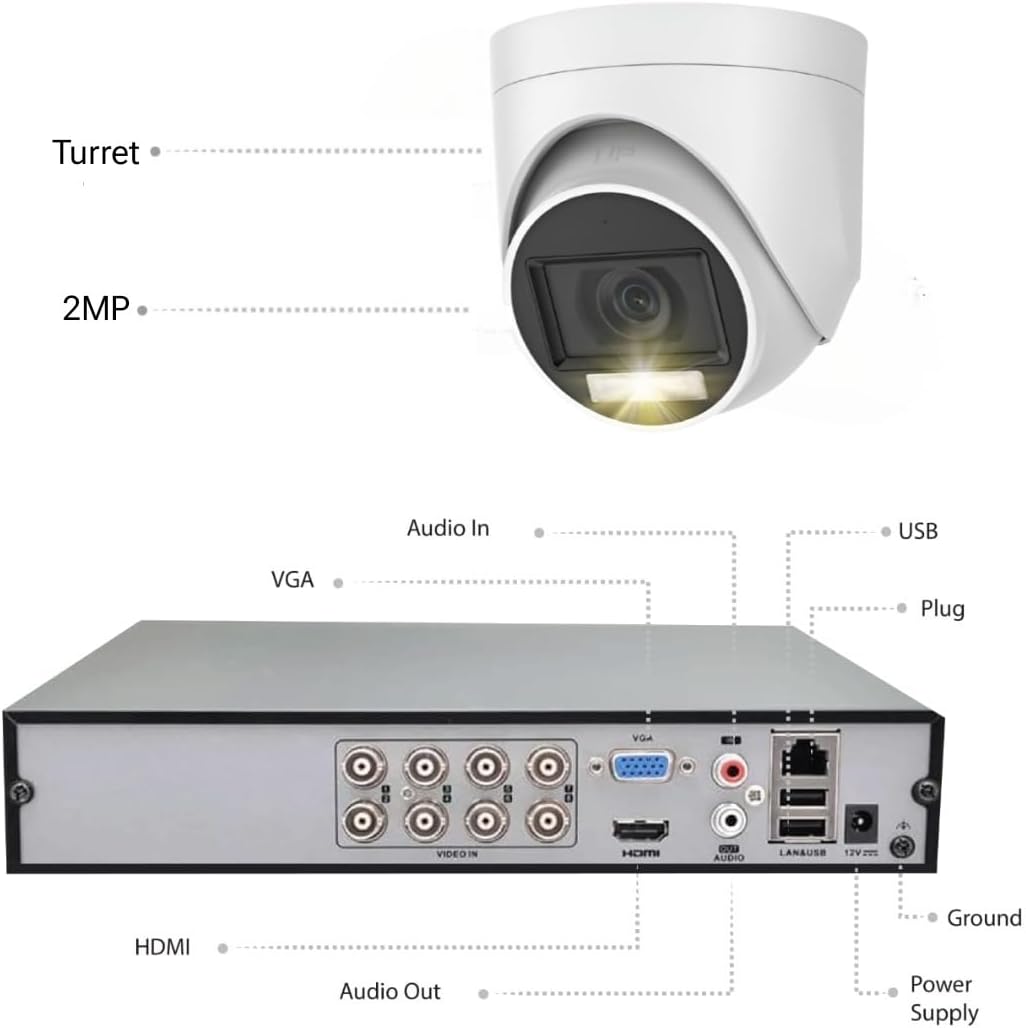
Figure 4.1: DVR and Camera Connection Diagram
This diagram illustrates the rear panel of the DVR, detailing various input/output ports such as Video In, HDMI, VGA, Audio In/Out, USB, LAN, and Power Supply. It also shows a camera labeled 'Turret' and '2MP', indicating its type and resolution.
DVR Ports:
- VIDEO IN: BNC ports for connecting cameras.
- HDMI: For connecting to an HDMI monitor or TV.
- VGA: For connecting to a VGA monitor.
- AUDIO IN/OUT: RCA ports for external audio devices.
- USB: For connecting a mouse, USB drive for backup, or external devices.
- LAN: Ethernet port for network connection.
- 12V DC: Power input for the DVR.
5. Setup Guide
5.1 Planning Your Installation
Before beginning installation, plan the camera locations to ensure optimal coverage and consider cable routing. Ensure cameras are placed within range of the 20m BNC cables provided.
5.2 Connecting the System
- Install Hard Drive (if not pre-installed): Open the DVR casing, secure the 1TB hard drive, and connect the SATA power and data cables.
- Connect Cameras: Connect one end of the 20m BNC cable to the camera's BNC port and the other end to a 'VIDEO IN' port on the DVR. Connect the camera's power cable to the 4-way splitter, then connect the splitter to the PSU.
- Connect Monitor: Connect a monitor to the DVR using either an HDMI or VGA cable.
- Connect Mouse: Plug the USB mouse into one of the DVR's USB ports.
- Network Connection: For remote access and updates, connect an Ethernet cable from the DVR's LAN port to your router.
- Power On: Connect the DVR's power adapter to the 12V DC input and then to a power outlet. The system will power on.
5.3 Initial Configuration
Upon first boot, the DVR will guide you through a setup wizard. This typically includes setting the language, date/time, network settings, and creating an administrator password. It is highly recommended to set a strong password immediately.
6. Operating the System
6.1 Local Operation (via Monitor and Mouse)
- Live View: The main screen displays live feeds from all connected cameras. You can switch between single-camera view or multi-camera grid view.
- Menu Navigation: Right-click anywhere on the live view screen to access the main menu. Use the mouse to navigate through options like Playback, Record, System Settings, etc.
- Playback: Select 'Playback' from the menu, choose the date and camera channel, and use the timeline to find recorded footage.
- Recording Settings: Configure continuous recording, motion-triggered recording, or scheduled recording via the 'Record' settings in the menu.
6.2 Remote Operation (Mobile App / PC Software)
For remote access, download the official HiLook Vision app from the Google Play Store or Apple App Store, or the client software for PC. Follow the in-app instructions to add your DVR using its serial number or QR code.

Figure 6.1: Monitor Your Property on Mobile Devices
This image displays various devices (smartphone, tablet, laptop, desktop) all showing the HiLook Vision app interface with live camera feeds, emphasizing the convenience of remote monitoring.
- Live View: Access real-time video streams from your cameras.
- Playback: Review recorded footage stored on the DVR.
- Notifications: Receive push notifications for motion detection or other alerts.
- Two-Way Audio: Utilize the built-in microphone and your device's speaker for two-way communication (if supported by camera and app).
7. Maintenance
- Cleaning: Regularly clean camera lenses with a soft, damp cloth to ensure clear image quality. Clean the DVR unit's vents to prevent dust buildup and overheating.
- Hard Drive Management: The DVR automatically manages hard drive space by overwriting the oldest footage when full. You can configure recording schedules and quality settings to optimize storage usage.
- Firmware Updates: Periodically check the HiLook official website for firmware updates for your DVR. Updates can improve performance, add features, and enhance security. Follow the provided instructions carefully for firmware upgrades.
- Password Security: Change your system passwords regularly and use strong, unique combinations to protect against unauthorized access.
8. Troubleshooting
| Problem | Possible Cause | Solution |
|---|---|---|
| No image on monitor | Loose video cable, incorrect input selected on monitor, DVR not powered on. | Check HDMI/VGA cable connections. Ensure monitor is on correct input. Verify DVR power. |
| No camera image | Loose BNC cable, camera not powered, faulty camera/cable. | Check BNC connections. Ensure camera power supply is connected. Test with a known working cable/camera if possible. |
| Cannot access remotely | No network connection, incorrect network settings, firewall blocking. | Verify DVR is connected to router. Check network settings on DVR. Ensure router firewall allows necessary ports (refer to app/DVR manual for specific ports). |
| No recording | Hard drive not initialized/formatted, recording schedule not set, hard drive full. | Check hard drive status in DVR settings. Initialize/format HDD if needed. Configure recording schedule. |
| Poor night vision | Infrared (IR) lights blocked, dirty lens, insufficient ambient light for color night vision. | Clear any obstructions from camera view. Clean the lens. Ensure sufficient ambient light for optimal color night vision performance. |
9. Specifications
| Feature | Detail |
|---|---|
| Model Number | DVR-208Q-M1+4CV-2MP+1TB |
| DVR Channels | 8-channel 3K Lite |
| Included Cameras | 4 x 2MP Full-Color Cameras |
| Video Capture Resolution | 1080p |
| Storage Included | 1TB Hard Drive |
| Max. Storage Capacity | Up to 10TB |
| Video Compression | H.265+ |
| Connectivity Technology | Wired (BNC) |
| Weatherproof Rating | IP66 |
| Special Features | Privacy Masking, Weatherproof IP66, Night Vision (Color at Night), Audio Recording, Vehicle Detection |
| Power Source | 12V DC (PSU included) |
| Product Dimensions (DVR) | 35 x 28 x 24 cm |
10. Warranty and Support
For warranty information, please refer to the specific terms and conditions provided at the time of purchase or contact your retailer. HiLook provides technical support for its products. For assistance, please visit the official HiLook website or contact their customer service department. Ensure you have your product model number and purchase details ready when seeking support.
For the latest software and firmware updates, please visit the official HiLook support page.