
1. Introduction
This manual provides comprehensive instructions for the installation, operation, and maintenance of your Camcamp SC36-ZSC 5MP POE Home Security Camera System. This system is designed to provide reliable surveillance with high-resolution video, advanced features, and stable wired connectivity.

Image 1.1: Overview of the Camcamp SC36-ZSC system components.
2. Product Overview
2.1 Package Contents
Verify that all items are present in your package:
- 4 x Camcamp 5MP POE PTZ Cameras
- 1 x 8-Channel 4K NVR (Network Video Recorder)
- 1 x 500GB Hard Disk Drive (pre-installed in NVR)
- 1 x Power Adapter for NVR
- 4 x Ethernet Cables (for cameras)
- 1 x USB Mouse
- Mounting Screws and Plugs
- Quick Start Guide
2.2 Key Features
- 5MP High-Resolution Cameras: Capture clear and detailed video footage.
- POE (Power over Ethernet) Connectivity: Single Ethernet cable for power and video transmission, ensuring stable connection.
- 8-Channel 4K NVR: Supports up to 8 cameras with 4K video output, expandable for additional cameras.
- Pan-Tilt-Zoom (PTZ) Technology: 360° horizontal rotation and 90° vertical tilt for comprehensive coverage.
- Auto Human Tracking: Smart PTZ automatically follows detected human movement.
- Full-Color Night Vision: Provides vivid, daytime-like clarity in low-light conditions up to 100ft.
- 2-Way Audio: Built-in microphone and speaker for real-time communication.
- AI Human Detection: Reduces false alarms by distinguishing human shapes from other moving objects.
- Siren & Strobe Alerts: Deter intruders with audible and visual warnings.
- 500GB HDD for 24/7 Recording: Local storage without monthly fees, expandable up to 6TB.
- IP66 Weatherproof: Cameras are designed for outdoor use in various weather conditions.
- Real-Time APP Alerts: Instant push notifications for suspicious activity via the mobile application.
3. Setup Guide
3.1 System Connection Diagram
Follow the diagram below to connect your NVR and cameras. The POE cameras receive power and transmit video data through a single Ethernet cable connected to the NVR's POE ports.

Image 3.1: Basic system connection for the Camcamp POE security system.
3.2 NVR Setup
- Connect Cameras: Connect each POE camera to an available POE port on the NVR using the provided Ethernet cables.
- Connect Monitor: Connect a monitor to the NVR's HDMI or VGA port.
- Connect Mouse: Plug the USB mouse into a USB port on the NVR for navigation.
- Connect to Network (Optional for Local View): For remote viewing and app access, connect the NVR's WAN port to your router using an Ethernet cable.
- Power On: Connect the NVR power adapter and plug it into an electrical outlet. The system will boot up automatically.

Image 3.2: NVR rear panel connections.
3.3 Camera Installation
The cameras are IP66 weatherproof and suitable for outdoor installation. Ensure cameras are mounted securely to a vertical surface, providing an optimal viewing angle. Avoid obstructions that may block the camera's field of view or night vision.

Image 3.3: Camcamp camera weatherproof rating and suitable environments.
4. Operating Instructions
4.1 Initial Setup and App Access
Upon first boot, the NVR will guide you through initial setup steps. For remote access and advanced features, download the "CloudEye 365" mobile application from your device's app store. Follow the in-app instructions to add your NVR system.

Image 4.1: Multi-device viewing capability.
4.2 Pan-Tilt-Zoom (PTZ) Control
The cameras feature PTZ functionality, allowing you to remotely adjust the camera's viewing angle. Use the NVR interface or the mobile app to control the camera's horizontal (pan) and vertical (tilt) movement, and to zoom in or out.

Image 4.2: Remote PTZ control via smartphone.
4.3 2-Way Audio
Utilize the built-in microphone and speaker on each camera for two-way communication. This feature allows you to speak to visitors or deter unwanted individuals directly through the camera.
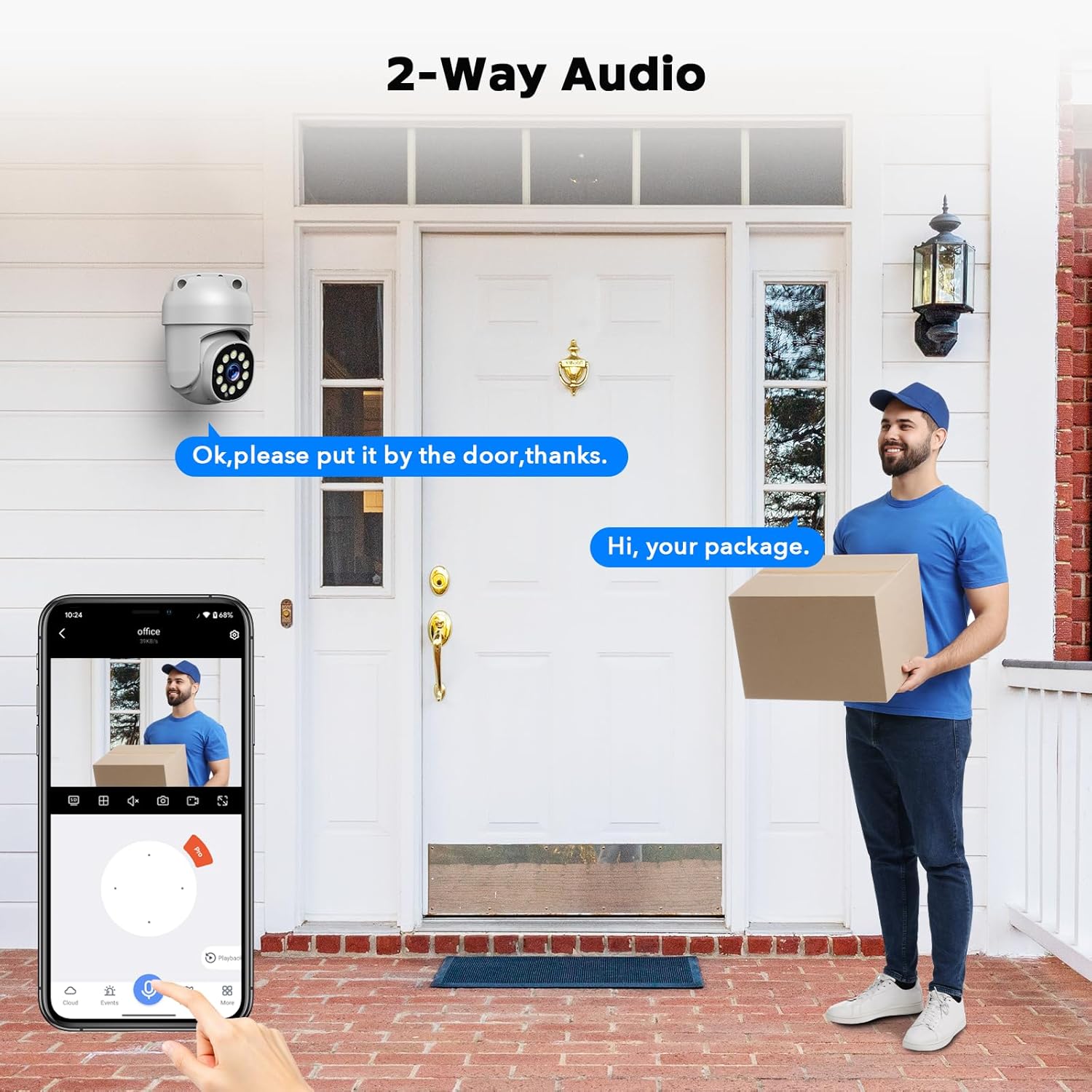
Image 4.3: Demonstrating 2-Way Audio functionality.
4.4 Recording and Playback
The system records 24/7 to the pre-installed 500GB HDD. You can access recorded footage through the NVR interface or the mobile app. The NVR supports continuous recording and event-triggered recording.

Image 4.4: Playback timeline on the NVR interface.
4.5 Motion Detection and Alerts
The system features AI Human Detection to accurately identify human figures, minimizing false alarms. When motion is detected, the system can trigger siren and strobe alerts, and send real-time push notifications to your mobile device.
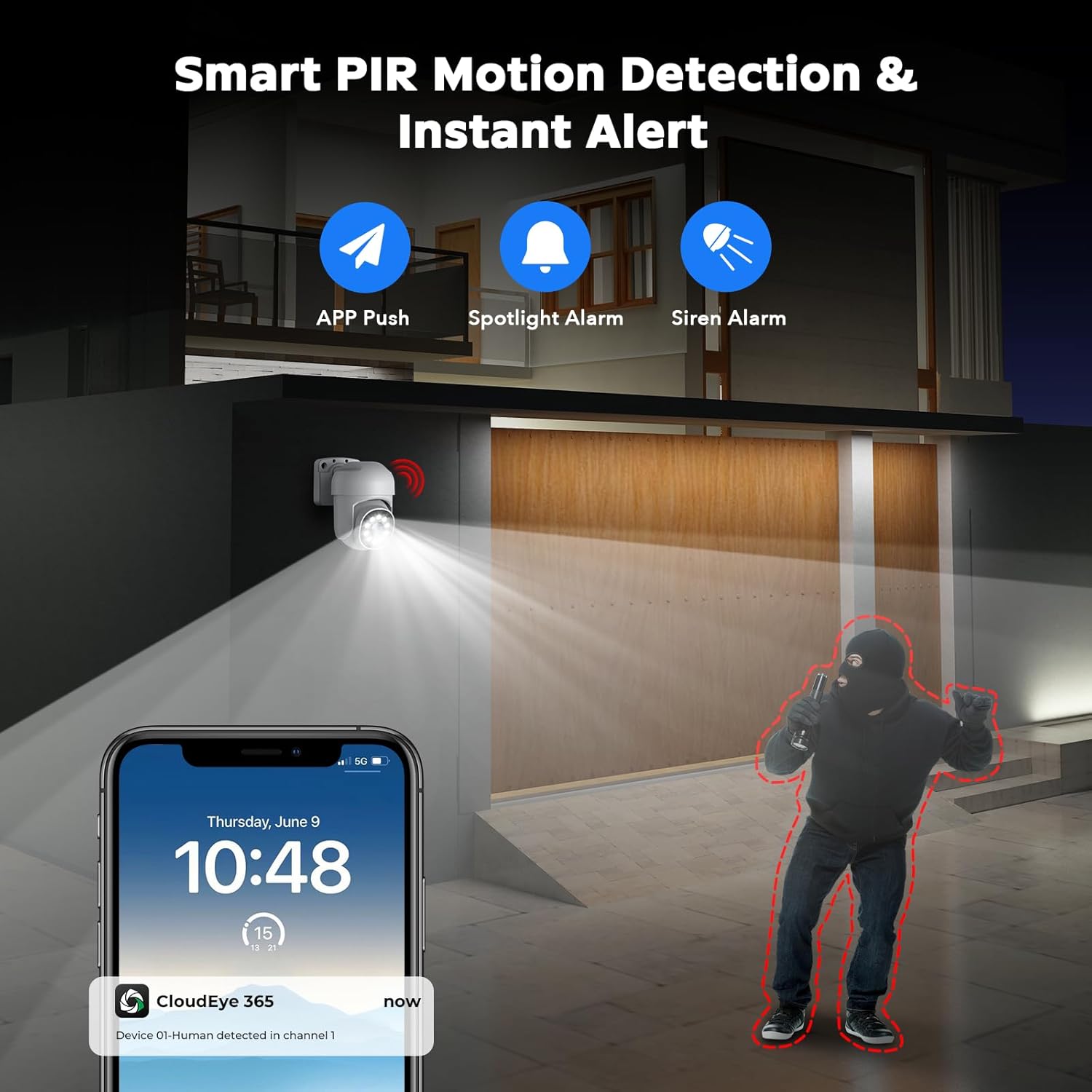
Image 4.5: Smart motion detection and alert features.
4.6 Night Vision
The cameras offer both infrared night vision and full-color night vision. Full-color night vision provides enhanced detail and clarity in low-light conditions, making it easier to identify objects and individuals.
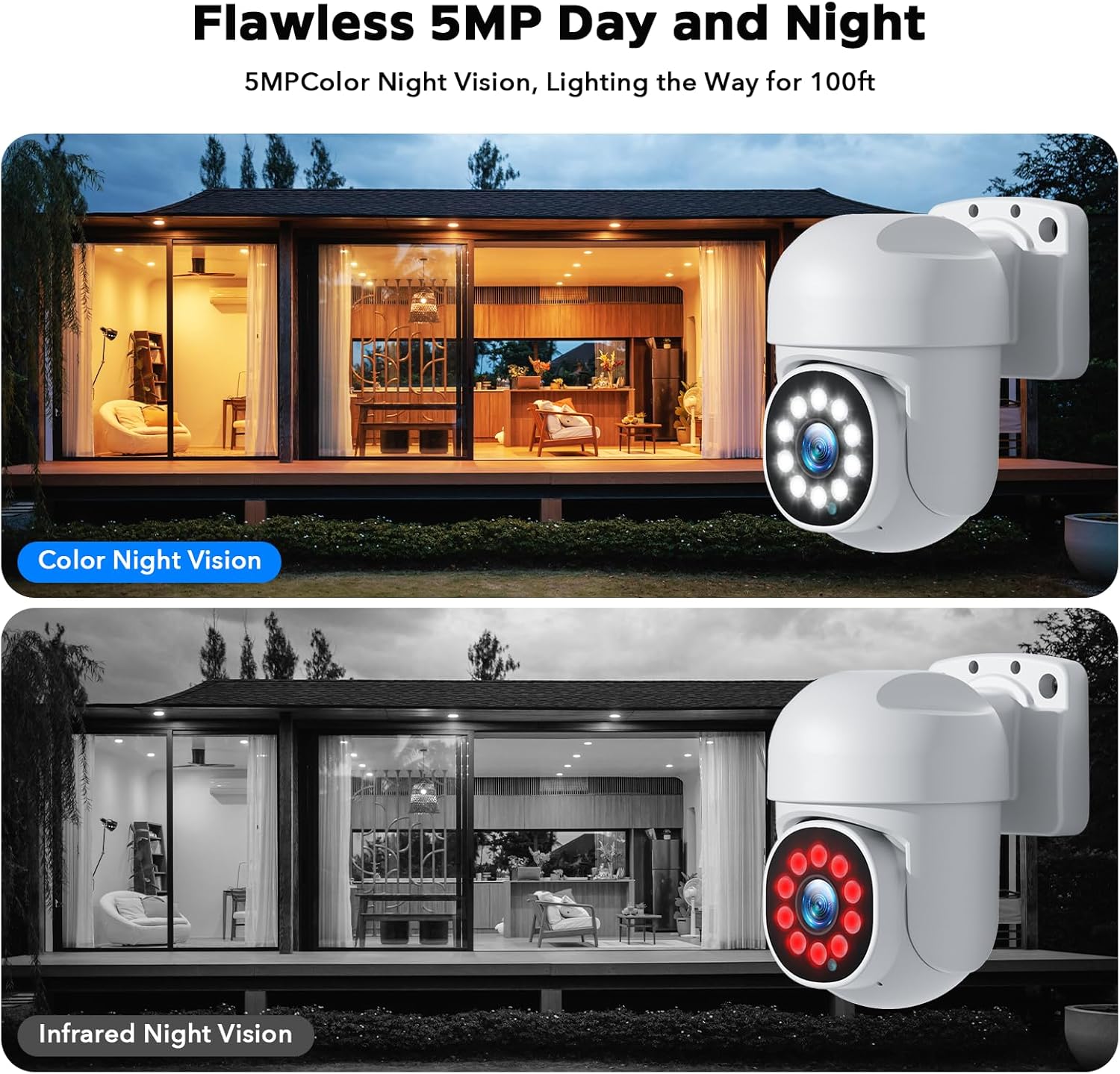
Image 4.6: Color Night Vision vs. Infrared Night Vision.
5. Maintenance
- Camera Cleaning: Periodically clean the camera lenses with a soft, damp cloth to ensure clear image quality. Avoid abrasive cleaners.
- Cable Inspection: Regularly check all cable connections for wear, damage, or loose connections, especially for outdoor installations.
- Firmware Updates: Check the manufacturer's website or the mobile app for available firmware updates to ensure optimal performance and security.
- HDD Management: The 500GB HDD will automatically overwrite the oldest footage when full. If you require longer retention, consider upgrading the HDD (up to 6TB supported) or backing up important footage.
6. Troubleshooting
6.1 No Video Display on Monitor
- Ensure the NVR is powered on and the power adapter is securely connected.
- Verify the HDMI/VGA cable is securely connected between the NVR and the monitor.
- Check if the monitor is set to the correct input source (HDMI/VGA).
- Try a different HDMI/VGA cable or monitor if available.
6.2 Cameras Not Showing Video
- Confirm that the Ethernet cables are securely connected to both the camera and the NVR's POE ports.
- Check the status indicator lights on the NVR's POE ports; they should indicate an active connection.
- Ensure the cameras are receiving power.
- Try connecting the camera to a different POE port on the NVR or using a different Ethernet cable.
6.3 Remote Access Not Working (Mobile App)
- Ensure the NVR is connected to your router via an Ethernet cable and has internet access.
- Verify your mobile device has a stable internet connection (Wi-Fi or cellular data).
- Confirm that the "CloudEye 365" app is updated to the latest version.
- Re-add the NVR to the app if connection issues persist.
- Check your router's firewall settings; ensure they are not blocking the NVR's connection.
6.4 Poor Night Vision Quality
- Clean the camera lens to remove any dirt or smudges.
- Ensure there are no obstructions directly in front of the camera that could reflect infrared light back into the lens.
- Check the camera's settings to ensure night vision mode is enabled and configured correctly (e.g., full-color night vision).
7. Specifications
| Feature | Specification |
|---|---|
| Model Name | SC36 |
| Camera Resolution | 5 Megapixels |
| NVR Channels | 8 Channels (4K Video Capture Resolution) |
| Storage | 500GB HDD (Expandable up to 6TB) |
| Connectivity | Wired POE |
| Night Vision | Full-Color Night Vision, 65-100 Feet Range |
| Viewing Angle | 360 Degrees (PTZ) |
| Special Features | 2-Way Audio, Auto Human Tracking, AI Human Detection, Siren Alarm, Strobe Alerts, IP66 Weatherproof |
| Frame Rate | 24, 25, or 30 FPS |
| Power Source | Corded Electric |
| Compatible Devices | Laptop, Personal Computers, Smartphone, Tablet, Television |
| Item Weight | 12.61 pounds |
| Product Dimensions | 1 x 1 x 1 inches (Individual Camera/NVR dimensions may vary) |
8. Warranty and Support
Camcamp provides the following support for your security system:
- 12-Month Warranty: Covers replacement for manufacturing defects.
- 30-Day Money Back Guarantee: For returns within 30 days of purchase.
- Lifetime Technical Support: Professional assistance for any technical issues.
For technical assistance or warranty claims, please contact Camcamp customer support:
- Phone: +1(626)420-9375 (9 AM - 5 PM GMT, Monday-Friday)
- Email: SC@yooomail.com
- Alternatively, contact via Amazon message.

Image 8.1: Camcamp customer support information.


