Introduction
This manual provides essential instructions for setting up, operating, maintaining, and troubleshooting your HP ProOne 245 G10 All-in-One PC. Please read this guide thoroughly to ensure proper use and to maximize the performance and longevity of your device. The HP ProOne 245 G10 is designed for efficiency and reliability, featuring an AMD Ryzen 3 7320U processor, 8GB DDR5 RAM, a 512GB SSD, and a 23.8-inch LED display running Windows 11 Home.
1. Setup
1.1 Unpacking the PC
Carefully remove all components from the packaging. Ensure the following items are present:
- HP ProOne 245 G10 All-in-One PC
- Power Adapter and Cable
- Wired Keyboard
- Wired Mouse
- Documentation (this manual, warranty information)

Figure 1: Front view of the HP ProOne 245 G10 All-in-One PC, showing the integrated display, webcam, and connected wired keyboard and mouse.
1.2 Connecting Peripherals
- Connect the Keyboard: Plug the USB connector of the keyboard into an available USB port on the back of the PC.
- Connect the Mouse: Plug the USB connector of the mouse into another available USB port on the back of the PC.
- Connect Power: Connect the power cable to the power adapter, then plug the adapter into the PC's power input port. Finally, plug the power cable into a wall outlet.
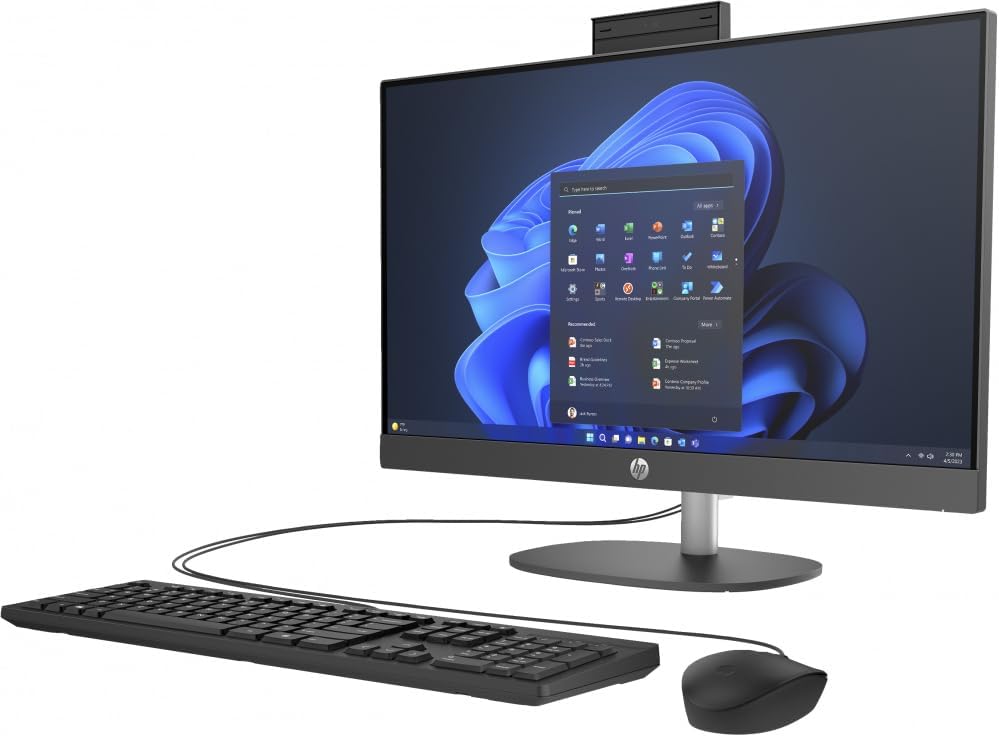
Figure 2: Angled view of the HP ProOne 245 G10 All-in-One PC, illustrating the side profile and connectivity options.
1.3 Initial Boot-Up
Press the power button, usually located on the side or bottom bezel of the display. The PC will power on, and the HP logo will appear. Follow the on-screen instructions to complete the Windows 11 Home setup process, which includes selecting your region, language, and creating a user account.
2. Operating Instructions
2.1 Basic Navigation (Windows 11)
The HP ProOne 245 G10 runs on Windows 11 Home. Familiarize yourself with the Start Menu (center of the taskbar), Taskbar, and File Explorer for managing applications and files.
2.2 Connecting to Wi-Fi
- Click the Network icon (Wi-Fi or Ethernet) on the right side of the Taskbar.
- Select the desired Wi-Fi network from the list.
- Click Connect and enter the network security key (password) if prompted.
2.3 Using USB Ports
Your PC includes USB 2.0 and USB 3.0 ports for connecting external devices such as USB drives, printers, and other peripherals. USB 3.0 ports offer faster data transfer speeds.
2.4 Adjusting Display Settings
To adjust brightness, resolution, or multiple display settings:
- Right-click on an empty area of the desktop and select Display settings.
- From here, you can modify various display options to suit your preferences.
3. Maintenance
3.1 Cleaning the PC
- Screen: Use a soft, lint-free cloth slightly dampened with water or a screen cleaner. Do not spray liquid directly onto the screen.
- Chassis: Wipe the exterior surfaces with a soft, dry cloth. Avoid abrasive cleaners.
- Vents: Periodically clean dust from the ventilation openings using compressed air to ensure proper airflow and prevent overheating.
3.2 Software Updates
Regularly update your Windows operating system and drivers to ensure optimal performance and security. Go to Settings > Windows Update to check for and install updates.
3.3 Data Backup
It is recommended to regularly back up your important data to an external drive or cloud storage to prevent data loss.
4. Troubleshooting
| Problem | Possible Solution |
|---|---|
| PC does not power on. | Ensure the power cable is securely connected to the PC and the wall outlet. Test the outlet with another device. |
| No display on screen. | Check power connection. Ensure the PC is powered on. If an external monitor is connected, ensure it's on and correctly configured. |
| Keyboard or mouse not responding. | Verify USB connections. Try plugging them into different USB ports. Restart the PC. |
| Slow performance. | Close unnecessary applications. Check for background updates. Run a disk cleanup. Ensure sufficient free space on the SSD. |
For more complex issues, refer to the HP support website or contact customer service.
5. Specifications
| Feature | Detail |
|---|---|
| Model | HP ProOne 245 G10 (9P7K6LA) |
| Processor | AMD Ryzen 3 7320U (up to 4.1 GHz) |
| Memory | 8GB DDR5 RAM |
| Storage | 512GB SSD |
| Display | 23.8-inch LED |
| Graphics | AMD Radeon Graphics (Integrated) |
| Operating System | Windows 11 Home (64-bit) |
| USB Ports | 1x USB 2.0, 1x USB 3.0 |
| Dimensions (Depth x Width x Height) | 45.6 x 17.6 x 63.5 cm |
| Weight | 11 kg |
6. Warranty and Support
Your HP ProOne 245 G10 PC comes with a standard manufacturer's warranty. For detailed information regarding warranty terms and conditions, please refer to the warranty document included with your product or visit the official HP support website.
HP Support Resources:
- Online Support: support.hp.com
- Drivers & Software: Download the latest drivers and software for your device.
- Troubleshooting Guides: Access a knowledge base for common issues and solutions.
- Contact Support: Find contact information for technical assistance.
Please have your product model number (9P7K6LA) and serial number ready when contacting support.