
Introduction
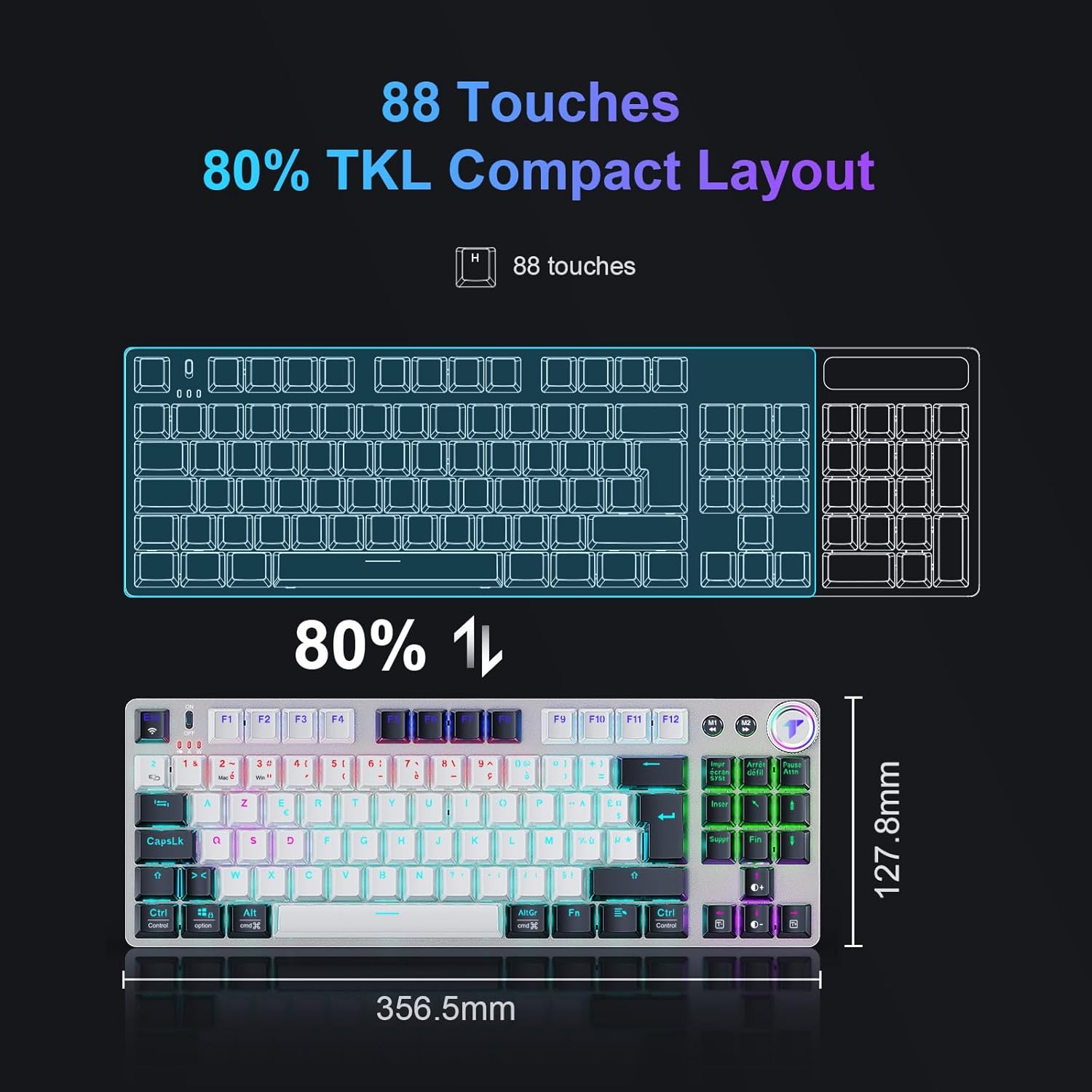
This manual provides detailed instructions for the TECURS MK208 Gaming Mechanical Keyboard. Please read this manual thoroughly before using the product to ensure proper operation and to maximize your gaming and typing experience. This keyboard features a compact 80% TKL layout, dual connectivity modes (2.4G wireless and wired USB-C), a multi-function rotary knob, and customizable RGB backlighting.
What's in the Box
Carefully unpack the box and ensure all items are present and in good condition. If any items are missing or damaged, please contact customer support.
- 1 x TECURS MK208 Mechanical Keyboard
- 1 x USB-C Cable
- 1 x 2.4G USB Receiver
- 1 x Keycap Puller
- 1 x User Manual (this document)

Setup
1. Connectivity Options
The TECURS MK208 keyboard supports two connection methods: 2.4G wireless and wired USB-C. Bluetooth connectivity is not supported.

2.4G Wireless Connection:
- Locate the 2.4G USB receiver in the packaging.
- Plug the 2.4G USB receiver into an available USB port on your computer or compatible device (PC, PS4, PS5, Xbox).
- Turn on the keyboard using the power switch, usually located on the back or side of the keyboard. The keyboard should automatically connect to the receiver.
Wired USB-C Connection:
- Connect one end of the provided USB-C cable to the USB-C port on the keyboard.
- Connect the other end of the USB-C cable to an available USB port on your computer or compatible device.
- The keyboard will function immediately in wired mode and will also charge its internal battery.
2. System Compatibility
The keyboard is fully compatible with Windows operating systems. It is partially compatible with Mac-OS systems. It can be used with PC, laptops, PlayStation 4, PlayStation 5, and Xbox consoles.
Operating Instructions
1. Dual-Mode Rotary Knob
The keyboard features a versatile rotary knob with two operational modes: Office Mode and Gaming Mode. This knob allows for quick adjustments of volume or backlighting.
Switching Modes:
Press and hold the rotary knob for 3 seconds to toggle between Office Mode and Gaming Mode.
Office Mode Functions:
- Rotate Clockwise: Increase volume.
- Rotate Counter-clockwise: Decrease volume.
- Press: Play/Pause media.
Gaming Mode Functions:
- Rotate Clockwise: Increase backlight brightness.
- Rotate Counter-clockwise: Decrease backlight brightness.
- Press: Cycle through backlight modes.
2. Backlighting
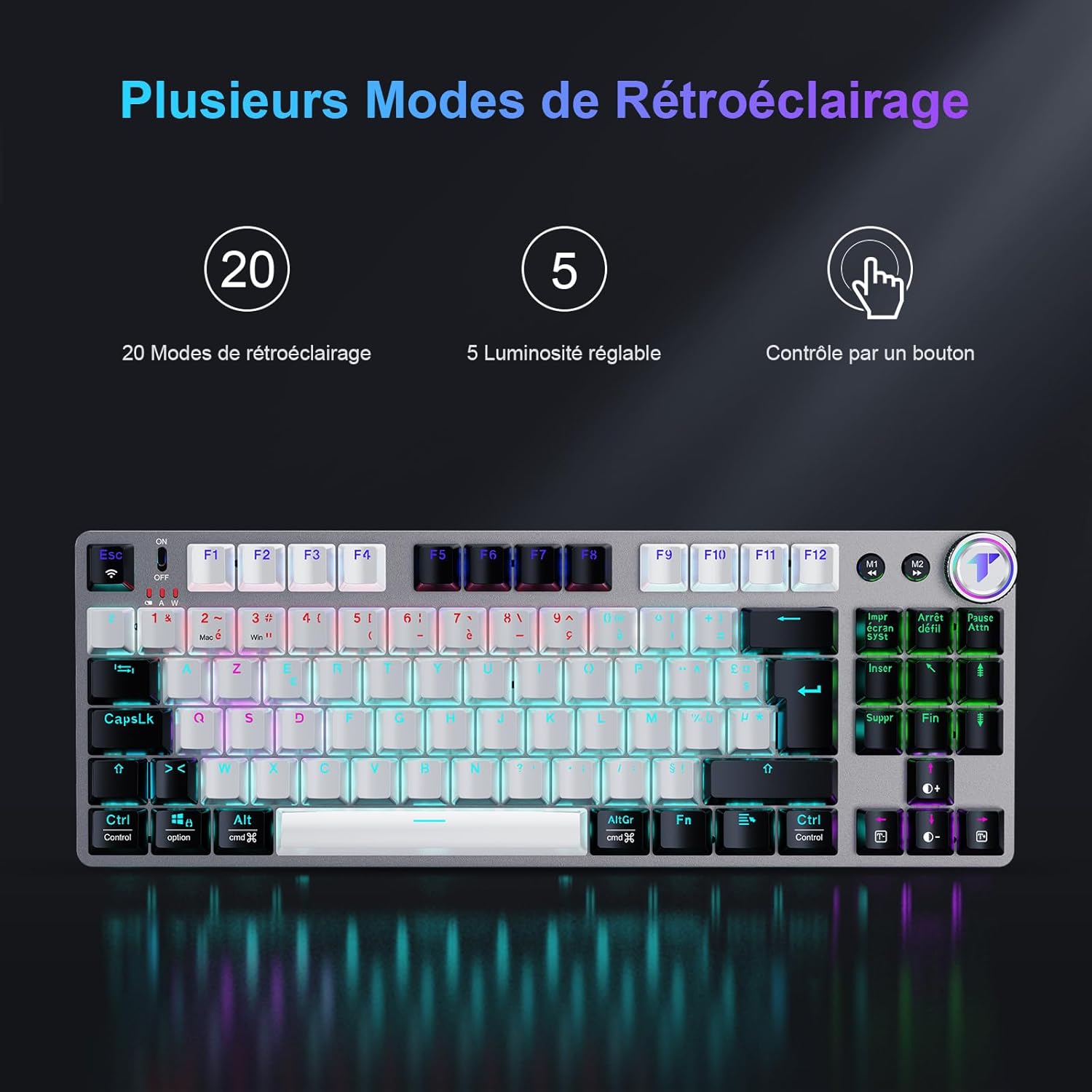
The keyboard features 20 different LED backlight modes and 5 adjustable brightness levels. While the backlight offers RGB effects, individual key colors cannot be customized.
Adjusting Backlight:
- Use the rotary knob in Gaming Mode to adjust brightness or change modes.
- Specific shortcut keys (e.g., Fn + arrow keys or dedicated lighting keys) may also be available for backlight control. Refer to the keyboard layout for exact key combinations.
3. Key Switches
The TECURS MK208 uses linear Red mechanical switches, designed for smooth and rapid key presses. These switches offer a lighter actuation force and softer feel, providing a responsive typing and gaming experience. They have a lifespan of 10 million keystrokes.

4. Anti-Ghosting
The keyboard supports multi-key input simultaneously without ghosting or conflicts, ensuring all key presses are registered accurately during intense gaming sessions.
5. Ergonomic Design
The keyboard features a fixed-height bottom support and an ergonomic typing angle (approximately 12 degrees) to reduce wrist fatigue during extended use, providing a comfortable typing experience.

Maintenance
1. Cleaning the Keyboard
- Disconnect the keyboard from your device before cleaning.
- Use the provided keycap puller to carefully remove keycaps for thorough cleaning.
- Wipe the keyboard surface with a soft, damp cloth. Avoid using harsh chemicals or abrasive materials.
- For dust and debris between keys, use compressed air or a soft brush.
- Ensure the keyboard is completely dry before reconnecting it.
2. Battery Care
- The keyboard is powered by a rechargeable battery. Charge it using the provided USB-C cable.
- Avoid fully discharging the battery frequently to prolong its lifespan.
- If storing the keyboard for an extended period, charge it to about 50% and store in a cool, dry place.
Troubleshooting
Keyboard Not Responding:
- Check Connection: Ensure the USB-C cable is securely connected or the 2.4G receiver is properly plugged in.
- Power Switch: Verify the keyboard's power switch is in the 'ON' position for wireless mode.
- Battery Level: If in wireless mode, ensure the battery is charged. Connect the USB-C cable to charge.
- Try Different Port/Device: Test the keyboard with a different USB port or another computer/device to rule out port or device issues.
2.4G Wireless Connection Issues:
- Receiver Placement: Ensure the 2.4G receiver is not obstructed and is within close proximity to the keyboard.
- Interference: Move away from other wireless devices that might cause interference.
- Re-pairing: Some keyboards may require re-pairing with the receiver. Refer to specific instructions if provided by TECURS for re-pairing.
Backlight Not Working or Incorrect:
- Brightness Level: Ensure the brightness is not set to the lowest level. Use the rotary knob in Gaming Mode or backlight shortcut keys to adjust.
- Mode Selection: Cycle through different backlight modes using the rotary knob or shortcut keys.
- Software: If applicable, check if any keyboard software is installed and configured correctly (though this model does not specify software).
Specifications
| Feature | Specification |
|---|---|
| Model Number | MK208 |
| Brand | TECURS |
| Connectivity | 2.4G Wireless, USB-C Wired |
| Key Type | Mechanical (Linear Red Switches) |
| Layout | 80% TKL, AZERTY (FR-Layout) |
| Number of Keys | 88 |
| Backlight | RGB (20 modes, 5 brightness levels, non-customizable individual key colors) |
| Special Features | Dual-Mode Rotary Knob, Anti-Ghosting, Ergonomic Design, Rechargeable |
| Compatible Devices | PC, Laptop, PlayStation 4, PlayStation 5, Xbox |
| Compatible OS | Windows (fully), Mac-OS (partially) |
| Material | Plastic |
| Color | Black White |
Warranty
The TECURS MK208 Gaming Mechanical Keyboard comes with a standard manufacturer's warranty. Please refer to the warranty card included in your package or contact TECURS customer support for detailed information regarding warranty terms and conditions.
Support
For technical assistance, troubleshooting, or any questions regarding your TECURS MK208 keyboard, please contact TECURS customer support through their official website or the contact information provided with your purchase. Please have your model number (MK208) and purchase details ready when contacting support.


