1. Introduction
This manual provides comprehensive instructions for the setup, operation, and maintenance of your KUYHRF Wireless Keyboard with Touchpad. Please read this manual carefully before using the product to ensure proper functionality and longevity.

Image 1.1: The KUYHRF Wireless Keyboard with Touchpad in light blue, showcasing its compact design and round keycaps.
2. Package Contents
Before you begin, please verify that all items are present in your package:
- KUYHRF Wireless Keyboard with Touchpad
- Instruction Manual (this document)
- Charging Cable
3. Setup and Charging
3.1 Initial Charging
The keyboard has a built-in rechargeable battery. For optimal performance, fully charge the keyboard before first use.
- Connect the provided charging cable to the charging port on the keyboard.
- Connect the other end of the charging cable to a USB power source (e.g., computer USB port, USB wall adapter).
- The charging indicator light will illuminate. Once fully charged (approximately 3-4 hours), the indicator light may change or turn off.
A full charge can provide approximately 30 days of standby time. It is recommended to charge the keyboard once a month with regular use.
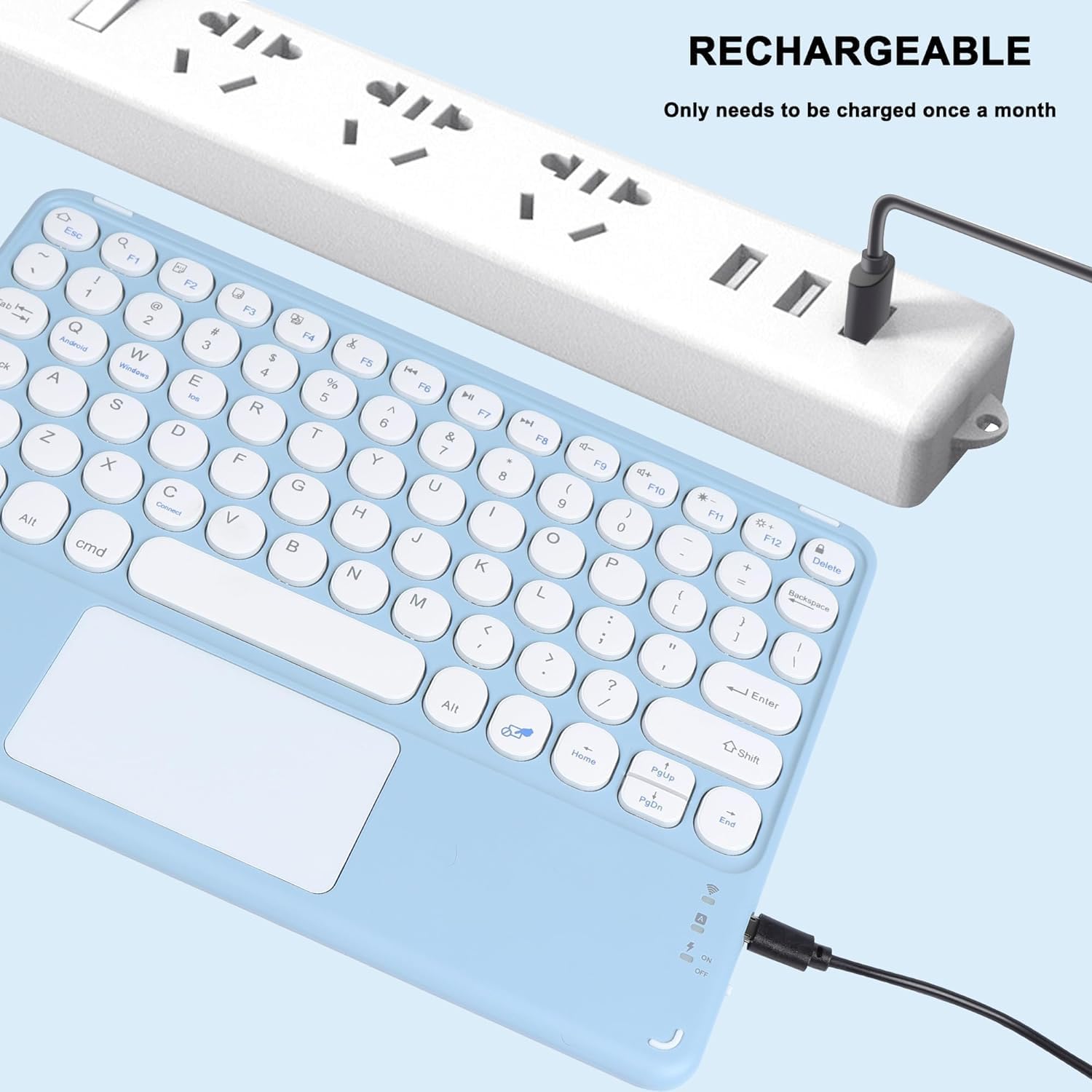
Image 3.1: The keyboard connected via its charging cable to a power source, illustrating the charging process.
3.2 Powering On/Off
Locate the power switch on the side of the keyboard. Slide the switch to the "ON" position to power on the keyboard. Slide it to "OFF" when not in use to conserve battery.
3.3 Bluetooth Pairing
The keyboard connects wirelessly via Bluetooth and is compatible with most computers, mobile phones, and tablets supporting Bluetooth across iOS, Mac OS, Windows, and Android systems.
- Ensure the keyboard is powered on.
- Press the "Connect" button (often labeled with a Bluetooth icon or "C") on the keyboard. The Bluetooth indicator light will start blinking, indicating it is in pairing mode.
- On your device (tablet, smartphone, computer), go to Bluetooth settings.
- Search for available Bluetooth devices. You should see "Bluetooth Keyboard" or a similar name appear in the list.
- Select the keyboard from the list to initiate pairing. Your device may prompt you to enter a code displayed on the screen using the keyboard, then press Enter.
- Once paired, the Bluetooth indicator light on the keyboard will stop blinking and remain solid or turn off, indicating a successful connection.

Image 3.2: The keyboard demonstrating compatibility with a range of devices such as tablets, smartphones, and laptops.
4. Operating Instructions
4.1 Basic Keyboard Use
The keyboard features a standard QWERTY layout with round keycaps designed for comfortable typing. Simply type as you would on a traditional keyboard.

Image 4.1: A user's hands positioned for typing on the keyboard, illustrating the comfortable key spacing and feel.
4.2 Touchpad Functions
The integrated touchpad allows for mouse-like navigation without the need for an external mouse. It supports standard gestures.
- Single Finger Tap: Left-click.
- Two Finger Tap: Right-click (may vary by operating system).
- Two Finger Scroll: Scroll up or down.
- Touchpad Lock: The keyboard is equipped with a dedicated button to enable or disable the touchpad. This prevents accidental touches while typing. Locate the touchpad lock key (often indicated by a touchpad icon with a line through it) and press it to toggle the touchpad on or off.

Image 4.2: A detailed view of the integrated touchpad on the keyboard, showing its position below the keys.
4.3 Multimedia and Function Keys
The keyboard includes multi-function keys (F1-F12) that can perform various tasks such as adjusting volume, controlling media playback, and screen brightness. These functions may require pressing the Fn key simultaneously with the desired function key. Note that specific shortcut key availability may vary depending on the operating system (iOS, Mac OS, Windows, Android).
4.4 Magnetic Attachment
The bottom of the keyboard features a magnetic design, allowing it to be securely attached to compatible tablet cases or surfaces. This provides stability during use and convenient storage.

Image 4.3: The keyboard's magnetic bottom attaching to a tablet case, demonstrating its secure fit.
5. Maintenance
5.1 Cleaning
To clean the keyboard, gently wipe the surface with a soft, damp cloth. Avoid using harsh chemicals or abrasive materials, as these can damage the finish. Ensure the keyboard is powered off before cleaning.
5.2 Storage
When not in use for extended periods, store the keyboard in a cool, dry place. It is advisable to fully charge the battery before long-term storage and to periodically recharge it to maintain battery health.
6. Troubleshooting
- Keyboard not connecting via Bluetooth:
- Ensure the keyboard is powered on and fully charged.
- Make sure Bluetooth is enabled on your device.
- Put the keyboard into pairing mode by pressing the "Connect" button.
- Forget the device from your device's Bluetooth settings and attempt to re-pair.
- Ensure the keyboard is within the 10m (33 feet) Bluetooth range.
- Restart both the keyboard and your device.
- Keys not responding or delayed input:
- Check battery level and charge if necessary.
- Ensure the keyboard is properly connected via Bluetooth.
- Avoid using the keyboard on metallic surfaces that might interfere with the wireless signal.
- Touchpad not working or too sensitive:
- Ensure the touchpad lock function is not activated. Press the touchpad lock key to toggle its status.
- Check your device's operating system settings for touchpad sensitivity adjustments.
- Restart the keyboard and your device.
- Short battery life:
- Ensure the keyboard is fully charged before use.
- The keyboard enters automatic sleep mode after 10 minutes of inactivity to conserve power. Press any key to wake it up.
- Turn off the keyboard when not in use for extended periods.
7. Specifications
| Feature | Detail |
|---|---|
| Model | B0CXSMPVHC |
| Dimensions | 9.56 x 6.69 x 0.29 inches (243 x 170 x 7 mm) |
| Weight | 7.68 ounces (218g) |
| Connectivity | Bluetooth |
| Operating Range | Up to 10 meters (33 feet) |
| Battery Type | 1 Lithium Metal battery (included) |
| Charging Time | Approximately 3-4 hours |
| Standby Time | Up to 30 days |
| Automatic Sleep | After 10 minutes of inactivity |
| Material | Plastic (bottom made of aluminum alloy for magnetic attachment) |
| Special Features | Integrated Touchpad, Magnetic Bottom, Compact and Lightweight, Rechargeable, Circular Keycap Design, Multi-function keys |
| Compatible OS | iOS, Mac OS, Windows, Android |

Image 7.1: A visual representation of the keyboard's dimensions and its ultra-thin profile, highlighting its portability.
8. Warranty and Support
8.1 Warranty Information
For specific warranty details regarding your KUYHRF Wireless Keyboard with Touchpad, please refer to the product packaging or contact the manufacturer directly. Warranty terms may vary based on region and retailer.
8.2 Customer Support
Should you encounter any issues or have questions not covered in this manual, please contact KUYHRF customer service. The manufacturer is committed to providing satisfactory support both before and after sales.
Contact information can typically be found on the product packaging or the official KUYHRF website.