
1. Introduction
The BOXPUT P30 Mini Projector is a portable and versatile device designed for home entertainment and presentations. Featuring Android 11.0 OS, dual-band WiFi 6, and Bluetooth 5.4, it offers seamless connectivity and access to a wide range of applications. Its 180° rotatable design and automatic keystone correction provide flexible projection options, while its 720P native resolution with 4K decoding support ensures clear and vibrant images.
This manual provides essential information for setting up, operating, maintaining, and troubleshooting your P30 Mini Projector to ensure optimal performance and longevity.
2. Package Contents
Please verify that all items listed below are included in your package. If any items are missing or damaged, please contact customer support.
- Mini Projector *1
- IR Remote Control *1
- AC Power Cable *1
- User Manual

Image: Contents of the P30 Mini Projector package, showing the projector, remote control, power cable, and user manual.
3. Setup
3.1 Physical Setup
Place the projector on a stable, flat surface. Ensure there is adequate ventilation around the device to prevent overheating. The projector features a 180° rotatable design, allowing you to adjust the projection angle to various surfaces, including walls and ceilings.

Image: The BOXPUT P30 Mini Projector, illustrating its compact and rotatable design.

Image: Product size chart and port layout, detailing HDMI, USB, AUX, and IR connections.
3.2 Power Connection and Initial Boot
Connect the AC power cable to the projector's power input port and then to a power outlet. Press the power button on the projector or the remote control to turn on the device. The projector will boot up, displaying the Android 11.0 interface.
Video: An unboxing and initial setup demonstration of the P30 Mini Projector, showing the power-on sequence and the display of the Android interface.
3.3 Focus and Keystone Correction
Adjust the focus manually using the focus ring on the projector until the image is clear. The P30 Mini Projector supports automatic keystone correction, which will automatically adjust the image to a correct rectangular shape even if the projector is placed at an angle. Manual adjustments can also be made if needed.

Image: Demonstration of the automatic keystone correction feature, showing a distorted image being corrected to a proper rectangular display.
4. Operating Instructions
4.1 Android 11.0 OS and Wi-Fi Connectivity
The projector runs on Android 11.0, providing access to over 4,000 applications. Connect to your home network using the built-in dual-band Wi-Fi 6 for a smooth and lag-free online experience. Navigate the interface using the provided IR remote control.

Image: The projector displaying its Android 11.0 interface, showcasing various streaming and application options.
4.2 Screen Mirroring
Easily mirror content from your iPhone, Android phone, or tablet via Wi-Fi. This feature allows you to project your mobile device's screen for larger viewing.

Image: The projector demonstrating convenient screen mirroring capabilities with various mobile devices.
4.3 Projection Distance and Screen Size
The optimal projection distance varies depending on the desired screen size. Refer to the following guidelines for best results:
- 0.5m for 20" screen
- 1.3m for 50" screen
- 2.4m for 90" screen
- 3.6m for 120" screen
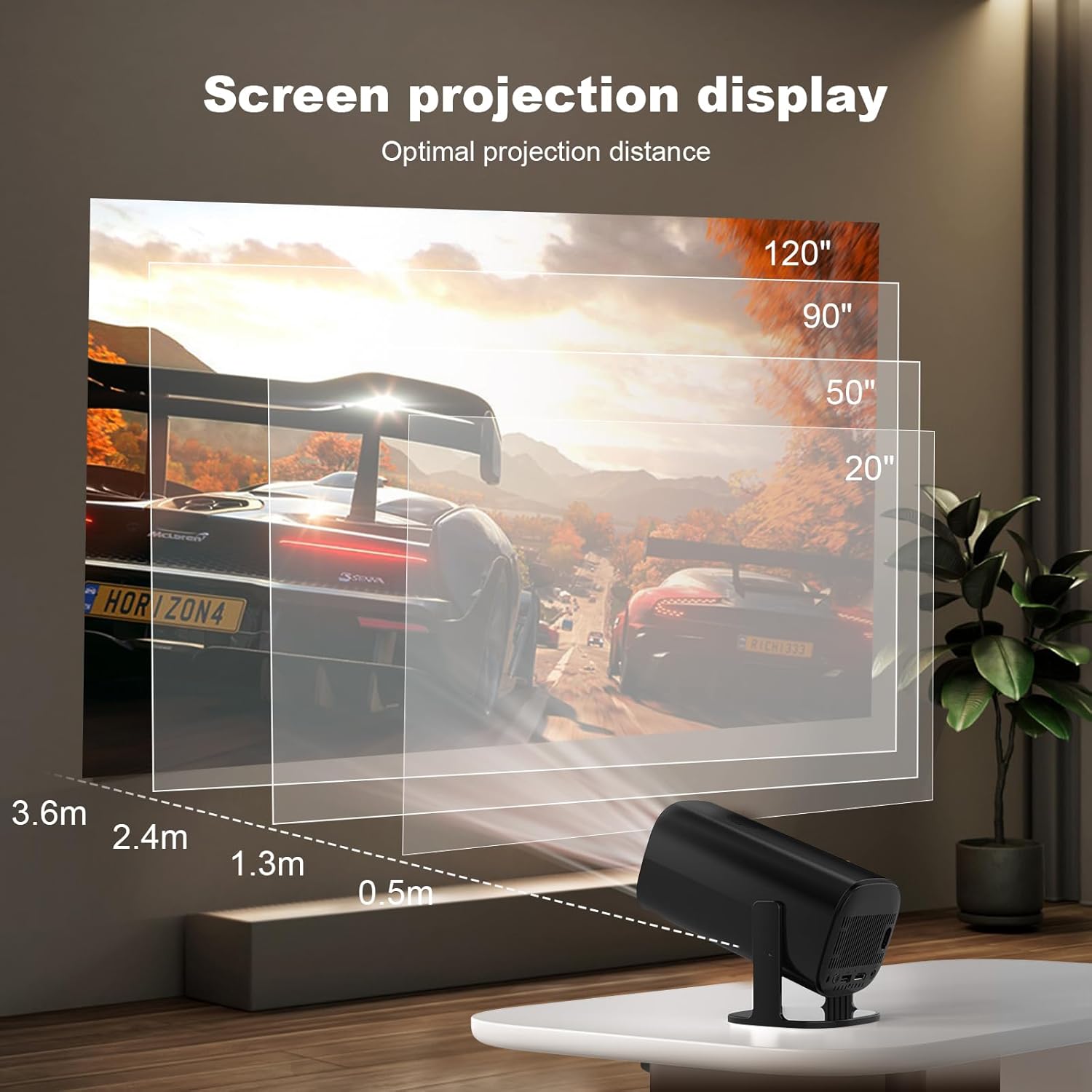
Image: A visual guide to screen projection display, showing recommended distances for different screen sizes.
4.4 Bluetooth Audio Connection
Connect external audio devices such as headphones or speakers via Bluetooth 5.4 for an enhanced audio experience. This is ideal for outdoor movie nights or private listening.
4.5 Picture Quality and 4K Decoding
The projector offers a native resolution of 1280x720P and supports 4K video decoding, delivering impressive picture quality with vivid colors and a contrast ratio of 1000:1.

Image: The projector's display quality, highlighting its support for 4K video decoding and 1280x720P output.
5. Maintenance
Proper maintenance ensures the longevity and performance of your P30 Mini Projector.
- Cleaning: Use a soft, dry cloth to clean the exterior of the projector. For the lens, use a specialized lens cleaning cloth and solution. Avoid abrasive cleaners or solvents.
- Ventilation: Ensure the ventilation openings are not blocked. Do not place the projector on soft surfaces that may obstruct airflow.
- Storage: When not in use for extended periods, store the projector in a cool, dry place, away from direct sunlight and extreme temperatures.
- Light Source Life: The projector's light source has a life expectancy of up to 30,000 hours.
6. Troubleshooting
If you encounter issues with your P30 Mini Projector, refer to the following common problems and solutions:
- No Power: Ensure the power cable is securely connected to both the projector and the power outlet. Try a different power outlet.
- No Image: Check if the projector is powered on. Verify the input source is correctly selected (e.g., HDMI, USB, or screen mirroring). Ensure the lens cap is removed.
- Blurry Image: Adjust the manual focus ring on the projector. Ensure the projection surface is flat and the projector is within the optimal projection distance. Automatic keystone correction should help, but manual adjustment might be needed.
- No Sound: Check the volume settings on the projector and any connected audio devices. If using Bluetooth, ensure the device is properly paired and connected.
- Wi-Fi Connectivity Issues: Ensure the Wi-Fi network is active and within range. Re-enter the Wi-Fi password if necessary. Restart the projector and your router.
- Low Noise: The projector operates at a low noise level (below 25dB), which is normal.

Image: The P30 Mini Projector operating with low noise, suitable for quiet environments.
For persistent issues not covered here, please refer to the Warranty and Support section.
7. Specifications
| Feature | Specification |
|---|---|
| Brand | BOXPUT |
| Model Number | P30 |
| Item Weight | 2.11 pounds |
| Product Dimensions | 5.27 x 5.46 x 9.36 inches |
| Color | Black |
| Display Resolution | 1280 x 720 (Native) |
| Connectivity Technology | Wireless (Wi-Fi 6, Bluetooth 5.4) |
| Operating System | Android 11.0 |
| Special Features | Built-In Wi-Fi, Portable, Wireless, Auto Keystone, 180° Rotatable |
| Recommended Uses | Home Cinema, Indoor/Outdoor |
| Light Source Life | Up to 30,000 hours |
8. Warranty and Support
BOXPUT offers a 1-year product warranty and a 100% satisfaction guarantee for the P30 Mini Projector. If you encounter any problems while using the product or require technical assistance, please do not hesitate to contact our customer support team.
For more information and support, you can visit the official BOXPUT store on Amazon: BOXPUT Store.