
1. Introduction
Thank you for choosing the AODK 55-Inch Computer Gaming Desk. This desk is designed to enhance your gaming and work experience with features such as integrated LED lighting, a built-in power outlet, versatile storage shelves, and a reversible configuration. This manual provides essential information for safe assembly, proper operation, and effective maintenance of your new desk.
2. Safety Information
- Read all instructions carefully before assembly and use.
- Keep all packaging materials away from children to prevent choking hazards.
- Assemble the desk on a soft, clean surface to prevent scratches.
- Ensure all screws and fasteners are securely tightened before use. Periodically check and re-tighten as necessary.
- Do not overload the desk or shelves. Refer to the specifications for weight capacities.
- Keep liquids away from electrical components, including the power outlet and LED lights.
- Do not modify the desk or its components. Use only original parts.
- Place the desk on a stable, level surface.
3. Package Contents
Verify that all components are present before beginning assembly. If any parts are missing or damaged, please contact customer support.
- Desktop Panels (Main, Monitor Shelf, Side Shelf)
- Desk Frame Components (Legs, Support Bars)
- Built-in Power Outlet with 3 AC outlets and 2 USB ports
- RGB LED Light Strip with Controller
- Headphone Hook
- Assembly Hardware (Screws, Allen Wrench, etc.)
- Instruction Manual
4. Setup and Assembly
Assembly of the AODK Computer Gaming Desk is designed to be straightforward. All necessary tools are included. Please follow the step-by-step instructions provided in the separate assembly guide included in your package. Pay close attention to the orientation of parts, especially for the reversible storage shelf.
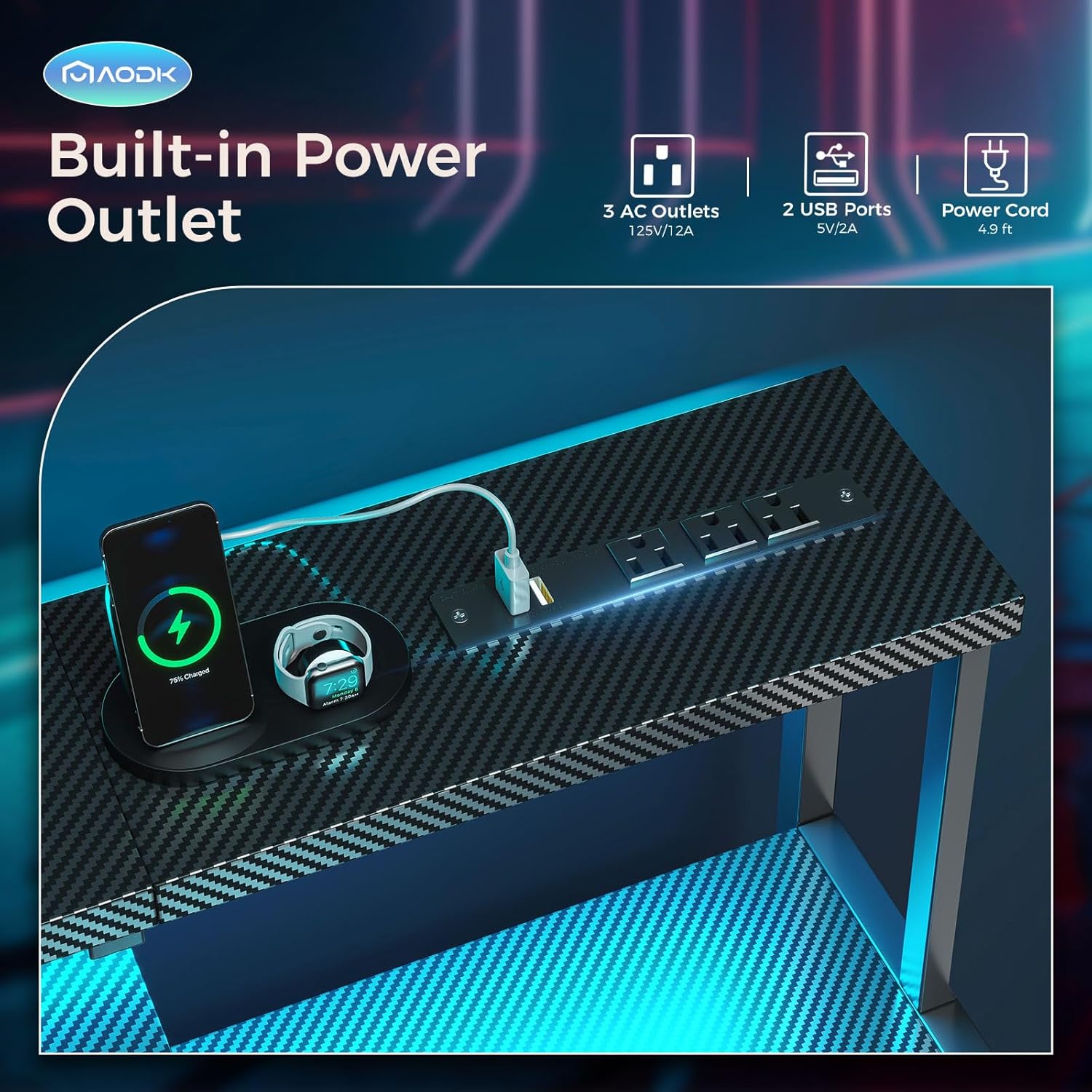
Figure 4.1: Product dimensions and reversible design illustration. The side storage shelf can be installed on either the left or right side.

Figure 4.2: Visual representation of the reversible storage shelf configuration.
Assembly Tips:
- Identify all parts and hardware before starting.
- Do not fully tighten screws until all components are loosely assembled. This allows for minor adjustments.
- For the reversible storage shelf, decide on your preferred left or right orientation before securing the frame.
Video 4.1: Detailed assembly guide for the AODK Computer Gaming Desk. This video demonstrates the step-by-step process of putting the desk together, including frame construction and component attachment.
5. Operating Instructions
5.1. LED Lights Operation
The desk features an integrated RGB LED light strip under the monitor shelf, offering customizable lighting options.

Figure 5.1: LED Light Strip Controller.
- Static Color Button (C): Press once to switch to static color mode. Each subsequent press cycles through 10 different static colors.
- Dynamic Mode Button (M): Press once to switch to dynamic effect mode. Each subsequent press cycles through 10 different dynamic lighting modes. Press and hold for 3 seconds to enter demo mode, which automatically cycles through various dynamic modes.
- Speed & Brightness & Power Button (S/B):
- In static mode, press to adjust brightness levels.
- In dynamic mode, press to adjust dynamic mode speed.
- Press and hold to turn off the LED strip. Press briefly to turn it on.
The LED strip has a power-off memory function, restoring the last color, brightness, and mode upon next power-on.

Figure 5.2: Desk with RGB LED lights activated.
5.2. Built-in Power Outlet
The desk includes a power strip with 3 AC outlets (125V/12A) and 2 USB ports (5V/2A) for convenient charging and powering of your devices.

Figure 5.3: Built-in power outlet with AC and USB ports.
- Plug the desk's main power cord into a wall outlet.
- Use the AC outlets for standard electronics and the USB ports for charging smartphones, tablets, or other USB-powered devices.
- Do not exceed the maximum electrical load of 12A.
5.3. Reversible & Adjustable Storage Shelf
The side storage shelf can be configured on either the left or right side of the desk during assembly. Additionally, the upper shelf within this unit is adjustable to two different heights.
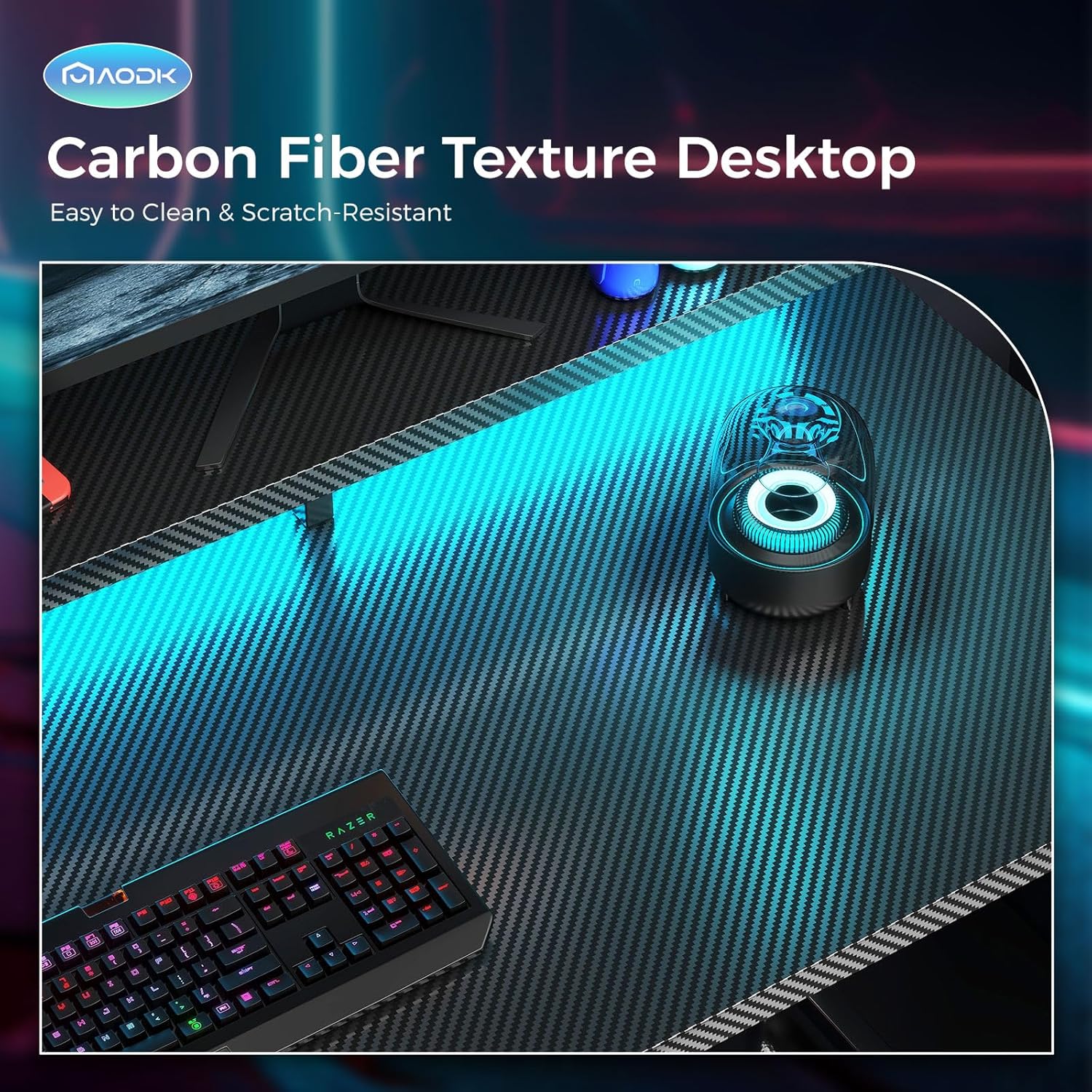
Figure 5.4: Adjustable height of the storage shelf.
- To adjust the shelf height, carefully remove the shelf and reposition the support pins to the desired height. Ensure the shelf is securely seated on all four pins before placing items on it.
- This feature allows accommodation for items such as a large printer, scanner, or a tall CPU tower.
5.4. Full Desktop Monitor Shelf
The desk includes a full-length monitor shelf that provides an elevated surface for monitors, promoting a comfortable viewing angle and reducing neck and back strain. It also offers additional space for small decorative items or accessories.

Figure 5.5: Full desktop monitor shelf in use.
5.5. Headphone Hook
A convenient headphone hook is located on the side of the desk, providing a dedicated spot to hang your headphones and keep your workspace tidy.

Figure 5.6: Headphone hook for organized storage.
Video 5.1: Overview of AODK desk features, including LED lights, power outlet, and storage options.
6. Maintenance
- Cleaning: Wipe the carbon fiber textured tabletop and metal frame with a soft, damp cloth. Avoid abrasive cleaners or harsh chemicals that may damage the finish.
- Spills: Immediately wipe up any spills to prevent damage to the surface or electrical components.
- Fasteners: Periodically check all screws and bolts to ensure they remain tight. Re-tighten as needed to maintain stability.
- Electrical Components: Ensure the power cord and LED light connections are not pinched or damaged. Do not attempt to repair electrical components yourself.
7. Troubleshooting
| Problem | Possible Cause | Solution |
|---|---|---|
| Desk is wobbly or unstable. | Loose fasteners; uneven floor. | Ensure all screws are tightened. Adjust leveling feet if present, or place shims under legs on uneven surfaces. |
| LED lights are not working. | Power connection issue; controller malfunction. | Check if the LED strip is properly connected to the power source and the controller. Ensure the desk's main power is connected. Try pressing the power button on the controller. |
| Power outlets/USB ports are not working. | Desk not plugged in; circuit overload. | Verify the desk's main power cord is securely plugged into a functional wall outlet. Check if the total power draw exceeds the 12A limit. Try plugging a different device into the outlet to confirm functionality. |
| Parts do not align during assembly. | Incorrect orientation of parts; screws overtightened prematurely. | Review the assembly instructions carefully for correct part orientation. Loosen all screws, adjust alignment, then gradually tighten. |
8. Specifications
| Feature | Detail |
|---|---|
| Brand | AODK |
| Model | 55 Inch Computer Gaming Desk |
| Product Dimensions (D x W x H) | 18.9" x 55" x 34.2" |
| Color | Carbon Fiber Black |
| Top Material Type | Carbon Fiber (Laminated) |
| Base Material | Metal |
| Special Features | Built-In USB Outlet, Monitor Stand, Reversible Storage Shelf, Headphone Hook, LED Lights |
| Power Outlet | 3 AC Outlets (125V/12A), 2 USB Ports (5V/2A) |
| LED Lights | 10 Static Colors, 10 Dynamic Modes |
| Number of Shelves | 1 (Adjustable) |
| Item Weight | 31.3 Pounds |
| Required Assembly | Yes |
| UPC | 850061908513 |
| ASIN | B0CXPNNDN9 |
9. Warranty Information
This AODK product comes with a limited warranty. Please refer to the warranty card included in your package for specific terms, conditions, and duration of coverage. The warranty typically covers manufacturing defects and material flaws under normal use.
10. Customer Support
For any questions, concerns, or assistance with your AODK Computer Gaming Desk, please contact our customer support team. Refer to the contact information provided in your product packaging or visit the official AODK website for support resources.
When contacting support, please have your model number (55 Inch Carbon Fiber Black) and ASIN (B0CXPNNDN9) ready for quicker service.