
1. Introduction
This manual provides detailed instructions for the installation, operation, and maintenance of your cenmate 4 Bay Hard Drive Enclosure. This device is designed to house up to four 2.5-inch or 3.5-inch SATA HDDs/SSDs, providing external storage with high-speed data transfer capabilities. It supports a maximum total capacity of 80TB (20TB per drive) and connects via USB 3.0 or eSATA. This enclosure does not support RAID or NAS functionalities.

Image 1.1: Front view of the cenmate 4 Bay Hard Drive Enclosure, showing four drive bays with blue accents.
2. Package Contents
Verify that all items are present in the package:
- 1 x cenmate 4 Bay Hard Drive Enclosure
- 1 x USB A/C Cable
- 1 x eSATA Cable
- 1 x Power Adapter (DC 12V)
- 1 x User Manual (this document)
3. Setup
3.1 Drive Installation
- Gently pull the drive tray out from the enclosure.
- For 3.5-inch HDDs, align the drive with the tray and slide it in. The screwless design secures the drive.
- For 2.5-inch HDDs/SSDs, place the drive into the tray and secure it using the provided screws.
- Slide the loaded tray back into the enclosure until it clicks into place.

Image 3.1: Illustration of hard drives being inserted into the enclosure bays, highlighting the 80TB total capacity.

Image 3.2: Detail showing the screwless installation for 3.5-inch drives and the non-slip feet at the bottom of the enclosure.
3.2 Connecting to a Computer
- Connect one end of the provided USB A/C 3.0 cable or eSATA cable to the corresponding port on the back of the enclosure.
- Connect the other end of the cable to an available USB 3.0 port (Type-A or Type-C) or eSATA port on your computer.

Image 3.3: The enclosure connected to various devices, illustrating its wide compatibility with Windows, Mac OS, and Linux systems.
3.3 Power Connection
- Connect the DC 12V power adapter to the power input port on the back of the enclosure.
- Plug the power adapter into a standard electrical outlet.

Image 3.4: The enclosure receiving power from a DC 12V adapter, ensuring stable operation.
4. Operating Instructions
4.1 Powering On/Off
Once the power adapter is connected and the enclosure is connected to your computer, the device will power on automatically. To power off, safely eject the drives from your operating system first, then disconnect the power adapter.
4.2 LED Indicators
Each drive bay has an LED indicator to show its status:
- Blue (Solid): Indicates standby mode or a drive is present and idle.
- Red (Flashing): Indicates active data reading or writing to the drive.

Image 4.1: The LED indicators on the front of the enclosure, showing blue for standby and red for active data transfer.
4.3 Data Transfer
The enclosure utilizes a USB 3.0 interface, providing data transfer speeds of up to 5Gbps. This allows for rapid transfer of large files. Actual speeds may vary based on your computer's hardware, operating system, and the performance of the installed hard drives.

Image 4.2: Visual representation of the enclosure's 5Gbps data transfer capability.
4.4 Compatibility
The cenmate 4 Bay Hard Drive Enclosure is compatible with Windows 7 and above, Mac OS 9.1 and above, and Linux operating systems. It is plug-and-play, requiring no additional drivers for basic functionality.
5. Maintenance
5.1 Cleaning
To maintain optimal performance, periodically clean the exterior of the enclosure with a soft, dry cloth. Ensure the device is powered off and disconnected from all cables before cleaning. Avoid using liquid cleaners or abrasive materials.
5.2 Cooling Fan
The enclosure features a built-in 2-inch cooling fan to help dissipate heat from the installed drives. Ensure the fan vents on the back of the unit are not obstructed to allow for proper airflow. The fan operates at a noise level of approximately 40-50 decibels. If you are sensitive to noise, consider the placement of the enclosure.
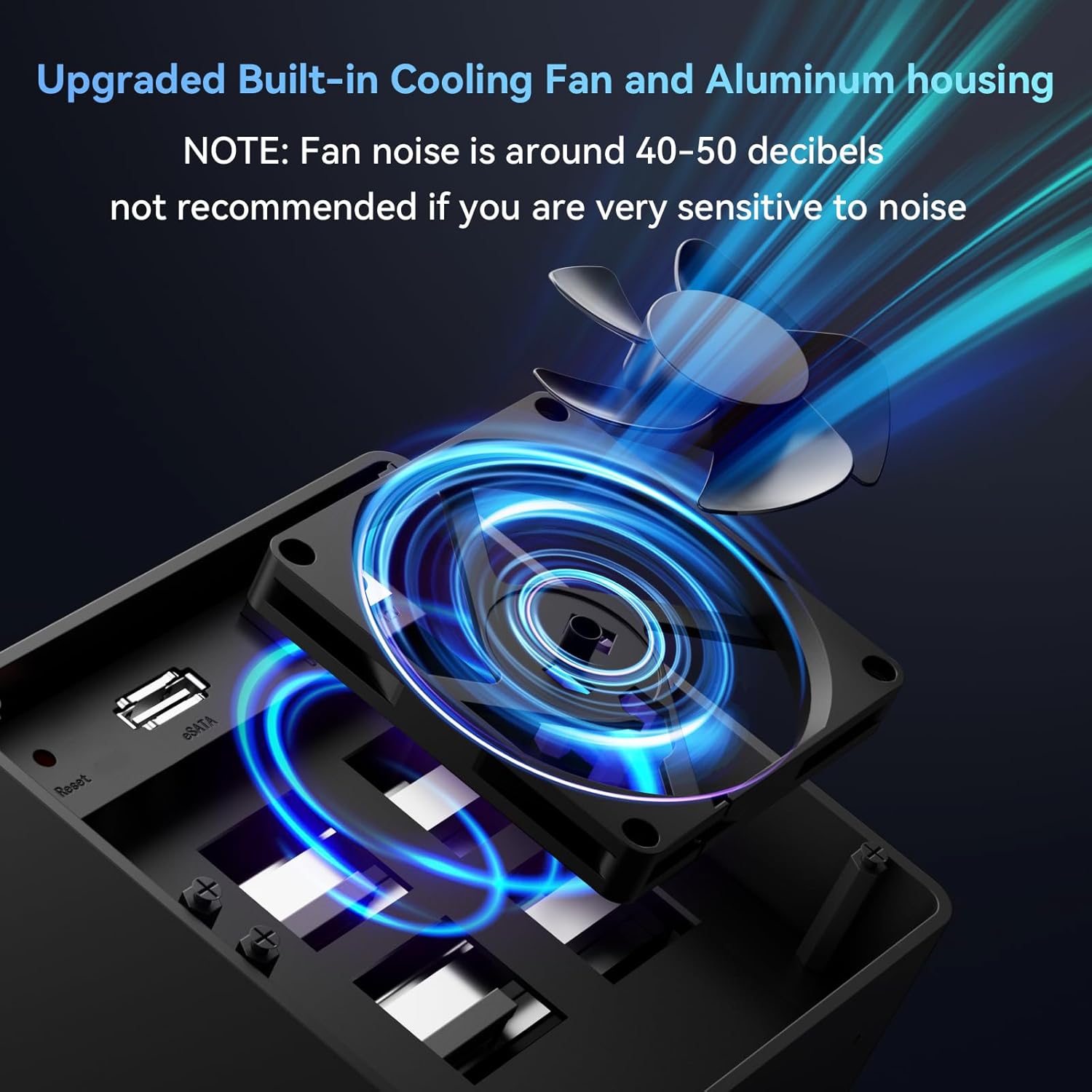
Image 5.1: Internal view highlighting the cooling fan designed to maintain optimal operating temperatures for the drives.
6. Troubleshooting
- Drives Not Detected:
- Ensure all cables (USB/eSATA and power) are securely connected.
- Verify that the drives are properly seated in their trays and the trays are fully inserted into the enclosure.
- Check if the drives are initialized and formatted in your operating system's Disk Management (Windows) or Disk Utility (Mac).
- Try connecting the enclosure to a different USB/eSATA port or computer.
- Slow Data Transfer:
- Ensure you are using a USB 3.0 compatible port on your computer. Connecting to a USB 2.0 port will result in slower speeds.
- The performance of the installed drives can affect transfer speeds.
- Fan Noise:
- The fan operates at 40-50 decibels. If the noise is excessive or unusual, ensure the fan vents are clear of obstructions.
- Note that hard drives themselves can generate operational noise, which is distinct from fan noise.
- Drives Disconnecting/Dropping Out:
- Ensure the power supply is stable. Use the provided DC 12V adapter.
- Avoid hot-swapping drives. While the enclosure is plug-and-play, inserting or removing drives while the unit is active may cause other connected drives to temporarily disconnect and remount, potentially disrupting data operations. It is recommended to safely eject all drives and power off the enclosure before adding or removing any drive.
7. Specifications
| Feature | Detail |
|---|---|
| Model Number | 4 Bay No Raid |
| Supported Drive Types | 2.5" / 3.5" SATA HDD/SSD |
| Number of Bays | 4 |
| Maximum Capacity | 80 TB (20 TB per drive) |
| Data Interface | USB 3.0, eSATA |
| Data Transfer Rate | Up to 5 Gbps (USB 3.0) |
| Cooling System | Built-in 2-inch Fan |
| Material | Aluminum-Alloy |
| Compatible Operating Systems | Windows 7+, Mac OS 9.1+, Linux |
| Power Supply | DC 12V Power Adapter |
| Product Dimensions | 7.95 x 5.2 x 5.75 inches |
| Item Weight | 1.37 Kilograms (3.01 pounds) |
8. Warranty and Support
cenmate provides technical support for this product. If you encounter any issues or have questions regarding the cenmate 4 Bay Hard Drive Enclosure, please do not hesitate to contact us. We aim to reply and resolve your problem within 24 hours.
For support, please refer to the contact information provided with your purchase or visit the official cenmate website.


