1. Product Overview
The UPERFECT 15.6-inch Dual Portable Monitor is a versatile and innovative display solution designed to enhance productivity and provide an immersive visual experience. Featuring a unique foldable design, it offers two 15.6-inch FHD 1080P IPS screens that can be used independently or combined for an expanded workspace. Its driver-free plug-and-play functionality ensures seamless compatibility with various devices, including Windows PCs, macOS devices, tablets, and smartphones.
This monitor is equipped with full-function Type-C and Mini HDMI ports, supporting multiple connection modes for diverse user needs. The ergonomic design, including a 135° adjustable integrated stand and 360° rotation capability, allows for comfortable viewing angles and easy sharing. With its high-quality IPS panel, 100% sRGB color gamut, and 1000:1 contrast ratio, it delivers vivid and clear visuals for both work and entertainment.

Image: The UPERFECT 15.6-inch Dual Portable Monitor showcasing its dual screens and foldable design.
2. Key Features
- Driver-Free & Wide Device Compatibility: Seamlessly compatible with Windows and macOS. Connects via a single Type-C cable for plug-and-play operation, eliminating complex setups and driver installations. Also features Mini HDMI for compatibility with PCs, tablets, smartphones, and gaming consoles. Supports simultaneous connection of two different devices.
- Large & High-Quality Display: Features a 178° viewing angle IPS panel with 100% sRGB wide color gamut, 16.7 million colors, and 300 nits brightness. Expands your workspace to an effective 23.8 inches. Offers a 1000:1 contrast ratio and 60Hz refresh rate for vivid and immersive viewing. Includes FreeSync low-latency technology for smoother visuals.
- Enhanced Productivity & Multiple Work Modes: Significantly boosts work efficiency by allowing simultaneous display of multiple spreadsheets or large website browsing. Supports seamless multi-tasking, such as displaying materials during video conferences. Offers three work modes: AAA (all screens display the same content), ABB (two screens display the same content), and ABC (three screens display entirely different content, Windows notebooks only). Connection is simplified with a single Type-C cable, reducing cable clutter.
- Ergonomic Design & 360° Rotation: The dual-screen setup allows for vertical adjustment to suit various viewing positions, reducing eye strain and promoting spinal health. Features a 135° adjustable stand for optimal setup. The gravity sensor supports 360° screen rotation, making meetings and content sharing more convenient. When folded in half, the top screen automatically rotates 180° for correct viewing by colleagues or partners.
- Quality Assurance & Support: Each product undergoes 100% inspection before shipment to prevent initial defects. Includes a 12-month long-term warranty (PSE certified). Offers unlimited customer support, with issues resolved within 12 hours for product usage, shipping damage, or accessory damage, including free product exchange.
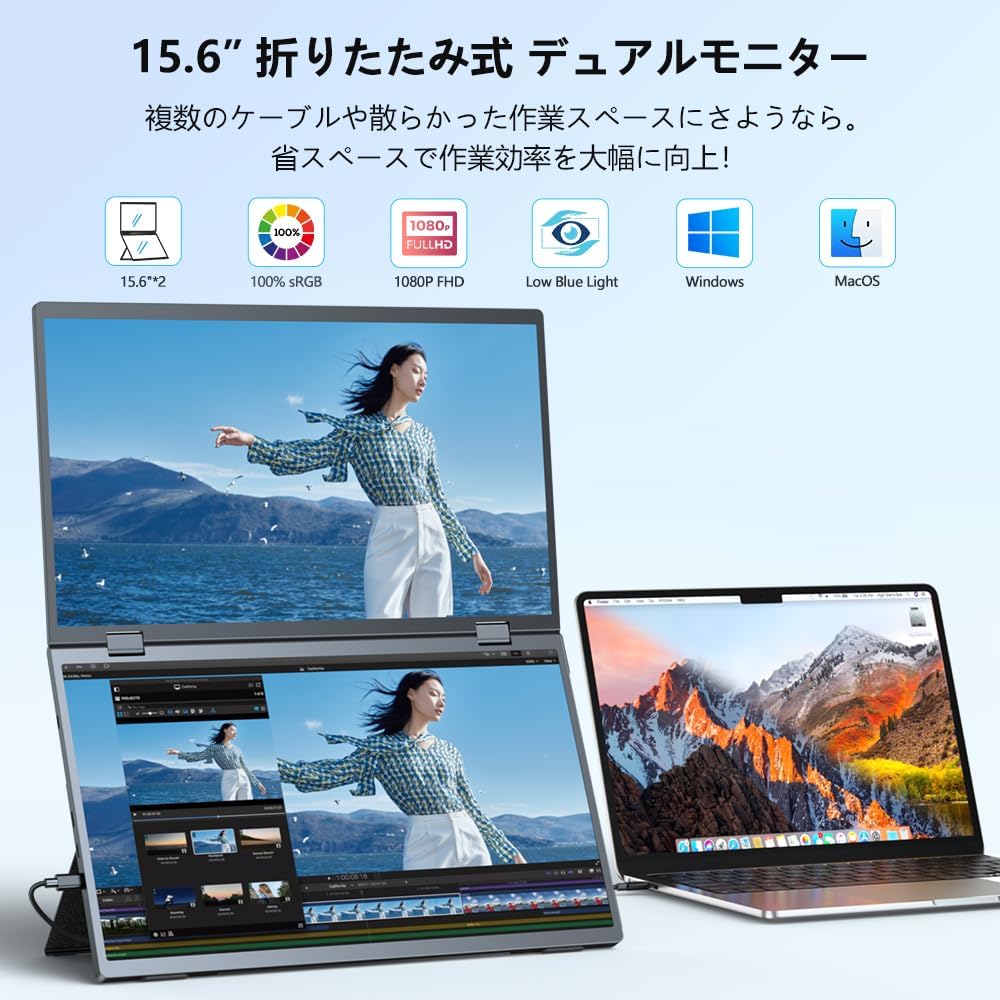
Image: The UPERFECT dual monitor in use, extending a laptop's display for increased screen real estate.
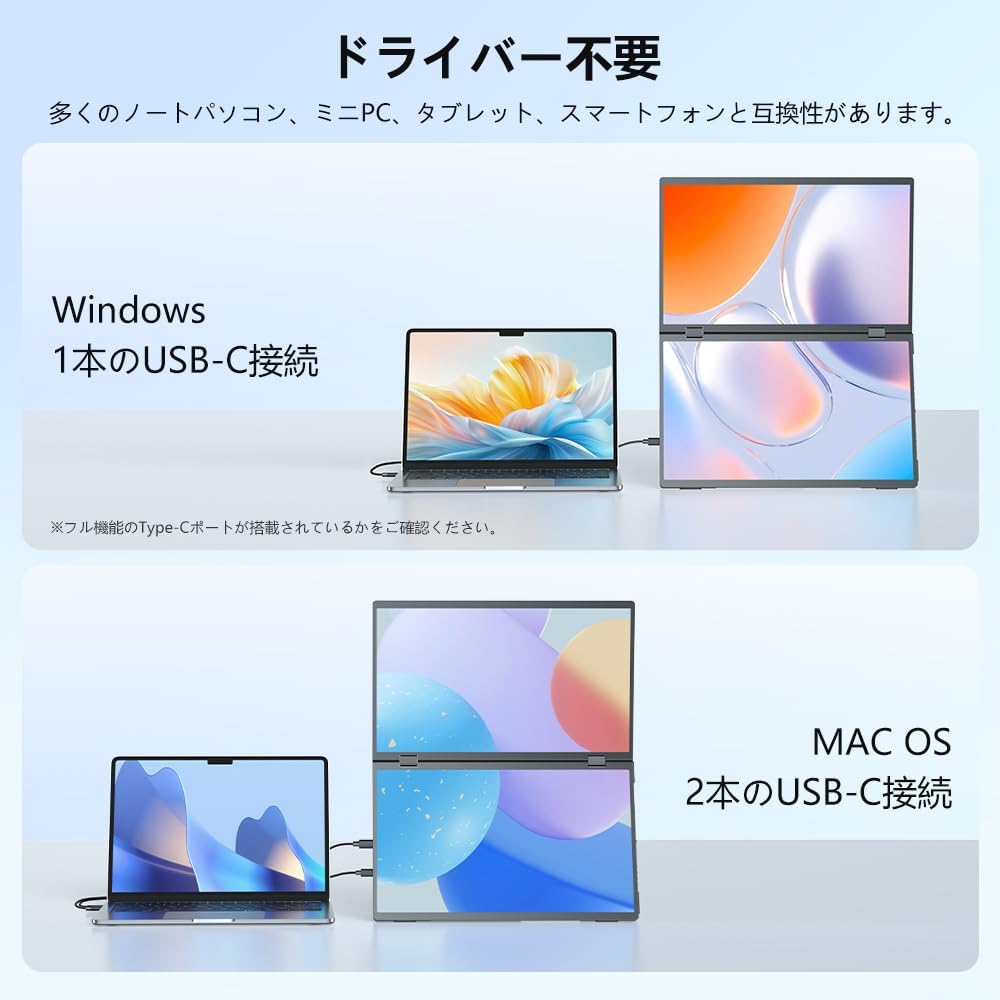
Image: Diagram illustrating driver-free connectivity for Windows (single USB-C) and macOS (two USB-C cables) with the UPERFECT dual monitor.
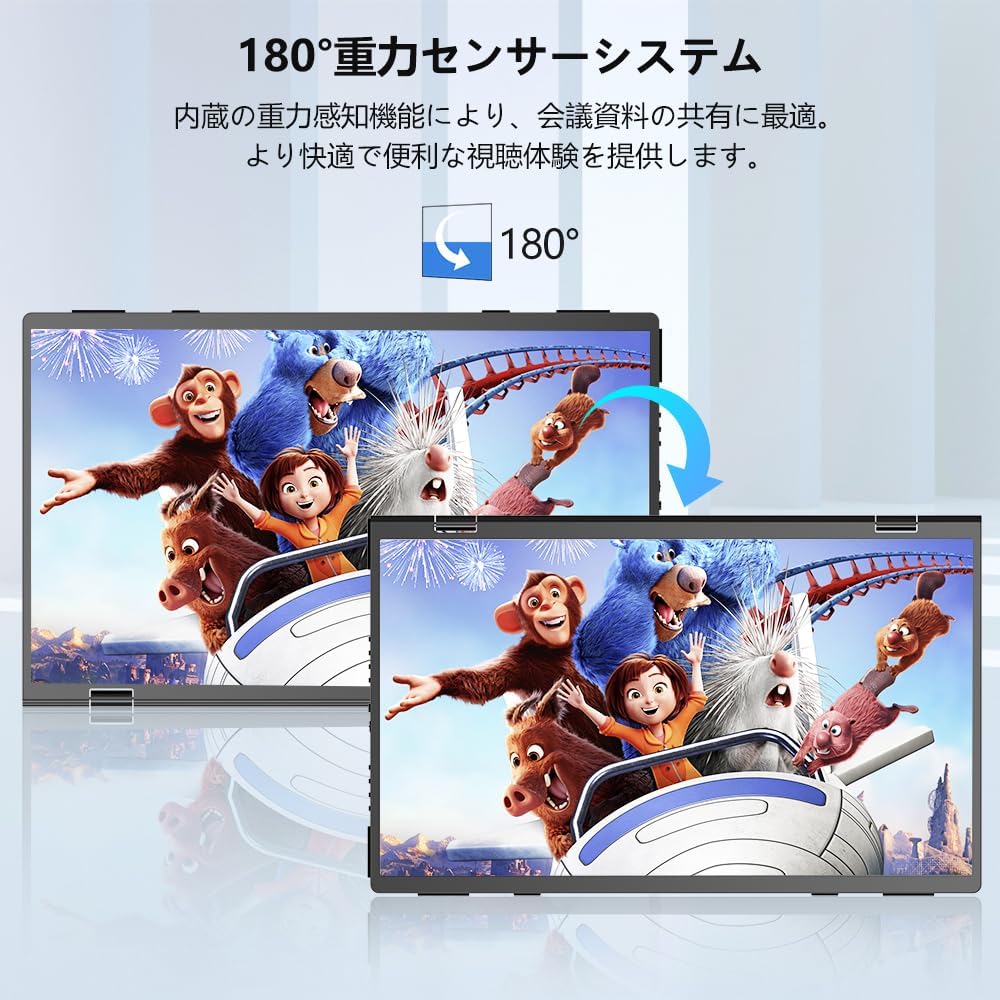
Image: The monitor's 180-degree gravity sensor system, allowing automatic screen orientation adjustment for shared viewing.

Image: The UPERFECT dual monitor in a meeting setting, demonstrating its 360-degree rotation capability for easy content sharing.

Image: The UPERFECT dual monitor connected to multiple devices, including a PC, gaming consoles (Xbox, PlayStation, Switch), smartphone, and Steam Deck, highlighting its versatile connectivity options.

Image: A comparison showing the UPERFECT dual monitor providing a more efficient and space-saving browsing experience compared to a traditional multi-monitor setup.

Image: A diagram explaining the multiple display modes (AAA, ABB, ABC) supported by the UPERFECT dual monitor for various work scenarios.
3. Setup and Installation
3.1 Unpacking and Initial Inspection
Carefully remove the monitor from its packaging. Inspect all components for any signs of damage during transit. Ensure all accessories listed in the package contents are present.
3.2 Connecting to Your Device
The UPERFECT Dual Portable Monitor supports both Type-C and Mini HDMI connections. No drivers are required for most operating systems.
- For Windows Devices (Single Type-C Cable):
Connect one end of the provided full-function Type-C cable to the monitor's Type-C port and the other end to a full-function Type-C port on your Windows laptop or PC. The monitor should automatically detect and extend your display. Ensure your device's Type-C port supports video output and power delivery.

Image: Illustration of connecting the UPERFECT dual monitor to a Windows laptop using a single USB-C cable for plug-and-play functionality.
- For macOS Devices (Two Type-C Cables):
Connect two Type-C cables from your macOS device to the two Type-C ports on the monitor. This configuration is typically required for macOS to properly recognize and utilize both screens. Ensure your MacBook has sufficient Type-C ports or use a compatible hub.
- Using Mini HDMI:
If your device does not have a full-function Type-C port, you can use the Mini HDMI port. Connect the provided Mini HDMI cable from the monitor to your device's HDMI port. You may also need to connect a separate USB-A to Type-C cable for power if the HDMI connection does not provide sufficient power.

Image: Demonstrates connecting the UPERFECT dual monitor to a laptop using a Mini HDMI cable. Note: A separate USB-A to Type-C cable may be needed for power.
- Smartphone Connection:
For compatible smartphones with full-function Type-C ports, a single Type-C cable can mirror or extend your phone's display to the monitor.

Image: A smartphone connected to the UPERFECT dual monitor via a single USB-C cable, mirroring the phone's display.
3.3 Power Supply
While the monitor can often draw power from a full-function Type-C connection, it is recommended to connect the included power adapter for stable operation, especially if your device's port cannot provide sufficient power or if you experience brightness issues.
4. Operating Instructions
4.1 Adjusting the Stand and Orientation
The integrated stand allows for 135° adjustment to find your optimal viewing angle. The monitor also features a gravity sensor for 360° rotation, automatically adjusting the screen orientation. This is particularly useful for sharing content in meetings or collaborative work.

Image: The UPERFECT dual monitor showcasing its 135-degree adjustable integrated stand for stable and customizable positioning.
4.2 Navigating the OSD Menu
The monitor features intuitive controls for accessing the On-Screen Display (OSD) menu. Typically, there is a single button and scroll lever for each screen to manage settings such as brightness, color, and input source.
- Press the button to bring up the main menu.
- Use the scroll lever to navigate through menu options.
- Press the button again to select an option or confirm a setting.
- Adjust brightness, contrast, color temperature, and other display settings as needed.
4.3 Utilizing Multiple Display Modes
The monitor supports various display modes to optimize your workflow:
- AAA Mode: All three screens (laptop + two monitor screens) display the same content. Ideal for presentations or sharing.
- ABB Mode: The two monitor screens display the same content, while the laptop screen displays different content. Useful for focused work on the main screens.
- ABC Mode: All three screens display entirely different content. This mode is supported only with Windows notebooks and maximizes your multi-tasking capabilities.
Switching between modes is typically done through the OSD menu or your computer's display settings (e.g., Windows Display Settings or macOS System Preferences).

Image: The UPERFECT dual monitor configured for a business presentation, allowing simultaneous display of different materials across three screens.

Image: A home office setup demonstrating the UPERFECT dual monitor creating a comfortable and efficient three-screen workstation with a single USB-C cable.
5. Maintenance
5.1 Cleaning the Monitor
To clean the monitor screen, gently wipe it with a soft, lint-free cloth. For stubborn marks, dampen the cloth slightly with water or a screen-safe cleaning solution. Avoid using harsh chemicals, abrasive cleaners, or direct spraying onto the screen.
5.2 General Care
- Keep the monitor away from direct sunlight, excessive heat, and humidity.
- Avoid placing heavy objects on the monitor.
- Do not block the ventilation openings.
- When transporting the monitor, ensure it is securely folded and placed in a protective case to prevent scratches or damage.
6. Troubleshooting
6.1 No Display / Black Screen
- Ensure all cables (Type-C, Mini HDMI, power) are securely connected to both the monitor and your device.
- Verify that your device's Type-C port supports video output (DisplayPort Alternate Mode).
- Try connecting the monitor to a different port on your device or a different device to rule out port or device issues.
- Ensure the monitor is receiving sufficient power. Connect the external power adapter if not already in use.
- Check your computer's display settings to ensure the external monitor is detected and configured for "Extend" or "Duplicate" display.
6.2 Image Quality Issues (Flickering, Low Brightness, Distorted Colors)
- Adjust brightness and contrast settings via the OSD menu.
- Ensure the monitor is receiving adequate power. Low brightness can occur if power is insufficient; connect the power adapter.
- Check the display cable for damage or loose connections. Try a different cable if available.
- Update your device's graphics drivers.
- Reset monitor settings to factory defaults via the OSD menu.
6.3 Screen Rotation Not Working
- Ensure the monitor is placed on a stable, flat surface.
- Check if the gravity sensor feature is enabled in the monitor's OSD settings.
- For 180° rotation when folded, ensure the monitor is correctly positioned and the gravity sensor can detect the orientation change.
6.4 Audio Issues
- Ensure the monitor's volume is not muted or set too low via the OSD menu.
- Check your computer's audio output settings to ensure the UPERFECT monitor is selected as the playback device.
- If using HDMI, ensure your device is sending audio over HDMI.
7. Specifications
| Attribute | Specification |
|---|---|
| Brand | UPERFECT |
| Model Number | 156J11 |
| Screen Size | 15.6 inches (x2 for dual display) |
| Resolution | FHD 1080p (1920 x 1080) |
| Panel Type | IPS |
| Viewing Angle | 178° |
| Color Gamut | 100% sRGB |
| Brightness | 300 nits |
| Contrast Ratio | 1000:1 |
| Refresh Rate | 60Hz |
| Aspect Ratio | 16:9 |
| Connectivity | Full-function Type-C (x2), Mini HDMI |
| Product Dimensions | 0.9 x 49.1 x 28.5 cm |
| Product Weight | 2 kg |
| Features | Driver-free, Auto-rotate (Gravity Sensor), 135° Adjustable Stand, FreeSync |
8. Warranty and Support
UPERFECT provides comprehensive support for your product:
- Warranty Period: The product comes with a 12-month long-term warranty from the date of purchase.
- Quality Assurance: Each unit undergoes a 100% quality inspection before shipment to ensure reliability.
- Customer Support: Unlimited customer support is available. For any questions regarding product usage, issues with shipping damage, or damaged accessories, please contact UPERFECT customer service.
- Issue Resolution: UPERFECT aims to resolve any reported issues within 12 hours. Free product exchange is offered for initial defects or damage.
- Certification: The product is PSE certified, ensuring compliance with safety standards.
For support, please refer to the contact information provided with your product packaging or visit the official UPERFECT website.


