
1. Introduction
This manual provides essential information for the setup, operation, and maintenance of your FightBox F3-PC All Button Leverless Arcade Fight Stick Game Controller. Please read these instructions carefully before use to ensure proper functionality and longevity of your device.
2. Product Overview
The FightBox F3-PC is a high-performance all-button leverless arcade fight stick designed for precision and speed. It features a compact, ultra-thin design with Sanwa push buttons for optimal gaming experience. This controller is compatible with PC, PlayStation 3, and Nintendo Switch.

Image: Front view of the FightBox F3-PC controller, showcasing the white top panel with red and black Sanwa buttons.

Image: Side view of the FightBox F3-PC controller, highlighting its ultra-thin profile.

Image: Angled view of the FightBox F3-PC controller, showing the button layout and the FightBox logo.
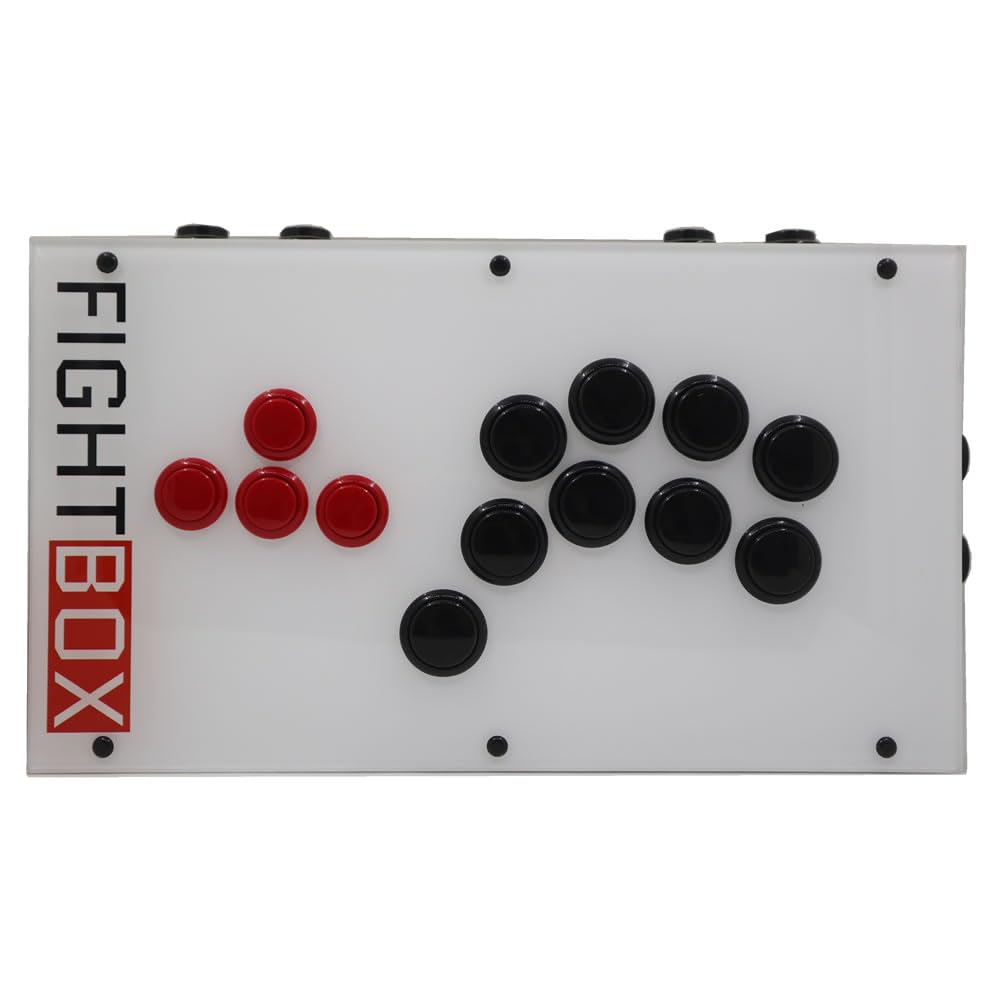
Image: Top-down view of the FightBox F3-PC controller, clearly showing all 18 buttons.

Image: Bottom view of the FightBox F3-PC controller, showing the anti-slip feet and the FightBox logo embossed.

Image: Diagram illustrating the dimensions of the FightBox F3-PC controller: 35cm length, 20cm width, and 4.0cm height, with a weight of 1.5 KG.

Image: Detailed layout of the PC version buttons on the FightBox F3-PC, indicating HOME, MODE, R3, L3, START, SELECT, and directional/action buttons.
3. Setup Instructions
- Connect the Controller: Use the provided USB 2.0 cable to connect the FightBox F3-PC controller to your PC, PlayStation 3, or Nintendo Switch.
- System Recognition: Your system should automatically detect the controller. For PC, it will typically be recognized as a PC360 mode device by default.
- Mode Switching (PC/PS3/Switch):
- For PC, the default mode is PC360.
- To switch between modes (e.g., PC, PS3, Switch), press the HOME button. Refer to the button layout image for its location.
4. Operating Instructions
4.1 Button Functions
The FightBox F3-PC features a standard arcade button layout with additional control buttons:
- Directional Buttons: Located on the left side (red buttons), these control movement (Up, Down, Left, Right).
- Action Buttons: Located on the right side (black buttons), these are typically assigned to in-game actions (e.g., punch, kick).
- HOME Button: Used to switch between PC360 mode (default) and other compatible modes (PS3, Switch).
- MODE Button: Used to switch between cross keys and left/right stick input.
- START Button: Typically used to pause games or confirm selections.
- SELECT Button: Often used for in-game menus or specific functions.
- L3/R3 Buttons: These correspond to pressing down the left and right analog sticks on traditional controllers.
4.2 SOCD Modes
The controller supports three types of Simultaneous Opposing Cardinal Directions (SOCD) modes, which determine how conflicting directional inputs are resolved. These modes are compliant with tournament standards for all-button leverless controllers.
- Up Priority SOCD Mode (Default): If both Up and Down are pressed, Up input is prioritized. If Left and Right are pressed, both inputs are canceled (Neutral).
- Neutral (CAPCOM) SOCD Mode: If opposing directions (e.g., Up and Down, Left and Right) are pressed simultaneously, both inputs are canceled, resulting in a Neutral input.
- Last Win SOCD Mode: The last directional input pressed takes priority over the opposing direction.
Image: Table illustrating the behavior of different SOCD modes (Up priority, Neutral, Last win) for conflicting directional inputs.
4.3 Product Demonstration Video
Video: A demonstration of the FightBox F3-PC All Button Leverless Arcade Game Controller, showcasing its design and in-game performance.
5. Specifications
| Feature | Detail |
|---|---|
| Model Name | F3-PC |
| Brand | FightBox |
| Compatible Devices | Android, Nintendo Switch, PC, Windows |
| Controller Type | USB |
| Connectivity Technology | USB 2.0 |
| Button Quantity | 18 |
| Hardware Platform | Android, Nintendo Switch, PC, PlayStation 3 |
| Power Source | Corded Electric |
| Item Dimensions (L x W x H) | 13.78 x 7.87 x 1.57 inches (35 x 20 x 4 cm) |
| Weight | Approximately 1.5 KG |
| UPC | 766683159762 |
6. Troubleshooting
- Controller Not Recognized:
- Ensure the USB cable is securely connected to both the controller and the device.
- Try connecting to a different USB port.
- Restart your PC or console.
- Verify that the correct mode is selected using the HOME button.
- Buttons Not Responding:
- Check if the controller is properly connected and recognized by your system.
- Test the buttons in a different game or a controller testing utility.
- Incorrect Directional Input:
- Verify the selected SOCD mode is appropriate for your preference or game requirements.
- Ensure the MODE button is set correctly for cross keys or stick input.
7. Warranty and Support
For warranty information, technical support, or further assistance, please refer to the official FightBox website or contact your retailer. Keep your purchase receipt as proof of purchase.
This device complies with relevant safety and regulatory standards. Do not attempt to disassemble or modify the controller, as this may void your warranty and cause damage.