1. Introduction
This manual provides detailed instructions for the installation, operation, and maintenance of your CHACON Wi-Fi Wired Video Intercom, Model 34895. Please read this manual thoroughly before installation and use to ensure proper functionality and safety.
2. Product Overview
The CHACON Wi-Fi Wired Video Intercom system allows you to see and communicate with visitors at your entrance via an indoor monitor or your smartphone. It features high-quality video, remote call answering, and the ability to remotely open a gate or door lock.
Key Features:
- High-quality video display on indoor monitor and smartphone.
- Remote video call answering via smartphone.
- Remote gate/door lock release (requires wired installation with a 12V electric lock or dry contact).
- Visitor message recording capability when you are absent.
- Automatic photo recording of each visitor on the monitor's internal memory.
- Standalone system, not compatible with DiO 1.0 ecosystem.
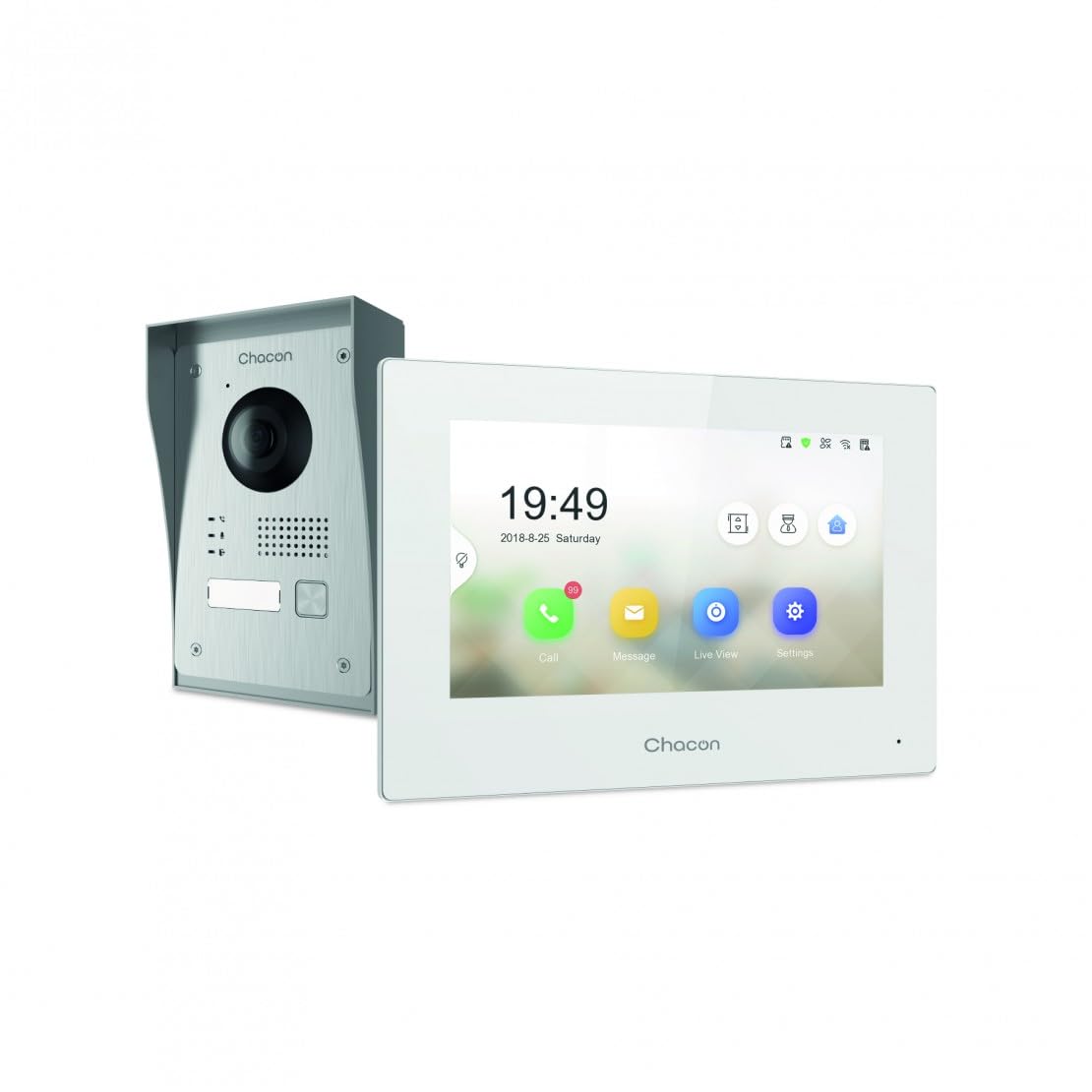
Figure 2.1: Indoor Monitor Unit. This image shows the indoor monitor with its user interface displaying time, date, and icons for call, message, live view, and settings.
3. Package Contents
Please check the package for the following items:
- Indoor Monitor Unit
- Outdoor Doorbell Unit
- Mounting accessories (screws, wall plugs)
- Power Adapter
- User Manual (this document)
- Wiring cables

Figure 3.1: Outdoor Doorbell Unit. This image displays the outdoor unit, featuring a camera lens, microphone, speaker, and doorbell button, designed for external installation.
4. Safety Information
Read all safety warnings and instructions carefully before installing and operating this device. Failure to follow these instructions may result in electric shock, fire, or serious injury.
- Ensure power is disconnected before any installation or wiring.
- Installation should be performed by a qualified electrician if you are unsure about wiring.
- Do not expose the outdoor unit to extreme temperatures, direct sunlight for prolonged periods, or heavy rain without proper protection.
- Use only the provided power adapter and cables.
- Keep the device away from water and moisture.
5. Setup
5.1. Installation of Outdoor Unit
The outdoor unit can be surface-mounted or flush-mounted. Ensure the unit is installed at a height that allows the camera to capture visitors clearly.
- Choose a suitable location near your entrance, protected from direct weather if possible.
- Mark drilling points using the mounting bracket as a template.
- Drill holes and insert wall plugs.
- Secure the mounting bracket to the wall.
- Connect the necessary wiring (power, indoor monitor, electric lock if applicable) to the outdoor unit. Refer to the wiring diagram in section 5.3.
- Attach the outdoor unit to the mounting bracket.

Figure 5.1: Example of Outdoor Unit Installation. This image shows the outdoor doorbell unit mounted on a wall next to a gate, demonstrating a typical installation scenario.
5.2. Installation of Indoor Monitor
The indoor monitor should be installed in a convenient location within your home, preferably near a power outlet.
- Choose a wall location for the indoor monitor.
- Mark drilling points.
- Drill holes and insert wall plugs.
- Secure the monitor's mounting plate to the wall.
- Connect the wiring from the outdoor unit and the power adapter to the indoor monitor.
- Mount the indoor monitor onto its plate.

Figure 5.2: Indoor Monitor in a Home Environment. This image shows the indoor monitor installed on a wall in a modern kitchen setting, illustrating its discreet integration into a living space.
5.3. Wiring Diagram
Connect the outdoor unit to the indoor monitor using the provided 2-wire cable. If connecting an electric lock or gate opener, ensure it is a 12V electric lock or a dry contact system. Consult a professional if you are unsure about electrical wiring.
Note:
- The system requires a wired connection for the outdoor unit to the indoor monitor.
- For remote gate/door opening, a separate wired connection from the indoor monitor to a 12V electric lock or dry contact is necessary.
5.4. Wi-Fi Connection and App Setup
To enable smartphone connectivity, connect the indoor monitor to your home Wi-Fi network and set up the CHACON app.
- Power on the indoor monitor.
- Navigate to the 'Settings' menu on the monitor.
- Select 'Wi-Fi' and choose your home network. Enter the password.
- Download the CHACON app from your smartphone's app store (iOS/Android).
- Register an account and follow the in-app instructions to add your video intercom device. This typically involves scanning a QR code displayed on the monitor or entering a device ID.
- Once connected, you can receive calls, view live feed, and control the lock remotely via the app.
6. Operating Instructions
6.1. Answering a Call
When a visitor presses the doorbell button on the outdoor unit:
- The indoor monitor will ring and display the visitor's video feed. Tap the 'Call' icon to answer.
- Your smartphone (if connected to Wi-Fi and the app is running) will receive a notification. Tap the notification to answer the video call.
6.2. Remote Lock Release
During an active call (either on the indoor monitor or smartphone app), you can unlock your gate or door:
- On the indoor monitor, tap the 'Unlock' icon.
- On the smartphone app, tap the corresponding 'Unlock' button.
Ensure your electric lock or gate opener is correctly wired to the system as described in Section 5.3.
6.3. Live View
You can view the outdoor camera feed at any time:
- On the indoor monitor, tap the 'Live View' icon.
- On the smartphone app, select the device and choose the 'Live View' option.
6.4. Visitor Message Recording
If you are unavailable to answer a call, visitors can leave a message:
- After a set period of no answer, the outdoor unit will prompt the visitor to leave a message.
- These messages can be accessed and played back from the 'Message' menu on the indoor monitor or via the smartphone app.
6.5. Photo Recording
The system automatically captures a photo of each visitor when the doorbell is pressed. These photos are stored in the internal memory of the indoor monitor and can be reviewed via the 'Message' or 'History' menu.
7. Maintenance
- Cleaning: Use a soft, dry cloth to clean the indoor monitor and outdoor unit. Do not use abrasive cleaners or solvents.
- Outdoor Unit Protection: Regularly check the outdoor unit for any debris or obstructions around the camera lens, microphone, and speaker.
- Software Updates: Check the indoor monitor's settings or the smartphone app for available firmware updates to ensure optimal performance and security.
- Wiring Check: Periodically inspect all wiring connections for any signs of wear or damage.
8. Troubleshooting
| Problem | Possible Cause | Solution |
|---|---|---|
| No image on indoor monitor. | Power issue, loose wiring, outdoor unit malfunction. | Check power supply to indoor monitor. Verify all wiring connections between outdoor and indoor units. Ensure outdoor unit is powered. |
| No sound during calls. | Microphone/speaker obstruction, volume too low, wiring issue. | Check for obstructions on outdoor unit's microphone/speaker. Adjust volume settings on indoor monitor. Inspect audio wiring. |
| Smartphone app not receiving calls/notifications. | No Wi-Fi connection, incorrect app settings, network issues. | Ensure indoor monitor is connected to Wi-Fi. Check smartphone's internet connection. Verify app notification settings. Restart app and monitor. |
| Remote lock release not working. | Incorrect wiring to lock, incompatible lock, power issue to lock. | Confirm electric lock/gate opener is a 12V system or dry contact. Check wiring between monitor and lock. Ensure lock has power. |
| Poor video quality. | Dirty camera lens, poor lighting, network bandwidth. | Clean the camera lens on the outdoor unit. Ensure adequate lighting. Check Wi-Fi signal strength. |
9. Specifications
| Brand | CHACON |
| Model Number | 34895 |
| Color | White |
| Item Weight | 1.3 Kilograms |
| Package Dimensions | 38 x 24.5 x 17 cm |
| Connectivity | Wired (2-wire), Wi-Fi |
| Lock Compatibility | 12V Electric Lock or Dry Contact |
| Manufacturer | Chacon |
| Country of Origin | China |
10. Warranty and Support
For warranty information and technical support, please refer to the official CHACON website or contact their customer service directly. Keep your purchase receipt as proof of purchase for warranty claims.
Online Resources: Visit the CHACON official website for FAQs, updated manuals, and support contact information.
Customer Service: Contact details can typically be found on the manufacturer's website or on the product packaging.


