
1. Introduction
The DJI Mini 4K is an ultra-lightweight and easy-to-use drone designed for capturing stunning aerial footage. Weighing less than 249 grams, it falls into a category that requires no test in many countries, making it accessible for a wide range of users. It features a 4K HD camera with a 3-axis mechanical stabilization system, ensuring smooth and high-quality video and photos. With a maximum flight time of 31 minutes and a video transmission range of up to 10 km, the Mini 4K offers extended operational capabilities for creative exploration.

Figure 1: DJI Mini 4K drone and its remote controller.

Figure 2: The DJI Mini 4K drone's compact size, weighing less than 249 grams, making it highly portable and compliant with regulations in many regions.
2. What's in the Box
Verify that all components are present in your DJI Mini 4K package:
- DJI Mini 4K x 1
- DJI Mini 2 Intelligent Flight Battery x 1
- DJI RC-N1C Remote Controller x 1
- DJI RC-N1 Remote Controller Cable (USB-C Connector) x 1
- DJI RC-N1 Remote Controller Cable (Lightning Connector) x 1
- DJI RC-N1 Remote Controller Cable (Standard Micro USB Connector) x 1
- Spare Propellers (Pair) x 1
- Spare Screws x 6
- Gimbal Protector x 1
- Screwdriver x 1
- USB-C Data Cable x 1

Figure 3: All items included in the DJI Mini 4K standard package.
3. Setup
3.1 Initial Preparation
- Charge Batteries: Fully charge the Intelligent Flight Battery and the remote controller before first use. Use the provided USB-C data cable for charging.
- Install Propellers: If not pre-installed, attach the propellers to the motor arms using the provided screwdriver and spare screws. Ensure propellers are correctly matched to their respective motors (marked A and B).
- Remove Gimbal Protector: Carefully remove the gimbal protector from the camera before powering on the drone.
- Insert microSD Card: Insert a compatible microSD card (up to 256 GB, sold separately) into the drone's card slot for storing photos and videos.
3.2 App Activation
To activate and operate your DJI Mini 4K, you must download and install the DJI Fly app on your mobile device. Visit the official DJI website to download the latest version of the app. Follow the in-app instructions for activation and initial setup.

Figure 4: The DJI Fly app provides intuitive instructions and tutorials for new users.
4. Operating Instructions
4.1 Flight Operations
The DJI Mini 4K is designed for ease of use, making it suitable for beginners. Always ensure you are flying in a safe environment and are aware of local regulations.
- One-Touch Takeoff and Landing: The DJI Mini 4K supports one-touch takeoff and landing for simplified operation. Press and hold the takeoff/landing icon in the DJI Fly app, and the drone will automatically ascend or descend.
- Stable Hovering: Equipped with GNSS, downward vision sensors, and infrared sensing systems, the aircraft can hover stably, ensuring precise positioning and minimal drift.
- Return to Home (RTH): The drone features GPS-enabled Return to Home (RTH) functionality, including Smart RTH, Low Battery RTH, and Failsafe RTH, providing enhanced safety during flight.
- Wind Resistance: The Mini 4K is capable of resisting winds up to 38 km/h (Level 5), thanks to its powerful brushless motors, allowing for stable flight in various conditions.
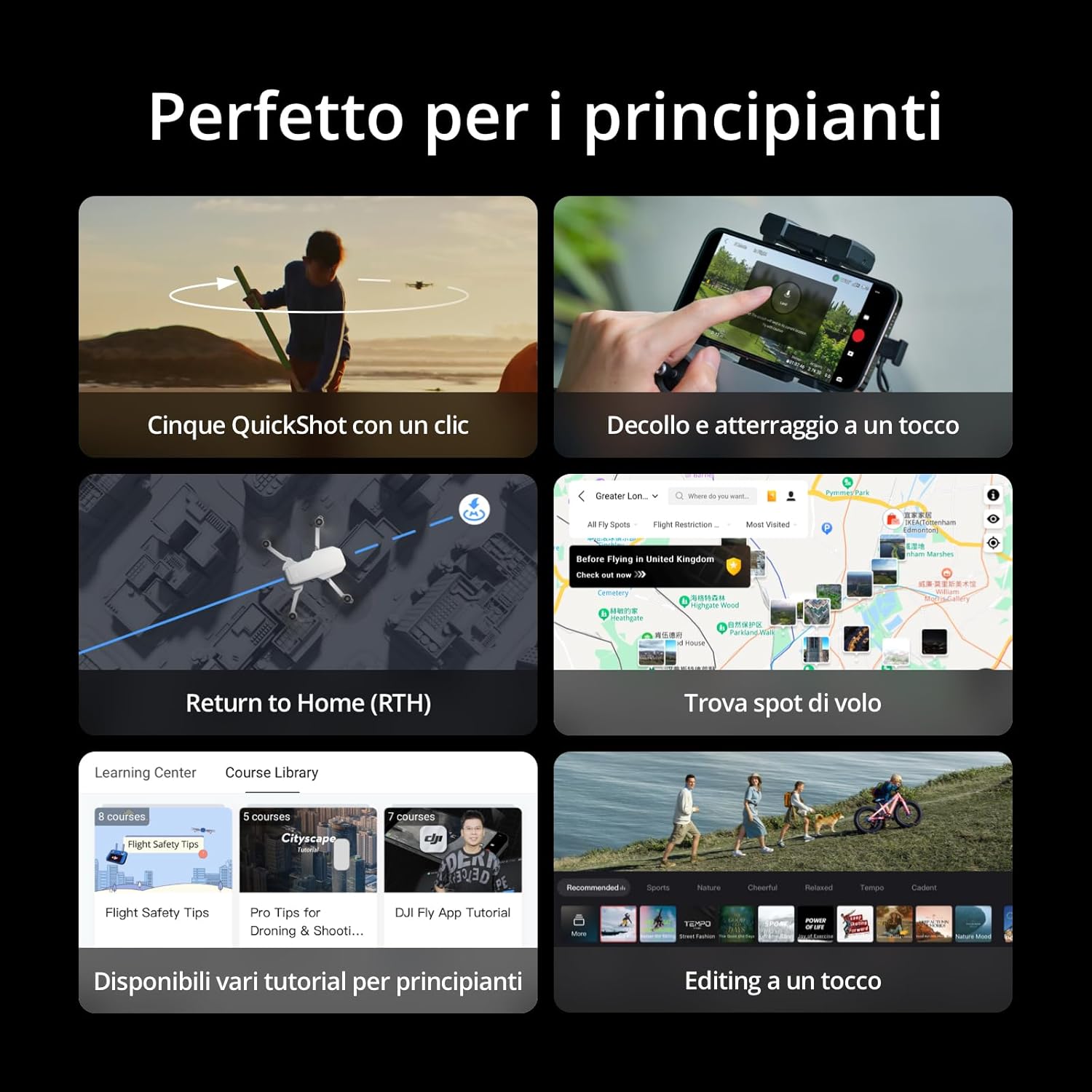
Figure 5: Features like one-touch takeoff/landing and Return to Home simplify flight for beginners.
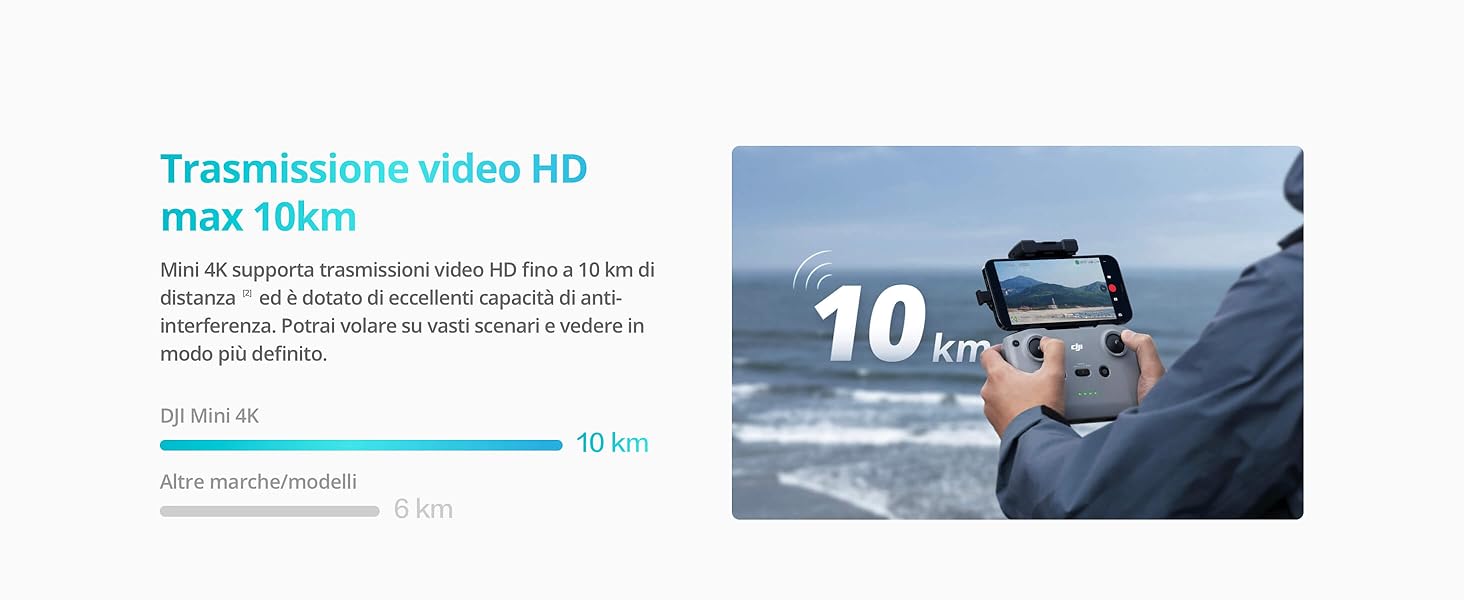
Figure 6: Brushless motors provide strong power and enable stable flight even in windy conditions.
4.2 Camera and Intelligent Features
The DJI Mini 4K offers advanced camera capabilities and intelligent flight modes to enhance your creative potential.
- 4K UHD Camera with 3-Axis Gimbal: Capture cinematic quality footage with the 4K/30fps camera and its 3-axis mechanical stabilization system, ensuring incredibly smooth and stable images regardless of flight conditions.
- QuickShots: With just a few taps, the Mini 4K automatically records professional-level videos using intelligent QuickShots modes such as Spiral, Dronie, Rocket, Circle, and Boomerang.
- LightCut App: The LightCut app can recognize your aerial footage, select highlights, and automatically edit them. It recommends video templates and adds music/effects to create extraordinary videos.

Figure 7: The 3-axis stabilization system ensures smooth and professional video capture.
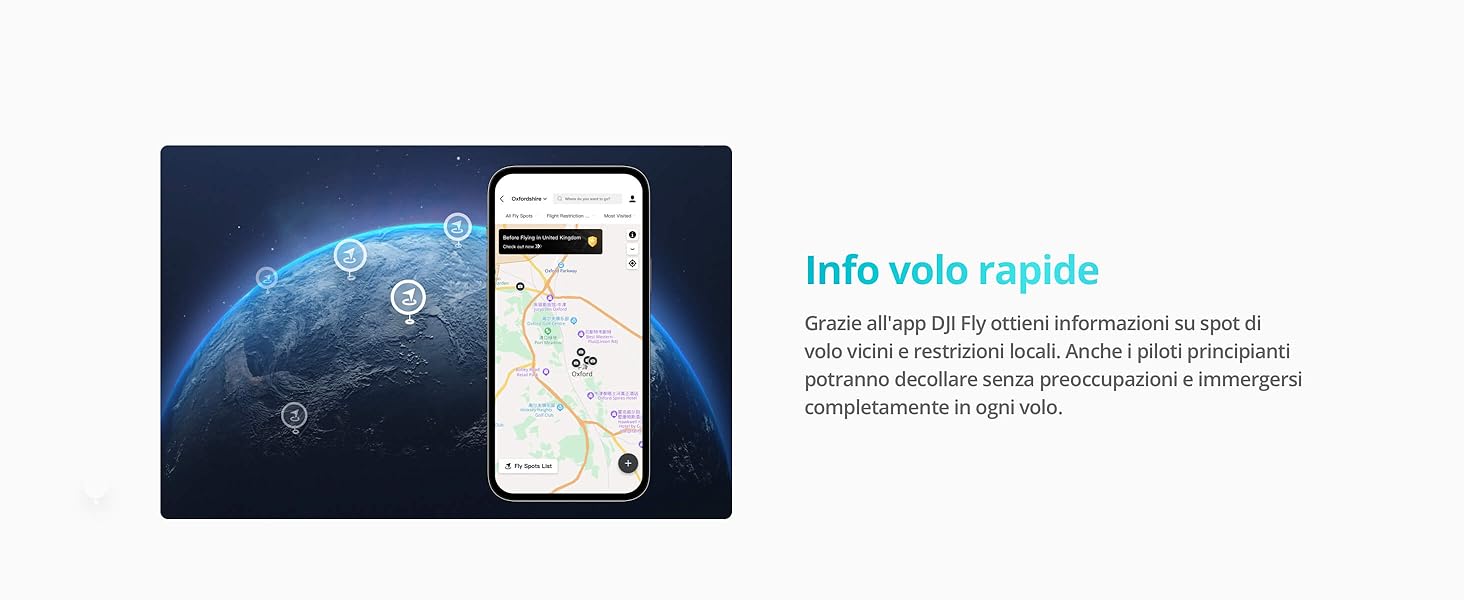
Figure 8: Intelligent QuickShots modes allow for automatic professional video recording.
5. Maintenance
Proper maintenance ensures the longevity and optimal performance of your DJI Mini 4K drone.
- Clean Regularly: Use a soft, dry cloth to clean the drone's body, propellers, and camera lens. Avoid using harsh chemicals.
- Inspect Propellers: Before each flight, check the propellers for any cracks, bends, or damage. Replace damaged propellers immediately using the spare parts provided.
- Battery Care: Store batteries in a cool, dry place. Do not overcharge or over-discharge. If storing for extended periods, discharge batteries to approximately 50-60% capacity.
- Gimbal Protection: Always attach the gimbal protector when transporting or storing the drone to prevent damage to the camera and gimbal.
6. Troubleshooting
If you encounter issues with your DJI Mini 4K, consider the following common solutions:
- Drone Not Powering On: Ensure the battery is fully charged and correctly inserted. Press and hold the power button for a few seconds to turn on.
- No Video Feed: Check the connection between your mobile device and the remote controller. Ensure the DJI Fly app is open and updated. Restart both the drone and the app.
- GPS Signal Lost: Fly in an open area away from tall buildings or strong magnetic interference. Wait for the drone to acquire sufficient GPS satellites before takeoff.
- Unstable Flight: Check for damaged propellers and replace if necessary. Ensure the gimbal protector is removed before flight. Calibrate the IMU and compass via the DJI Fly app if instructed.
- App Crashing/Freezing: Ensure your mobile device meets the minimum system requirements for the DJI Fly app. Clear the app's cache or reinstall it.
For more detailed troubleshooting, refer to the DJI Fly app's help section or the official DJI support website.
7. Specifications
| Feature | Detail |
|---|---|
| Model Name | MT2SDCE |
| Weight | 246 grams (including Intelligent Flight Battery, propellers, and a microSD card) |
| Dimensions (Folded) | 138×81×58 mm (L×W×H) |
| Dimensions (Unfolded) | 245×289×56 mm (L×W×H) |
| Max Flight Time | 31 minutes (with standard battery) |
| Video Transmission Range | Up to 10 km (FCC compliant, unobstructed, free of interference) |
| Camera | 4K/30fps, 1/2.3-inch CMOS sensor |
| Stabilization | 3-axis mechanical gimbal |
| Max Wind Resistance | 38 km/h (Level 5) |
| Operating Temperature | 0° to 40° C (32° to 104° F) |
8. Warranty and Support
8.1 Warranty Information
DJI provides official warranty services for its products. For detailed information regarding your product's warranty period and coverage, please refer to the official DJI website or the warranty card included with your product. Keep your proof of purchase for warranty claims.

Figure 9: DJI's commitment to quality is backed by rigorous testing procedures.
8.2 Returns and Refunds
If you wish to return a product within 30 days of receipt because you have changed your mind, please consult the return policy of your retailer. For defective or damaged products, refer to the retailer's help page on defective or damaged products. For specific information on purchases made through marketplaces, consult the marketplace's help page.
8.3 Customer Support
DJI offers comprehensive customer support, including one-stop technical support. For assistance with product operation, troubleshooting, or repairs, please visit the official DJI support website or contact their customer service directly. Consider purchasing DJI Care Refresh for additional protection against collisions, water damage, and natural wear and tear.

Figure 10: DJI provides professional services including extended protection plans and dedicated technical support.


