
1. Product Overview
This manual provides instructions for the Vackiit 512GB USB 3.0 3-in-1 Flash Drive. This device is designed for external storage and data transfer across various platforms, including iPhone, iPad, Mac, iOS, Android, and PC. It features MFi certified Lightning, USB-C, and USB 3.0 connectors for broad compatibility.
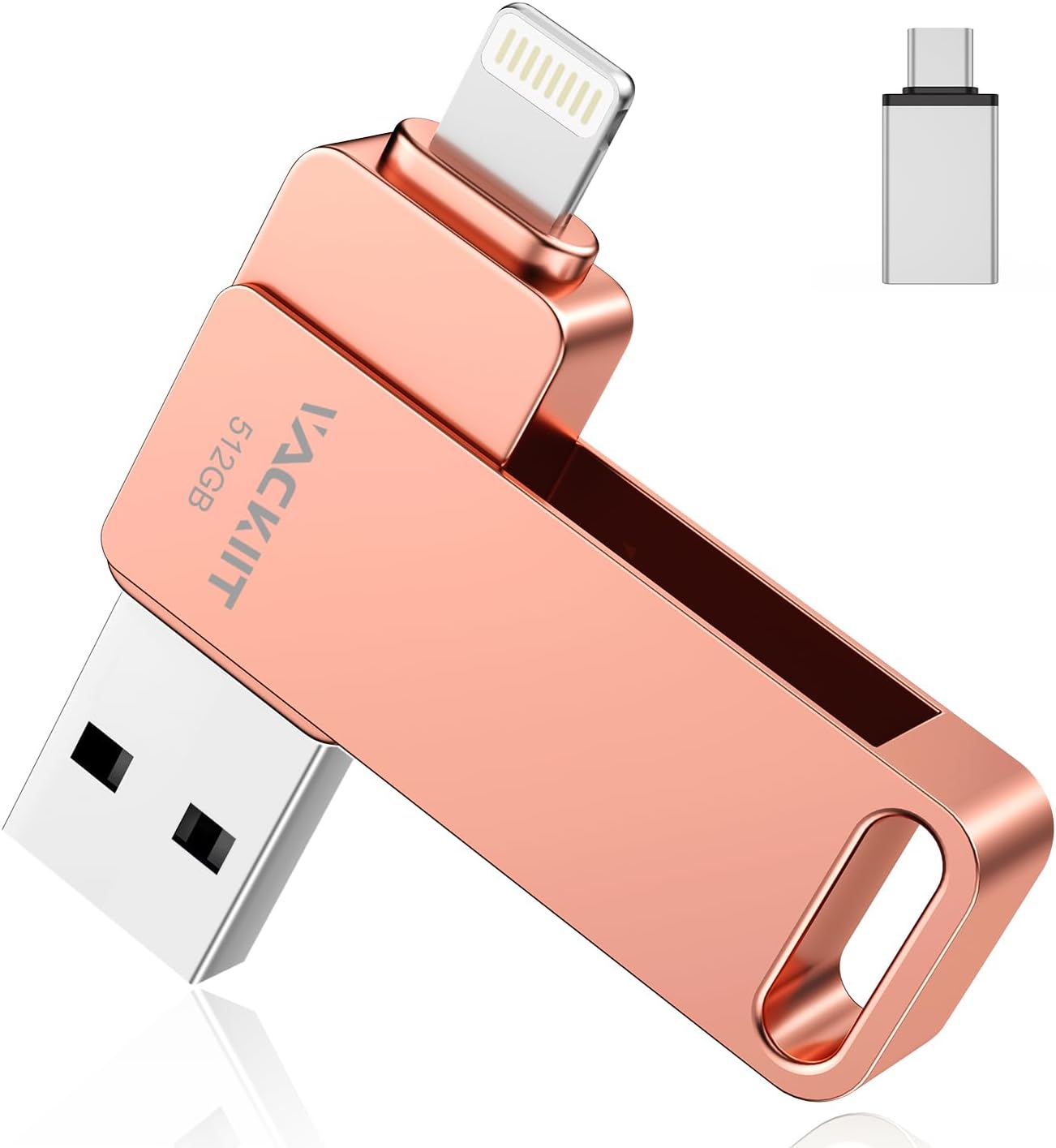
Figure 1: Vackiit 512GB USB 3.0 3-in-1 Flash Drive. This image shows the compact design of the flash drive with its Lightning and USB 3.0 connectors visible, and a separate USB-C adapter.
2. Key Features
- MFi Certified Lightning Connector: Ensures full compatibility and reliable performance with Apple iOS devices.
- 3-in-1 Connectivity: Equipped with Lightning, USB-C, and USB 3.0 connectors for universal compatibility with iPhone, iPad, Android (OTG supported), Mac, and PC.
- High-Speed Data Transfer: USB 3.0 interface provides read speeds up to 80 MB/s and write speeds up to 40 MB/s, significantly faster than USB 2.0.
- Real Storage Capacity: Provides a genuine 512GB of storage.
- Advanced Data Encryption: Supports password, Touch ID, or Face ID protection for data stored within the dedicated application.
- One-Click Backup: Simplifies data backup from connected devices.
- Direct Recording & Sharing: Allows direct photo/video capture and storage to the drive via the app, and easy sharing to social media platforms.
- Durable Design: Constructed from zinc alloy for enhanced heat dissipation and durability, featuring a 360-degree rotating design.

Figure 2: Key features highlighting MFi certification, real storage, and the 3-in-1 connector design. This image visually explains why the flash drive is reliable, emphasizing its MFi certification and versatile connectivity.
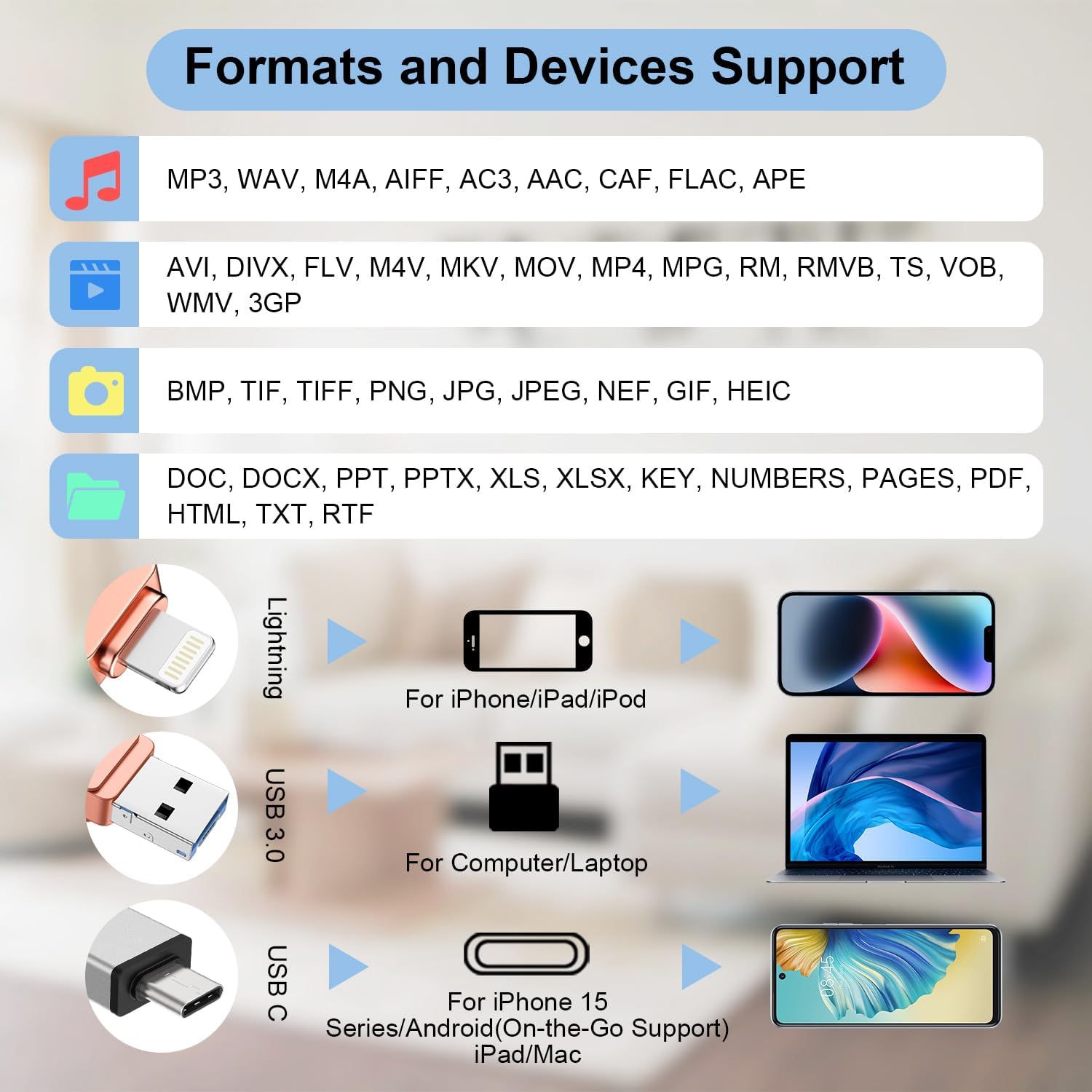
Figure 3: Supported file formats and device compatibility. This image lists various audio, video, image, and document formats supported, along with a diagram showing compatibility with iPhone/iPad (Lightning), Computer/Laptop (USB 3.0), and iPhone 15 Series/Android/iPad/Mac (USB-C).
3. Setup Guide
3.1. For iOS Devices (iPhone, iPad)
- Download the App: Search for and download the "iExtend+" application from the Apple App Store. This app is required for the flash drive to function with iOS devices.
- Connect the Drive: Plug the Lightning connector of the flash drive into your iPhone or iPad.
- Launch the App: Open the "iExtend+" app. The app should automatically detect the connected flash drive.
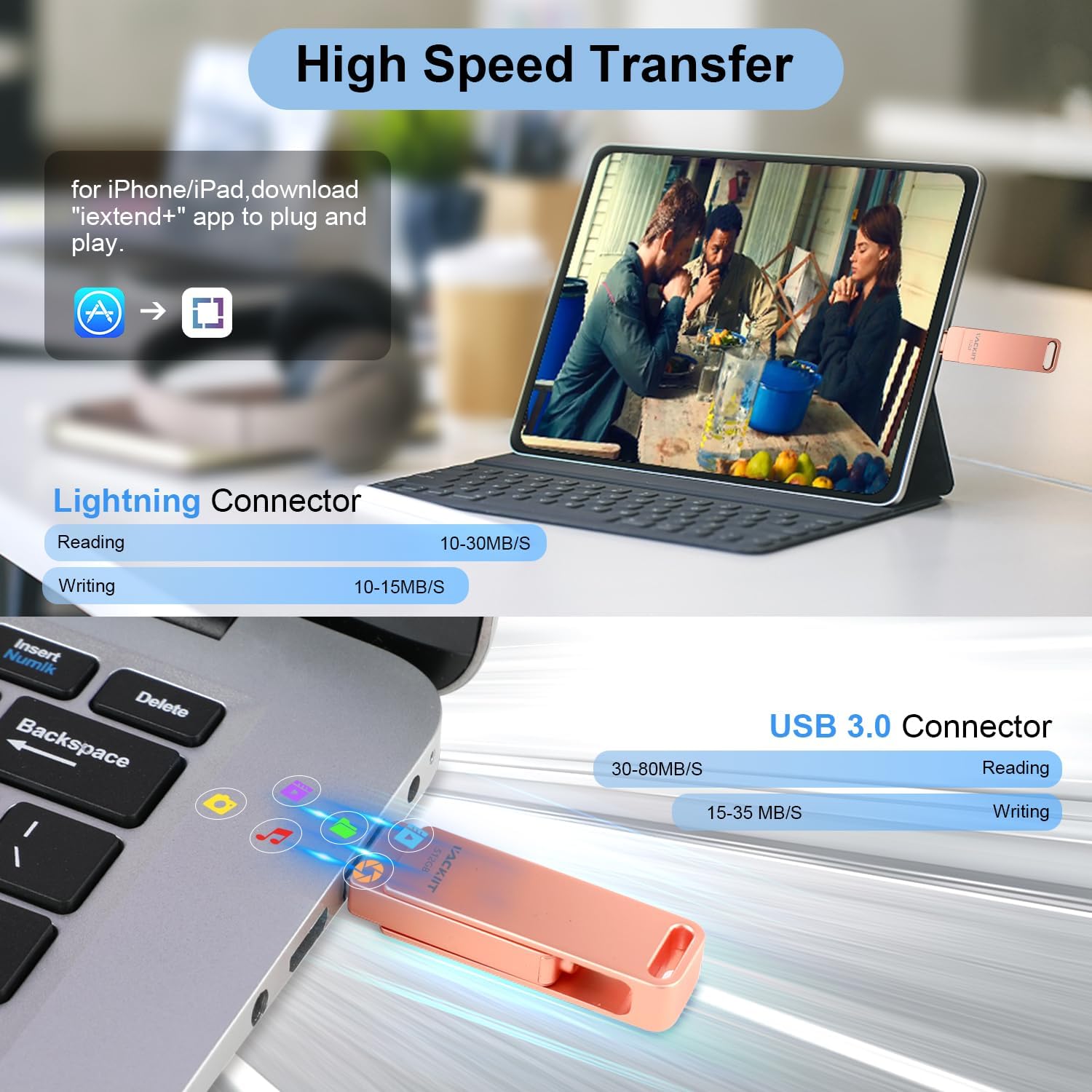
Figure 4: Illustration of high-speed data transfer and the iExtend+ app download process for iOS devices. This image shows the flash drive connected to an iPad and a laptop, indicating the app download for iOS and highlighting USB 3.0 transfer speeds.
3.2. For Android Devices
- OTG Support: Ensure your Android smartphone or tablet supports On-The-Go (OTG) functionality.
- Connect the Drive: Plug the USB-C connector of the flash drive into your Android device. No additional app is typically required for basic file management on OTG-supported Android devices.
- Access Files: Use your device's native file manager to access the contents of the flash drive.
3.3. For Computers (Mac, PC)
- Connect the Drive: Plug the USB 3.0 connector (for older ports) or the USB-C connector (for newer ports) of the flash drive into your computer.
- Access Files: The drive will appear as a removable storage device. Access it through your computer's file explorer (Windows) or Finder (Mac).

Figure 5: Comprehensive compatibility chart for the 3-in-1 flash drive. This image details the wide range of compatible devices for Lightning, USB-C, and USB 3.0 connectors, including various iPhone, iPad, Android, Mac, and PC models.
4. Operating Instructions
4.1. Data Transfer
- From Device to Flash Drive:
- iOS: Use the "iExtend+" app to select files (photos, videos, documents) from your device and transfer them to the flash drive.
- Android/PC/Mac: Use the native file manager to copy or move files to the flash drive.
- From Flash Drive to Device:
- iOS: Use the "iExtend+" app to select files from the flash drive and transfer them to your device's local storage.
- Android/PC/Mac: Use the native file manager to copy or move files from the flash drive to your device.
- Important Note: When transferring data, it is recommended to copy files rather than cut them until you have verified that all data has been securely transferred to the destination. This prevents potential data loss in case of interruption.
4.2. One-Click Backup (iOS Only)
The "iExtend+" app for iOS devices offers a one-click backup function. Within the app, locate the backup option to quickly save all selected data from your iPhone/iPad to the flash drive.
4.3. Direct Recording and Sharing (iOS Only)
The "iExtend+" app allows you to directly capture photos and videos, storing them onto the flash drive without occupying your device's internal storage. You can also share content directly from the app to various social media platforms like Instagram, Facebook, Twitter, and WhatsApp.
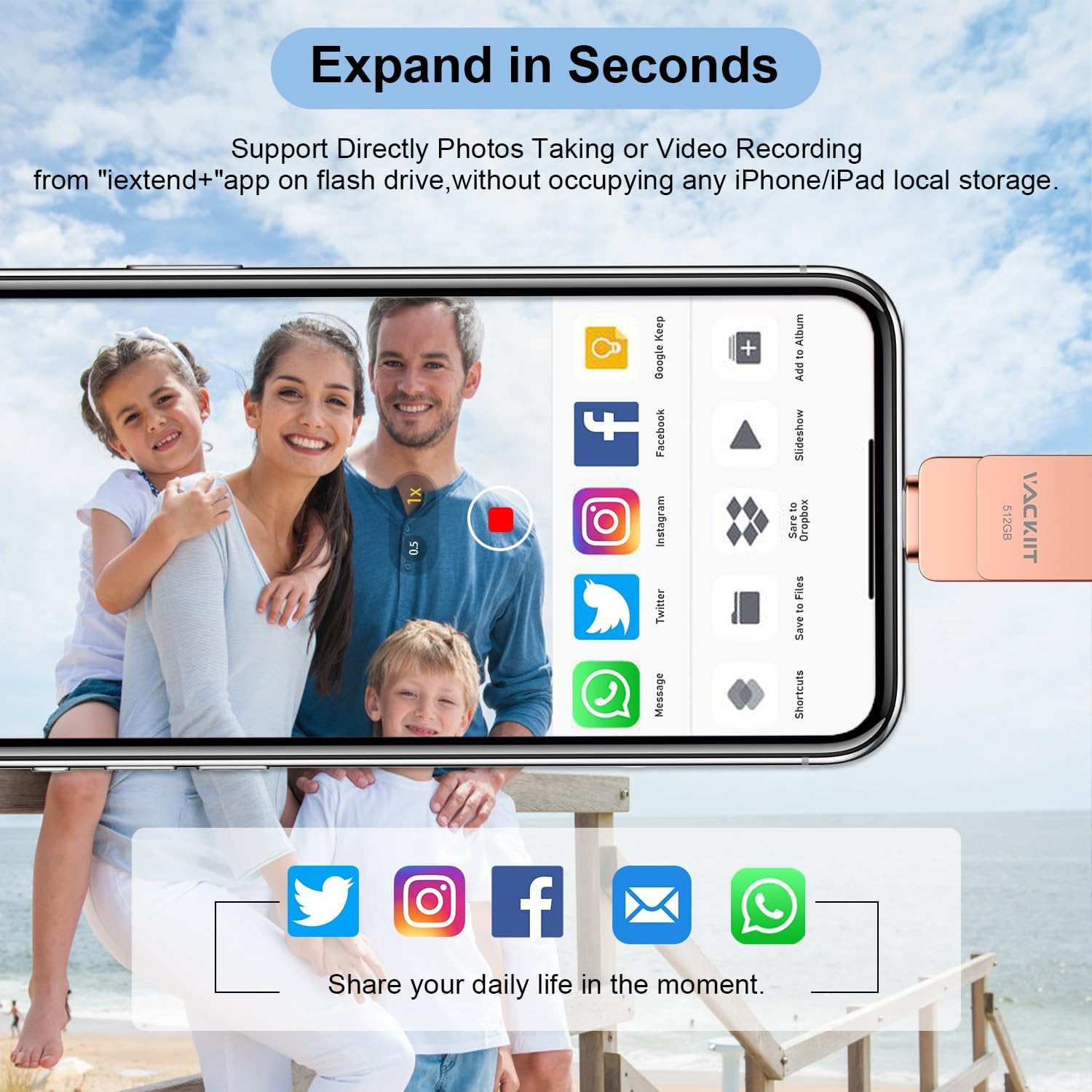
Figure 6: Illustrates the direct photo/video recording feature and options for sharing content to social media platforms from the iExtend+ app. This image shows a smartphone screen with the iExtend+ app open, demonstrating how to take photos/videos directly to the flash drive and share them.
4.4. Data Encryption (iOS Only)
To protect your data, the "iExtend+" app provides robust encryption features:
- Password Protection: Set a password within the app to secure your files.
- Biometric Security: Utilize Touch ID or Face ID for convenient and secure access to your encrypted data.
This ensures your privacy is maintained even if the flash drive is lost.
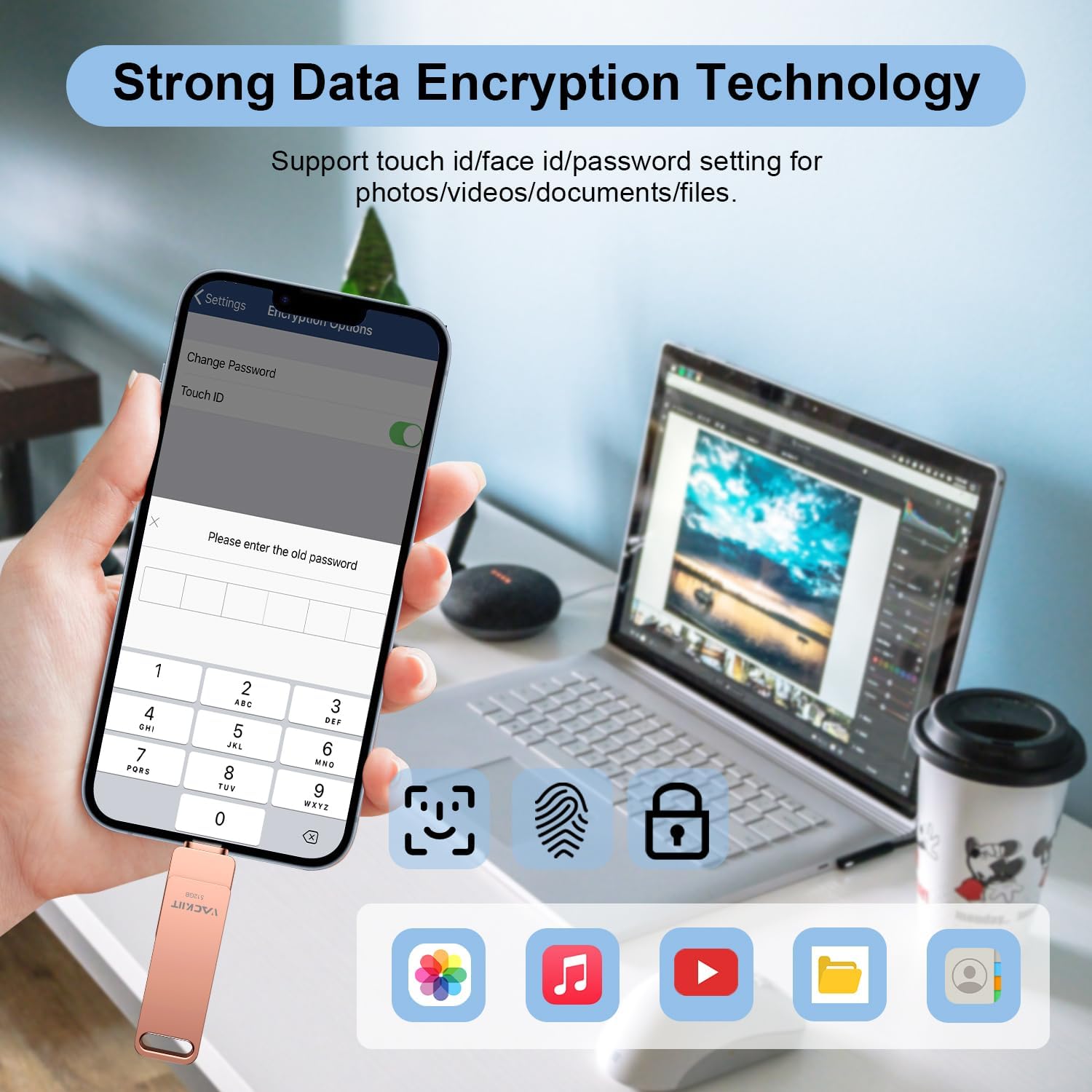
Figure 7: Screenshot of the data encryption settings within the iExtend+ app, showing options for password, Touch ID, and Face ID. This image displays a smartphone screen with the app's security settings, illustrating how to set up password or biometric protection for data on the flash drive.
5. Maintenance
- Physical Care: Keep the flash drive clean and free from dust and moisture. Avoid exposing it to extreme temperatures or direct sunlight.
- Connector Protection: When not in use, ensure the connectors are protected from damage. The 360-degree rotating design helps shield the connectors.
- Safe Removal: Always safely eject the flash drive from your computer or device before physically disconnecting it to prevent data corruption.
- Data Integrity: Regularly back up important data stored on the flash drive to another reliable storage medium.
6. Troubleshooting
6.1. Drive Not Detected
- Check Connection: Ensure the flash drive is fully and correctly inserted into the device's port.
- Try Another Port/Device: Test the flash drive on a different USB port or another compatible device to rule out port or device issues.
- Restart Device: Sometimes, restarting your phone, tablet, or computer can resolve detection issues.
- iOS App: For iOS devices, ensure the "iExtend+" app is installed and open.
- Android OTG: For Android devices, confirm that your device supports OTG and that OTG functionality is enabled in settings if required.
6.2. Slow Transfer Speeds
- USB 3.0 Port: Ensure you are using a USB 3.0 port on your computer for optimal speeds. Connecting to a USB 2.0 port will result in slower transfer rates.
- File Size/Type: Transferring many small files can be slower than transferring a few large files of the same total size.
- Device Performance: The speed of your host device (phone, tablet, computer) can also affect transfer rates.
6.3. Data Corruption or Loss
- Safe Ejection: Always safely eject the drive before removal. Unexpected disconnection can lead to data corruption.
- Copy vs. Cut: As advised in Section 4.1, use the "copy" function instead of "cut" during transfers to minimize risk.
- Regular Backups: Maintain regular backups of critical data to prevent permanent loss.
6.4. App Issues (iOS)
- Update App: Ensure your "iExtend+" app is updated to the latest version.
- Reinstall App: If issues persist, try uninstalling and reinstalling the app.
- iOS Version: Ensure your iOS device is running a compatible operating system version.
7. Product Specifications
| Feature | Detail |
|---|---|
| Brand | Vackiit |
| Model Number | 43faf4e1-abac-4793-9c0e-89a5a4f134a2 |
| Storage Capacity | 512 GB |
| Hardware Interface | USB 3.0, Lightning |
| Connectivity Technology | USB Type A, USB Type C, Lightning |
| Read Speed | Up to 80 MB/s |
| Write Speed | Up to 40 MB/s |
| Special Features | Connectors Lightning and USB-C, enhanced security with Touch ID or Face ID |
| Compatible Devices | OTG Android, Computer, Tablet, iOS (iPhone, iPad) |
| Material | Zinc Alloy |
8. Warranty and Support
This product comes with a manufacturer's warranty. For specific warranty details, please refer to the product packaging or contact Vackiit customer support.
If you encounter any issues or have questions regarding your Vackiit 512GB USB 3.0 3-in-1 Flash Drive, please contact Vackiit support. You may also find additional resources, including a PDF version of this manual in various languages, on the Vackiit product page on Amazon or by contacting customer service directly.
Vackiit support is committed to providing assistance and solutions for any concerns you may have.