Introduction
The ATTACK SHARK FREEWOLF M87 is an 80% layout wireless gaming keyboard designed for versatility and performance. It features dual-mode connectivity (Bluetooth and 2.4GHz), vibrant RGB backlighting, a long-lasting 4000mAh battery, and an ergonomic design with SA PBT keycaps. This manual provides instructions for setup, operation, maintenance, and troubleshooting to ensure optimal use of your keyboard.

The ATTACK SHARK FREEWOLF M87 keyboard in coffee color, showcasing its compact 80% layout and included 2.4GHz USB receiver.
Setup and Connection
The M87 keyboard offers flexible connectivity options to suit various devices and preferences.

An illustration detailing the keyboard's dual connection modes: Bluetooth (BT1, BT2) and 2.4GHz wireless, along with the power switch, mode switch, and Type-C charging port.
2.4GHz Wireless Connection
- Locate the 2.4GHz USB receiver, typically stored in a compartment on the keyboard.
- Plug the USB receiver into an available USB port on your computer.
- Set the mode switch on the keyboard to the '2.4G' position.
- The keyboard should connect automatically.
Bluetooth Connection
The M87 supports two Bluetooth channels (BT1 and BT2), allowing connection to up to two different Bluetooth-enabled devices.
- Set the mode switch on the keyboard to 'BT1' or 'BT2'.
- On your device (computer, tablet, etc.), enable Bluetooth and search for new devices.
- Select 'ATTACK SHARK M87' from the list of available devices to pair.
- To switch between paired Bluetooth devices, simply move the mode switch to the desired 'BT1' or 'BT2' position.

The keyboard connected to a tablet and a laptop, illustrating the ability to switch between up to three devices using Bluetooth (BT1, BT2) and 2.4GHz wireless technology.
Charging the Keyboard
Connect the provided USB-C cable to the keyboard's charging port and the other end to a USB power source (e.g., computer USB port, wall adapter). The keyboard features a 4000mAh rechargeable battery.
Operating Instructions
RGB Backlight Control
The keyboard features rainbow LED backlighting with adjustable settings.
- FN + INS: Toggle between constant and breathing backlight modes.
- FN + ⬆ / ⬇: Adjust backlight brightness (up/down).
- FN + ⬅ / ➡: Adjust backlight speed (faster/slower).
- To turn off the backlight, press FN + INS until the backlight is off.

An image of the keyboard with its rainbow RGB backlighting, accompanied by instructions for adjusting backlight mode (FN+INS), brightness (FN+Up/Down arrow), and speed (FN+Left/Right arrow).
Power Saving Features
To conserve battery life, the keyboard implements automatic power-saving measures:
- The backlight will turn off after 1 minute of inactivity.
- After 10 minutes of inactivity, the keyboard will enter sleep mode.
- To reactivate the keyboard from sleep mode, press any key twice.

A visual representation of the keyboard's 4000mAh rechargeable lithium battery, highlighting its long battery life and automatic power-saving modes after inactivity.
Win/Mac Compatibility
The M87 keyboard is compatible with both Windows and Mac operating systems. Use FN + TAB to switch between Windows and Mac layouts.

The ATTACK SHARK M87 keyboard positioned on a desk in a gaming environment, alongside a retro-style computer monitor and a game controller, illustrating its use for gaming.
Maintenance
To ensure the longevity and optimal performance of your ATTACK SHARK FREEWOLF M87 keyboard, follow these maintenance guidelines:
- Cleaning: Use a soft, dry cloth to wipe the surface of the keyboard. For deeper cleaning, gently remove keycaps and use compressed air to clear debris from beneath. Avoid using harsh chemicals or abrasive materials.
- Storage: Store the keyboard in a cool, dry place away from direct sunlight and extreme temperatures.
- Battery Care: Avoid fully discharging the battery frequently. Charge the keyboard regularly to maintain battery health.
Troubleshooting
If you encounter issues with your keyboard, refer to the following common solutions:
- Keyboard not responding: Ensure the keyboard is charged. Check the connection mode switch (2.4G, BT1, BT2) is set correctly. For 2.4GHz, ensure the USB receiver is properly inserted. For Bluetooth, ensure the device's Bluetooth is enabled and the keyboard is paired.
- Backlight not working: Press FN + INS to cycle through backlight modes or turn it on. Check battery level.
- Keys not registering: Ensure the keyboard is clean and free of debris. If specific keys are affected, try re-seating the keycap.
- Intermittent connection: Move the keyboard closer to the receiver/device. Avoid sources of interference (e.g., other wireless devices).
Specifications
Key technical details for the ATTACK SHARK FREEWOLF M87 keyboard:
| Feature | Detail |
|---|---|
| Brand | ATTACK SHARK |
| Model | M87 |
| Layout | 80% TKL (87 Keys) |
| Connectivity | Bluetooth, 2.4GHz Wireless |
| Keycaps | SA PBT Double-Shot |
| Backlighting | RGB (Rainbow LED) |
| Battery Capacity | 4000 mAh |
| Compatible Devices | PC, Laptop, Gaming Console |
| Dimensions (Package) | 38.5 x 16.4 x 4.6 cm |
| Weight (Package) | 770 g |
| Included Components | USB-C Cable |

A diagram comparing the compact 80% layout of the M87 keyboard to a full-size keyboard, demonstrating its 20% space-saving design.
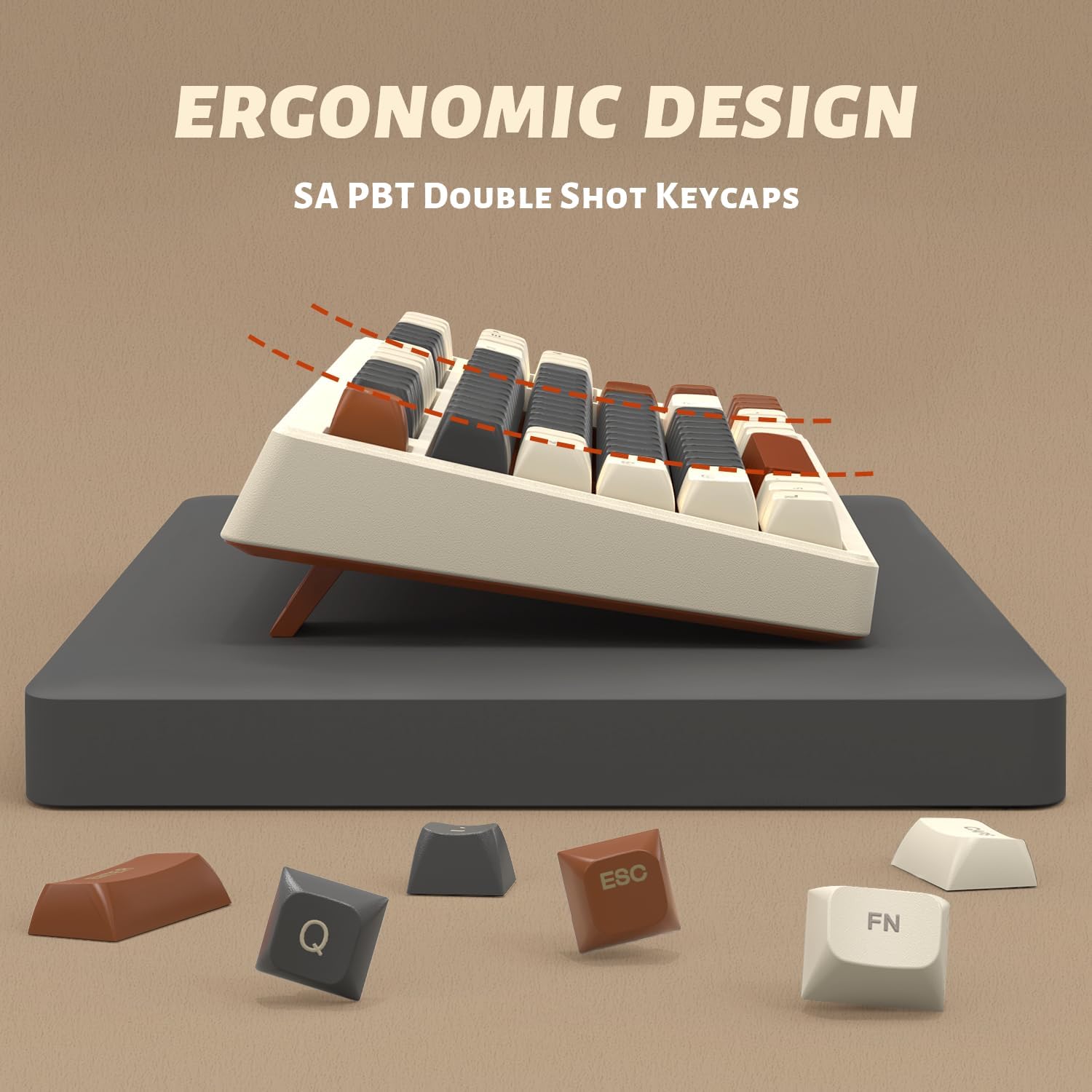
A close-up of the keyboard's profile, emphasizing its ergonomic angle and the SA PBT double-shot keycaps for comfortable typing.
Warranty and Support
For warranty information and customer support, please refer to the official ATTACK SHARK website or contact your retailer. Keep your purchase receipt as proof of purchase.
You can also visit the ATTACK SHARK Store on Amazon for more product information and support resources.