
1. Introduction
This manual provides detailed instructions for the setup, operation, and maintenance of your CZEview ZY-D1 Babyphone. Please read this manual thoroughly before using the device to ensure proper functionality and safety. The CZEview ZY-D1 is designed to help you monitor your baby with advanced features such as 2K Ultra HD video, AI-powered detection, two-way audio, and environmental monitoring.
2. Package Contents
- CZEview ZY-D1 Babyphone Camera
- Power Adapter and Cable
- Mounting Accessories (for wall mounting)
- User Manual (this document)
3. Product Overview and Features
The CZEview ZY-D1 Babyphone offers a comprehensive monitoring solution with the following key features:
- 2K Ultra HD Video: Provides clear and detailed video surveillance.
- 360° AI Tracking: Intelligent AI technology tracks movements, ensuring no blind spots with 355° horizontal and 90° vertical rotation.
- Instant Notifications: Receive immediate alerts for detected motion, noise, or crying.
- Two-Way Audio: Communicate with your baby remotely using the built-in microphone and speaker.
- Stable Dual-Band Wi-Fi: Compatible with both 2.4 GHz and 5 GHz Wi-Fi networks for reliable connectivity.
- Infrared Night Vision: Clear monitoring even in low-light or dark conditions.
- Comfort Night Light & Lullabies: Features a looping night light and 14 pre-installed lullabies to soothe your baby.
- Temperature and Humidity Monitoring: Keep track of the nursery environment.
- Sleep Analysis: Monitor and analyze your baby's sleep patterns.
- Alexa Integration: Seamlessly integrates with Amazon Alexa for voice control and viewing.

Image 1: The CZEview ZY-D1 Babyphone camera, featuring a white body and colorful ears, designed for monitoring infants.
4. Setup
4.1 Powering On
- Connect the provided power cable to the camera's power port.
- Plug the power adapter into a standard electrical outlet.
- The camera will power on, and an indicator light will show its status.
4.2 App Installation
- Scan the QR code provided on the product packaging or in the quick start guide to download the official CZEview app.
- Install the app on your smartphone or tablet.
- Register for a new account or log in if you already have one.
4.3 Wi-Fi Connection
- Open the CZEview app and follow the on-screen instructions to add a new device.
- Select your Wi-Fi network (supports both 2.4 GHz and 5 GHz).
- Enter your Wi-Fi password.
- The app will guide you through pairing the camera with your network. This usually involves scanning a QR code displayed on your phone with the camera lens.
- Once connected, the camera's indicator light will change, and you will see the live feed in the app.

Image 2: Illustration of the CZEview Babyphone's compatibility with both 5GHz and 2.4GHz dual-band Wi-Fi for a stable connection.
4.4 Mounting the Camera
The CZEview ZY-D1 Babyphone can be placed on a flat surface or mounted to a wall. If wall mounting, use the provided accessories and ensure the camera is securely fastened at a safe distance from the crib, out of reach of children.
5. Operating Instructions
5.1 Live View and Pan/Tilt Control
- Open the CZEview app and select your camera to view the live feed.
- Use the on-screen controls to pan (355° horizontal) and tilt (90° vertical) the camera lens to adjust the viewing angle.
- The automatic tracking feature will detect and follow moving objects within its field of view.
5.2 Two-Way Audio

Image 3: A parent using the CZEview app on a smartphone to engage in two-way communication with a baby in a crib.
- While in live view, tap the microphone icon in the app.
- Speak into your phone's microphone to transmit your voice through the camera's speaker.
- Release the microphone icon to listen to your baby.
5.3 AI Detection and Notifications

Image 4: The CZEview Babyphone camera positioned near a baby in a crib, highlighting its intelligent AI detection capabilities for motion, noise, and crying.
- Access the detection settings in the app.
- Enable Motion Detection, Noise Detection, and Cry Detection as needed.
- Adjust sensitivity levels to minimize false alarms.
- You will receive instant push notifications on your smartphone when an event is detected.
5.4 Night Vision and Lullabies

Image 5: The CZEview Babyphone emitting a soft glow as a night light, with musical notes floating around a sleeping baby, illustrating its infrared night vision and lullaby features.
- Night vision activates automatically in low-light conditions.
- To play lullabies or activate the night light, navigate to the respective controls in the app.
- Select from the 14 available lullabies to soothe your baby.
5.5 Temperature and Humidity Monitoring
The app displays real-time temperature and humidity readings from the camera's environment. You can set alerts for specific temperature or humidity ranges.
5.6 Sleep Analysis

Image 6: A visual representation of a sleep analysis timeline on a smartphone screen, showing snapshots of a baby at different times during sleep.
The CZEview app provides a timeline view of your baby's activity, which can be used to analyze sleep patterns. Review recorded events and snapshots to understand sleep duration and disturbances.
5.7 Amazon Alexa Integration
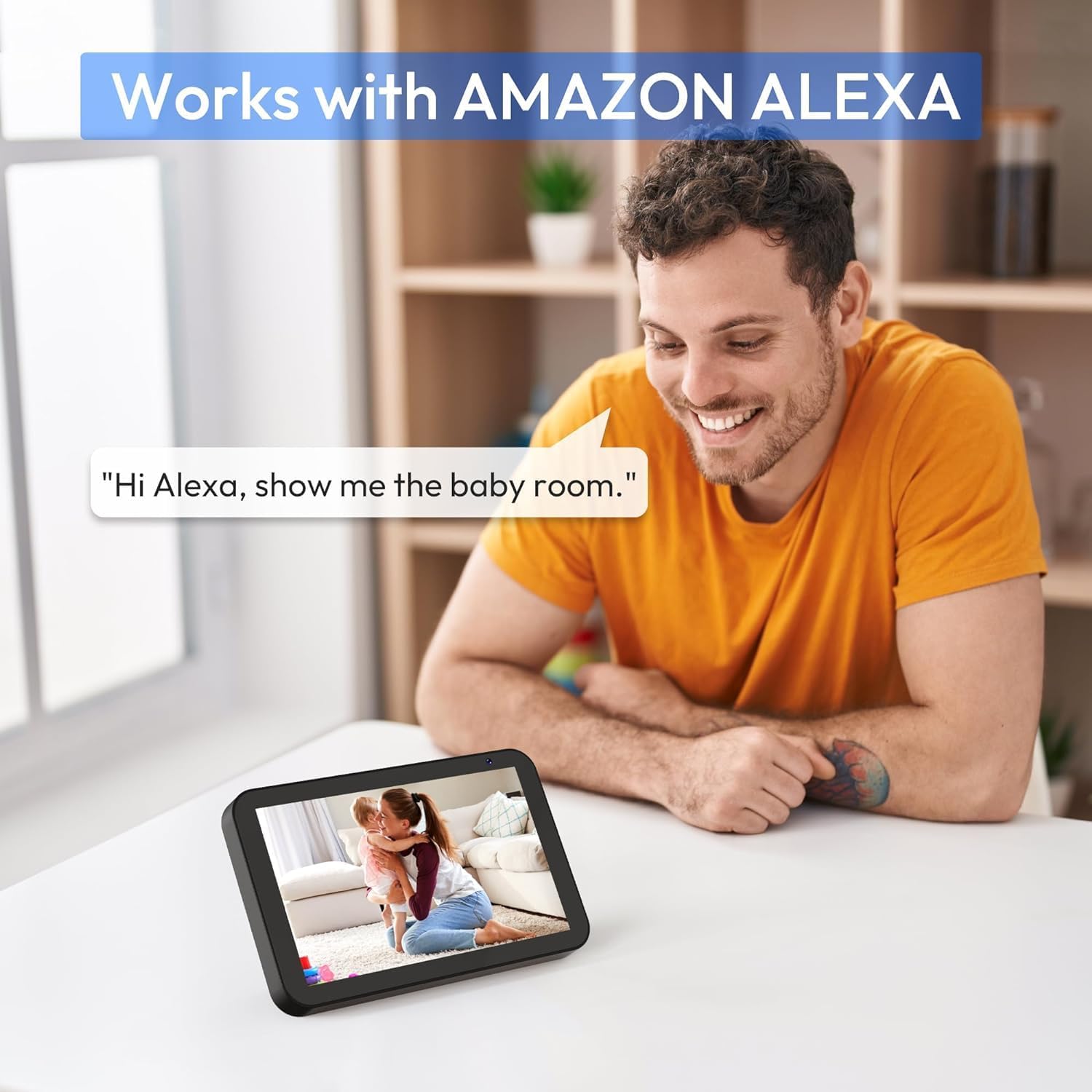
Image 7: A person interacting with an Amazon Echo Show device, displaying the live feed from the CZEview Babyphone, demonstrating Alexa integration.
- Enable the CZEview skill in your Amazon Alexa app.
- Link your CZEview account with Alexa.
- Use voice commands such as "Alexa, show me the baby room" to view the camera feed on compatible Alexa devices.
5.8 Multi-User Access and SD Card Recording
- Family Sharing: You can invite family members to view the camera feed through the app. Invited users may have limited control functions compared to the primary account holder.
- Local Storage: Insert an SD card (not included) into the camera's designated slot for local video recording and to enable certain features like playing lullabies directly from the camera.
6. Maintenance
- Cleaning: Use a soft, dry cloth to clean the camera lens and body. Do not use liquid cleaners or aerosols.
- Firmware Updates: Regularly check the app for available firmware updates to ensure optimal performance and security.
- Placement: Ensure the camera is placed in a well-ventilated area and not exposed to extreme temperatures or direct sunlight.
7. Troubleshooting
- No Power: Ensure the power cable is securely connected to both the camera and the power outlet. Try a different outlet.
- Wi-Fi Connection Issues: Verify your Wi-Fi password. Ensure the camera is within range of your router. Restart your router and the camera. Confirm your network is 2.4 GHz or 5 GHz compatible.
- Poor Image Quality: Check your internet connection speed. Ensure the camera lens is clean and free from obstructions. Adjust the video quality settings in the app if available.
- Poor Audio Quality: Ensure there are no obstructions near the camera's microphone or speaker. Check the volume settings in the app.
- Notifications Not Received: Check app notification settings on your phone and within the CZEview app. Ensure the camera is connected to Wi-Fi.
- Camera Not Responding: Unplug the camera, wait 10 seconds, and plug it back in to restart.
8. Specifications
| Feature | Specification |
|---|---|
| Model Number | ZY-D1 |
| Wireless Communication Technology | Wi-Fi (2.4 GHz & 5 GHz) |
| Viewing Angle | 360 Degrees (355° horizontal, 90° vertical) |
| Material | Plastic |
| Item Dimensions (L x W x H) | 12.7 x 7.62 x 7.62 cm |
| Connectivity Protocol | Wi-Fi |
| Controller Type | Amazon Alexa |
| Mounting Type | Wall Mount |
| Color | White |
| Components Included | Cable |
| Recommended Uses | Babyphone, Baby Monitoring, Night Vision |
9. Safety Information
- Keep the camera and all accessories out of reach of children.
- Do not place the camera or its power cord within 1 meter (3 feet) of the crib or playpen to prevent strangulation hazards.
- Use only the provided power adapter. Using unauthorized adapters may damage the device and void the warranty.
- Do not expose the device to water, moisture, or extreme temperatures.
- Do not attempt to open or repair the device yourself. Contact customer support for assistance.
10. Warranty and Support
For warranty information and customer support, please refer to the warranty card included in your product packaging or visit the official CZEview website. If you encounter any issues not covered in this manual, please contact CZEview customer service for assistance.