
Introduction
This manual provides essential information for setting up, operating, maintaining, and troubleshooting your MSI Stealth 18 AI Studio gaming laptop. Please read this guide thoroughly to ensure optimal performance and longevity of your device. The MSI Stealth 18 AI Studio is designed for high-performance gaming and creative tasks, featuring advanced Intel and NVIDIA technologies.
What's in the Box
Verify that all items are present upon unboxing:
- MSI Stealth 18 AI Studio Laptop
- Power Adapter
- Battery (integrated)
- MSI Laptop Bag

Image: The MSI Stealth 18 AI Studio laptop shown with its included power adapter and laptop bag.
Setup Guide
1. Initial Power-Up
- Connect the power adapter to the laptop's power input port and then to a power outlet.
- Open the laptop lid.
- Press the power button, typically located above the keyboard, to turn on the laptop.
2. Operating System Setup
Follow the on-screen instructions to complete the Windows 11 Home setup. This includes selecting your region, language, connecting to a network, and creating a user account.
3. Software Installation
Your laptop comes pre-installed with MSI Center. This software allows you to monitor system performance, customize settings, and manage various features. It is recommended to update all drivers and software after initial setup for optimal performance.

Image: Angled view of the MSI Stealth 18 AI Studio laptop with the lid open, showcasing the keyboard and screen during initial setup.
Operating Your Laptop
Display Features
The MSI Stealth 18 AI Studio features a 46 cm (18-inch) 16:10 UHD+ (3840x2400) MiniLED display with a 120Hz refresh rate. It offers 100% DCI-P3 typical color gamut and is an IPS-Level panel, providing vibrant colors and wide viewing angles. The display is VESA Certified DisplayHDR 1000, Calman Verified, and supports True Color Technology for accurate color reproduction.

Image: MSI Stealth 18 AI Studio laptop displaying vibrant colors, highlighting MiniLED, DisplayHDR 1000, P3, Calman Verified, and True Color technologies.
Performance and AI Capabilities
Equipped with the Intel Core Ultra 9 185H processor, featuring an integrated NPU, this laptop is optimized for accelerating AI programs and handling intensive applications efficiently. The NVIDIA GeForce RTX 4080 GPU with 12GB GDDR6 memory provides powerful graphics performance for gaming and creative workloads. The system includes 32GB DDR5 Dual Channel RAM and a 2TB NVMe PCIe Gen4x4 SSD for fast data access and multitasking.

Image: Close-up of the Intel Core Ultra 9 processor logo with a glowing chip illustration, representing the laptop's powerful CPU.

Image: MSI Stealth 18 AI Studio laptop with NVIDIA Studio and GeForce RTX Studio logos, indicating its graphics capabilities for creators and gamers.

Image: MSI Stealth 18 AI Studio laptop displaying a car interface, with an 'AI' logo, symbolizing its integrated artificial intelligence features.
Cooling System
The laptop utilizes a Vapor Chamber Cooler to efficiently dissipate heat, ensuring stable performance during extended gaming sessions or heavy workloads.

Image: Diagram showing the Vapor Chamber Cooler technology inside the laptop, illustrating its heat dissipation mechanism.
Audio Experience
Experience immersive audio with Dynaudio sound, Nahimic by SteelSeries audio enhancements, 6x speakers, and Hi-Res Audio support, providing rich and clear sound for gaming, movies, and music.

Image: MSI Stealth 18 AI Studio laptop with Dynaudio, Nahimic by SteelSeries, 6x Speaker, and Hi-Res Audio logos, indicating advanced sound features.
Connectivity
The laptop features Intel Killer BE Wi-Fi 7 for ultra-fast wireless internet connectivity and Bluetooth 5.5 for connecting wireless peripherals.
Ports and Interfaces
The MSI Stealth 18 AI Studio is equipped with a variety of ports for connecting external devices, including USB ports, an HDMI port, and an Ethernet port. Refer to the diagram below for port locations.
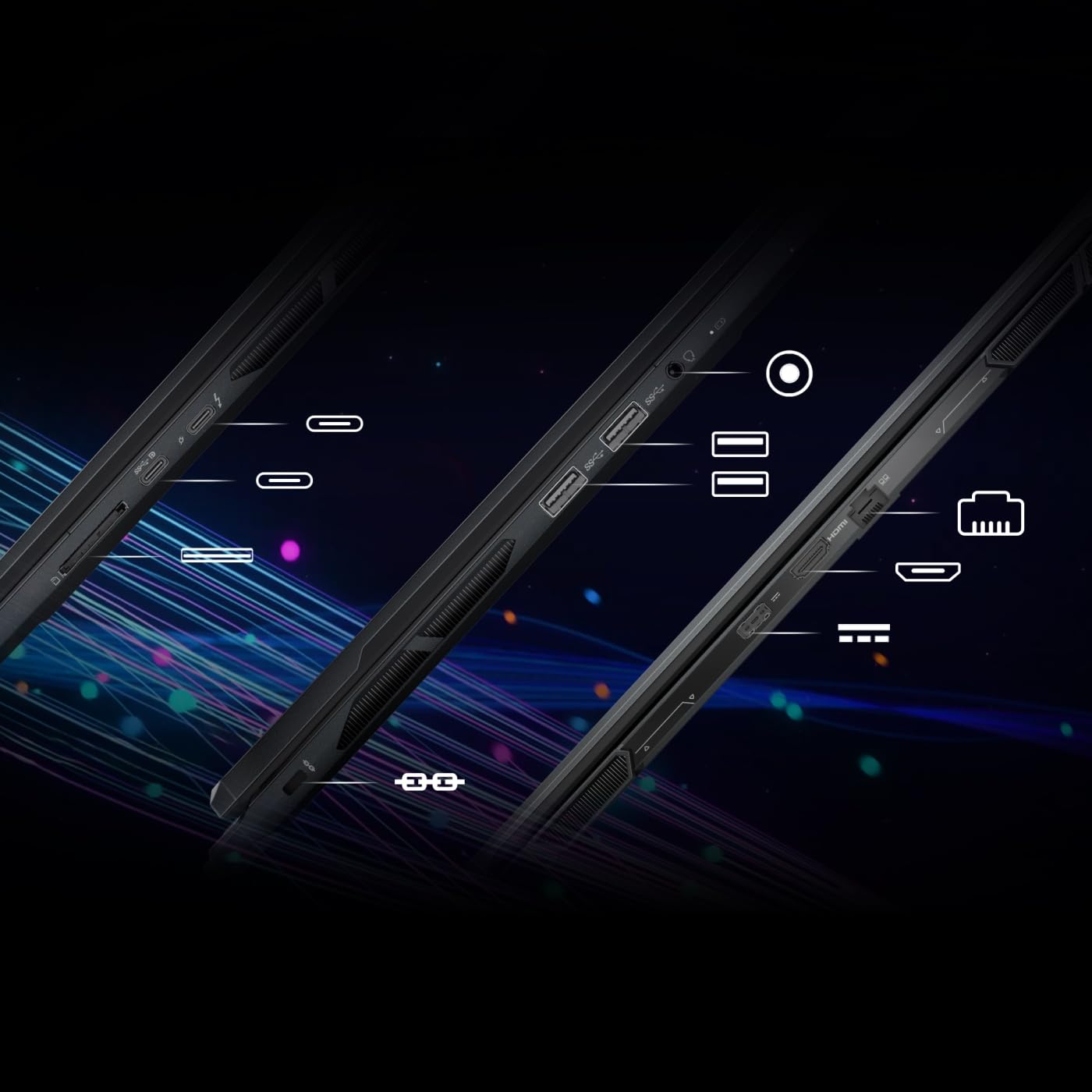
Image: Diagram illustrating the various ports on the sides of the MSI Stealth 18 AI Studio laptop, including USB, HDMI, and Ethernet.
Input Devices
The laptop includes a gaming keyboard, a responsive touchpad, a webcam with a privacy shutter, and a fingerprint reader for secure login.

Image: Diagram of the MSI Stealth 18 AI Studio laptop with numbered callouts for Webcam Shutter, Touchpad, Ambient Mystic Light, FingerPrint Reader, and Speaker Mesh.
Maintenance
Cleaning
- Use a soft, lint-free cloth to clean the screen and chassis.
- Avoid using harsh chemicals or abrasive materials.
- Periodically clean the keyboard and touchpad to remove dust and debris.
- Ensure ventilation grilles are clear of obstructions to maintain optimal airflow.
Software Updates
Regularly update your operating system, drivers, and MSI Center software to ensure system stability, security, and performance. Check for updates through Windows Update and MSI Center.
Battery Care
- Avoid fully discharging the battery frequently.
- Store the laptop in a cool, dry place if not used for extended periods.
- For optimal battery health, keep the charge level between 20% and 80% when possible.
Troubleshooting
No Power
- Ensure the power adapter is securely connected to both the laptop and a working power outlet.
- Check if the power outlet is functional by plugging in another device.
- If the battery is completely drained, allow it to charge for a few minutes before attempting to power on.
Display Issues
- If the screen is blank, try connecting an external monitor to verify if the laptop is outputting a signal.
- Adjust screen brightness using the function keys.
- Ensure graphics drivers are up to date.
Network Connectivity Problems
- Verify that Wi-Fi is enabled in Windows settings.
- Restart your router and modem.
- Check for updated Wi-Fi drivers.
- If using a wired connection, ensure the Ethernet cable is properly connected.
Specifications
| Feature | Detail |
|---|---|
| Brand | MSI |
| Model Name | Stealth 18 AI Studio |
| Model Number | A1VHG-023IN |
| Processor | Intel Core Ultra 9 185H (Up To 5.1GHz) |
| Graphics Card | NVIDIA GeForce RTX 4080, GDDR6 12GB |
| RAM Memory | 32 GB DDR5 (16GBx2 Dual Channel), 5600 MHz (Max 96 GB) |
| Storage | 2 TB NVMe PCIe Gen4x4 SSD |
| Operating System | Windows 11 Home |
| Display | 46 cm (18-inch) 16:10 UHD+ (3840x2400), MiniLED, 120Hz, 100% DCI-P3 (Typ.), IPS-Level panel |
| Wireless Connectivity | Intel Killer BE Wi-Fi 7 + Bluetooth 5.5 |
| Audio | Dynaudio, Nahimic by SteelSeries, 6x Speakers, Hi-Res Audio |
| Ports | Total USB Ports: 2, Total HDMI Port: 1 |
| Webcam | Yes, Front Camera |
| Item Weight | 2.89 Kilograms |
| Dimensions (L x W x Thickness) | 39.9L x 28.9W x 2.3Th Centimeters |
| Battery | Lithium Polymer, 99.9 Watt Hours |
Warranty and Support
Warranty Information
Your MSI Stealth 18 AI Studio laptop comes with a 2 Years On-Site warranty. On-Site Service is eligible for selected regions. By default, the unit comes with two-years base domestic warranty from the unit shipped date and can be corrected by contacting MSI.
To validate your warranty or for self-service, please visit: https://in.msi.com/support/nb
Contact Support
For any queries regarding warranty or technical support, you can reach MSI through the following channels:
- Visit Us
More than 170 centres all over India
- Call Us (9 to 5)
011 4748 4000
- Mail Us
indiaservicenb@msi.com

Image: MSI warranty and support information graphic, including options to visit, call, or email for assistance.


