1. Introduction
This manual provides detailed instructions for the installation, operation, and maintenance of your TTXSCAM MT02-A Motorcycle 5-inch IPS Touch Screen Monitor. This device is designed to enhance your riding experience by integrating wireless Apple CarPlay and Android Auto, offering seamless navigation, communication, and entertainment on the go.

Image: The TTXSCAM MT02-A Motorcycle Monitor displaying the Apple CarPlay interface, with a motorcycle in the background, illustrating its primary function.
2. Package Contents
Before beginning installation, please verify that all components listed below are present in your package:
- 5-inch IPS Touch Screen Monitor
- USB Power Cable
- Waterproof Power Cable
- Adjustable Bracket Holder Kit (includes bracket, spacers, screws)
- Stickers (2 pcs)
- Binding Straps
- Other necessary parts for installation
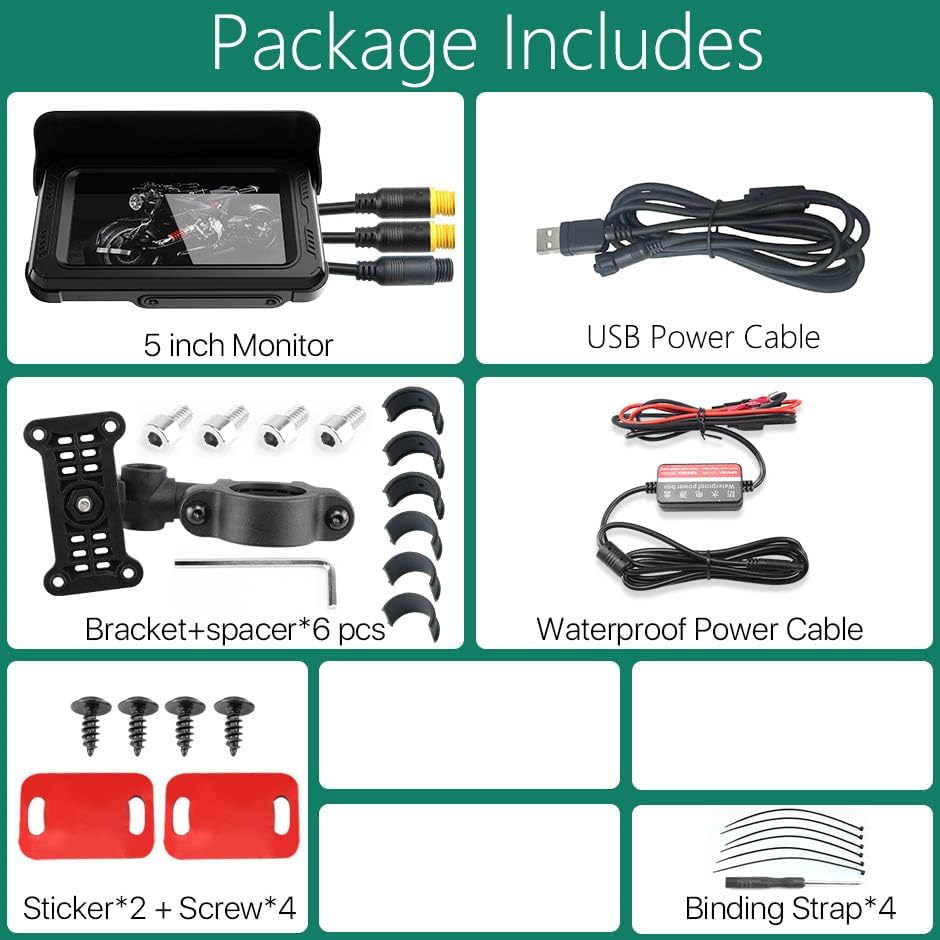
Image: A visual representation of all items included in the TTXSCAM MT02-A product package, such as the monitor, various cables, mounting bracket, and accessories.
3. Setup and Installation
The TTXSCAM MT02-A is designed for easy installation on various motorcycle models. Follow these steps for proper setup:
- Assemble the Bracket: Connect the components of the adjustable bracket holder. Ensure all screws are securely tightened.
- Connect Monitor to Bracket: Attach the 5-inch IPS touch screen monitor to the assembled bracket.
- Mount on Handlebar: Securely mount the entire assembly onto your motorcycle's handlebar. Use the provided spacers to ensure a snug fit and optimal viewing angle.
- Power Connection: Connect the waterproof power cable to the monitor and to your motorcycle's power source. Ensure connections are secure and waterproof.
Note: This portable CarPlay screen includes bracket kits and tools, making it straightforward to attach to the motorcycle handlebar. The design is compatible with all motorcycle models.

Image: A step-by-step visual guide demonstrating how to assemble the mounting bracket, connect it to the monitor, and secure the unit onto a motorcycle handlebar.
4. Operating Instructions
4.1 Wireless CarPlay & Android Auto Connectivity
The monitor supports wireless Apple CarPlay and Android Auto for seamless smartphone integration.
- Search & Pair: On your smartphone, search for the device's Bluetooth name (e.g., 'MT69A-xxxxxxx') in your Bluetooth settings and establish a secure connection.
- Wi-Fi Connection: Once Bluetooth is paired, the device will prompt you to connect via Wi-Fi for full CarPlay or Android Auto functionality.
- Microphone Settings: To prevent audio feedback, ensure the device microphone is OFF. Navigate to Settings >>> System >>> Device MIC >>> OFF.

Image: The motorcycle monitor showcasing its ability to display both Apple CarPlay and Android Auto interfaces, indicating wireless connectivity.
4.2 Seamless Bluetooth Helmet Integration
Connect your Bluetooth helmet or earphones for audio output from the monitor.
- Ensure your helmet or earphones are powered on and in discovery mode.
- Access 'Bluetooth Emit' on the monitor's settings to search for and connect with your Bluetooth helmet.
- Important: Avoid connecting your mobile phone directly to the Bluetooth helmet or earphones to prevent interference during the pairing process with the monitor.

Image: A visual guide illustrating the process of connecting the monitor to a Bluetooth helmet or earbuds, emphasizing the correct pairing sequence.
4.3 GPS Navigation
Utilize your smartphone's navigation applications directly on the monitor via CarPlay or Android Auto for clear, real-time directions.

Image: The monitor displaying a detailed GPS navigation map, highlighting its utility for motorcycle riders to follow routes and access real-time traffic information.
4.4 Hands-Free Control
The monitor supports voice commands via Siri or Google Voice, allowing for safer operation while riding. This enables:
- Safer Riding: Keep hands on handlebars.
- Music on the Go: Control playback without distraction.
- Effortless Navigation: Voice-guided directions.
- Make Calls Safely: Initiate and answer calls.

Image: The monitor mounted on a motorcycle handlebar, with icons representing key features like safer riding, music control, navigation, and call management, all accessible via voice commands.
5. Maintenance
To ensure the longevity and optimal performance of your TTXSCAM MT02-A monitor, follow these maintenance guidelines:
- Cleaning: Use a soft, damp cloth to clean the screen and exterior. Avoid abrasive cleaners or solvents that could damage the display or casing.
- Waterproofing: The device is IP65 waterproof. While it can withstand rain, avoid submerging it in water. Ensure all cable connections are properly sealed to maintain water resistance.
- Temperature: The monitor is designed to operate within a temperature range of -10°C to 60°C (14°F to 140°F). Avoid prolonged exposure to extreme temperatures outside this range.
- Storage: When not in use for extended periods, store the monitor in a cool, dry place away from direct sunlight.

Image: Visuals demonstrating the monitor's performance in various weather conditions (snowy, sunny, rainy), highlighting its low-temperature adaptability, high-temperature resilience, and IP65 waterproof rating.
6. Troubleshooting
If you encounter issues with your TTXSCAM MT02-A monitor, refer to the following common problems and solutions:
| Problem | Possible Cause | Solution |
|---|---|---|
| Monitor does not power on. | Loose power connection, no power from motorcycle. | Check all power cable connections. Ensure motorcycle power is on. |
| Cannot connect to CarPlay/Android Auto wirelessly. | Incorrect Bluetooth pairing, Wi-Fi not enabled. | Ensure Bluetooth is paired first, then Wi-Fi. Check phone's Wi-Fi settings. Restart both devices. |
| No audio from Bluetooth helmet. | Helmet not paired, incorrect audio output setting. | Verify helmet is in pairing mode and connected via 'Bluetooth Emit' on the monitor. Check monitor's audio settings. |
| Touchscreen unresponsive or inaccurate. | Screen is wet, debris on screen, software glitch. | Wipe screen dry. Clean screen thoroughly. Restart the monitor. |
If the problem persists after attempting these solutions, please contact customer support.
7. Specifications
| Feature | Detail |
|---|---|
| Model Name | TTXSCAM-MT02-A |
| Display Size | 5 Inches IPS Touch Screen |
| Connectivity Technology | Wireless, Bluetooth, Wi-Fi, USB |
| Special Features | Touchscreen, Waterproof (IP65), Wireless Carplay & Android Auto Support |
| Voice Command | Via Touchscreen, Microphone, Buttons (Siri & Google Voice compatible) |
| Audio Output Mode | Stereo |
| Mounting Type | Handlebar Mount |
| Operating Temperature | -10°C to 60°C (14°F to 140°F) |
| Item Weight | Approximately 1 pound |
| Country of Origin | China |
8. Warranty and Support
TTXSCAM provides the following warranty for the MT02-A Motorcycle Monitor:
- Money Back Guarantee: 3 Months
- New Replacement Warranty: 3 Years
- Service: Lifelong Service
For technical support, warranty claims, or any inquiries, please contact TTXSCAM customer service through the retailer's platform or the official TTXSCAM website.


