1. Introduction
Welcome to the user manual for your new TTXSCAM MT01-A Motorcycle 5-Inch IPS Touch Screen Monitor. This device is designed to enhance your riding experience by providing seamless integration with Wireless CarPlay and Android Auto, intelligent voice control, and essential navigation features. Please read this manual thoroughly before operating the device to ensure proper installation, safe usage, and optimal performance.
For your safety, always prioritize road conditions and traffic laws. Do not operate the device in a manner that distracts you from riding.
2. Product Features
- Revolutionary Motorbike Carplay Kit: Simultaneous support for Wireless CarPlay and Android Auto, offering a comprehensive in-ride infotainment system.
- Intelligent Voice Control: Hands-free operation via Siri or Android Voice for calls, music playback, GPS guidance, and more, ensuring safer interactions while riding.
- Effortless Bluetooth Helmet Integration: Easily connect your Bluetooth helmet for audio output and communication.
- Elegantly Designed Motorcycle Carplay Solution: Features a waterproof 5-inch Full IPS Touch Screen, user-friendly 4-side buttons for intuitive control, and an adjustable bracket holder for universal compatibility with various motorcycles.
- Built-in GPS: Provides reliable navigation capabilities.
- Wi-Fi Connectivity: Enables wireless data transfer and updates.
- TF Card Support: For expanded storage and potential recording features.
- G-Sensor: For automatic incident detection and recording.
3. Package Contents
Please verify that all items listed below are included in your package:
- 1 x 5-inch IPS Touch Screen Monitor
- 1 x USB Power Cable
- 1 x Waterproof Power Cable
- 1 x Bracket with 6 x Spacers
- Other necessary installation parts
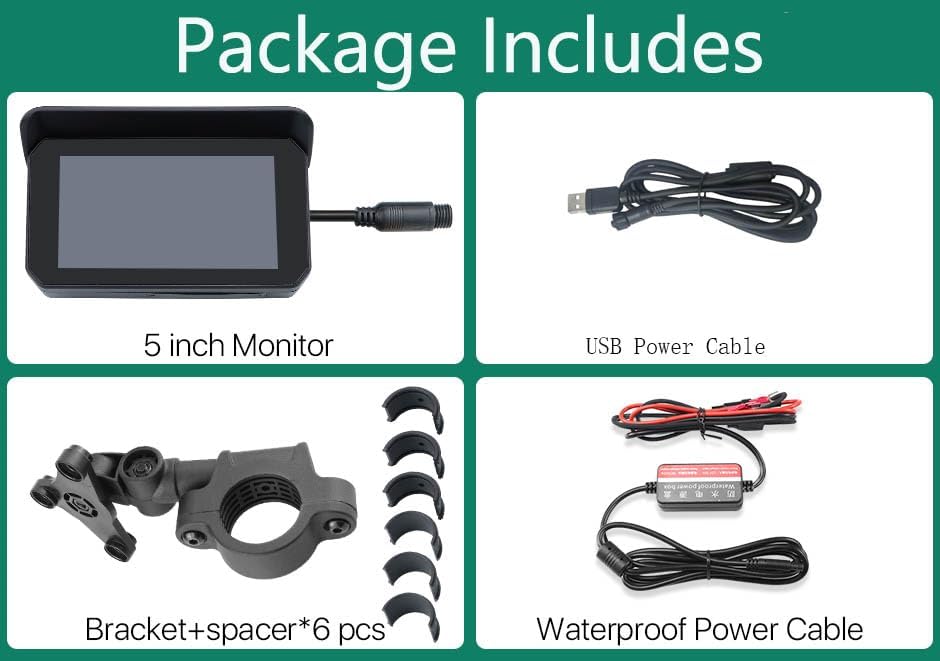
Figure 3.1: Package Contents of the TTXSCAM MT01-A Monitor.
4. Setup and Installation
4.1 Physical Installation
The TTXSCAM MT01-A monitor comes with an adjustable bracket for universal compatibility. Follow these steps for secure mounting:
- Select a suitable location on your motorcycle handlebars that does not obstruct your view or control.
- Attach the bracket to the handlebars using the provided spacers to ensure a snug fit.
- Secure the monitor to the bracket, adjusting the angle for optimal viewing.
- Connect the power cable. You can use either the USB Power Cable for a USB power source or the Waterproof Power Cable for direct connection to your motorcycle's electrical system (professional installation recommended for direct wiring).
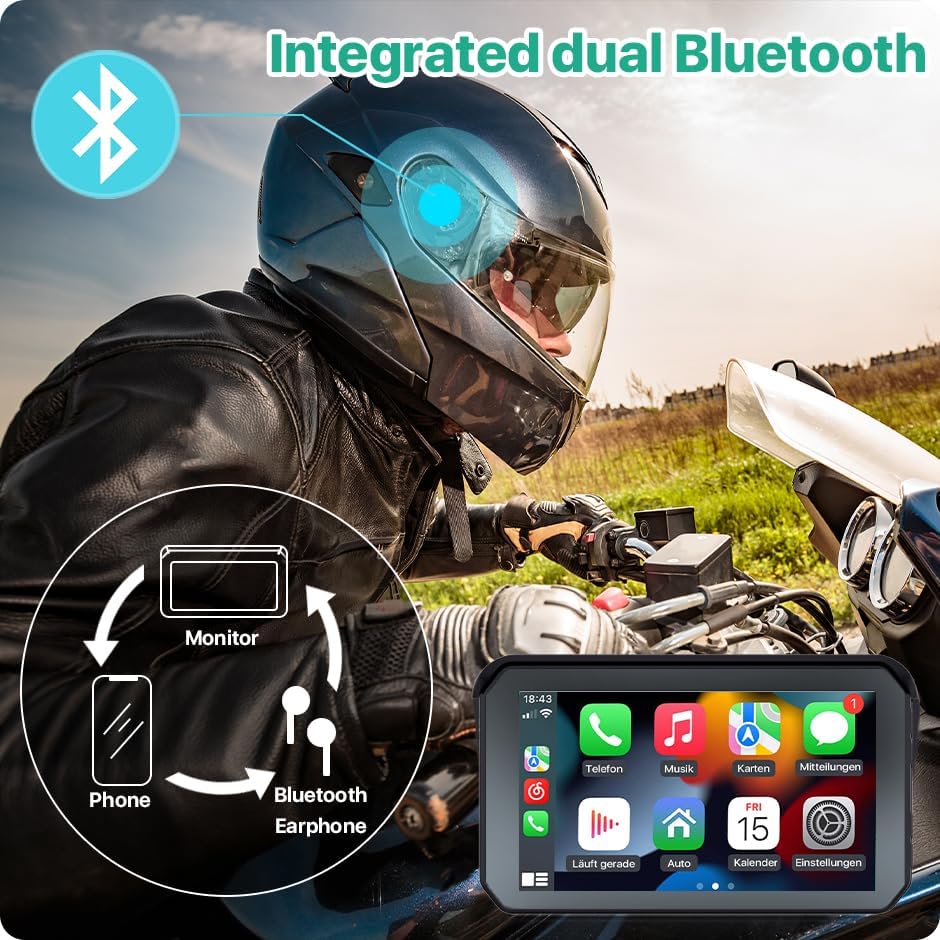
Figure 4.1: TTXSCAM MT01-A Monitor mounted on a motorcycle.
4.2 Initial Power On
Once physically installed and powered, the device should automatically turn on. If not, press and hold the power button located on the side of the unit until the screen illuminates.
5. Operating Instructions
5.1 Touch Screen Interface
The MT01-A features a responsive 5-inch IPS touch screen. Navigate through menus and applications by tapping, swiping, and pinching as you would on a smartphone. The 4-side buttons provide additional tactile control for common functions.
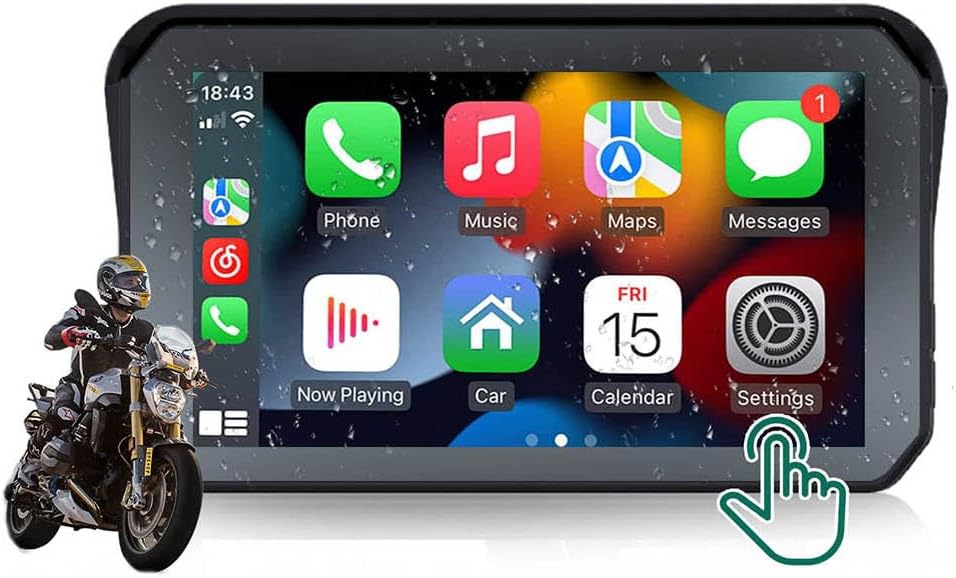
Figure 5.1: The 5-inch IPS Touch Screen displaying the CarPlay interface.
5.2 Wireless CarPlay and Android Auto Connection
To connect your smartphone for Wireless CarPlay or Android Auto, follow these steps:
- Ensure Bluetooth and Wi-Fi are enabled on your smartphone.
- On your smartphone, open the Bluetooth settings and search for available devices.
- Select the Bluetooth signal starting with 'MT69C-xxxxxx' (or 'MT65A-xxxxxxx' as per some instructions) from the list and pair with it.
- Once paired, a prompt will appear on your phone to allow contacts sync and to use CarPlay/Android Auto. Confirm these prompts.
- The monitor will automatically switch to the CarPlay or Android Auto interface.
Video 5.1: Demonstration of how to connect your smartphone for CarPlay functionality.

Figure 5.2: Wireless CarPlay and Android Auto interfaces on the monitor.
5.3 Bluetooth Helmet Integration
To connect your Bluetooth helmet for audio output:
- Ensure the device microphone is OFF. Navigate to Settings >>> System >>> Device MIC >>> OFF.
- Access 'Bluetooth Emit' on the monitor to search for and connect with your Bluetooth helmet.
Figure 5.3: Integrated dual Bluetooth for seamless audio and communication.
5.4 Intelligent Voice Control (Siri/Android Voice)
Once connected to CarPlay or Android Auto, you can utilize voice commands for various functions:
- Activate Siri or Google Voice by pressing the dedicated voice button on the monitor (if available) or using the voice command prompt on the screen.
- Use commands such as "Hey Siri, call [Contact Name]", "Hey Google, play [Song Name]", or "Hey Siri, navigate to [Destination]".

Figure 5.4: Intelligent voice control for hands-free operation.
5.5 GPS Navigation
The integrated GPS functionality allows for reliable navigation. When connected to CarPlay or Android Auto, you can use your preferred navigation apps (e.g., Apple Maps, Google Maps, Waze) directly on the monitor's screen. Input destinations via touch or voice command.

Figure 5.5: GPS navigation on the waterproof display.
6. Maintenance
6.1 Cleaning
The TTXSCAM MT01-A monitor is designed to be waterproof. To clean the screen and body, use a soft, damp cloth. Avoid using harsh chemicals or abrasive materials that could damage the screen or casing.
6.2 Storage
When not in use for extended periods, store the device in a cool, dry place away from direct sunlight and extreme temperatures. Ensure all connections are clean and dry before storage.
7. Troubleshooting
If you encounter any issues with your TTXSCAM MT01-A monitor, please refer to the table below for common problems and their solutions. If the problem persists, contact customer support.
| Problem | Possible Cause | Solution |
|---|---|---|
| Device not powering on. | Loose power connection, no power from source. | Check all power cable connections. Ensure the power source (USB or motorcycle battery) is active and providing sufficient voltage. |
| CarPlay/Android Auto not connecting. | Bluetooth/Wi-Fi off on phone, incorrect pairing, phone not allowing connection. | Ensure Bluetooth and Wi-Fi are enabled on your phone. Re-attempt pairing by following the steps in Section 5.2. Check for any pop-up prompts on your phone requiring permission. |
| Screen difficult to see in direct sunlight. | High glare, insufficient brightness for extreme conditions. | Adjust screen brightness settings. Consider applying an aftermarket anti-glare film to the screen. Note that polarized sunglasses may also affect visibility. |
| Bluetooth helmet not connecting. | Device microphone enabled, incorrect pairing. | Ensure the device microphone is OFF (Settings >>> System >>> Device MIC >>> OFF). Access 'Bluetooth Emit' on the monitor and re-scan for your helmet. |
| Device does not fully power off with power button. | Power button designed for screen standby, not full shutdown. | The power button may put the device into a low-power standby mode. For a full shutdown, disconnect the power cable or consult TTXSCAM support for specific instructions if a full power-off feature is desired. |
8. Specifications
| Feature | Detail |
|---|---|
| Model Number | TTXSCAM-MT01-A |
| Screen Size | 5 Inches (13 cm visible diagonal) |
| Display Type | IPS Touch Screen, LED |
| Connectivity | Bluetooth, USB, Wi-Fi, Wireless |
| Color | Black |
| Product Dimensions | 5.71 x 3.43 x 1.46 inches |
| Item Weight | 12.8 ounces |
| Waterproof Rating | IP65 (implied by A+ content image) |
9. Warranty and Support
Your TTXSCAM MT01-A monitor is covered by a manufacturer's warranty. For specific warranty terms and conditions, please refer to the product packaging or contact TTXSCAM customer service directly. Keep your purchase receipt as proof of purchase.
For technical support, troubleshooting assistance, or any inquiries regarding your product, please visit the official TTXSCAM store on Amazon or contact their customer service team:


