
1. Introduction
This manual provides detailed instructions for the installation, operation, and troubleshooting of your CARabc 10.25 Inch Touchscreen Wireless CarPlay/Android Auto system. Please read this manual thoroughly before installation and use to ensure proper functionality and safety.
2. Compatibility
This device is designed for BMW vehicles equipped with the NBT system, specifically for the following models and chassis codes:
- BMW 3 Series (2012-2016): F30, F31, F34
- BMW 4 Series (2012-2016): F32, F33, F36
- BMW M3 (2012-2016): F80
- BMW M4 (2012-2016): F82, F83
Important: This system is not suitable for EVO systems. Compatibility is confirmed if the LVDS port on the back of your original screen is 6-pin.

3. Key Features
The CARabc touchscreen system enhances your vehicle's infotainment capabilities while retaining original OEM functions. Key features include:
- Wireless CarPlay/Android Auto: Seamless integration with your smartphone for navigation, music, calls, and messages.
- Wireless Mirrorlink: Mirror your iPhone or Android phone screen directly onto the display.
- High-Resolution Display: 10.25-inch screen with 1920x720 resolution for clear visuals.
- Bluetooth Connectivity: For hands-free calling and audio streaming.
- 16-Band EQ Adjustment: Customize your audio experience.
- Camera Support: Supports factory cameras, aftermarket backup cameras, and front-view DVR (CVBS) systems.
- Automatic Brightness Adjustment: Screen brightness adapts to ambient light conditions for optimal visibility.
- Original Controls Retention: Maintains functionality of original car radio, playback, joystick controls, and reversing camera.


4. What's in the Box
The product package includes the following items:
- 10.25 Inch BMW HD Touch Screen
- Installation cables (ISO Wiring Harness, USB & AUX OUT Cable)
- BMW Plastic Trim
- User manual
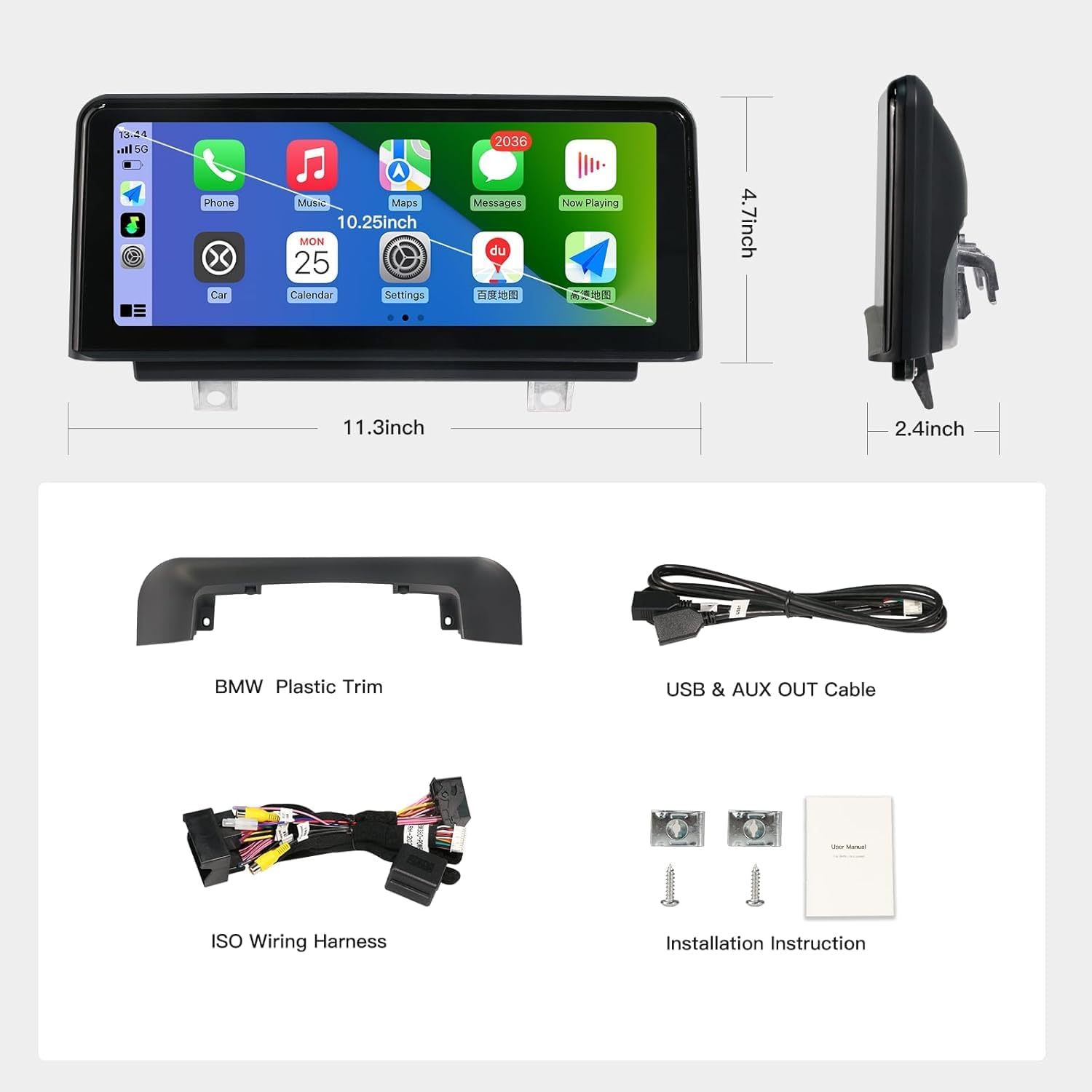
5. Setup and Installation
Installation requires removing parts of the car dashboard to connect wires. Ensure all features work correctly before reassembling the dashboard.
5.1. Addressing No Sound Issues
If you experience no sound after installation, follow these steps:
- On the CARabc screen, select "OEM Car Info" to enter the original BMW system.
- Navigate to "Multimedia" > "External Devices". Check if the OEM Bluetooth is selected.
- If OEM Bluetooth is selected, return to the CARabc system settings. Go to "System" and turn off "Use Car's BT Channel".
- On your phone, disconnect from the original BMW Bluetooth.
- In the CARabc system, go to "Setup" > "Car Settings" and select "Auto Switch to AUX" to "Close".
- Return to the original car interface, select "AUX Front" as the audio source. Play music and adjust the volume knob.
- If still no sound, connect the provided AUX harness. Plug the 3.5mm jack into the car's AUX-IN port (usually in the center console).
- Check the AB ground plugs. Disconnect if connected, connect if disconnected.
- If your OEM ISO harness has a fiber optic cable, adapt it to the CARabc ISO harness.
- Ensure the ISO harness is securely plugged in. If loose, unplug and replug.
- Check the power cable and LVDS cables on the back of the CARabc screen. If loose, re-plug them once.
5.2. Wiring and Connections
The system comes with an ISO wiring harness designed for plug-and-play installation. Ensure all connections are secure.

6. Operating Instructions
6.1. Switching Between Systems
The CARabc system allows seamless switching between the new Linux-based interface and your original BMW OEM system. Simply click the "Original Car Interface" icon on the homescreen menu to access the OEM system. You can touch anywhere on the screen to return to the Linux system.

6.2. Wireless CarPlay and Android Auto
Connect your smartphone via Bluetooth to enable wireless CarPlay or Android Auto. This provides access to navigation, music, calls, and messages directly on the touchscreen.
6.3. Camera Support
The system supports various camera inputs, including factory original reverse cameras, parking radar, front view DVR (CVBS), aftermarket reverse cameras, and 360-degree cameras.
7. Maintenance
To ensure the longevity and optimal performance of your CARabc touchscreen, follow these maintenance guidelines:
- Regularly clean the screen with a soft, lint-free cloth. Avoid abrasive cleaners.
- Keep the unit free from dust and debris.
- Ensure all cables are securely connected and free from damage.
- Avoid exposing the unit to extreme temperatures or direct sunlight for prolonged periods.
8. Troubleshooting
For common issues, refer to the following troubleshooting tips:
- No Power: Check all power connections and ensure the vehicle's ignition is on.
- Screen Flickering: Verify LVDS cable connections are secure.
- CarPlay/Android Auto Connection Issues: Ensure Bluetooth and Wi-Fi are enabled on your phone and the CARabc unit. Try restarting both devices.
- Incorrect Display: Check the original car's screen resolution settings in the CARabc system setup menu.
9. Specifications
| Feature | Detail |
|---|---|
| Display Size | 10.25 Inches |
| Resolution | 1920x720 |
| Operating Voltage | 12-18VDC |
| Waterproof Rating | IP68 |
| Connectivity Technology | Bluetooth, Wireless |
| Special Feature | Touchscreen, Automatic Brightness Adjustment |
| Audio Output Mode | Stereo |
| Mounting Type | Dashboard Mount |
| Item Weight | 2.23 pounds |
| Product Dimensions | 2.35 x 11.2 x 5.7 inches |
10. Warranty and Support
The CARabc 10.25 Inch Touchscreen Wireless CarPlay/Android Auto system comes with a 3-year warranty and lifetime technical support. For any questions, concerns, or technical assistance, please contact CARabc customer service.


