
1. Product Overview
The vretti TP6S is a compact, portable thermal sticker printer designed for various applications including photo printing, study notes, journaling, and creating custom labels. It utilizes thermal printing technology, eliminating the need for ink or toner.
1.1 Package Contents
- Mini Sticker Printer
- USB Cable
- Paper Roll
- User Manual
1.2 Key Features
- Printing Technology: Thermal (no ink required)
- Resolution: 300 DPI
- Connectivity: Bluetooth
- Paper Size: 58mm (1.89 inches printing width)
- Compatibility: Android 4.0 and iOS 8.0 or above
- Portability: Compact and lightweight (0.21 kg)
2. Setup Guide
2.1 Charging the Printer
Before initial use, ensure the printer is fully charged. Connect the provided USB cable to the printer's charging port and a suitable power source. The indicator light will show charging status.
2.2 Installing the App
The vretti TP6S printer operates via a dedicated mobile application. Download the 'xlife-pro' app from your device's app store:
Ensure your smartphone is running Android 4.0 or iOS 8.0 or a newer version for compatibility.

Image: The XLife Pro app interface displaying options for picture and text notes, creative templates, and various printing modes like picture, document, web, banner, stick drawing, and QR code. The printer is shown connected via Bluetooth.
2.3 Connecting via Bluetooth
- Turn on the vretti TP6S printer by pressing and holding the power button.
- Enable Bluetooth on your smartphone.
- Open the 'xlife-pro' app.
- Within the app, select 'TP6S' from the list of available devices to establish a Bluetooth connection.
2.4 Loading Thermal Paper
- Locate the paper compartment release button or latch on the side of the printer.
- Open the printer cover.
- Insert a new roll of 58mm thermal paper, ensuring the paper feeds smoothly from the top and the print side is facing the print head.
- Pull a small amount of paper out of the printer.
- Close the printer cover securely until it clicks into place.

Image: A visual guide illustrating the four simple steps to use the vretti TP6S printer: 1) Download the 'Xlife Pro' app and turn on the mini printer, 2) Turn on phone's Bluetooth and connect to the printer, 3) Load thermal paper into the printer, and 4) Use the app to start printing.
3. Operating Instructions
3.1 Basic Printing Steps
- Ensure the printer is powered on and connected to your smartphone via Bluetooth.
- Open the 'xlife-pro' app on your device.
- Select your desired printing mode (e.g., Picture Printing, Document Printing, Creative Template).
- Choose or create the content you wish to print.
- Preview the content within the app to ensure it appears as desired.
- Tap the 'Print' button to send the data to the printer. The printer will automatically feed and print the content.
3.2 App Functions
The 'xlife-pro' app offers a variety of functions to enhance your printing experience:
- Picture Printing: Print photos directly from your device's gallery.
- Text Printing: Create and print custom text notes, memos, or lists.
- Graphic Printing: Print various graphics and designs.
- Document Printing: Print documents such as PDFs or text files.
- Web Printing: Print content directly from web pages.
- QR Code: Generate and print QR codes.
- Banner: Create and print long banners.
- Creative Templates: Access a library of pre-designed templates for various purposes (e.g., to-do lists, journal entries, study notes, cartoons).
- Stick Drawing: Utilize drawing tools to create custom designs.
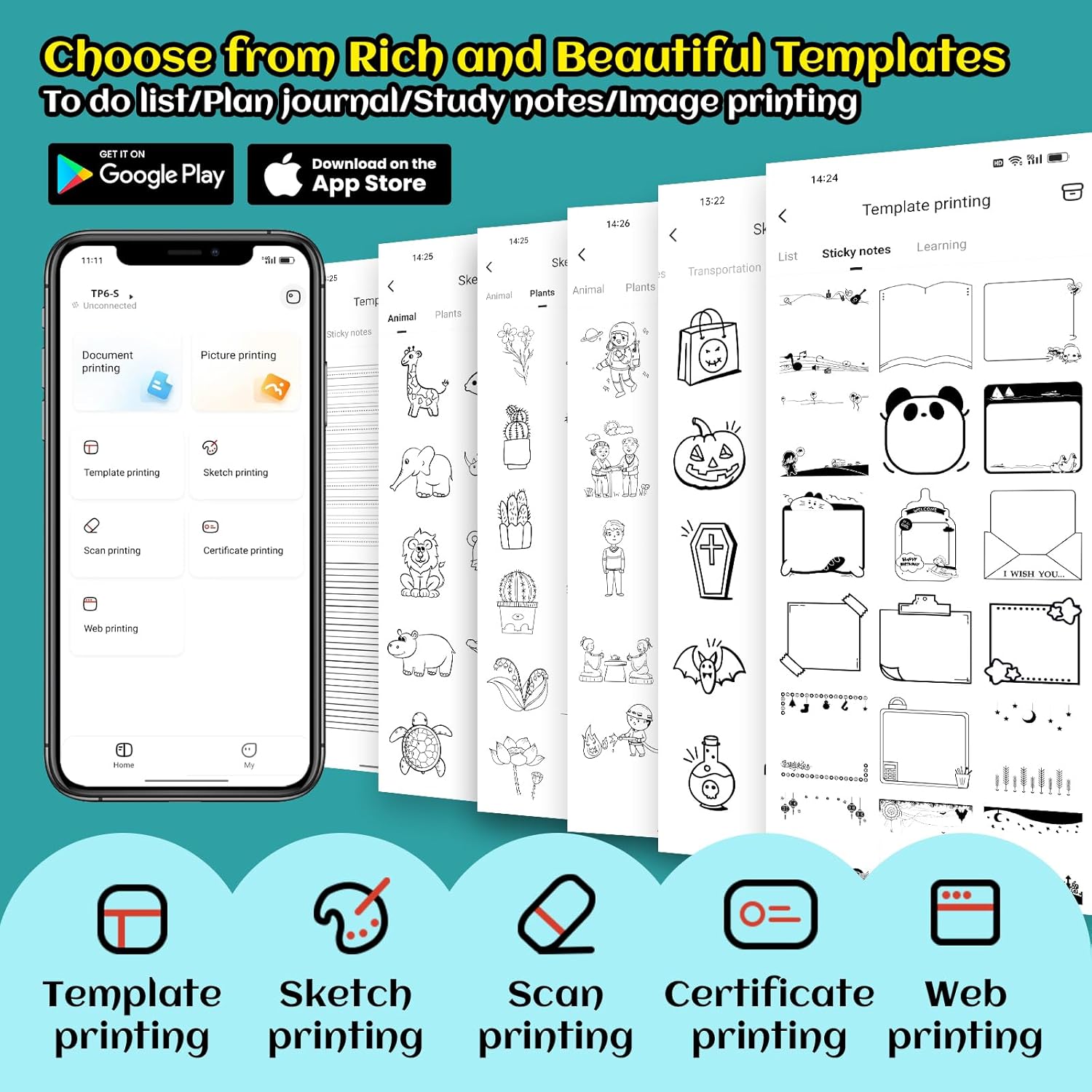
Image: The 'XLife Pro' app interface displaying a wide selection of templates for different uses, including to-do lists, journal planning, study notes, and image printing. Icons for template printing, sketch printing, scan printing, certificate printing, and web printing are also visible.

Image: A person holding the vretti TP6S printer, illustrating its ease of use. Three insets show examples of image printing (a black and white landscape), text printing (a block of text), and graphic printing (a cartoon crab), demonstrating the printer's versatility.
4. Maintenance
4.1 Cleaning the Printer
To ensure optimal performance and prevent paper jams, regularly clean the internal components of the printer. Use a soft, dry cloth to gently wipe away any dust or debris from the paper path and print head area.
4.2 Paper Handling
Always use thermal paper rolls of the specified size (58mm width). Store thermal paper in a cool, dry place away from direct sunlight to preserve its quality and print longevity. The printer does not require ink cartridges or toner; its thermal technology creates images by heating the specialized paper.
5. Troubleshooting
5.1 Common Issues and Solutions
- Printer Not Connecting via Bluetooth:
Ensure Bluetooth is enabled on both your phone and the printer. Restart both devices and try pairing again. Verify that the 'xlife-pro' app has the necessary Bluetooth permissions on your device. - Paper Jams:
Open the printer cover and carefully remove any jammed paper. Ensure the paper roll is inserted correctly and not too tightly. Clean any dust or debris from the paper path. - Poor Print Quality (Faint or Pixelated Images):
Thermal print quality can be affected by the original image resolution. For best results, use high-resolution images. The 'xlife-pro' app may offer settings to adjust print density or contrast; experiment with these options. Ensure the thermal paper is not old or damaged. - App Functionality Issues:
If the app is not responding or crashing, try restarting the app or your smartphone. Ensure the app is updated to the latest version. Check your phone's settings to confirm the app has all required permissions. - Printer Not Turning On:
Ensure the printer is sufficiently charged. Connect it to a power source and allow it to charge for some time before attempting to turn it on again.
6. Specifications
| Feature | Specification |
|---|---|
| Brand | vretti |
| Model Name | TP6S |
| Connectivity Technology | Bluetooth |
| Printing Technology | Thermal |
| Special Feature | Portable |
| Printer Output | Monochrome |
| Max Printspeed Monochrome | 20 ppm |
| Item Weight | 0.21 Kilograms |
| Resolution | 300 x 300 DPI |
| Maximum Media Size | 2.28 inches (58 mm) |
| Controller Type | Android, iOS |
| Hardware Interface | USB |
| Built-In Media | Mini Sticker Printer, Paper, USB Cable, User Manual |
7. Warranty and Support
7.1 Warranty Information
The vretti TP6S Mini Thermal Sticker Printer comes with a Limited Warranty. Please refer to the warranty card included in your package or contact vretti customer service for detailed terms and conditions.
7.2 Customer Support
For further assistance, technical support, or inquiries regarding your vretti TP6S printer, please:
- Consult the 'xlife-pro' app for FAQs and troubleshooting tips.
- Visit the official vretti website for support resources.
- Contact vretti customer service directly.