
TomTom GO Navigator 7''
TomTom GPS GO Navigator 7-inch User Manual
Model: GO Navigator 7''
Brand: TomTom
1. Introduction
The TomTom GPS GO Navigator 7-inch is a state-of-the-art navigation device designed to provide a seamless and safe driving experience. It features an extra-large interactive display, real-time traffic information, and comprehensive European map coverage with lifetime updates. This manual will guide you through the setup, operation, and maintenance of your device, ensuring you get the most out of its advanced features.

The TomTom GPS GO Navigator showing a detailed map with current location, upcoming turn instructions, estimated time of arrival, and speed limit.

The TomTom GO Navigator device positioned on a car's dashboard, providing a clear view of the road ahead and the navigation screen.
2. Getting Started: Setup
Follow these steps to set up your TomTom GPS GO Navigator for the first time:
- Unpack the Device: Carefully remove all components from the box. Ensure you have the TomTom GO Navigator device, car charger, Click-and-Drive magnetic mount, and USB-C cable.
- Attach the Mount: Connect the magnetic mount to the back of your TomTom GO Navigator. The magnetic connection ensures a secure fit.
- Mount in Vehicle: Secure the Click-and-Drive mount to your car's windshield or dashboard using the suction cup. Ensure it is placed in a position that does not obstruct your view of the road.
- Connect Power: Plug the USB-C cable into the device and the car charger into your vehicle's 12V power outlet. The device will power on automatically or can be turned on using the power button.
- Initial Setup: Follow the on-screen prompts to select your language, region, and agree to the terms and conditions. Connect to a Wi-Fi network to enable map updates and real-time services.

An image showing all the items included in the TomTom GO Navigator package: the navigation device, car charger, Click-and-Drive magnetic mount, and USB-C cable.

A detailed view of the back of the TomTom GO Navigator, illustrating the power button, the unique magnetic mounting solution, the USB-C port, and the high-performance speaker.
3. Key Features and Operation
3.1 Real-time Traffic Information (TomTom Traffic)
Stay informed about traffic incidents and congestion on your route. TomTom Traffic provides real-time updates and suggests alternative routes to help you avoid delays and reach your destination faster. This service is included with your device.

The TomTom GPS GO Navigator mounted on a car dashboard, illustrating how real-time traffic information is displayed to help drivers navigate around congestion.
3.2 Large Interactive Display
The 7-inch extra-large, bright screen ensures clear visibility of maps and instructions, making navigation safer and more intuitive. The interactive touchscreen allows for easy zooming, panning, and menu navigation.

A close-up view of a hand touching the large 7-inch interactive screen of the TomTom GO Navigator, highlighting its spacious display for clear map viewing.
3.3 Wireless Map Updates
Keep your maps up-to-date with ease thanks to integrated Wi-Fi connectivity. Software and map updates are simple to perform directly on the device, eliminating the need for a computer.

The TomTom GO Navigator screen showing the map update interface, indicating available updates for various European regions and the ease of wireless updates.
3.4 Danger Zone Alerts
Receive alerts for danger zones for 12 months, helping you adhere to speed limits and drive more safely. You can subscribe to continue receiving these alerts after the trial period.
3.5 Optimized Visual Cues and Lane Guidance
The device provides clear visual cues and animations to prepare you for upcoming exits, turns, and complex intersections. Advanced lane guidance ensures you are in the correct lane well in advance.

The TomTom GO Navigator showing an example of optimized visual cues, with clear animated arrows guiding the driver for an upcoming exit or turn.
3.6 Low Emission Zone Avoidance
The GO Navigator can help you avoid low emission zones, displaying them on the map so you can plan your route accordingly.
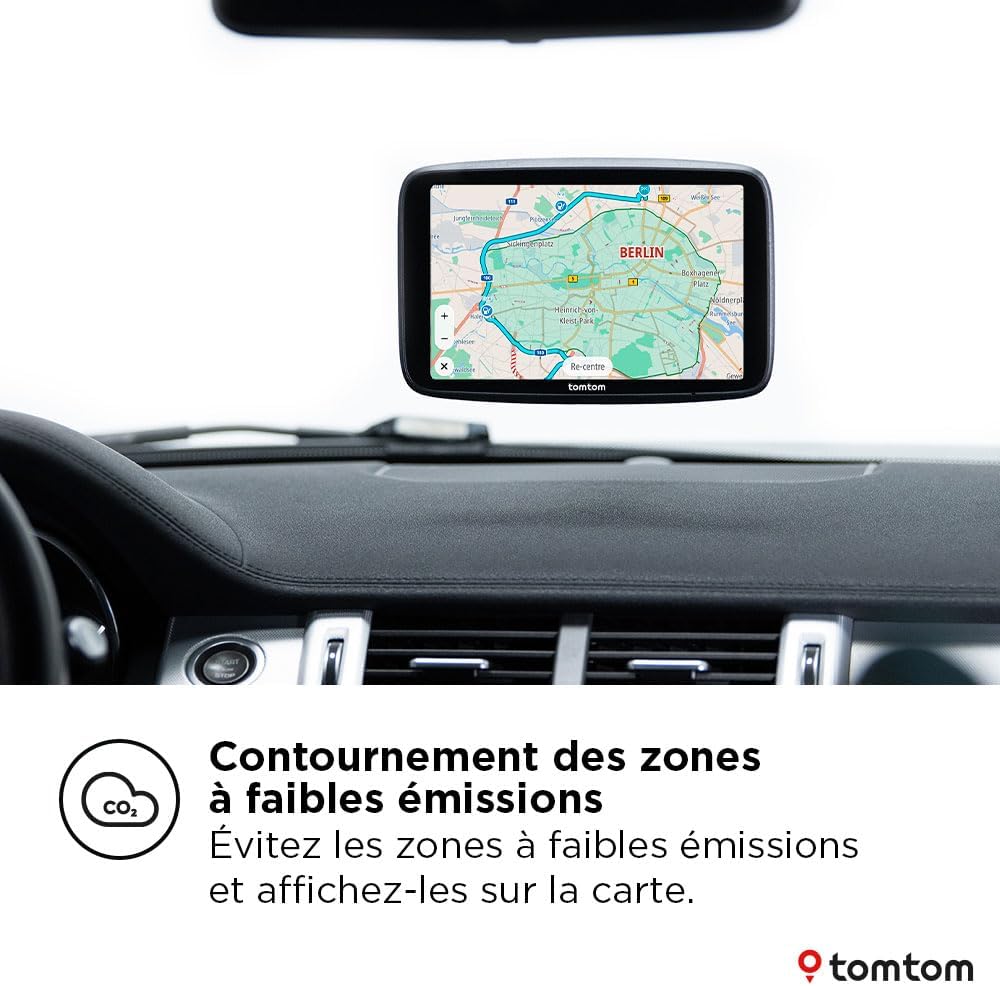
The TomTom GO Navigator mounted in a car, showing how low emission zones are displayed on the map, allowing drivers to plan routes to avoid them.
3.7 Premium Services Trial
Enjoy a 12-month trial of premium services, including real-time fuel prices, parking availability, and electric vehicle (EV) charging station locations. This helps you make informed decisions on the go.

A user holding the TomTom GO Navigator, which displays real-time information on fuel prices and available parking spaces, part of its premium services.
4. Maintenance and Care
- Cleaning the Screen: Use a soft, lint-free cloth to clean the screen. For stubborn marks, slightly dampen the cloth with water. Avoid abrasive cleaners or solvents.
- Software Updates: Regularly check for and install software updates via Wi-Fi to ensure optimal performance and access to the latest features and bug fixes.
- Storage: When not in use, store your device in a cool, dry place, away from direct sunlight and extreme temperatures.
- Battery Care: To prolong battery life, avoid fully discharging the device frequently. Charge it regularly, especially if storing for extended periods.
5. Troubleshooting
5.1 Device Not Powering On
- Ensure the device is properly connected to the car charger and the vehicle's power outlet.
- Check if the car charger is working by testing it with another device.
- Press and hold the power button for at least 10-15 seconds to perform a soft reset.
5.2 GPS Signal Lost or Weak
- Ensure your device has a clear view of the sky. Obstructions like tall buildings, tunnels, or dense foliage can interfere with the GPS signal.
- Move the device to a different location on your dashboard or windshield.
- Restart the device.
5.3 Wi-Fi Connectivity Issues
- Ensure you are within range of a strong Wi-Fi signal.
- Verify the Wi-Fi password entered is correct.
- Restart your Wi-Fi router and the TomTom device.
- If the issue persists, try connecting to a different Wi-Fi network to rule out network-specific problems.
5.4 Screen Unresponsive
- Perform a soft reset by holding the power button until the device restarts.
- Ensure the screen is clean and free of debris.
5.5 Map Not Updating
- Ensure you have a stable Wi-Fi connection.
- Check if there is sufficient storage space on the device for the new map data. You can manage maps by deleting older, unused maps.
- Try initiating the update process again.
6. Technical Specifications
| Feature | Specification |
|---|---|
| Brand | TomTom |
| Model Name | GO Navigator 7’’ |
| Vehicle Service Type | Car |
| Screen Size | 7 Pouces |
| Special Feature | Real-time traffic information, Flash alerts, Large interactive touchscreen, Wireless updates, RouteBar, Active lane guidance |
| Connectivity Technology | Wi-Fi |
| Map Type | Europe |
| Sport | Navigation |
| Included Components | Device, Car charger, Click-and-Drive mount, USB-C cable, installation poster |
| Audio Output Mode | Digital |
7. Warranty and Support
Your TomTom GPS GO Navigator 7-inch comes with a standard manufacturer's warranty, typically 12 months from the date of purchase, covering defects in materials and workmanship. Please retain your proof of purchase for warranty claims.
For detailed warranty information, technical support, or to access additional resources, please visit the official TomTom support website:
You may also find frequently asked questions (FAQs) and community forums on their website for further assistance.
Related documentsGO Navigator 7''


Ask a question about this manual
Ask about setup, troubleshooting, compatibility, parts, safety, or missing instructions. Manuals+ will review the question and use this page’s manual context to help answer it.