
ARNSSIEN X101
Contents
ARNSSIEN X101 Kids Digital Camera Instruction Manual
Model: X101
Introduction
This manual provides detailed instructions for the safe and effective use of your ARNSSIEN X101 Kids Digital Camera. Please read this manual thoroughly before operating the device and retain it for future reference.
1. Setup
1.1 Unboxing and Initial Inspection
Carefully remove all components from the packaging. Ensure the following items are present:
- 1 x Kids Camera (ARNSSIEN X101)
- 1 x 32GB TF Card (pre-inserted)
- 1 x Charging/Data Cable (USB)
- 1 x Lanyard
- 1 x Card Reader
- 1 x User Manual (this document)
Inspect the camera for any visible damage. If any components are missing or damaged, contact customer support.
1.2 Charging the Camera
The camera is equipped with a 1000mAh rechargeable battery. For optimal performance, fully charge the camera before first use.
- Locate the USB charging port on the side of the camera.
- Connect the provided USB charging cable to the camera's port.
- Connect the other end of the USB cable to a compatible USB power adapter (not included) or a computer's USB port.
- The charging indicator light will illuminate during charging. Once fully charged, the light may change color or turn off.
Charging typically takes 2-4 hours. The camera supports USB charging connection.
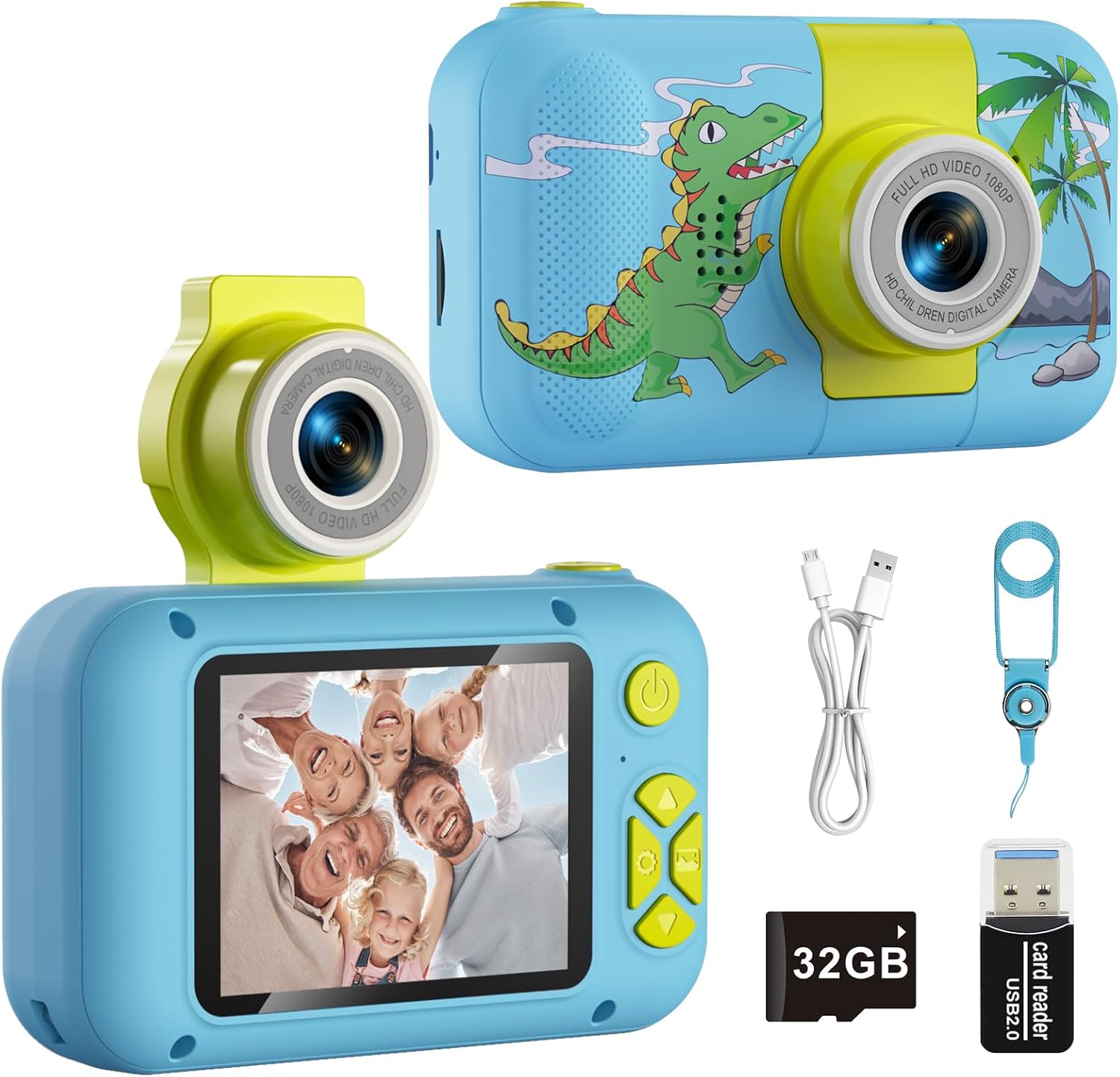
Image: ARNSSIEN X101 Kids Digital Camera and included accessories, showing the camera, 32GB TF card, USB cable, card reader, and lanyard.
Video: Demonstrates the camera's features including the 180-degree flip lens, large screen, and ease of use for children. It also shows the USB charging port and TF card slot.
1.3 Inserting/Formatting the TF Card
A 32GB TF card is pre-inserted in the camera. It is recommended to format the TF card when using it for the first time to ensure proper function.
- Power on the camera.
- Navigate to the 'Settings' menu using the navigation buttons.
- Select 'Format TF Card' and confirm the action. This will erase all data on the card.

Image: Close-up of the ARNSSIEN X101 camera showing the slot for the 32GB TF card, indicating where to insert or remove it.
2. Operating Instructions
2.1 Power On/Off
Press and hold the power button (usually located on the top or side) for a few seconds to turn the camera on or off.
2.2 Taking Photos
- Ensure the camera is in photo mode (indicated by an icon on the screen).
- Frame your shot using the 2.4-inch IPS screen.
- Press the large shutter button on top of the camera to capture a photo.

Image: A child holding the ARNSSIEN X101 camera, demonstrating how to hold it to take a photo, with the screen visible.
2.3 Recording Videos
- Switch to video recording mode (indicated by a video camera icon).
- Press the shutter button once to start recording.
- Press the shutter button again to stop recording.
- The camera records in 1080p resolution.
Video: Shows children using the ARNSSIEN X101 camera to record videos, highlighting the ease of use and the 1080p video quality.
2.4 Using the 180° Flip Lens for Selfies
The camera features a 180° flip lens, allowing for easy switching between front and rear camera modes for selfies.
- Gently flip the lens module upwards until it clicks into place, facing the user.
- The screen display will automatically adjust for selfie mode.
- Press the shutter button to capture a selfie photo or start/stop video recording.
- Flip the lens back down for standard photography.

Image: The ARNSSIEN X101 camera with its 180-degree flip lens in the upward position, ready for selfies.
Video: Demonstrates the 180-degree flip lens in action, showing how easily it switches between front and rear camera modes for taking photos and selfies.
2.5 Photo Frames and Filters
The camera includes 31 fun photo frames and various filters to enhance creativity.
- In photo mode, use the navigation buttons to browse and select different frames or filters.
- The selected effect will appear on the screen in real-time.
- Press the shutter button to capture the photo with the chosen effect.

Image: A collage showing different photo frames and filters available on the ARNSSIEN X101 camera, applied to sample photos.
2.6 Puzzle Games
The camera features 10 built-in puzzle games for entertainment.
- Navigate to the 'Games' icon on the main menu.
- Select a game using the navigation buttons and confirm with the shutter button.
- Use the navigation buttons to control gameplay.

Image: Three children sitting on grass, looking at an ARNSSIEN X101 camera, with an overlay showing the 10 puzzle games available on the device.
2.7 MP3 Playback
The camera supports MP3 playback. You can transfer MP3 files to the TF card using the provided USB cable and card reader.
- Connect the camera to a computer using the USB cable or insert the TF card into the card reader and connect to a computer.
- Transfer MP3 audio files to the 'Music' folder on the TF card.
- Safely eject the camera/TF card from the computer.
- On the camera, navigate to the 'Music Player' icon.
- Select and play your desired MP3 files.
Video: Shows a child using the ARNSSIEN X101 camera to play music, demonstrating the MP3 playback feature and how to navigate the music menu.
2.8 Transferring Files to a Computer
To transfer photos and videos to a computer:
- Connect the camera to your computer using the provided USB cable. The camera will appear as a removable disk.
- Alternatively, remove the TF card from the camera and insert it into the provided card reader, then connect the card reader to your computer.
- Access the camera's storage or TF card on your computer and copy the desired files.

Image: The ARNSSIEN X101 camera connected via USB to a laptop, illustrating the process of transferring photos and videos from the camera to a computer.
3. Maintenance
3.1 Cleaning the Camera
To clean the camera, use a soft, dry cloth. Do not use liquid cleaners or solvents, as these may damage the device. Keep the lens free from dust and fingerprints for clear images.
3.2 Storage
Store the camera in a cool, dry place away from direct sunlight and extreme temperatures. When not in use for extended periods, ensure the battery is partially charged (around 50%) to prolong its lifespan.
4. Troubleshooting
4.1 Camera Does Not Turn On
- Ensure the battery is sufficiently charged. Connect the camera to a charger and wait for the charging indicator.
- Try resetting the camera by pressing the reset button (if available, often a small pinhole) or by allowing the battery to fully discharge and then recharging.
4.2 Cannot Take Photos/Record Videos
- Check if the TF card is inserted correctly.
- Ensure the TF card has sufficient free space. Delete old files or replace the card if necessary.
- Format the TF card (refer to Section 1.3).
4.3 Poor Image/Video Quality
- Clean the camera lens with a soft, lint-free cloth.
- Ensure adequate lighting conditions when taking photos or videos.
5. Specifications
| Feature | Detail |
|---|---|
| Model Name | X101 |
| Brand | ARNSSIEN |
| Display Type | LCD |
| Screen Size | 2.4 Inches |
| Effective Still Resolution | 5 MP |
| Video Resolution | 1080p |
| Image Stabilization | Digital |
| Optical Zoom | 1x |
| Digital Zoom | 4x |
| Memory Storage Capacity | 32 GB (TF Card included) |
| Battery Capacity | 1000mAh |
| Connectivity Technology | USB |
| Item Weight | 0.2 Kilograms |
| Special Feature | 180° Flip Lens, Time-lapse, Puzzle Games, MP3 Playback |
6. Warranty and Support
6.1 Warranty Information
This product comes with a 30-day warranty. Please retain your proof of purchase for warranty claims.
6.2 Customer Support
For any questions, technical assistance, or warranty claims, please contact ARNSSIEN customer service. ARNSSIEN is committed to ensuring customer satisfaction and providing the best possible service experience.
You can visit the official ARNSSIEN store for more information: ARNSSIEN Store
Documents and downloads
Ask a question about this manual
Ask about setup, troubleshooting, compatibility, parts, safety, or missing instructions. Manuals+ will review the question and use this page’s manual context to help answer it.