
1. Introduction
This manual provides essential information for the setup, operation, and maintenance of your Hisense 32-Inch H4030F Series Smart TV. The H4030F Series features a 720p HD LED display, integrated Smart TV capabilities for streaming services, and compatibility with voice assistants like Alexa and Google Assistant. It also includes an Auto Low Latency Game Mode for an optimized gaming experience.
2. What's in the Box
Verify that all components are present before proceeding with installation.
- Hisense 32-Inch H4030F Series Smart TV
- Remote Control
- Power Cord
- TV Stand (2 pieces)
- Screws for TV Stand
- Wall Mount Bracket
- User Manual (this document)

Image 2.1: Hisense 32-inch Smart TV and the included wall mount components.
3. Setup
3.1 TV Placement
Place the TV on a stable, flat surface or mount it securely to a wall. Ensure adequate ventilation around the TV to prevent overheating. Avoid direct sunlight or heat sources.
3.2 Attaching the Stand
- Carefully place the TV face-down on a soft, clean surface to prevent screen damage.
- Align the stand pieces with the corresponding slots on the bottom of the TV.
- Secure the stands using the provided screws.
3.3 Wall Mounting
If using the included wall mount, refer to the separate wall mount installation guide for detailed instructions. Ensure the wall can support the TV's weight and that proper mounting hardware is used.
3.4 Connecting External Devices
Connect your external devices (e.g., cable box, Blu-ray player, game console) to the appropriate ports on the back of the TV. The TV supports HDMI connectivity.

Image 3.1: Rear panel of the Hisense TV, illustrating the location of various input and output ports.
3.5 Power Connection
After connecting all devices, plug the power cord into the TV's power input, then into a wall outlet.
3.6 Initial Setup Wizard
Upon first power-on, the TV will guide you through an initial setup process. This includes language selection, network connection (Wi-Fi), channel scanning, and Smart TV account setup.
4. Operating the TV
4.1 Remote Control Overview
The included remote control allows navigation through menus, channel selection, volume adjustment, and access to Smart TV features.

Image 4.1: The Hisense Roku TV remote control, featuring dedicated buttons for popular streaming services.
4.2 Smart TV Features
Your Hisense TV is equipped with a Smart TV platform, providing access to a variety of streaming applications such as Netflix, YouTube, and Prime Video. Navigate the home screen to select and launch applications.
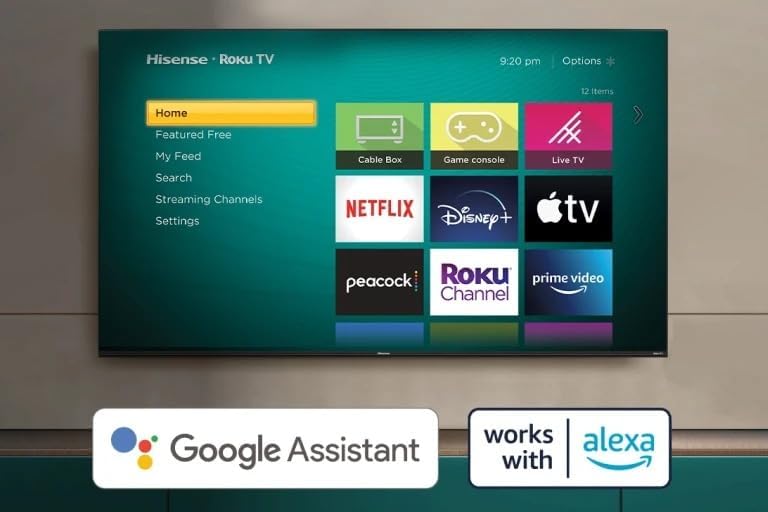
Image 4.2: The Hisense Roku TV home screen, showing available streaming applications and indicating compatibility with Google Assistant and Alexa.
4.3 Voice Assistant Integration
The TV is compatible with Alexa and Google Assistant. You can use a compatible voice assistant device to control TV functions such as power, volume, and channel selection.
4.4 Auto Low Latency Game Mode
For an enhanced gaming experience, the TV features an Auto Low Latency Game Mode. This mode automatically reduces input lag when a game console is detected, providing a more responsive interaction between your controller and the on-screen action.
5. Maintenance
5.1 Cleaning the TV
- Screen: Gently wipe the screen with a soft, lint-free cloth. For stubborn marks, use a screen cleaner specifically designed for TVs, applied to the cloth, not directly to the screen.
- Cabinet: Wipe the TV cabinet with a soft, dry cloth. Avoid using abrasive cleaners or solvents.
5.2 Software Updates
Ensure your TV's software is up to date for optimal performance and access to the latest features. The TV can typically update automatically when connected to the internet, or you can check for updates manually through the settings menu.
6. Troubleshooting
This section addresses common issues you might encounter. If the problem persists, contact customer support.
| Problem | Possible Solution |
|---|---|
| No power | Check if the power cord is securely plugged into both the TV and the wall outlet. Test the outlet with another device. |
| No picture, but sound is present | Ensure the correct input source is selected. Check cable connections to external devices. |
| No sound, but picture is present | Check the volume level and mute settings. Verify audio cable connections. |
| Remote control not working | Replace the batteries. Ensure there are no obstructions between the remote and the TV's IR sensor. |
| Cannot connect to Wi-Fi | Verify your Wi-Fi password. Restart your router and the TV. Ensure the TV is within range of your Wi-Fi signal. |
7. Specifications
Key technical specifications for the Hisense 32-Inch H4030F Series Smart TV.
| Feature | Detail |
|---|---|
| Brand | Hisense |
| Model | H4030F (32H4030F4) |
| Screen Size | 32 Inches |
| Display Technology | LED |
| Resolution | 720p |
| Refresh Rate | 60 Hz |
| Connectivity Technology | HDMI |
| Supported Internet Services | Hulu, Netflix, Prime Video, YouTube, etc. |
| Product Dimensions (D x W x H) | 3.4" x 28.2" x 16.9" |
| Item Weight | 13.07 pounds |
| Special Features | Flat Screen, Smart TV, Auto Low Latency Game Mode, Alexa & Google Assistant Compatible |
8. Warranty and Support
Your Hisense TV is covered by a manufacturer's warranty. Please refer to the warranty card included with your product for specific terms and conditions, including warranty duration and coverage details. For technical support, service inquiries, or to obtain replacement parts, please visit the official Hisense support website or contact their customer service department. Keep your purchase receipt as proof of purchase for warranty claims.