
Epson Epson Workforce ES-500W II, EcoTank ET-2850
Epson Workforce ES-500W II Scanner and EcoTank ET-2850 Printer User Manual
Models: ES-500W II, ET-2850
Brand: Epson
1. Introduction
This user manual provides comprehensive instructions for the setup, operation, maintenance, and troubleshooting of your Epson Workforce ES-500W II Wireless Color Duplex Desktop Document Scanner and Epson EcoTank ET-2850 Wireless Color All-in-One Cartridge-Free Supertank Printer. Please read this manual thoroughly before using your devices to ensure proper and safe operation.
2. Safety Information
Observe the following safety precautions to prevent damage to the product and to ensure your safety:
- Always place the devices on a stable, flat surface.
- Do not block ventilation openings.
- Use only the power adapter supplied with the devices.
- Do not expose the devices to water, moisture, or extreme temperatures.
- Keep out of reach of children.
- Unplug the devices from the power outlet before cleaning or if they will not be used for an extended period.
- Do not attempt to disassemble or repair the devices yourself. Refer all servicing to qualified service personnel.
3. Package Contents
Verify that all items are included in your package:
- Epson Workforce ES-500W II Wireless Color Duplex Desktop Document Scanner
- Epson EcoTank ET-2850 Wireless Color All-in-One Cartridge-Free Supertank Printer
- Power Cables for both devices
- USB Cable (for scanner and printer)
- Set of EcoTank Ink Bottles (Black, Cyan, Magenta, Yellow)
- Setup Guide
- CD-ROM for product software (or download instructions)
4. Product Overview

Image: The Epson Workforce ES-500W II Wireless Color Duplex Desktop Document Scanner and the Epson EcoTank ET-2850 Wireless Color All-in-One Cartridge-Free Supertank Printer shown side-by-side.
4.1 Epson Workforce ES-500W II Scanner
The ES-500W II is a high-speed wireless duplex document scanner designed for efficient document management. It features a 50-sheet Auto Document Feeder (ADF) and can scan both sides of a document in a single pass. It supports wireless scanning to various devices and cloud services.

Image: Overview of Epson ES-500W II scanner features, including wireless capability, ADF, auto 2-sided scanning, and TWAIN driver support.

Image: Detailed view of the Epson ES-500W II scanner highlighting its 50-page Auto Document Feeder, scan speed, and ability to scan business and ID cards.
4.2 Epson EcoTank ET-2850 Printer
The ET-2850 is an all-in-one Supertank printer that offers printing, scanning, and copying functionalities. It utilizes high-capacity ink tanks instead of traditional cartridges, providing significant ink savings and reducing waste. It also supports automatic two-sided printing and various mobile printing options.
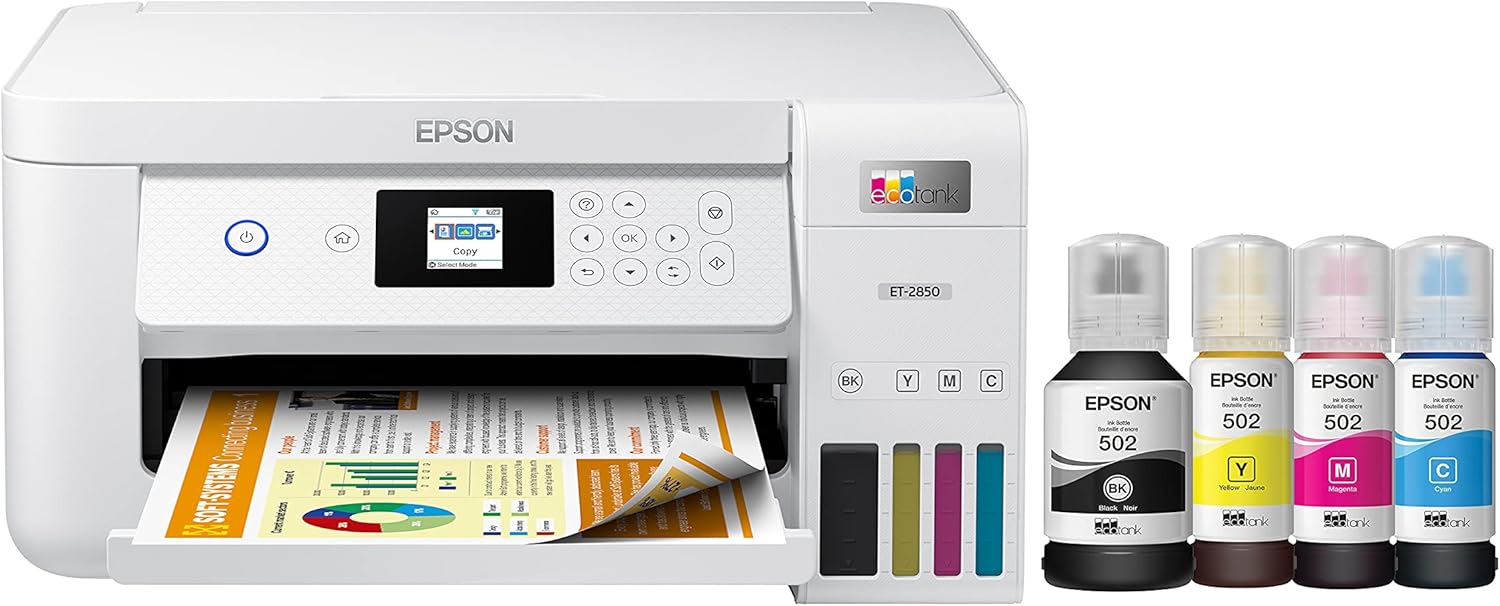
Image: The Epson EcoTank ET-2850 printer shown alongside its set of four EcoFit ink bottles (Black, Yellow, Magenta, Cyan).
5. Setup
5.1 Epson Workforce ES-500W II Scanner Setup
- Unpack the Scanner: Carefully remove the scanner from its packaging and remove all protective materials.
- Connect Power: Plug the power cable into the scanner and then into a wall outlet.
- Install Software: Insert the provided CD-ROM or visit the official Epson support website to download and install the Epson ScanSmart Software and TWAIN driver. Follow the on-screen instructions.
- Connect to Computer: Connect the scanner to your computer using the supplied USB cable, or follow the software instructions for wireless setup.
- Load Documents: Open the ADF cover and adjust the paper guides to fit your documents. Load documents face-down, top edge first.
5.2 Epson EcoTank ET-2850 Printer Setup
- Unpack the Printer: Remove the printer from its packaging and remove all protective tapes and materials.
- Fill Ink Tanks: Open the ink tank covers. Carefully uncap each ink bottle and insert it into the corresponding color tank. The bottles are keyed to prevent incorrect filling. The ink will automatically fill the tanks. Close the covers once complete.
- Connect Power: Plug the power cable into the printer and then into a wall outlet.
- Initial Setup: Turn on the printer. Follow the instructions on the printer's 1.44" color LCD to complete the initial setup, including language selection and ink initialization.
- Install Software: Insert the provided CD-ROM or visit the official Epson support website to download and install the printer drivers and utilities.
- Connect to Network: Follow the software or printer LCD instructions to connect the printer to your wireless network.
- Load Paper: Open the paper tray and load paper. Adjust the paper guides to fit the paper size.

Image: Illustration of the cartridge-free ink filling process for the Epson EcoTank printer, showing an ink bottle being inserted into a tank.
6. Operating the Scanner (Epson Workforce ES-500W II)
6.1 Basic Scanning
- Load Documents: Place your documents into the Auto Document Feeder (ADF). Ensure they are aligned properly.
- Open ScanSmart Software: Launch the Epson ScanSmart Software on your computer.
- Select Scan Settings: Choose your desired scan settings, such as color mode (Black-and-White, Grayscale, Color), resolution (e.g., 300 dpi), and destination (e.g., save to folder, email, cloud).
- Start Scan: Click the "Scan" button in the software or press the scan button on the scanner. The scanner will automatically feed and scan the documents, capturing both sides in one pass (duplex scanning).
- Review and Save: After scanning, preview the images in ScanSmart. You can perform basic edits like rotation or reordering. Save the scanned files to your chosen location.
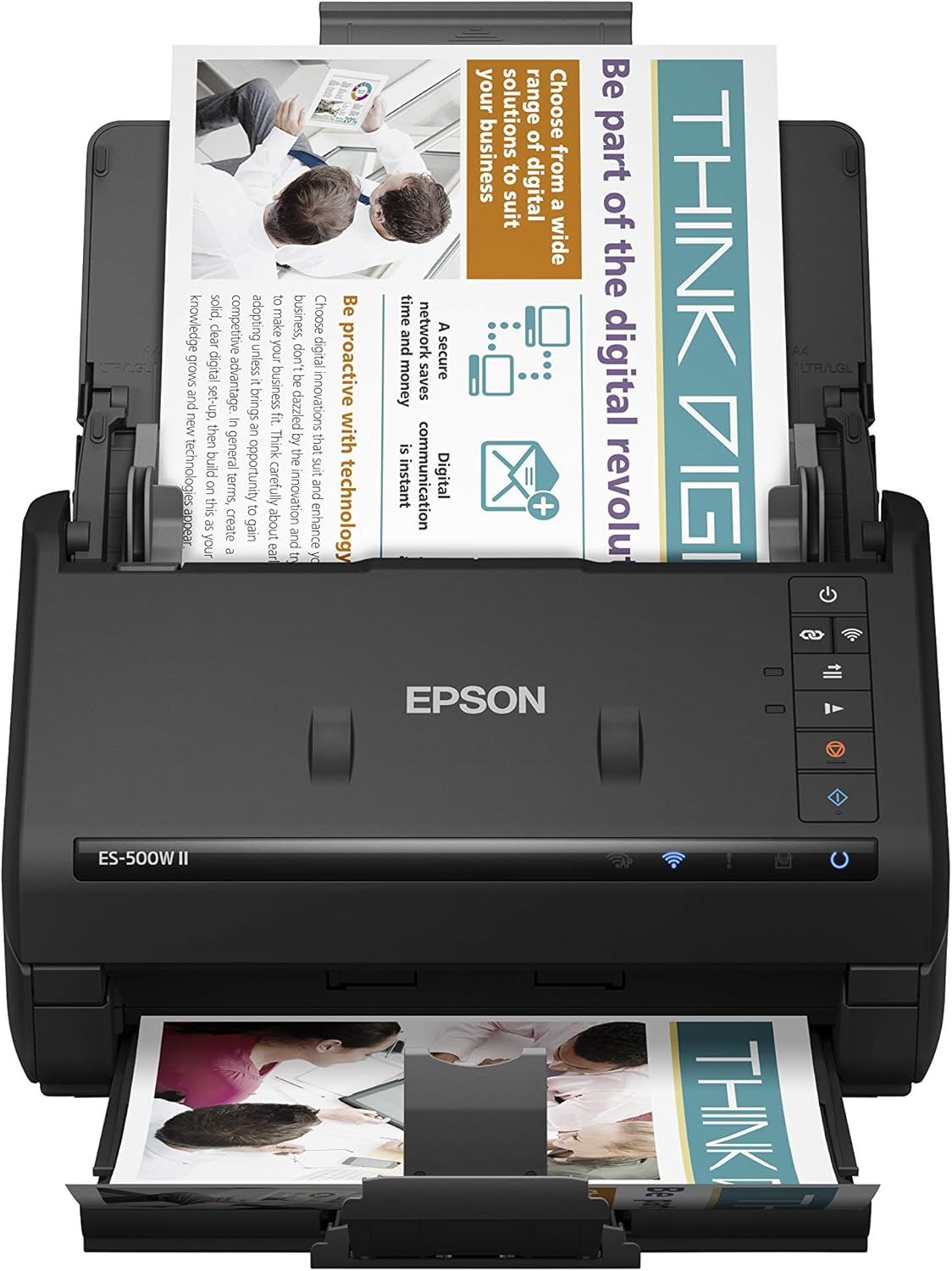
Image: The Epson ES-500W II scanner actively scanning a document through its Auto Document Feeder.
6.2 Advanced Scanning Features
- Wireless Scanning: Use the Epson Smart Panel app on your smartphone or tablet to initiate scans and send files directly to your mobile device or cloud storage.
- Searchable PDFs: The ScanSmart software can create searchable PDF files, allowing you to easily find text within your scanned documents.
- Image Adjustments: Utilize features like auto crop, staple protection, dirt detection, and paper-skew correction within the software to enhance image quality.
- TWAIN Compatibility: The included TWAIN driver ensures compatibility with most third-party document management software.
7. Operating the Printer (Epson EcoTank ET-2850)
7.1 Printing Documents
- Load Paper: Ensure paper is loaded correctly in the paper tray.
- Send Print Job: From your computer or mobile device, select the ET-2850 as your printer.
- Adjust Print Settings: In the print dialog, select desired settings such as paper size, print quality, and whether to print single-sided or automatically 2-sided.
- Print: Click "Print" to send the job to the printer.
7.2 Copying Documents
- Place Document: Lift the scanner lid and place the document face-down on the scanner glass. Close the lid.
- Select Copy: On the printer's LCD panel, navigate to the "Copy" function.
- Adjust Settings: Select the number of copies, color/black-and-white, and any other desired settings.
- Start Copy: Press the "Start" button on the printer to begin copying.
7.3 Scanning from Printer
- Place Document: Place the document on the scanner glass.
- Select Scan: On the printer's LCD panel, navigate to the "Scan" function.
- Choose Destination: Select where to send the scan (e.g., to computer, cloud service).
- Start Scan: Press the "Start" button.
7.4 Mobile Printing
The ET-2850 supports various mobile printing solutions:
- Epson Smart Panel App: Download the app for iOS or Android to print directly from your smartphone or tablet.
- Epson Remote Print: Print to your Epson printer from anywhere in the world using Epson Connect.
- Apple AirPrint: Print wirelessly from your iPhone, iPad, or iPod touch.
- Android Printing: Print from Android devices using the built-in printing framework.
- Mopria Print Service: Print from Mopria-certified Android devices.
8. Maintenance
8.1 Scanner Maintenance
- Cleaning the Scanner: Regularly wipe the exterior of the scanner with a soft, damp cloth. For the scanner glass and rollers, use a lint-free cloth and a non-abrasive glass cleaner.
- Clearing Paper Jams: If a paper jam occurs, carefully open the scanner covers and gently pull out the jammed paper in the direction of the paper path. Avoid tearing the paper.
8.2 Printer Maintenance
- Refilling Ink Tanks: When ink levels are low, refill the tanks using genuine Epson EcoFit ink bottles. Refer to Section 5.2 for detailed instructions.
- Print Head Cleaning: If print quality declines (e.g., missing lines, streaks), perform a print head cleaning using the printer's utility software or through the printer's LCD panel.
- Print Head Alignment: If prints appear blurry or misaligned, perform a print head alignment using the printer's utility software or LCD panel.
- Clearing Paper Jams: If paper jams occur, turn off the printer, open all covers, and carefully remove any jammed paper. Ensure no small pieces of paper remain inside.
9. Troubleshooting
This section addresses common issues you might encounter. For more detailed troubleshooting, refer to the Epson support website.
| Problem | Possible Cause / Solution |
|---|---|
| Device not powering on | Check power cable connection to device and wall outlet. Ensure outlet is functional. |
| Scanner not detected by computer | Ensure USB cable is securely connected. Verify wireless connection. Reinstall scanner drivers. |
| Poor scan quality (streaks, blurry) | Clean the scanner glass and rollers. Adjust scan resolution settings. Ensure documents are clean. |
| Printer not printing | Check paper tray for paper. Verify ink levels. Ensure printer is connected to network/computer. Check for error messages on LCD. |
| Poor print quality (faded, lines) | Perform print head cleaning and alignment. Check ink levels. Use genuine Epson ink. |
| Paper jam in scanner or printer | Turn off device, open covers, and carefully remove jammed paper. Refer to maintenance section. |
10. Specifications
| Feature | Epson Workforce ES-500W II Scanner | Epson EcoTank ET-2850 Printer |
|---|---|---|
| Type | Document, Photo, Text Scanner | All-in-One (Print, Scan, Copy) Supertank Printer |
| Connectivity | USB, Wireless | USB, Wireless-N (802.11b/g/n), Wi-Fi Direct |
| Resolution | 300 dpi (optical) | 4800 x 1200 dpi (print), 1200 x 2400 dpi (scan) |
| Scan Speed | Up to 35 ppm / 70 ipm (Black-and-White, Grayscale, Color) | N/A (printer scan speed not specified separately from scanner) |
| ADF Capacity | 50 sheets | N/A |
| Print Speed | N/A | Up to 10.5 ppm (black), 5 ppm (color) |
| Paper Capacity | N/A | 100-sheet input tray |
| Color Depth | 24 bpp | N/A |
| Sheet Size | Letter/A4 | Standard paper sizes |
| Optical Sensor | CIS | CIS photo sensor (for flatbed scan) |
11. Warranty and Support
Epson products are designed for reliability and performance. For information regarding your product's warranty, please refer to the warranty statement included with your purchase or visit the official Epson support website.
For technical assistance, driver downloads, FAQs, and troubleshooting guides, please visit the Epson support website. You may also find information on convenient and reasonable recycling options for your product.
Note: Product specifications and warranty terms are subject to change without notice.
Related documentsEpson Workforce ES-500W II, EcoTank ET-2850


Ask a question about this manual
Ask about setup, troubleshooting, compatibility, parts, safety, or missing instructions. Manuals+ will review the question and use this page’s manual context to help answer it.