
1. Product Overview
The HUAWEI Band 9 is a lightweight and comfortable fitness tracker designed for all-day wear. It features a 1.47-inch AMOLED display, advanced health monitoring capabilities including HUAWEI TruSleep 4.0 and TruSeen 5.5, and support for 100 different workout modes. The device offers fast charging and a durable battery, ensuring extended usage. It is compatible with both iOS and Android devices.

Image: The HUAWEI Band 9 in pink, showcasing its sleek design and vibrant display.
2. What's in the Box
- 1 x HUAWEI Band 9 Smartwatch
- 1 x Sport Band (pre-attached or included separately)
- 1 x Charging Cable

Image: A visual representation of the HUAWEI Band 9 packaging contents, including the smartwatch, sport band, and charging cable.
3. Setup Guide
Initial Setup and Pairing
- Charge the Device: Before first use, fully charge your HUAWEI Band 9 using the provided charging cable. Connect the magnetic end to the charging contacts on the back of the band and the USB end to a power adapter or computer USB port.
- Download HUAWEI Health App: On your smartphone (iOS or Android), download and install the HUAWEI Health app from your device's app store or by scanning the QR code in the quick start guide.
- Enable Bluetooth: Ensure Bluetooth is enabled on your smartphone.
- Open HUAWEI Health App: Launch the HUAWEI Health app and log in or create a HUAWEI ID.
- Add Device: In the app, navigate to 'Devices' and tap '+' to add a new device. Select 'Smart Bands' and then 'HUAWEI Band 9'.
- Pairing: Follow the on-screen instructions in the app to search for and pair with your HUAWEI Band 9. Confirm the pairing request on both your phone and the band.
- Sync Data: Once paired, the band will automatically sync data with the app. You can customize settings, watch faces, and notifications through the app.

Image: The HUAWEI Band 9 displaying its compatibility with both iOS and Android devices, alongside a screenshot of the HUAWEI Health app interface.
4. Features and Functions
4.1 Comfortable All-Day Wearing
The HUAWEI Band 9 features a new and improved fluoroelastomer strap, designed for comfort and durability. Weighing only 14 grams and with a wafer-thin profile of 8.99 mm, it provides an airy-light feel. The strap is soft, skin-friendly, and includes a sweat-wicking perforated design with two buckles for a snug and clean fit.

Image: A close-up view of the HUAWEI Band 9 highlighting its slim 8.99mm thickness and light 14g weight, emphasizing its comfortable design.
4.2 Sleep Health Management (HUAWEI TruSleep 4.0)
HUAWEI TruSleep 4.0 provides comprehensive sleep monitoring. It tracks your heart rate, SpO2 levels, respiratory rate, and detects any abnormal breathing patterns while you sleep, offering detailed insights into your sleep quality and overall health.
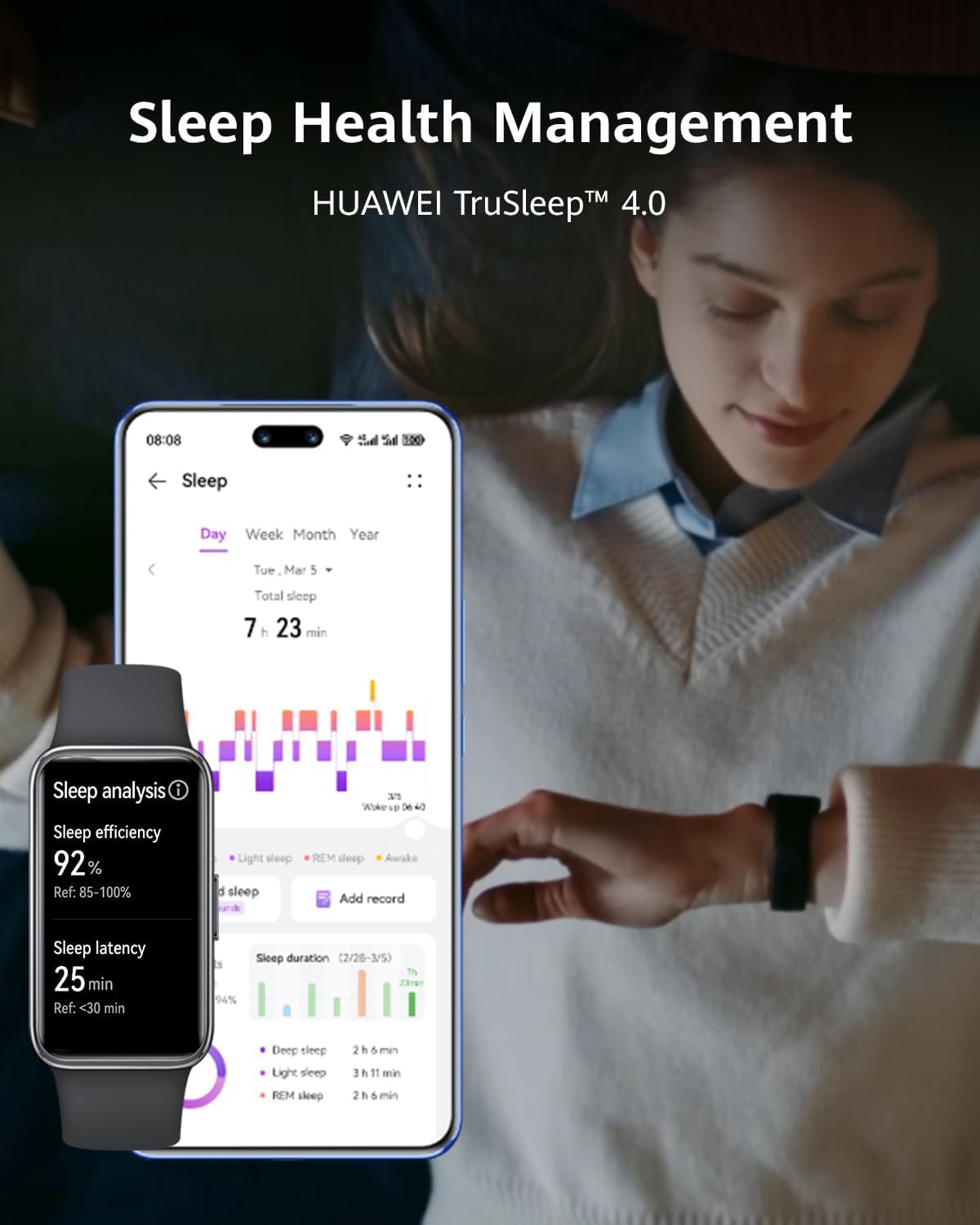
Image: The HUAWEI Band 9 displaying sleep analysis data, with a corresponding view of detailed sleep metrics within the HUAWEI Health app on a smartphone.
4.3 Enhanced Vital Sign Tracking (HUAWEI TruSeen 5.5)
HUAWEI TruSeen 5.5 health monitoring ensures accurate tracking of vital signs. It provides improved heart rate readings even during intense activities and offers more stable and faster SpO2 measurements, supported by an advanced multi-channel module and smart fusion algorithm.

Image: Two HUAWEI Band 9 devices, one black and one pink, displaying real-time heart rate and blood oxygen saturation (SpO2) measurements on their screens.
4.4 100 Different Workout Modes
The HUAWEI Band 9 supports 100 workout modes, helping you integrate healthy living into your daily routine. It includes next-gen Activity Rings for goal tracking and a pro-level swim mode with an all-new nine-axis sensor and groundbreaking algorithm for precise stroke identification. The band offers data-driven workout evaluations and auto-detection for four common exercises.

Image: A graphic illustrating the variety of 100 different workout modes available on the HUAWEI Band 9, with icons representing various activities like gaming, running, and cycling.
4.5 Fast Charging & Durable Battery
Experience rapid charging with the HUAWEI Band 9. A five-minute charge provides up to two days of usage, while a full charge takes only 45 minutes. Once fully charged, the band can last up to 14 days under maximum usage conditions and 9 days under typical usage.

Image: The HUAWEI Band 9 displaying its charging status, emphasizing that it charges to full capacity in 45 minutes and offers up to 14 days of maximum usage or 9 days of typical usage.
4.6 Intelligent Brightness Adjustments
The band features a new and improved ambient light sensor that automatically adjusts screen brightness. This ensures a comfortable viewing experience in various lighting conditions, from bright sunlight to dim environments.
4.7 Smart Assistant Features
The HUAWEI Band 9 acts as a smart assistant, making daily life easier. It displays incoming call notifications, allowing you to see who is calling, and provides timely alerts for messages and calendar events directly on your wrist.

Image: Two HUAWEI Band 9 screens demonstrating smart assistant features: one showing an incoming call notification and the other displaying a calendar event notification.
5. Operating Instructions
5.1 Screen Navigation
- Swipe Up/Down: Swipe vertically on the screen to scroll through menus, notifications, and various data screens (e.g., heart rate, SpO2, weather).
- Swipe Left/Right: Swipe horizontally to quickly access different widgets or functions, such as activity rings, music control, or quick settings.
- Tap: Tap on an icon or option to select it or open a specific application/feature.
- Press Side Button: A short press of the side button typically wakes the screen or returns to the home screen. A long press may open the power menu or activate a specific function depending on customization.
5.2 Starting a Workout
- From the home screen, swipe until you find the 'Workout' option or access it via the app list.
- Tap 'Workout' to see the list of available exercise modes.
- Select your desired workout (e.g., Outdoor Run, Indoor Walk, Cycling, Swimming).
- Tap 'Start' to begin tracking your activity. The band will display real-time data such as duration, heart rate, and calories burned.
- To pause or end a workout, swipe right or press the side button, then select the appropriate option.
5.3 Checking Health Data
- Heart Rate: Swipe on the band's screen to the heart rate widget or open the Heart Rate app.
- SpO2: Swipe to the SpO2 widget or open the SpO2 app to initiate a measurement.
- Sleep Data: Detailed sleep analysis is primarily viewed in the HUAWEI Health app after the band syncs with your phone.
- Activity Records: View daily steps, distance, and calories on the band's activity screen or in the HUAWEI Health app.
6. Maintenance
- Cleaning: Regularly clean the band and the charging contacts with a soft, damp cloth. Avoid using harsh chemicals or abrasive materials.
- Drying: Ensure the band is completely dry before charging to prevent corrosion of the charging contacts.
- Strap Care: If the strap gets wet, dry it thoroughly to prevent skin irritation. For fluoroelastomer straps, occasional cleaning with mild soap and water is recommended.
- Charging: Use only the original charging cable provided. Avoid exposing the charging contacts to metal objects to prevent short circuits.
- Storage: When not in use for extended periods, store the band in a cool, dry place away from direct sunlight and extreme temperatures. Charge it periodically to maintain battery health.
- Water Resistance: The HUAWEI Band 9 is water-resistant. However, avoid prolonged exposure to hot water, steam, or high-velocity water. Rinse with fresh water after use in chlorinated or saltwater.
7. Troubleshooting
7.1 Band Not Turning On
- Ensure the band is fully charged. Connect it to the charger for at least 10 minutes.
- Try pressing and holding the side button for 10-15 seconds to force a restart.
7.2 Cannot Pair with Phone
- Ensure Bluetooth is enabled on your phone and the band is within range.
- Make sure the HUAWEI Health app is updated to the latest version.
- Restart both your phone and the band.
- If previously paired, try unpairing the band from your phone's Bluetooth settings and then re-pairing through the HUAWEI Health app.
- Check if the band is already paired with another device. Disconnect it from other devices before attempting to pair.
7.3 Inaccurate Health Data
- Ensure the band is worn correctly: snug but comfortable, one finger-width above the wrist bone.
- Keep the sensor clean and free from dirt or sweat.
- Avoid excessive movement during measurements (e.g., SpO2).
- Update the band's firmware via the HUAWEI Health app to ensure optimal performance.
7.4 Short Battery Life
- Reduce the frequency of heart rate monitoring (e.g., set to smart or manual instead of continuous).
- Turn off unnecessary notifications.
- Lower screen brightness or set it to auto-adjust.
- Disable Always-On Display if enabled.
- Ensure the band's firmware is up to date.
8. Specifications
| Feature | Specification |
|---|---|
| Model Number | Kimi-B19-Pink |
| Dimensions | 1.69 x 1.18 x 0.96 inches (43 x 30 x 24.5 mm) |
| Item Weight | 0.494 ounces (14 Grams) |
| Screen Size | 1.47 Inches AMOLED |
| Battery Type | Lithium Polymer |
| Battery Capacity | 180 Milliamp Hours |
| Typical Usage Battery Life | Up to 9 days |
| Maximum Usage Battery Life | Up to 14 days |
| Charging Time | Approx. 45 minutes (full charge) |
| Connectivity | Bluetooth |
| Operating System | Android Wear (Compatible with iOS & Android) |
| Water Resistance | Swim 2.0 (5 ATM) |
| Sensors | 9-axis IMU sensor (Accelerometer, Gyroscope, Magnetometer), Optical heart rate sensor, Ambient light sensor |
9. Warranty and Support
HUAWEI products typically come with a limited manufacturer's warranty. For specific warranty terms and conditions, please refer to the warranty card included with your product or visit the official HUAWEI support website for your region. The warranty period usually covers manufacturing defects from the date of purchase.
For technical support, troubleshooting assistance, or service inquiries, please contact HUAWEI Customer Service through their official website or the contact information provided in your product documentation. Ensure you have your product model number (Kimi-B19-Pink) and proof of purchase ready when seeking support.
You can also find frequently asked questions (FAQs) and additional resources on the HUAWEI Health app or the official HUAWEI support portal.


