
Formuler Z Mini
Formuler Z Mini User Manual
Model: Z Mini
1. Introduction
The Formuler Z Mini is a compact and powerful Android 12-based streaming media player designed to deliver a high-quality entertainment experience. Featuring 4K output resolution, 2GB RAM, 8GB ROM, and dual-band 5G Wi-Fi connectivity, it provides seamless streaming and access to a wide range of applications. This manual provides essential information for setting up, operating, maintaining, and troubleshooting your Formuler Z Mini device.
2. Safety Information
- Do not expose the device to water, moisture, or extreme temperatures.
- Use only the provided power adapter to prevent damage.
- Ensure proper ventilation around the device to avoid overheating.
- Do not attempt to disassemble or repair the device yourself. Refer to qualified service personnel.
- Keep the device and accessories out of reach of children.
3. Package Contents
Verify that all items are present in the package:
- Formuler Z Mini Streaming Device
- Bluetooth Remote Control
- Power Adapter (5VDC / 1A)
- HDMI Extension Cable (integrated with device)
- 2 x AA Batteries (for remote control)

Image: Contents of the Formuler Z Mini package, including the streaming device, remote, and box.
4. Setup Guide
4.1 Connecting the Device
- Connect to TV: Plug the HDMI connector of the Formuler Z Mini directly into an available HDMI port on your television or display.
- Connect Power: Insert the power adapter cable into the DC IN port on the Formuler Z Mini, then plug the adapter into a wall outlet.
- Power On: The device should automatically power on. If not, press the power button on the remote control.
4.2 Initial Configuration
- Remote Control Pairing: Upon first use, the remote control may need to be paired. Follow the on-screen instructions, typically by pressing and holding specific buttons (e.g., Plus and Equals keys as indicated by some users) until the remote pairs.
- Language Selection: Select your preferred language from the on-screen menu.
- Network Connection: Connect the device to your Wi-Fi network. Select your network name (SSID) from the list and enter the password. The device supports Dual Band 5G 2x2 AC Wi-Fi for fast and stable connections.
- Google Account Setup: Sign in with your Google account to access the Google Play Store and other Google services.
- Complete Setup: Follow any remaining on-screen prompts to finalize the initial setup process.

Image: The Formuler Z Mini device and its remote control, ready for connection.
5. Operating the Device
5.1 Remote Control Overview
The Formuler Z Mini comes with an advanced Bluetooth remote control. Familiarize yourself with its functions:
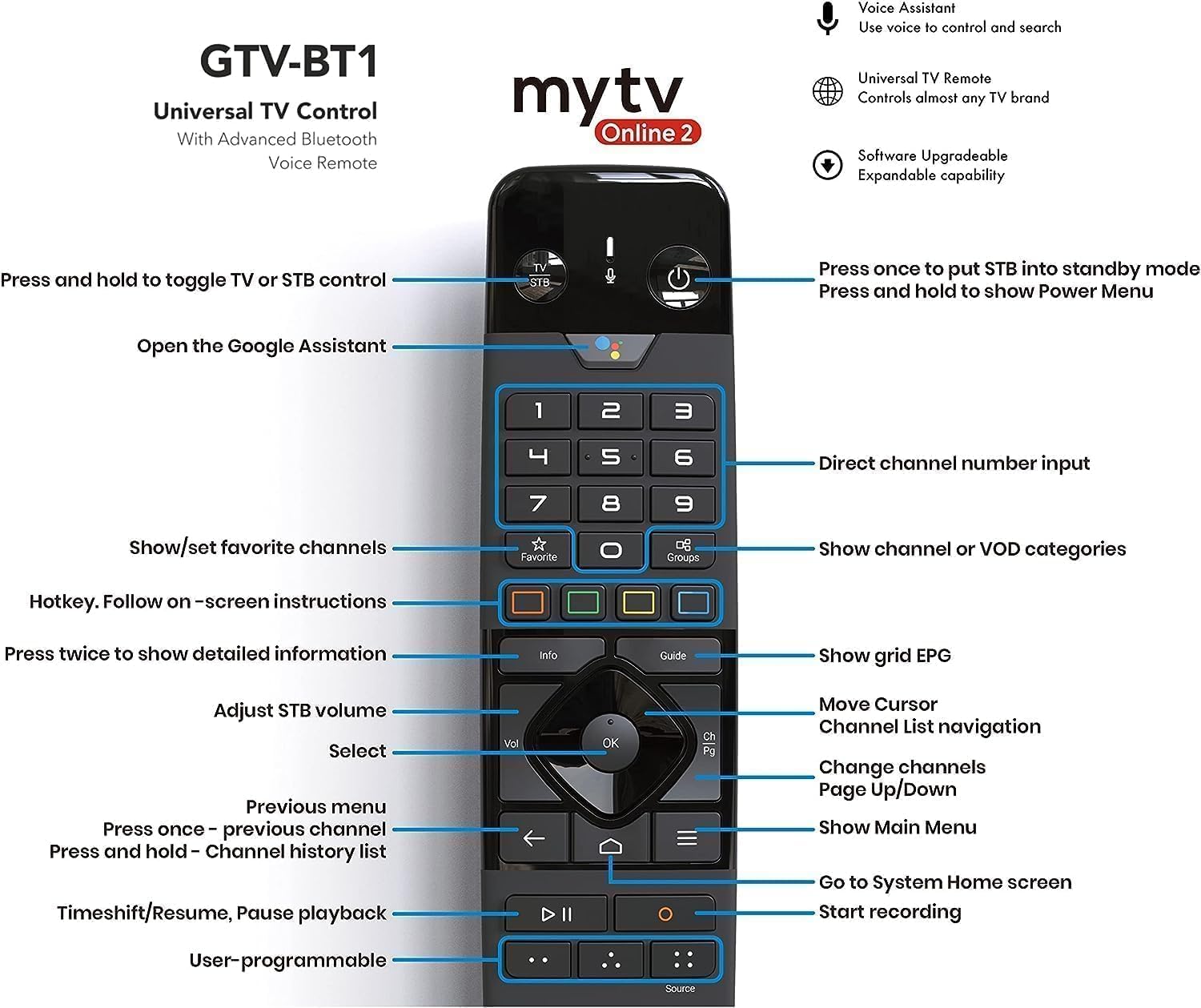
Image: Detailed view of the remote control with labeled buttons for various functions.
- Power Button: Press once to put the device into standby mode; press and hold to show the Power Menu.
- TV/STB Control: Press and hold to toggle between TV or STB control.
- Google Assistant: Open the Google Assistant for voice commands.
- Number Pad: Direct channel number input.
- Navigation Pad (OK, Up, Down, Left, Right): Navigate menus and select items.
- Back Button: Go back to the previous menu or screen.
- Home Button: Go to the System Home screen.
- Volume Buttons: Adjust STB volume.
- Channel Buttons: Change channels (Page Up/Down).
- Info Button: Press twice for detailed information.
- Guide Button: Show grid EPG (Electronic Program Guide).
- Favorite/Groups: Show/set favorite channels or show channel/VOD categories.
- Playback Controls: Timeshift/Resume, Pause playback, Start recording.
- User-programmable Buttons: Customize for quick access to preferred functions.
5.2 Navigation and Streaming
Once powered on, the Formuler Z Mini will display its home screen. Use the remote control's navigation pad to browse applications and settings. Launch your preferred streaming apps to enjoy content. The device supports 4K resolution, ensuring a crisp and clear viewing experience on compatible displays.
6. Maintenance
- Cleaning: Use a soft, dry cloth to clean the device. Do not use liquid cleaners or aerosols.
- Software Updates: Regularly check for and install software updates to ensure optimal performance and access to the latest features. Updates are typically available through the device's settings menu.
- Ventilation: Ensure the device is placed in a well-ventilated area and that its vents are not obstructed.
7. Troubleshooting
| Problem | Possible Cause | Solution |
|---|---|---|
| No power | Power adapter not connected; outlet issue. | Ensure power adapter is securely connected to device and a working power outlet. |
| No signal on TV | Incorrect HDMI input selected; loose HDMI connection. | Select the correct HDMI input on your TV. Check HDMI cable connection. |
| Remote control not responding | Batteries low/dead; remote not paired. | Replace batteries. Re-pair the remote control by following on-screen instructions or referring to Section 4.2. |
| Wi-Fi connection issues | Incorrect password; router issues; signal interference. | Verify Wi-Fi password. Restart your router. Move device closer to router or reduce interference. |
| Device is slow or freezing | Too many apps running; low storage. | Close unused applications. Clear cache or uninstall unnecessary apps to free up storage. Restart the device. |
8. Specifications
Detailed technical specifications for the Formuler Z Mini:
- Output Resolution: 4K (3840 x 2160)
- RAM: 2GB LPDDR4 @2400MHz
- Storage: 8GB eMMC
- Operating System: Android 12
- Networking: Wireless AC 2x2, Bluetooth 5.0
- Dimensions (L x W x T): 83 mm x 60 mm x 12.5 mm (3.3 x 2.4 x 0.5 inches)
- Color: Black
- Power Input: 5VDC / 1A
- Power Consumption: Max. 5 W
- Item Weight: 15.8 ounces
- Country of Origin: China


Image: Top and side views of the Formuler Z Mini device, highlighting its compact design.
9. Warranty and Support
For warranty information, technical support, or further assistance, please refer to the official Formuler website or contact their customer service. Keep your proof of purchase for warranty claims.
Related documentsZ Mini


Ask a question about this manual
Ask about setup, troubleshooting, compatibility, parts, safety, or missing instructions. Manuals+ will review the question and use this page’s manual context to help answer it.