
Hisense 55A65H
Hisense 55-Inch Smart Google TV 4K UHD A6 Series User Manual
Model: 55A65H
Introduction
This manual provides essential information for setting up, operating, and maintaining your Hisense 55-Inch Smart Google TV 4K UHD A6 Series. Please read this manual thoroughly before using your television to ensure proper operation and safety.
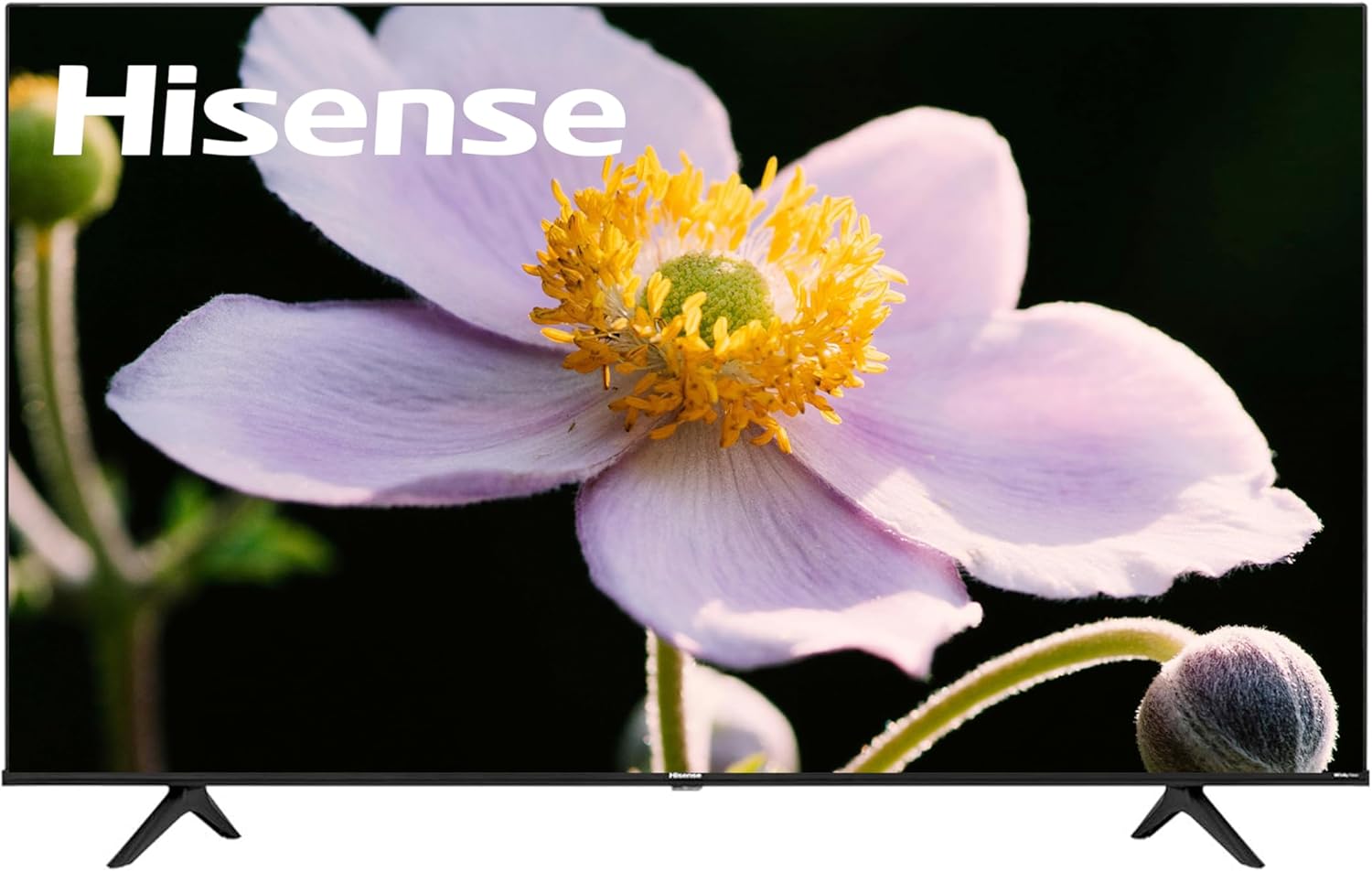
Image: Front view of the Hisense 55-inch Smart Google TV, showcasing its slim bezels and central stand.
What's in the Box
Verify that all components listed below are included in your package:
- Hisense 55-Inch Smart Google TV (Model: 55A65H)
- Remote Control
- TV Stand (2 pieces)
- Power Cord
- Quick Setup Guide (separate document)
- Screws for Stand Assembly
Setup
1. Attaching the TV Stand
Carefully place the TV screen-down on a soft, flat surface to prevent damage. Align the stand pieces with the corresponding slots on the bottom of the TV. Secure the stand using the provided screws. Ensure the stand is firmly attached before placing the TV upright.
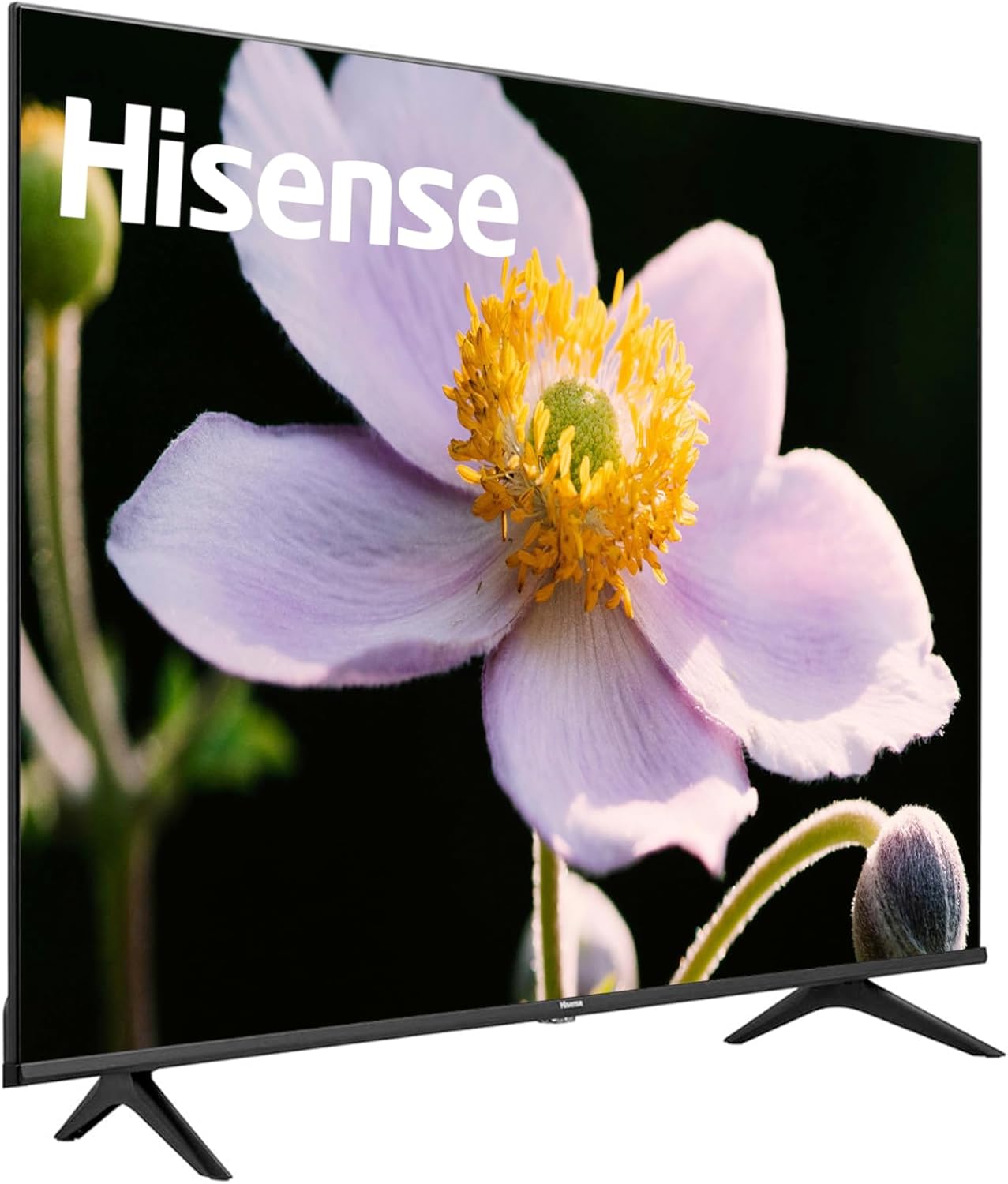
Image: Angled view of the Hisense TV, showing the attached stand legs.
2. Connecting Power and Devices
Connect the power cord to the TV's power input and then to a wall outlet. Connect your external devices (e.g., cable box, game console, Blu-ray player) to the appropriate HDMI or other input ports on the back of the TV.
3. Initial Setup and Network Connection
Upon first power-on, the TV will guide you through the initial setup process. This includes selecting your language, country, and connecting to your Wi-Fi network. Follow the on-screen prompts to complete the setup. A stable internet connection is required to access Google TV features and streaming services.
Operating Your TV
Basic Operation
- Power On/Off: Press the Power button on the remote control to turn the TV on or off.
- Input Selection: Use the "Input" button on the remote to switch between connected devices (HDMI 1, HDMI 2, etc.).
- Volume Control: Use the Volume Up/Down buttons to adjust the sound level.
- Navigation: Use the directional pad and OK button on the remote to navigate menus and select options.
Google TV Features
Your Hisense A6 Series TV comes with Google TV built-in, providing a personalized entertainment experience.

Image: Screenshot of the Google TV interface, showing various streaming app icons and content recommendations.
- App Access: Enjoy instant access to a wide selection of apps from top streaming services like Netflix, Disney+, YouTube, and Prime Video directly from your TV.
- Content Organization: Google TV brings together movies, shows, live TV, and more from all your apps and subscriptions, organizing them just for you.
- Chromecast built-in: Stream content directly from your phone, tablet, or laptop to your TV. This allows you to cast your favorite movies, shows, apps, games, and more.
Picture and Audio Enhancements
- 4K Ultra HD (2160p resolution): Experience stunning 4K movies and TV shows with four times the resolution of Full HD. The TV also upscales current content to Ultra HD-level picture quality.
- Dolby Vision HDR and HDR10: These technologies enhance contrast, brightness, and color, bringing a more vivid and lifelike image to your screen.
- Filmmaker Mode: Plays movie content as the director originally intended, preserving the original aspect ratio, colors, and frame rates.
- DTS Virtual:X: Provides an immersive audio experience, creating a virtual surround sound effect.
Image: Graphic illustrating "4K Ultra High Definition" with a vibrant landscape scene.

Image: Graphic promoting "Dolby Vision HDR and HDR10" with a dynamic, colorful abstract image on a TV screen.
Special Modes
- Game Mode Plus: A collection of technologies designed for an optimized gaming experience. It combines a 60Hz panel, variable refresh rate (VRR), and automatic low latency mode (ALLM) to reduce input lag and screen tearing, making it suitable for next-generation gaming consoles.
- Sports Mode: Optimizes picture and sound settings for sports content, enhancing motion clarity and audio for a more engaging viewing experience.
Image: Graphic illustrating "Game Mode" with a scene from a video game featuring a spaceship and character.

Image: Graphic illustrating "Sports Mode" with a football match in progress, highlighting players on the field.
Google Assistant
Your TV is compatible with Google Assistant. Press the Google Assistant button on your remote to use voice commands. You can ask Google to search for content, stream shows, open games, control smart home devices, and get answers to questions.

Image: Graphic showing a person using the remote control to activate Google Assistant, with a visual representation of sound waves emanating from the remote.
Maintenance
- Cleaning the Screen: Gently wipe the screen with a soft, lint-free cloth. For stubborn marks, use a screen cleaner specifically designed for electronics, applied to the cloth, not directly to the screen.
- Cleaning the Cabinet: Use a soft, dry cloth to wipe the TV cabinet. Do not use abrasive cleaners or solvents.
- Ventilation: Ensure proper ventilation around the TV. Do not block ventilation openings.
- Power Cord: Regularly check the power cord for any damage. If damaged, replace it immediately.
Troubleshooting
| Problem | Possible Solution |
|---|---|
| No Power | Ensure the power cord is securely plugged into both the TV and a working electrical outlet. Try a different outlet. |
| No Picture/Sound | Check that the correct input source is selected. Verify all cables (HDMI, etc.) are securely connected. |
| Remote Control Not Working | Check and replace the batteries. Ensure there are no obstructions between the remote and the TV's IR sensor. |
| Wi-Fi Connection Issues | Restart your router and modem. Re-enter your Wi-Fi password in the TV's network settings. Ensure the TV is within range of your Wi-Fi signal. |
| Apps Not Loading/Crashing | Ensure the TV's software is up to date. Clear the cache for the problematic app in the TV's settings. Reinstall the app if necessary. |
Specifications
| Feature | Detail |
|---|---|
| Brand | Hisense |
| Model | 55A65H |
| Screen Size | 55 Inches (140 cm diagonal) |
| Display Technology | LED |
| Resolution | 4K Ultra HD (3840 x 2160) |
| Refresh Rate | 60 Hz |
| Operating System | Google TV |
| Special Features | Dolby Vision HDR, HDR10, Filmmaker Mode, DTS Virtual:X, Game Mode Plus, Chromecast built-in, Google Assistant |
| Connectivity | Wi-Fi, HDMI, USB, Ethernet |
| Product Dimensions (D x W x H) | 2.9" x 48.5" x 28" (without stand) |
| Item Weight | 33 pounds |

Image: Diagram showing the dimensions of the Hisense 55-inch TV, including height, width, and depth.
Warranty and Support
For warranty information and technical support, please refer to the warranty card included with your product or visit the official Hisense support website. You may also contact Hisense customer service directly for assistance with product registration, troubleshooting, or service requests.
Note: As this is a renewed product, warranty terms may differ from new products. Please check the specific warranty details provided at the time of purchase.
Ask a question about this manual
Ask about setup, troubleshooting, compatibility, parts, safety, or missing instructions. Manuals+ will review the question and use this page’s manual context to help answer it.