
acer ANV15-41-R5N6
Acer Nitro V Gaming Laptop ANV15-41-R5N6 User Manual
Comprehensive Guide for Setup, Operation, and Maintenance
1. Introduction
Welcome to the user manual for your new Acer Nitro V Gaming Laptop, model ANV15-41-R5N6. This guide provides essential information to help you set up, operate, maintain, and troubleshoot your laptop effectively. The Acer Nitro V is designed for high-performance gaming and productivity, featuring an AMD Ryzen 5 7535HS Hexa-Core Processor, NVIDIA GeForce RTX 4050 Laptop GPU, and a 15.6-inch Full HD IPS 144Hz display.
Please read this manual thoroughly to ensure optimal performance and longevity of your device. Keep this manual for future reference.
2. What's in the Box
Upon unpacking your Acer Nitro V Gaming Laptop, ensure all the following items are present:
- Acer Nitro V Gaming Laptop (ANV15-41-R5N6)
- AC Adapter
- Power Cord
If any items are missing or damaged, please contact your retailer or Acer support immediately.
3. Physical Features and Components
Familiarize yourself with the various ports and components of your laptop.

Figure 3.1: Front view of the Acer Nitro V Gaming Laptop, showcasing the display and keyboard.
3.1 Left Side Ports

Figure 3.2: Close-up of the left side ports, including the DC-in jack, Ethernet (RJ-45) port, HDMI port, two USB 3.2 ports, and a USB Type-C (USB4 with Full Function) port.
- DC-in Jack: Connects to the AC adapter for power.
- Ethernet (RJ-45) Port: For wired network connection.
- HDMI Port: Connects to external displays.
- USB 3.2 Ports (x2): For connecting USB devices. One supports offline charging.
- USB Type-C (USB4 with Full Function) Port: Versatile port for data transfer, display output, and power delivery.
3.2 Right Side Ports

Figure 3.3: Close-up of the right side ports, featuring a USB 3.2 port, headset jack, and Kensington lock slot.
- USB 3.2 Port: For connecting USB devices.
- Headset Jack: For connecting headphones or a headset with microphone.
- Kensington Lock Slot: For securing your laptop with a compatible security cable.
3.3 Keyboard and Touchpad

Figure 3.4: Top-down view of the laptop's keyboard and touchpad, highlighting the backlit keys.
The laptop features a full-size backlit keyboard and a precision touchpad for navigation. The keyboard includes dedicated function keys for various system controls.
4. Initial Setup
Follow these steps to set up your Acer Nitro V Gaming Laptop for the first time.
4.1 Connecting the AC Adapter
- Connect the AC adapter to the DC-in jack on the left side of your laptop.
- Plug the power cord into the AC adapter.
- Plug the other end of the power cord into a grounded electrical outlet.
It is recommended to fully charge the battery before initial use.
4.2 Powering On and Windows Setup
- Open the laptop lid.
- Press the power button, typically located on the keyboard deck.
- Follow the on-screen instructions to complete the Windows 11 Home setup process. This includes selecting your region, language, creating a user account, and setting up network connections.
4.3 Connecting to a Network
Your laptop supports both wired (Ethernet) and wireless (Wi-Fi 6) network connections.
- Wi-Fi: During Windows setup or via the Windows settings, select your Wi-Fi network and enter the password.
- Ethernet: Connect an Ethernet cable from your router or modem to the Ethernet port on the left side of the laptop.
5. Operating Your Laptop
5.1 Power Management
- Power On: Press the power button.
- Sleep Mode: Close the lid or select "Sleep" from the Windows Start menu.
- Shut Down: Select "Shut down" from the Windows Start menu.
- Restart: Select "Restart" from the Windows Start menu.
5.2 Display Settings
Your laptop features a 15.6-inch Full HD IPS display with a 144Hz refresh rate for smooth visuals.
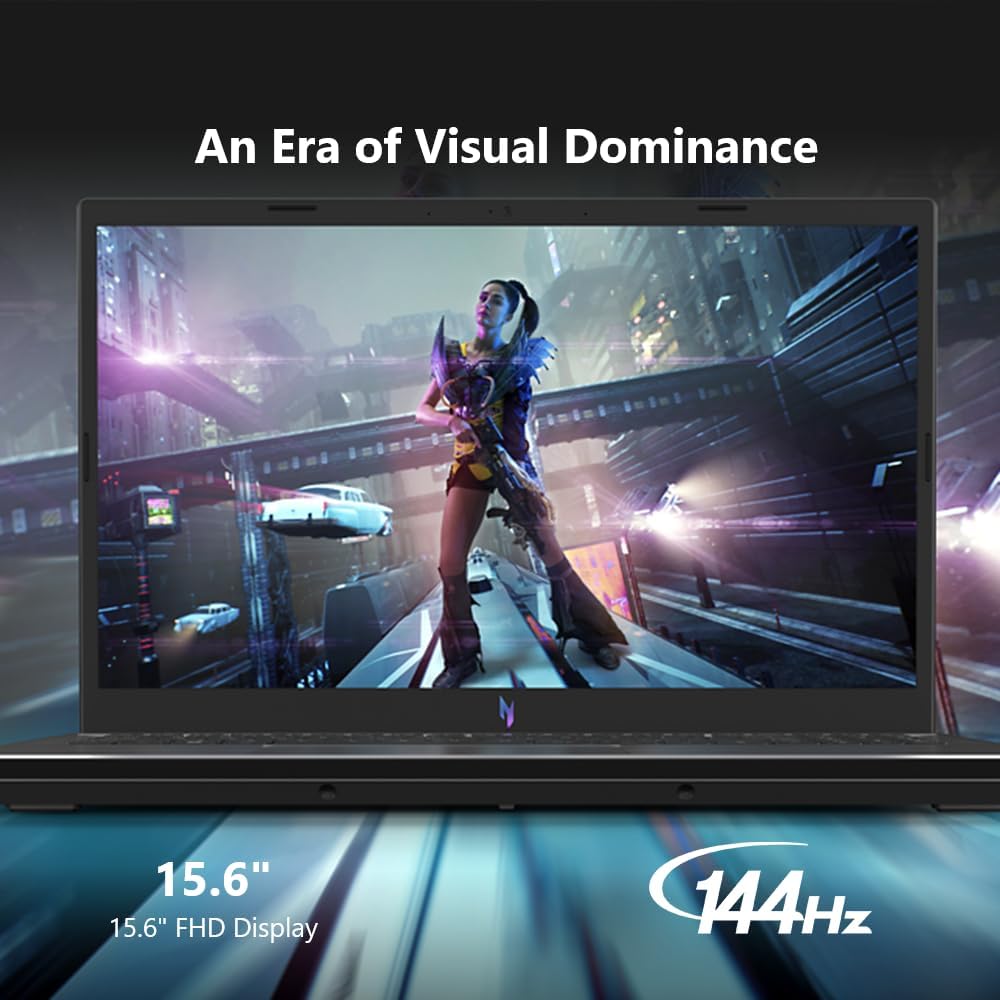
Figure 5.1: The 15.6-inch Full HD 144Hz display provides clear and fluid visuals for gaming and other tasks.
- To adjust brightness, use the function keys (Fn + F3/F4) or Windows display settings.
- To change resolution or refresh rate, right-click on the desktop and select "Display settings".
5.3 Audio Features
The laptop is equipped with DTS® X: Ultra Audio for enhanced sound. It also includes PurifiedVoice for AI-powered noise reduction and PurifiedView for AI-powered webcam enhancements.

Figure 5.2: Overview of the audio and webcam enhancement technologies.
- Adjust volume using the function keys (Fn + F8/F9) or the Windows volume mixer.
- Connect external audio devices via the headset jack or Bluetooth.
5.4 NitroSense Utility
The NitroSense utility allows you to monitor system performance, adjust fan speeds, and customize lighting for an optimized gaming experience.

Figure 5.3: The NitroSense application interface for system monitoring and customization.
- Launch NitroSense from the Start menu or by pressing the dedicated NitroSense key (if available).
- Monitor CPU/GPU temperatures, fan speeds, and power plans.
- Adjust fan profiles for quiet operation or maximum cooling during intensive tasks.
6. Maintenance
Proper maintenance ensures the longevity and optimal performance of your laptop.
6.1 Cleaning Your Laptop
- Use a soft, lint-free cloth to clean the screen and exterior surfaces.
- For stubborn marks, dampen the cloth with a small amount of water or a specialized screen cleaner.
- Use compressed air to clear dust from keyboard keys and ventilation grilles. Ensure the laptop is powered off before cleaning.
6.2 Software Updates
- Regularly update Windows through "Settings > Windows Update".
- Check the Acer support website for driver and BIOS updates specific to your model (ANV15-41-R5N6). Keeping drivers updated can resolve performance issues and improve stability.
6.3 Battery Care
The laptop's battery has an average life of approximately 2 hours under typical usage. To maximize battery lifespan:
- Avoid fully discharging the battery frequently.
- Store the laptop in a cool, dry place when not in use for extended periods.
- If storing for a long time, charge the battery to about 50-60% before turning off the laptop.
7. Troubleshooting Common Issues
This section addresses common problems you might encounter with your laptop.
7.1 Power and Charging Issues
- Laptop does not turn on: Ensure the AC adapter is securely connected to both the laptop and a working power outlet. Check if the power indicator light is on.
- Battery not charging: Verify the AC adapter and power cord are not damaged. Try a different power outlet. If the issue persists, the AC adapter or battery may require service.
7.2 Performance and System Stability
- Slow boot speed: Ensure your operating system and drivers are up to date. Check for unnecessary startup programs.
- System crashes or thermal events: Ensure the laptop's ventilation is not obstructed. Use NitroSense to monitor temperatures and fan speeds. Consider updating the BIOS to the latest version from the Acer support website, as this can improve embedded controller (EC) function and minimize errors.
- Overheating: The Acer Nitro V features dual-fan cooling. Ensure vents are clear. Operating on soft surfaces can block airflow.

Figure 7.1: Illustration of the laptop's dual-fan cooling system, designed to maintain optimal operating temperatures.
7.3 Connectivity Issues
- USB ports not working: Try connecting the device to a different USB port. Ensure drivers are updated. If multiple ports fail, contact support.
- Bluetooth not working: Check Bluetooth settings in Windows to ensure it's enabled. Update Bluetooth drivers from the Acer support website.
- Wi-Fi connection problems: Restart your router and modem. Ensure Wi-Fi drivers are updated.
7.4 Display and Audio Issues
- Screen flickering: Update your graphics drivers. Check display cable connections if using an external monitor. If using night mode, some flickering might occur; ensure drivers are current.
- Low speaker volume: Check volume settings in Windows and any application-specific volume controls. Ensure external speakers or headphones are not connected if you expect sound from the laptop's internal speakers.
8. Technical Specifications
Below are the detailed technical specifications for the Acer Nitro V Gaming Laptop ANV15-41-R5N6.
| Feature | Specification |
|---|---|
| Brand | acer |
| Model Name | Acer Nitro V Gaming Laptop |
| Item Model Number | ANV15-41-R5N6 |
| Operating System | Windows 11 Home |
| Standing Screen Display Size | 15.6 Inches |
| Screen Resolution | 1920 x 1080 pixels (Full HD) |
| Display Refresh Rate | 144Hz IPS Panel |
| Processor | AMD Ryzen 5 7535HS Hexa-Core (3.3 GHz) |
| RAM | 8 GB DDR5 (5600 MHz) |
| Hard Drive | 512 GB SSD (PCIE x 8) |
| Graphics Coprocessor | NVIDIA GeForce RTX 4050 Laptop GPU |
| Graphics Card Ram Size | 6 GB Dedicated |
| Wireless Type | 802.11ax (Wi-Fi 6), Bluetooth |
| Number of USB Ports | 4 (includes USB Type-C) |
| Average Battery Life | 2 Hours |
| Item Weight | 4.63 pounds |
| Product Dimensions | 14.26 x 9.44 x 0.93 inches |
| Color | Black |
| Special Feature | Backlit Keyboard |
9. Warranty and Support
Your Acer Nitro V Gaming Laptop comes with a standard manufacturer's warranty. For specific warranty terms and conditions, please refer to the documentation included with your product or visit the official Acer support website.
For Technical Support:
- Visit the official Acer Support website: www.acer.com/support
- Locate your product by model number (ANV15-41-R5N6) to access drivers, manuals, and FAQs.
- Contact Acer customer service for further assistance.
Extended Protection Plans:
Extended protection plans may be available for purchase to provide additional coverage beyond the standard warranty period. Please inquire with your retailer or Acer for details on available plans.
Ask a question about this manual
Ask about setup, troubleshooting, compatibility, parts, safety, or missing instructions. Manuals+ will review the question and use this page’s manual context to help answer it.