Introduction
This manual provides essential information for setting up, operating, maintaining, and troubleshooting your Acer Aspire 5 A515-57-55BX Slim Laptop. Please read this manual thoroughly to ensure proper use and to maximize the lifespan of your device.
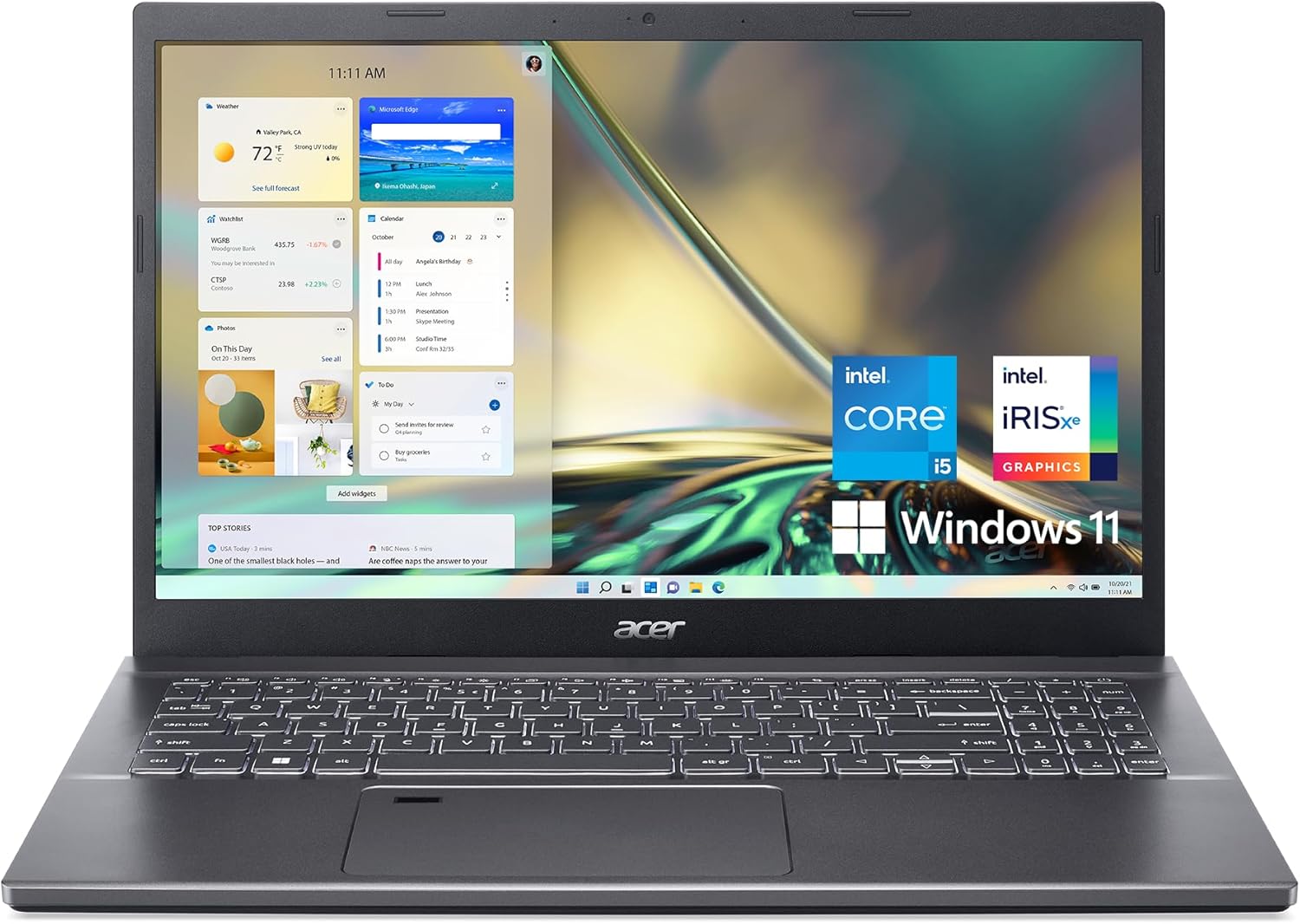
Image: Front view of the Acer Aspire 5 A515-57-55BX Slim Laptop, showcasing its display and keyboard.
Package Contents
Upon opening the package, verify that all items are present and in good condition:
- Acer Aspire 5 A515-57-55BX Slim Laptop
- AC Adapter
- Power Cord
If any items are missing or damaged, contact your retailer or Acer support immediately.
Setup
Initial Setup and Powering On
- Connect the AC Adapter: Plug the AC adapter into the laptop's power input port and then into a power outlet.
- Charge the Battery: It is recommended to fully charge the battery before initial use. The charging indicator light will show the charging status.
- Power On: Open the laptop lid. Press the power button, typically located on the keyboard deck, to turn on the laptop.
- Windows Setup: Follow the on-screen instructions to complete the Windows 11 Home setup process, including language selection, network connection, and user account creation.

Image: Left side view of the Acer Aspire 5 laptop, illustrating the power input port, Ethernet port, HDMI port, USB 3.2 Gen 1 ports, and Thunderbolt 4 port.
Operating Your Laptop
Keyboard and Touchpad
The laptop features a full-size backlit keyboard and a precision touchpad. The ergonomic hinge design slightly elevates the keyboard for comfortable typing and improved airflow.
- Backlit Keyboard: Use the dedicated function keys (Fn + F key combination) to adjust keyboard backlight brightness.
- Touchpad Gestures: The touchpad supports multi-touch gestures for navigation, zooming, and scrolling. Refer to Windows settings for customization.
- Fingerprint Reader: An embedded fingerprint reader is integrated for secure login. Configure it via Windows Hello settings.

Image: Top-down view of the Acer Aspire 5 laptop's keyboard and touchpad, highlighting the layout and the fingerprint reader.
Display
The 15.6-inch Full HD (1920 x 1080) IPS display offers crisp visuals and wide viewing angles. Narrow bezels maximize screen space.

Image: The Acer Aspire 5 laptop display, emphasizing its Full HD (1920x1080) resolution and IPS technology for vibrant colors and wide viewing angles.
Connectivity
Your laptop is equipped with various connectivity options:
- Wi-Fi 6 (802.11ax): Supports dual-stream Wi-Fi in 2.4GHz and 5GHz bands, including 2x2 MU-MIMO Technology for fast wireless connections.
- Bluetooth 5.1: For connecting wireless peripherals such as headphones, mice, and keyboards.
- Ports:
- 1 x Thunderbolt 4 (USB Type-C Port, USB 3.2 Gen 2, DisplayPort over USB Type-C, USB Charging)
- 3 x USB 3.2 Gen 1 Ports (one with Power-off Charging)
- 1 x HDMI 2.1 Port with HDCP support
- 1 x Ethernet (RJ-45) Port
- 1 x Headphone/Speaker/Line-Out Jack
- 1 x Kensington Lock Slot
- 1 x DC-in for AC adapter

Image: The Acer Aspire 5 laptop angled to show its various connectivity ports, including USB, HDMI, and Ethernet, illustrating its comprehensive connection capabilities.
Audio and Video
The laptop is equipped for high-quality audio and video communication:
- 720p HD Camera: Features Acer's TNR (Temporal Noise Reduction) technology for improved image quality in low-light conditions.
- Acer PurifiedVoice: Utilizes AI Noise Reduction for clear audio during calls.
- Acer PurifiedView: Combines Background Blur, Automatic Framing, and Eye Contact features using advanced AI algorithms for enhanced video conferencing.

Image: A group of people engaged in a video call using the Acer Aspire 5 laptop, demonstrating its capabilities for online meetings and communication.
Maintenance
Cleaning Your Laptop
- Screen: Use a soft, lint-free cloth slightly dampened with water or a screen cleaner. Do not spray liquid directly onto the screen.
- Keyboard and Chassis: Use a soft cloth. For stubborn dirt, a slightly damp cloth with mild soap solution can be used, ensuring no liquid enters the device.
- Vents: Periodically clean dust from the cooling vents using compressed air to maintain optimal airflow.
Battery Care
- Avoid fully discharging the battery frequently.
- Store the laptop in a cool, dry place if not used for extended periods.
- Use only the original Acer AC adapter.
Software Updates
Regularly check for and install Windows updates and Acer driver updates to ensure system stability, security, and optimal performance.

Image: A diagram illustrating the internal cooling system of the Acer Aspire 5 laptop, showing dual fans and heat pipes designed for efficient heat dissipation.
Troubleshooting
This section addresses common issues you might encounter with your laptop.
No Power / Laptop Not Turning On
- Ensure the AC adapter is securely connected to both the laptop and a working power outlet.
- Verify the power outlet is functional by plugging in another device.
- If the battery is completely drained, allow it to charge for at least 30 minutes before attempting to power on.
Display Issues
- Blank Screen: Press Fn + F6 to toggle the display output. Ensure the laptop is not connected to an external monitor that is turned off or disconnected.
- Dim Screen: Adjust brightness using the dedicated function keys (usually Fn + F3 for dimming, Fn + F4 for brightening).
Wi-Fi / Bluetooth Connectivity Problems
- Ensure Wi-Fi and Bluetooth are enabled in Windows settings.
- Restart your router/modem.
- Update wireless drivers from the Acer support website.
System Slowdown / Freezing
- Close unnecessary applications running in the background.
- Check Task Manager (Ctrl+Shift+Esc) for processes consuming high CPU or memory.
- Ensure sufficient free space on your SSD.
- Run a virus scan.
Contacting Support
If you encounter issues not covered in this manual or require further assistance, please visit the official Acer support website or contact their customer service.
Acer Support Website: www.acer.com/support
Specifications
| Feature | Specification |
|---|---|
| Model Name | Acer Aspire 5 A515-57-55BX |
| Processor | Intel Core i5-12450H (3.3 GHz) |
| Graphics | Intel Iris Xe Graphics (Integrated) |
| RAM | 8 GB DDR4 |
| Storage | 512 GB PCIe Gen4 SSD |
| Display | 15.6" Full HD (1920 x 1080) IPS Display |
| Operating System | Windows 11 Home |
| Wireless Connectivity | Wi-Fi 6 (802.11ax), Bluetooth 5.1 |
| Ports | 1x Thunderbolt 4 (USB-C), 3x USB 3.2 Gen 1, 1x HDMI 2.1, 1x RJ-45 Ethernet, 1x Headphone/Speaker/Line-Out Jack, 1x DC-in |
| Special Features | Fingerprint Reader, Backlit Keyboard, Acer PurifiedVoice, Acer PurifiedView |
| Dimensions (LxWxH) | 14.29 x 9.36 x 0.7 inches |
| Weight | 3.88 pounds |
| Color | Gray |
Warranty and Support
Your Acer Aspire 5 A515-57-55BX Slim Laptop comes with a standard manufacturer's warranty. For detailed information regarding warranty terms, conditions, and duration, please refer to the warranty card included in your product packaging or visit the official Acer support website.
Online Support: For drivers, manuals, FAQs, and service requests, visit www.acer.com/support.
It is recommended to register your product on the Acer website to receive updates and facilitate warranty service.