
Alienware 545-BBFP
Alienware Pro Wireless Gaming Mouse Pro (Dark Side of the Moon)
User Manual
Product Overview
The Alienware Pro Wireless Gaming Mouse is engineered for competitive gaming, offering advanced features and a lightweight design. This manual provides instructions for setup, operation, maintenance, and troubleshooting to ensure optimal performance.
Key features include:
- Gaming mouse with 4 kHz or 8 KHz wired polling rate for a pure mind-to-mouse connection.
- Professional-approved and ultra-light at less than 60 grams.
- Champion-approved and expert-designed, incorporating insights from Team Liquid.
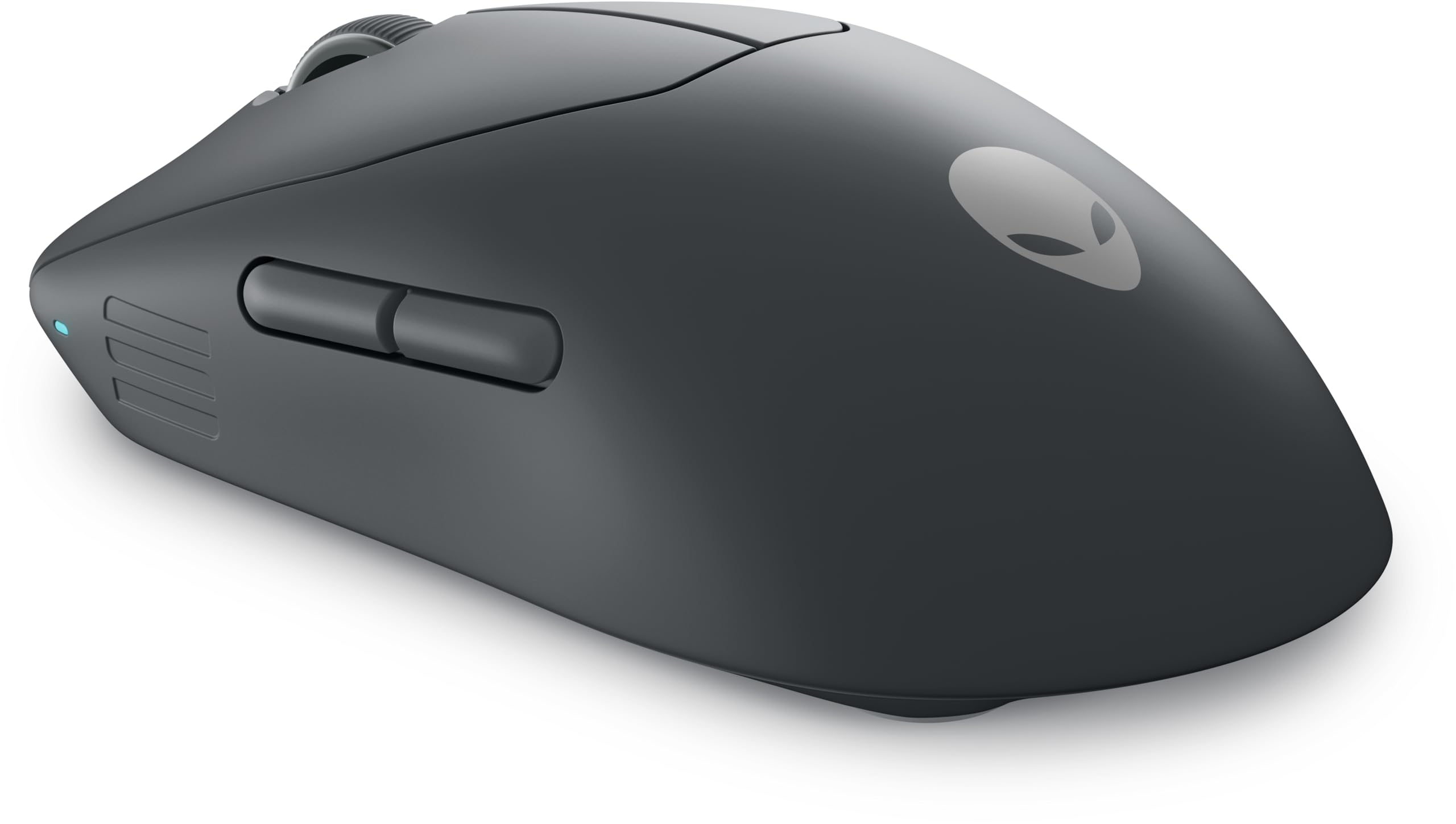
Figure 1: Alienware Pro Wireless Gaming Mouse (Dark Side of the Moon). This image displays the top-down view of the mouse, highlighting its dark grey finish, the scroll wheel, main left and right click buttons, and two programmable thumb buttons on the left side. The Alienware logo is subtly visible on the palm rest.
Setup
Follow these steps to set up your Alienware Pro Wireless Gaming Mouse:
- Charge the Mouse: Connect the mouse to a USB power source using the provided USB-C cable. The LED indicator will show charging status.
- Connect Wirelessly (2.4 GHz):
- Insert the USB wireless dongle into an available USB port on your computer.
- Turn on the mouse using the power switch located on the bottom.
- The mouse should automatically connect. If not, press the pairing button on the mouse and the dongle (if available) to initiate pairing.
- Connect via Bluetooth:
- Turn on the mouse.
- Press and hold the Bluetooth pairing button (refer to the mouse's underside or a specific button if present) until the LED blinks, indicating pairing mode.
- On your computer, go to Bluetooth settings and select "Add a device."
- Choose the Alienware Pro Wireless Gaming Mouse from the list of available devices to complete pairing.
- Install Alienware Command Center: For full customization of DPI settings, button assignments, and lighting, download and install the Alienware Command Center software from the official Alienware support website.
Operating Instructions
Understanding the functions of your Alienware Pro Wireless Gaming Mouse:
- Left and Right Click Buttons: Standard mouse functions for selection and interaction.
- Scroll Wheel: Used for vertical scrolling and can also function as a middle click button.
- Side Buttons: Two programmable buttons on the left side, typically used for forward/back navigation or custom in-game actions. Customize these via Alienware Command Center.
- DPI Button: Usually located near the scroll wheel, this button allows you to cycle through pre-set DPI (Dots Per Inch) sensitivity levels on the fly. Adjust DPI stages in Alienware Command Center.
- Polling Rate: The mouse supports high polling rates (4 kHz wireless, 8 kHz wired) for ultra-responsive input. Ensure your system and software are configured to utilize these rates for optimal performance.
- Battery Indicator: The LED light on the mouse indicates battery status. Refer to the Alienware Command Center for precise battery percentage.
Maintenance
Proper maintenance ensures the longevity and performance of your gaming mouse:
- Cleaning:
- Use a soft, lint-free cloth slightly dampened with water or a mild cleaning solution to wipe the surface of the mouse.
- Avoid harsh chemicals, abrasive cleaners, or excessive moisture.
- Use compressed air to clear dust and debris from around the scroll wheel and sensor area.
- Sensor Care: Keep the optical sensor on the bottom of the mouse clean and free from obstructions to ensure accurate tracking.
- Battery Care:
- Avoid fully discharging the battery frequently.
- Store the mouse in a cool, dry place when not in use for extended periods.
- Use only the provided charging cable or a compatible USB-C cable.
Troubleshooting
If you encounter issues with your Alienware Pro Wireless Gaming Mouse, try the following solutions:
| Problem | Possible Solution |
|---|---|
| Mouse not responding/connecting |
|
| Lag or erratic movement |
|
| Buttons not working |
|
| Battery not charging |
|
Specifications
| Feature | Detail |
|---|---|
| Brand | Alienware |
| Model Name | Alienware Pro Wireless Gaming Mouse |
| Model Number | 545-BBFP |
| Color | Dark Side of the Moon |
| Connectivity Technology | USB (Wireless/Wired) |
| Special Feature | Wireless |
| Movement Detection Technology | Optical |
| Number of Buttons | 6 |
| Hand Orientation | Ambidextrous |
| Recommended Uses for Product | Gaming |
| Compatible Devices | Gaming Console, PC (Windows 10 and up) |
| Battery Composition | Lithium-ion (1 included) |
| Finish Type | Matte |
| Manufacturer | Dell |
Warranty and Support
For warranty information and technical support, please refer to the official Alienware or Dell support website. You can typically find detailed warranty terms, driver downloads, and contact information for customer service there.
Online Resources:
When contacting support, please have your product model number (545-BBFP) and serial number ready.
Related documents545-BBFP


Ask a question about this manual
Ask about setup, troubleshooting, compatibility, parts, safety, or missing instructions. Manuals+ will review the question and use this page’s manual context to help answer it.