
AMprime 4+64G Android 13 Car Radio
AMprime 8-Core Android 13 Double Din Car Stereo User Manual
Model: 4+64G Android 13 Car Radio
Introduction
This manual provides comprehensive instructions for the installation, operation, and maintenance of your AMprime 8-Core Android 13 Double Din Car Stereo. This advanced car radio features a 9-inch display, Wireless Carplay & Android Auto, Mirror Link, WiFi, GPS Navigation, Bluetooth, FM/RDS Radio, EQ/HiFi/DSP sound processing, Steering Wheel Control (SWC) compatibility, and AHD Backup Camera support. Please read this manual thoroughly before use to ensure proper functionality and safety.

Figure 1: AMprime 8-Core Android 13 Double Din Car Stereo with accessories.
Package Contents and Dimensions
Before beginning installation, verify that all components are present in the package. Refer to the diagram below for the main unit's dimensions and included accessories.
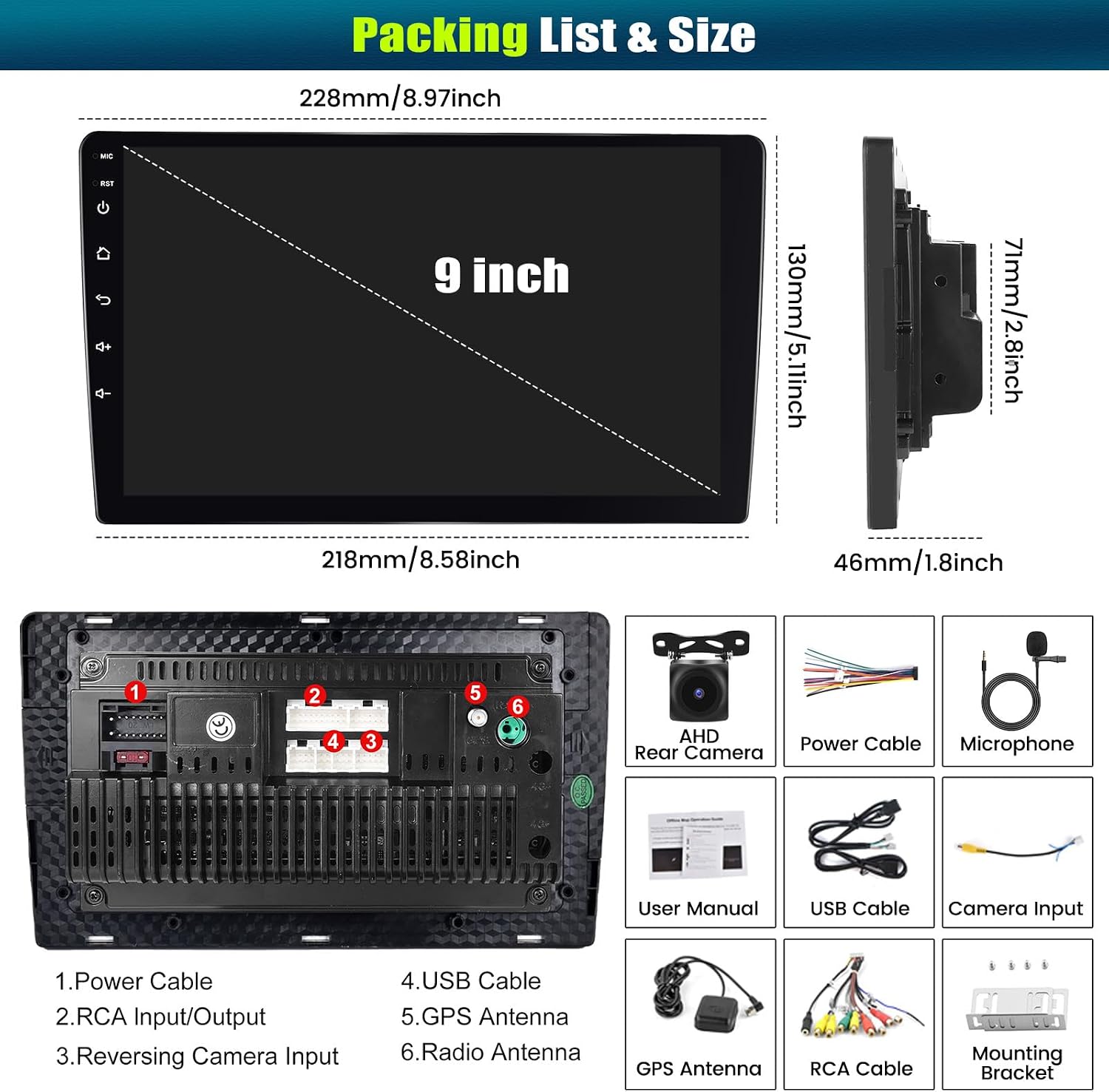
Figure 2: Package contents and main unit dimensions.
Included Components:
- AMprime 8-Core Android 13 Car Stereo Unit
- AHD Rear Camera
- Power Cable
- Microphone
- User Manual (this document)
- USB Cable
- Camera Input Cable
- GPS Antenna
- RCA Cable
- Mounting Bracket
Setup and Installation
Proper installation is crucial for optimal performance. It is recommended that installation be performed by a qualified professional. Ensure the vehicle's battery is disconnected before starting any wiring.
Wiring Connections:
Connect the power cable, RCA input/output, reversing camera input, USB cables, GPS antenna, and radio antenna to their respective ports on the back of the unit. Refer to the wiring diagram for detailed connections, especially for the backup camera.

Figure 3: Backup Camera Input and Wiring Diagram.
Mounting:
Secure the double din unit into your vehicle's dashboard using the provided mounting brackets. Ensure a snug fit to prevent vibrations and movement.
Operating Instructions
Initial Power On and System Overview:
Upon first power-on, the Android 13 system will boot. The 8-core CPU, 4GB RAM, and 64GB ROM ensure smooth operation. The main interface provides access to various applications and settings.

Figure 4: System Specifications and Interface.
Wireless Carplay & Android Auto:
Connect your smartphone wirelessly via Bluetooth or USB cable to access Carplay or Android Auto. This allows for voice-controlled navigation, calls, music playback, and messaging.

Figure 5: Wireless Carplay/Android Auto & Mirror Link Interface.

Figure 6: Wireless Carplay in Operation.

Figure 7: Wireless Android Auto in Operation.
Mirror Link Function:
Connect your smartphone's personal hotspot to the car stereo to mirror your phone's screen, providing a fully immersive experience with all features at your fingertips. Supports both iOS and Android devices.

Figure 8: Wireless Mirror Link Functionality.
WiFi & GPS Navigation:
The unit features built-in WiFi for internet access and supports both online and offline maps. Connect to WiFi to download maps and use navigation apps like Google Maps, Here We Go, Waze, or Navfree. The built-in offline map ensures navigation even without a strong signal.

Figure 9: WiFi & GPS Navigation Interface.

Figure 10: GPS Navigation Features.

Figure 11: WiFi Connectivity and Online Access.
Bluetooth Function:
Pair your phone via Bluetooth for hands-free calling and audio streaming. This feature enhances driving safety by allowing you to answer calls and listen to music without distraction.

Figure 12: Bluetooth Interface.

Figure 13: Bluetooth for Calls and Music.
FM/RDS Radio:
Enjoy high-quality FM/RDS radio with 30 preset stations. The advanced radio chip provides powerful noise reduction and anti-interference capabilities, allowing you to listen to real-time traffic, news, and weather forecasts.

Figure 14: FM/RDS Radio Interface.
Steering Wheel Control (SWC):
The car radio supports steering wheel controls, allowing you to easily switch songs, change channels, adjust volume, and answer calls without taking your hands off the wheel. This feature enhances convenience and driving safety.

Figure 15: Steering Wheel Control Setup.
AHD Rear View Camera:
When reversing, the AHD camera image will automatically display on the touch screen. The included camera features a waterproof design, excellent night vision, and a 170° ultra-wide field of view for safer parking and reversing.
Figure 16: AHD Backup Camera View.
EQ Setting & DSP:
Utilize the built-in DSP (Digital Signal Processor) tuning software to customize your audio experience. Adjust frequency, AE, and 36-band equalization to compensate for original car speaker limitations and achieve better lossless sound quality.

Figure 17: EQ and DSP Settings Interface.

Figure 18: Detailed DSP & EQ Functionality.
Three Split Screen Function:
The unit supports a three-split screen display, allowing you to view and interact with up to three applications simultaneously for convenient multitasking.

Figure 19: Three Split Screen Function in Use.

Figure 20: Detailed 3 Split Screen Functionality.
Maintenance
To ensure the longevity and optimal performance of your car stereo, follow these maintenance guidelines:
- Cleaning the Screen: Use a soft, lint-free cloth to gently wipe the touchscreen. For stubborn smudges, slightly dampen the cloth with water or a screen-safe cleaner. Avoid abrasive materials or harsh chemicals.
- General Cleaning: Keep the unit and surrounding dashboard area free from dust and debris. Use a soft brush or compressed air to clean vents and crevices.
- Software Updates: Periodically check for system software updates via the unit's settings menu (requires WiFi connection). Keeping the software updated ensures the latest features and bug fixes.
- Avoid Extreme Temperatures: Do not expose the unit to extreme heat or cold for prolonged periods, as this can affect its electronic components.
- Cable Management: Ensure all cables are securely connected and not pinched or tangled, which could lead to damage or intermittent issues.
Troubleshooting
If you encounter issues with your AMprime car stereo, refer to the following common problems and solutions:
| Problem | Possible Cause | Solution |
|---|---|---|
| Unit does not power on. | Loose power connection, blown fuse, vehicle battery issue. | Check power cable connections. Inspect vehicle's fuse box for blown fuses. Ensure vehicle battery is charged. |
| No sound from speakers. | Incorrect wiring, volume too low, mute activated, speaker issues. | Verify speaker wiring. Increase volume. Check if mute is active. Test speakers with another audio source. |
| GPS signal weak or inaccurate. | GPS antenna not properly installed or obstructed. | Ensure GPS antenna is mounted in a clear location with an unobstructed view of the sky. Check antenna connection. |
| Bluetooth connection issues. | Device not in pairing mode, interference, incorrect pairing process. | Ensure Bluetooth is enabled on both devices and in pairing mode. Delete previous pairings and re-pair. Move closer to the unit. |
| Backup camera not displaying. | Incorrect camera wiring, camera malfunction, reverse trigger not connected. | Check camera power and video input connections. Ensure the reverse trigger wire is correctly connected to the vehicle's reverse light circuit. |
| Touchscreen unresponsive or slow. | System overload, temporary software glitch. | Restart the unit. If persistent, perform a factory reset (note: this will erase all user data). |
If the problem persists after attempting these solutions, please contact customer support.
Specifications
| Feature | Detail |
|---|---|
| Operating System | Android 13 |
| CPU | 8-Core |
| RAM | 4GB |
| ROM | 64GB |
| Screen Size | 9 Inches |
| Display Type | Touchscreen, 178° Full Viewing Angle |
| Connectivity | Wi-Fi, Bluetooth |
| Navigation | Built-in GPS, Supports Online/Offline Maps (Google Maps, Here We Go, Waze, Navfree) |
| Radio | FM/RDS Radio (30 preset stations) |
| Audio Processing | EQ Setting, DSP (36-band equalization) |
| Special Features | Wireless Carplay, Wireless Android Auto, Mirror Link (iOS/Android), Steering Wheel Control, AHD Backup Camera Support, Three Split Screen Function, Voice Assistant |
| Item Weight | 2.83 pounds |
| Package Dimensions | 12.8 x 8.66 x 3.5 inches |
Warranty Information
The AMprime 8-Core Android 13 Double Din Car Stereo comes with a manufacturer's warranty. For detailed information regarding warranty coverage, terms, and conditions, please refer to the product's official listing page or contact AMprime customer support directly.
Customer Support
For any technical assistance, troubleshooting not covered in this manual, or warranty inquiries, please contact AMprime customer support:
- Email: AmprimeTechSupport@yeah.net
- Online Support: Refer to the official AMprime store on Amazon for additional resources and FAQs.

Figure 21: AMprime Customer Support.
Ask a question about this manual
Ask about setup, troubleshooting, compatibility, parts, safety, or missing instructions. Manuals+ will review the question and use this page’s manual context to help answer it.