Introduction
This manual provides instructions for the ITAWEY Wireless Dual Mode Mouse and Pad Combo. This device offers flexible connectivity options (Bluetooth 5.2 and 2.4G USB receiver), a rechargeable battery, quiet click buttons, and adjustable DPI settings. The included mouse pad is designed to enhance precision and usability.
Package Contents
- Wireless Dual Mode Mouse
- Mouse Pad
- USB Nano Receiver
- 3.3-foot USB Charging Cable
- USB-C Cable Converter

Image: The ITAWEY Wireless Mouse and Pad Combo, showing the mouse, mouse pad, USB receiver, and USB-C converter.
Product Overview
Familiarize yourself with the components of your ITAWEY Wireless Mouse.

Image: A diagram illustrating the key features of the mouse, including the Precision Steel Wheel, DPI Toggle, Right Button, Left Button, and USB-C Charging Port.
- Left Button: Standard click function.
- Right Button: Standard right-click function.
- Precision Steel Scroll Wheel: For smooth vertical scrolling.
- DPI Toggle Button: Adjusts cursor sensitivity (800, 1200, 1600 DPI).
- USB-C Charging Port: Located at the front of the mouse for recharging.
- Power/Mode Switch: Located on the underside, allows switching between OFF, 2.4G USB, and Bluetooth modes.
- USB Nano Receiver Slot: Located on the underside for convenient storage of the 2.4G USB receiver.
Setup
1. Charging the Mouse
The mouse is powered by a 500mAh rechargeable battery. Before first use, or when the battery is low, connect the included USB charging cable to the mouse's USB-C port and to a power source (e.g., computer USB port, phone charger). A full charge takes approximately 2 hours and provides up to 30 days of use. The mouse can be used while charging.

Image: The ITAWEY mouse connected to a USB-C charging cable, illustrating the charging process.
The included USB-C cable converter allows charging from both USB-A and USB-C ports.

Image: The USB-C converter attached to the USB receiver, plugged into a laptop's USB-C port for connectivity.
2. 2.4G USB Receiver Connection
- Locate the USB Nano Receiver stored in the compartment on the underside of the mouse.
- Insert the USB Nano Receiver into an available USB-A port on your computer or device. If your device only has USB-C ports, use the included USB-C cable converter.
- Slide the power/mode switch on the underside of the mouse to the 2.4G USB position (indicated by a USB icon).
- The mouse should automatically connect to your device.

Image: The underside of the ITAWEY mouse, showing the USB Nano Receiver being removed from its storage slot.
3. Bluetooth 5.2 Connection
- Slide the power/mode switch on the underside of the mouse to the Bluetooth position (indicated by a Bluetooth icon).
- The mouse will enter pairing mode.
- On your device (PC, laptop, tablet, etc.), open Bluetooth settings.
- Search for new devices and select "ITAWEY Mouse" (or similar) from the list to pair.
- Once paired, the mouse is ready for use.

Image: The underside of the ITAWEY mouse, highlighting the power/mode switch set to the Bluetooth position.
Compatibility: This mouse is compatible with Windows (11, 10, 7, XP), MacOS, iOS, iPad, Android Tablet, Chrome OS, and Ubuntu. It is suitable for both right-handed and left-handed users.

Image: A visual representation of the mouse's compatibility with various operating systems and devices, including Windows, MacOS, iPad, Android Tablet, Chrome OS, and Ubuntu/Linux.
Operating Instructions
1. DPI Adjustment
The mouse features a DPI button on top, allowing you to adjust cursor sensitivity. Press the DPI button to cycle through the available settings: 800 DPI, 1200 DPI, and 1600 DPI. Select the sensitivity that best suits your task, such as general browsing or precise editing.
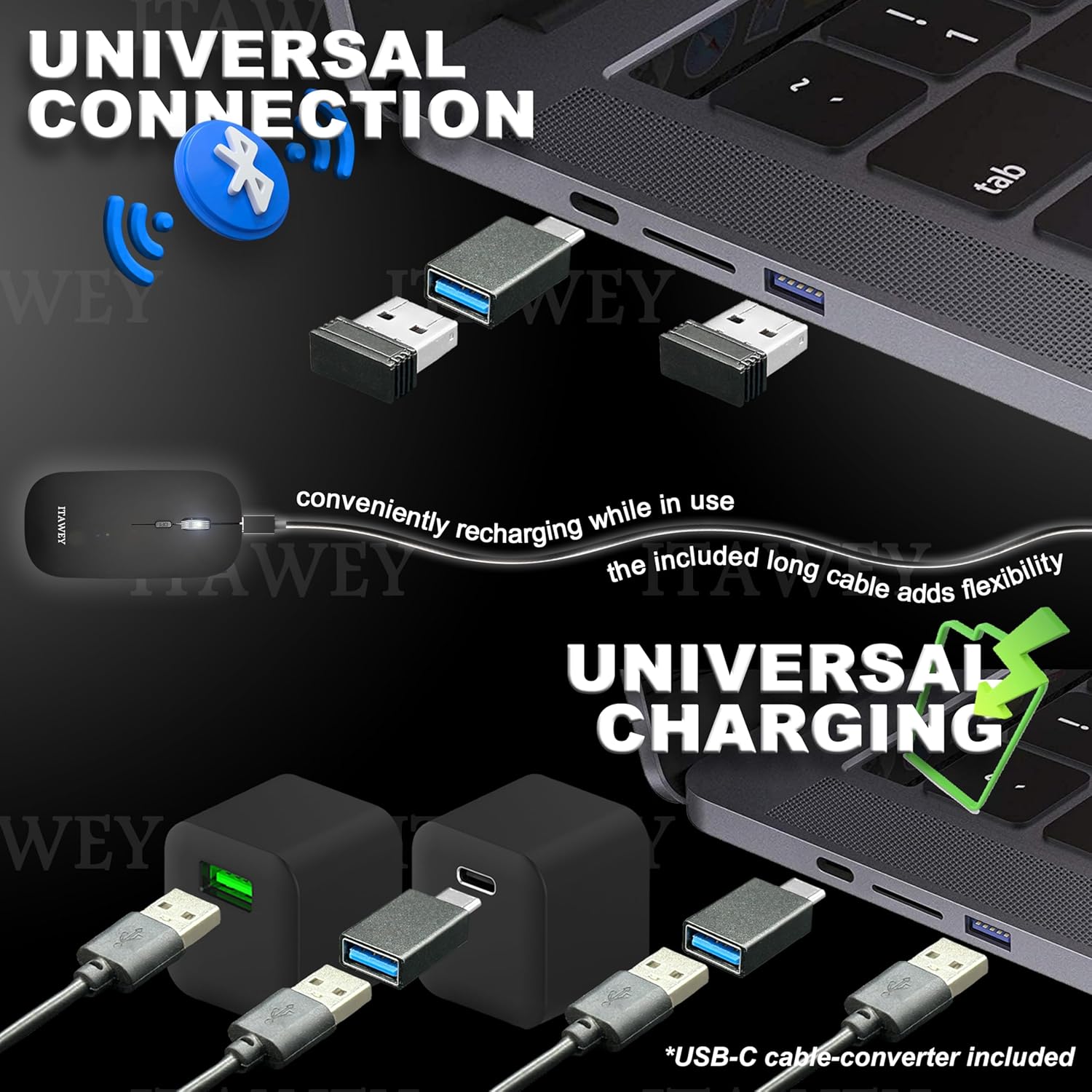
Image: A close-up of the mouse highlighting the DPI toggle button and its three settings: 800, 1200, and 1600 DPI.
2. Quiet Clicks
The left and right mouse buttons are designed for quiet operation, minimizing noise in environments where silence is preferred, such as libraries, offices, or during late-night work sessions.
3. Power Saving Mode
To optimize energy efficiency, the mouse automatically enters sleep mode after 8 minutes of inactivity. To wake the mouse, simply click any button.

Image: A visual illustrating the mouse's power-saving features, including up to 30 days per charge and automatic sleep mode after 8 minutes of inactivity, waking up with a click.
Maintenance
- Cleaning: Use a soft, dry cloth to clean the mouse. For the mouse pad, it is washable; gently hand wash with mild soap and water, then air dry.
- Storage: When not in use, store the USB Nano Receiver in its dedicated slot on the underside of the mouse to prevent loss.
- Battery Care: Avoid fully discharging the battery frequently to prolong its lifespan. Recharge when the low battery indicator appears.
Troubleshooting
| Problem | Solution |
|---|---|
| Mouse not responding (2.4G USB) |
|
| Mouse not responding (Bluetooth) |
|
| Cursor movement is erratic or slow |
|
| Mouse not charging |
|
Specifications
- Model: FIRENZE-BK
- Connectivity: Dual Mode (Bluetooth 5.2 & 2.4G USB Receiver)
- DPI Settings: 800 / 1200 / 1600 DPI
- Battery: 500mAh Rechargeable Lithium Ion
- Charging Time: Approximately 2 hours
- Usage Time (per charge): Up to 30 days
- Click Type: Quiet Clicks
- Scroll Wheel: Precision Steel
- Dimensions (Mouse): 4.7 x 2.5 x 0.04 inches (approx. 11.9 x 6.35 x 0.1 cm)
- Weight (Mouse): 2.29 ounces (approx. 65 grams)
- Compatibility: Windows (11, 10, 7, XP), MacOS, iOS, iPad, Android Tablet, Chrome OS, Ubuntu
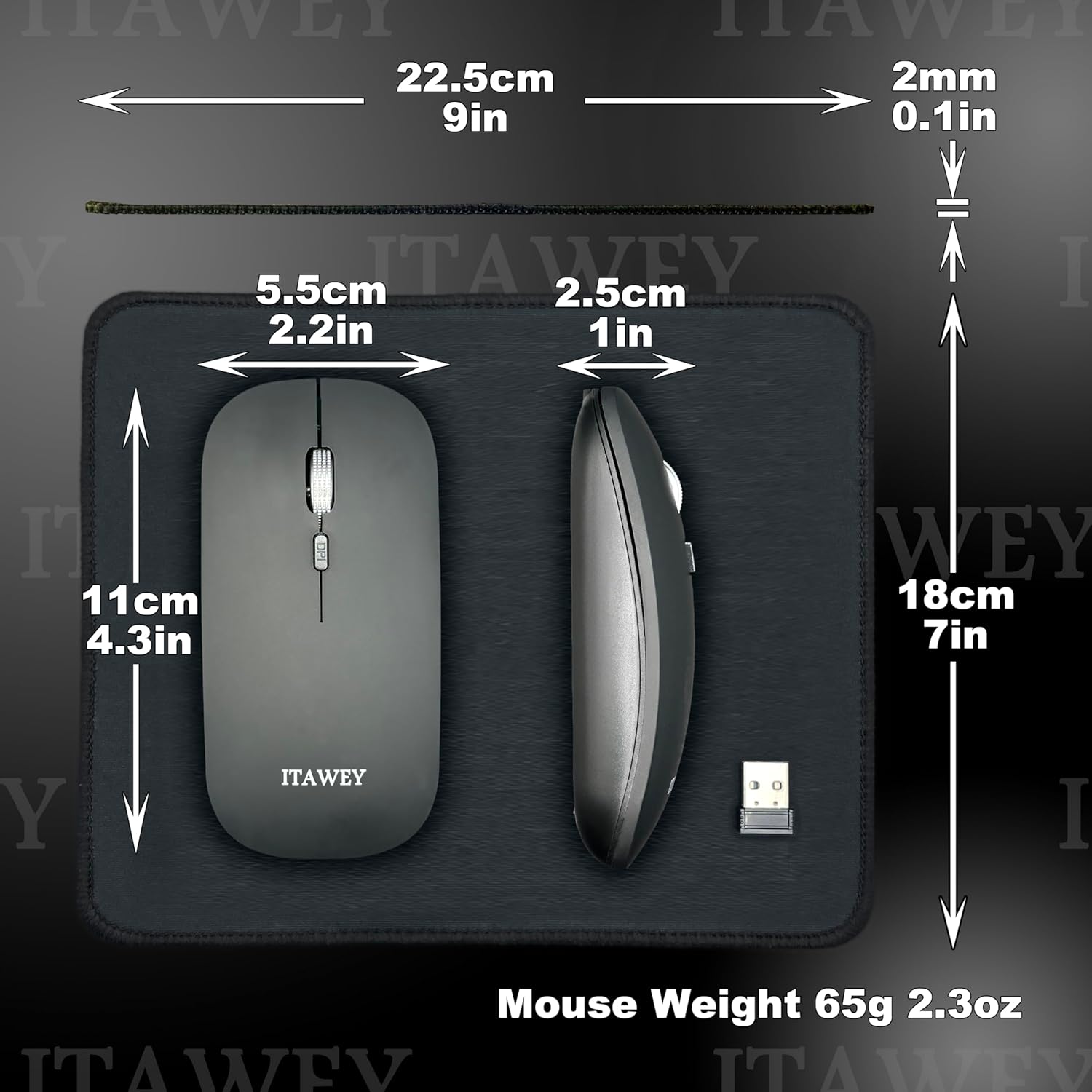
Image: A diagram showing the dimensions of the ITAWEY Wireless Mouse and the accompanying mouse pad.
Warranty and Support
For warranty information and customer support, please refer to the product packaging or visit the official ITAWEY website. Keep your purchase receipt for warranty claims.
Product Video
Video: An official product video from ITAWEY demonstrating the features and usage of the Wireless Mouse and Pad Combo, including its dual-mode connectivity, quiet clicks, and rechargeable battery.


