Introduction
Thank you for choosing the Reobiux Security Camera Outdoor with Dual Lens. This advanced security system is designed to provide comprehensive surveillance for your home or business, featuring 2.5K/6MP resolution, auto-tracking, human detection, color night vision, and two-way audio. This manual will guide you through the setup, operation, and maintenance of your new security cameras.

Image: Two Reobiux outdoor security cameras, showcasing their design and the accompanying mobile application interface.
What's in the Box
Please check the package contents carefully. If any items are missing or damaged, contact customer support.
- Reobiux Security Cameras (2 units)
- User Manual
- Installation Screw Bag
- Power Cables (10-foot)

Image: A visual representation of all items included in the product package.
Product Overview
The Reobiux security camera features a unique dual-lens design for comprehensive coverage and advanced monitoring capabilities.

Image: Detailed diagram illustrating the fixed and rotating lenses, along with the 355° pan and 90° tilt functionality of the camera.
Key Components:
- Fixed Lens: Provides a stable view of a primary area.
- Rotating Lens: Offers broader coverage with 355° pan and 90° tilt capabilities.
- Infrared LEDs: For clear night vision in low light.
- Spotlights: For full-color night vision and alarm illumination.
- Microphone: For audio input and two-way communication.
- Speaker: For audio output and two-way communication.
- Antennas: For stable Wi-Fi connectivity.
- Mounting Base: For secure installation.
Setup Guide
1. App Download and Account Registration
- Activate Permissions: Ensure Bluetooth and 2.4GHz Wi-Fi are enabled on your smartphone.
- Download the App: Scan the QR code below or search for "iCSee" in the App Store (iOS) or Google Play Store (Android).
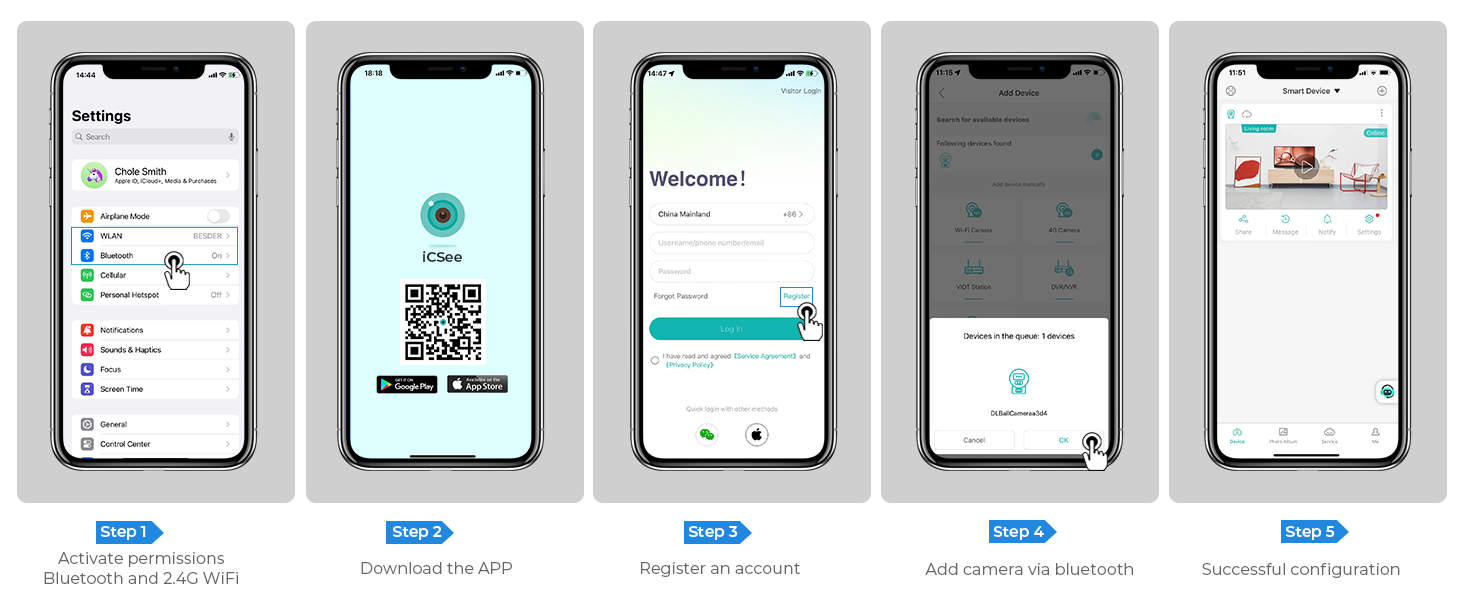
Image: Step-by-step guide for app download, account registration, and device configuration.
Alternatively, download the iCSee app directly from: http://d.xmeye.net/CSee
- Register an Account: Open the iCSee app and follow the on-screen instructions to register a new account.
- Add Camera via Bluetooth: Once logged in, select "Add Device" and choose to add the camera via Bluetooth. The app will guide you through the pairing process.
- Successful Configuration: After successful pairing, your camera will be ready for use.
2. Powering the Camera
Connect the provided power cable to the camera's power input port and then plug it into a standard electrical outlet. The camera will power on and initiate its startup sequence.
3. Network Connection Options
- Wi-Fi Connection: The camera supports 2.4GHz Wi-Fi networks only. During app setup, select your Wi-Fi network and enter the password.
- Ethernet Cable Connection: For a more stable connection, you can connect the camera directly to your router using an Ethernet cable.
- Personal Hotspot: In situations where Wi-Fi is unavailable, the camera can also connect via a personal hotspot from your smartphone.
4. Mounting the Camera
The camera is designed for both indoor and outdoor use and can be ceiling-mounted. Choose a location that provides optimal viewing angles and is within range of your Wi-Fi network or Ethernet connection.
- Mark Drilling Points: Use the mounting template (if provided) or the camera base to mark the drilling points on the desired surface.
- Drill Holes: Drill holes at the marked points. Insert wall anchors if mounting on drywall or masonry.
- Secure the Base: Attach the camera's mounting base to the surface using the provided screws.
- Attach the Camera: Securely attach the camera unit to the mounted base.

Image: The camera installed outdoors, highlighting its robust IP66 waterproof design suitable for various weather conditions.
Operating Instructions
1. Live View and Playback
Access the iCSee app to view live footage from your cameras. You can switch between the fixed and rotating lens views. The app also allows you to review recorded footage stored on the SD card or cloud.

Image: The dual-screen feature in the iCSee app, displaying simultaneous views from the fixed and rotating lenses.
2. Pan, Tilt, and Digital Zoom
Use the iCSee app to remotely control the rotating lens. You can pan the camera 355° horizontally and tilt it 90° vertically to cover a wide area. The camera also supports 5x digital zoom to view details.

Image: An overhead view demonstrating the camera's extensive 355° pan and 90° tilt range, covering a large residential area.
3. Motion Tracking and Human Detection
The camera is equipped with advanced motion tracking. When human motion is detected, the rotating lens will automatically track the subject's movement. You will receive real-time alerts on your smartphone via the iCSee app, capturing images or video of the activity.

Image: The camera's alarm features, including real-time push notifications, siren, and light activation upon detecting suspicious activity.
4. Two-Way Audio
With the built-in microphone and speaker, you can communicate with visitors or deter intruders directly through the iCSee app from anywhere.

Image: Illustration of the two-way audio function, allowing communication with individuals near the camera.
5. Night Vision Modes
The camera offers three night vision modes, selectable via the app, to ensure clear visibility up to 30 meters (98 feet) in various lighting conditions:
- Full-Color Night Vision: Utilizes built-in spotlights to provide vivid, full-color images even in complete darkness.
- Infrared Night Vision: Uses infrared LEDs for clear black-and-white images in low-light conditions.
- Smart Vision: Automatically switches between infrared and full-color modes based on detected motion or light conditions.

Image: Visual comparison of infrared night vision and full-color night vision capabilities at night.
6. Storage Options
- Micro SD Card: Supports up to 128GB micro SD card for local storage of recordings. (Card not included)
- Cloud Storage: Optional cloud storage service available for secure, remote access to your video recordings.
7. Smart Home Integration
The Reobiux camera is compatible with NVR systems for continuous recording and can be integrated with Amazon Alexa for convenient voice control.

Image: The camera's compatibility with smart home devices like Amazon Alexa for voice-controlled viewing.
Maintenance
- Cleaning: Regularly wipe the camera lens and body with a soft, damp cloth to remove dust and dirt. Do not use harsh chemicals or abrasive cleaners.
- Firmware Updates: Check the iCSee app periodically for firmware updates to ensure optimal performance and security.
- Power Supply: Ensure the power cable is securely connected and not damaged.
- Environmental Conditions: While IP66 rated, avoid prolonged exposure to extreme temperatures outside the operating range (-20°C to 55°C) or direct high-pressure water jets.
Troubleshooting
| Problem | Possible Cause | Solution |
|---|---|---|
| Camera offline/Cannot connect to Wi-Fi | Incorrect Wi-Fi password; Camera too far from router; 5GHz Wi-Fi network used; Network interference. |
|
| Poor image quality | Dirty lens; Insufficient lighting; Network bandwidth issues. |
|
| Motion detection not working | Detection sensitivity too low; Detection zone not set correctly; Obstructions in view. |
|
| Two-way audio issues | Microphone/speaker muted in app; Volume too low; Network latency. |
|
Specifications
| Feature | Detail |
|---|---|
| Model Number | A9Q-2PCS |
| Video Resolution | 2.5K/6MP (2048p) |
| Effective Still Resolution | 3 MP |
| Lenses | Dual Lens (Fixed and Rotating) |
| Pan/Tilt Range | Pan 355°, Tilt 90° |
| Digital Zoom | 5x |
| Night Vision Range | Up to 30 meters (98 feet) |
| Night Vision Modes | Full-color, Infrared, Smart Vision |
| Connectivity | 2.4GHz Wi-Fi, Ethernet, Bluetooth, ONVIF, RTSP |
| Storage Options | Micro SD Card (up to 128GB), Cloud Storage |
| Audio | Two-Way Audio (Built-in Mic & Speaker) |
| Detection | Human Detection, Motion Tracking |
| Alerts | Real-time App Notifications, Siren, Light Alarm |
| Weather Resistance | IP66 Waterproof |
| Power Source | Corded Electric (12 Volts, 3 Watts) |
| Operating Temperature | Up to 55°C |
| Dimensions (L x W x H) | 5.88 x 4.68 x 6.2 inches |
| Weight | 2.75 pounds |
| Compatible Devices | Smartphone, Tablet, Laptop, NVR Systems, Amazon Alexa |
| Control Method | iCSee App |
Warranty and Support
Reobiux provides dedicated customer support for its products. For any technical assistance, warranty claims, or inquiries, please contact our 24/7 online customer support team. Refer to your purchase documentation for specific warranty terms and conditions.

Image: Reobiux customer support representative ready to assist.


