
DOOGEE T20mini Black
DOOGEE T20 Mini User Manual
Your comprehensive guide to the DOOGEE T20 Mini 4G Tablet
1. Introduction
Welcome to the user manual for your new DOOGEE T20 Mini 4G Tablet. This guide provides detailed instructions on how to set up, operate, and maintain your device, ensuring you get the most out of its features. The DOOGEE T20 Mini is a compact and powerful tablet designed for both productivity and entertainment.
Key features include an 8.4-inch FHD+ display, 4G network support, Android 13 operating system, a Spreadtrum T606 octa-core processor, 128GB internal storage, 4GB RAM (expandable), a 13MP main camera, and a 5060 mAh battery.

The DOOGEE T20 Mini tablet, showcasing its compact design and key specifications like 9GB RAM, 128GB storage, and Android 13 operating system.
2. Getting Started: Setup
2.1 Unboxing and Initial Charge
Upon unboxing your DOOGEE T20 Mini, ensure all components are present: the tablet, USB cable, and power adapter. It is recommended to fully charge the tablet before first use.
- Connect the USB cable to the tablet's charging port.
- Connect the other end of the USB cable to the power adapter.
- Plug the power adapter into a wall outlet.
- The charging indicator will appear on the screen.
2.2 Powering On/Off
- To Power On: Press and hold the Power button (located on the side) until the DOOGEE logo appears.
- To Power Off: Press and hold the Power button until the power options menu appears, then select "Power off".
2.3 SIM Card and MicroSD Card Installation
The DOOGEE T20 Mini supports dual SIM cards and a MicroSD card for expanded storage.
- Locate the SIM/MicroSD card tray on the side of the tablet.
- Insert the SIM ejector tool into the small hole next to the tray to pop it open.
- Carefully pull out the tray.
- Place your Nano-SIM cards and/or MicroSD card into the designated slots on the tray, ensuring correct orientation.
- Gently push the tray back into the tablet until it clicks into place.

A side view of the DOOGEE T20 Mini tablet, highlighting its slim design and the location of physical buttons and ports.
3. Operating Your Tablet
3.1 Android 13 Operating System
Your DOOGEE T20 Mini runs on the latest Android 13 operating system, offering enhanced privacy features, improved performance, and a more personalized user experience.

Visual representation of the Android 13 system, emphasizing its faster and smoother operation through system upgrades.
3.2 Display and Touch Screen
The 8.4-inch FHD+ IPS display provides a clear and vibrant viewing experience. Use standard touch gestures for navigation:
- Tap: To select an item or open an app.
- Swipe: To scroll through pages or lists.
- Pinch: To zoom in or out on images and web pages.
- Long Press: To access contextual menus or move icons.

The 8.4-inch FHD+ touch screen of the DOOGEE T20 Mini, offering excellent visual clarity and TÜV Blue Light certification for eye comfort.
3.3 Connectivity (Wi-Fi, Bluetooth, 4G)
- Wi-Fi: Go to Settings > Network & internet > Wi-Fi to connect to available networks.
- Bluetooth: Go to Settings > Connected devices > Bluetooth to pair with Bluetooth devices like headphones or speakers.
- 4G Cellular: With a valid SIM card inserted, your tablet will automatically connect to the 4G network for mobile data and calls. Manage data usage in Settings > Network & internet > Mobile network.
3.4 Camera Usage
The DOOGEE T20 Mini is equipped with a 13MP main camera and a 5MP front camera for capturing photos and videos.
- Open the "Camera" app from your home screen or app drawer.
- Switch between front and rear cameras using the camera icon.
- Tap the shutter button to take a photo or the record button to start/stop video recording.
- Access various modes like Portrait, Panorama, or Pro mode if available.

The DOOGEE T20 Mini's 13MP main camera and 5MP front camera, capable of capturing clear photos and videos.
4. Maintenance
4.1 Cleaning Your Tablet
To keep your tablet in optimal condition, clean it regularly:
- Use a soft, lint-free cloth (e.g., microfiber cloth) to wipe the screen and body.
- For stubborn smudges, slightly dampen the cloth with water or a screen cleaner designed for electronics.
- Avoid using harsh chemicals, abrasive materials, or excessive moisture.
4.2 Software Updates
Regular software updates provide new features, security patches, and performance improvements. Ensure your tablet is connected to Wi-Fi and has sufficient battery before performing an update.
- Go to Settings > System > System update.
- Check for available updates and follow the on-screen instructions.
4.3 Battery Care
The DOOGEE T20 Mini features a 5060 mAh battery. To maximize battery life and longevity:
- Avoid extreme temperatures.
- Do not let the battery drain completely too often.
- Avoid overcharging for extended periods.
- Use the original charger provided with the tablet.
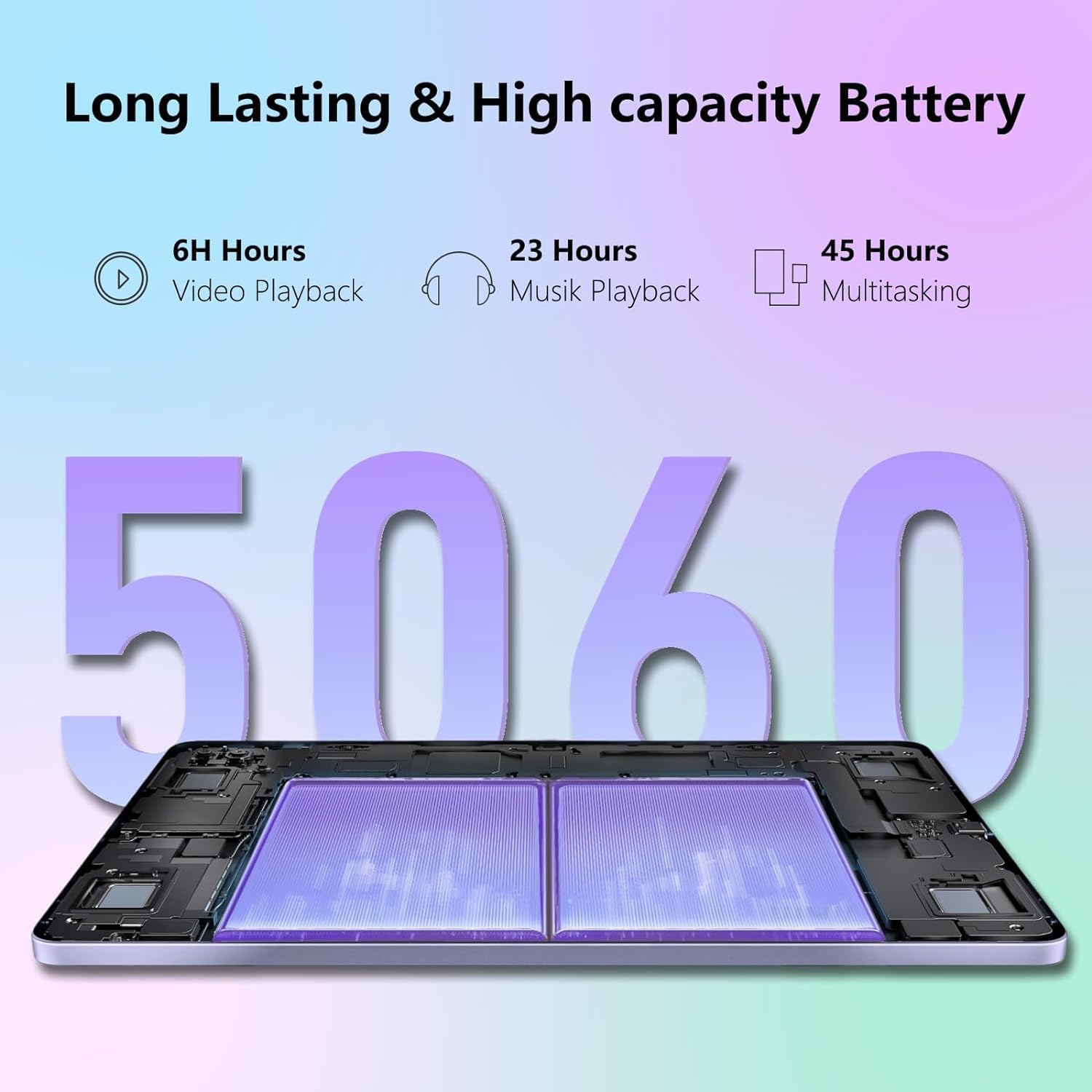
The 5060 mAh high-capacity battery of the DOOGEE T20 Mini, providing extended usage times for various activities.
5. Troubleshooting
If you encounter issues with your DOOGEE T20 Mini, refer to the common problems and solutions below:
| Problem | Solution |
|---|---|
| Tablet does not turn on. | Ensure the battery is charged. Connect to the charger for at least 10 minutes. If still unresponsive, press and hold the Power button for 15-20 seconds to force a restart. |
| Wi-Fi connection issues. | Restart the tablet and your Wi-Fi router. Forget the network in Wi-Fi settings and reconnect. Ensure you are within range of the Wi-Fi signal. |
| Apps are crashing or freezing. | Close the app and reopen it. Clear the app's cache (Settings > Apps > [App Name] > Storage & cache > Clear cache). Update the app from the Google Play Store. If the issue persists, consider uninstalling and reinstalling the app. |
| Slow performance. | Close unused apps running in the background. Clear cache and temporary files. Consider uninstalling rarely used apps. Restart the tablet regularly. |
| Tablet not charging. | Check if the charging cable and adapter are securely connected and undamaged. Try a different power outlet. Ensure the charging port on the tablet is clean and free of debris. |
6. Specifications
Below are the detailed technical specifications for the DOOGEE T20 Mini tablet:
| Feature | Detail |
|---|---|
| Model Name | T20 Mini |
| Operating System | Android 13 |
| Processor | Unisoc Spreadtrum T606 Octa-core (1.6GHz) |
| RAM | 4GB (expandable to 9GB with RAM expansion technology) |
| Internal Storage | 128GB (expandable up to 1TB via MicroSD) |
| Display Size | 8.4 inches |
| Display Resolution | 1920 x 1200 pixels (FHD+ IPS) |
| Main Camera | 13 Megapixels |
| Front Camera | 5 Megapixels |
| Battery Capacity | 5060 mAh Li-Po |
| Connectivity | Wi-Fi (802.11n), Bluetooth 5.0, 4G Cellular, GPS |
| USB Interface | USB 2.0 |
| Dimensions | 23.1 x 15 x 5.6 cm |
| Weight | 630 grams |
| Color | Black |
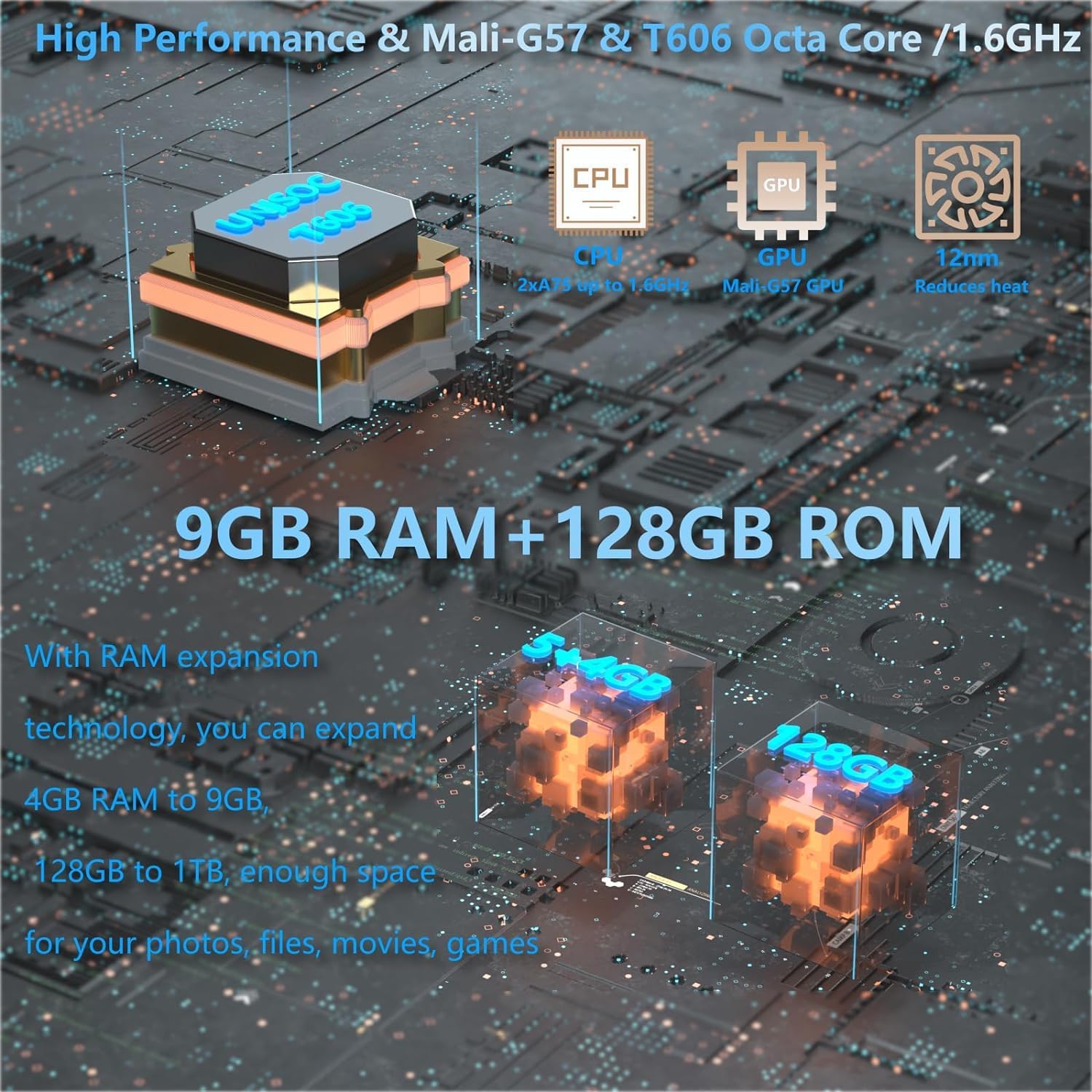
Detailed view of the DOOGEE T20 Mini's internal components, highlighting its high-performance processor, GPU, and memory configuration.

The DOOGEE T20 Mini's design features, including its lightweight metal body, ultra-thin profile, and narrow bezels, making it highly portable.
7. Warranty and Support
7.1 Product Warranty
The DOOGEE T20 Mini comes with a 2-year commercial warranty. Please retain your proof of purchase for warranty claims. This warranty covers manufacturing defects and malfunctions under normal use conditions.
7.2 Customer Support
For further assistance, technical support, or warranty inquiries, please visit the official DOOGEE website or contact their customer service. You may find FAQs, software downloads, and additional support resources online.
Official DOOGEE Website: www.doogee.cc
Related documentsT20mini Black


Ask a question about this manual
Ask about setup, troubleshooting, compatibility, parts, safety, or missing instructions. Manuals+ will review the question and use this page’s manual context to help answer it.