
HONOR Pad 9
HONOR Pad 9 Tablet User Manual
Model: Hendry2-W09D
1. Introduction
Welcome to the user manual for your new HONOR Pad 9 tablet. This guide provides essential information on setting up, operating, maintaining, and troubleshooting your device. Please read this manual thoroughly to ensure proper use and to maximize your tablet's performance and longevity.
2. Package Contents
Verify that all items are present in your product package:
- HONOR Pad 9 Tablet
- Charging Cable
- Keyboard Case
3. Device Overview
Familiarize yourself with the physical components of your HONOR Pad 9 tablet.

Figure 3.1: Front view of the HONOR Pad 9 tablet with the keyboard case attached, showing the display and keyboard layout.

Figure 3.2: Side view of the HONOR Pad 9 tablet, highlighting the power button, volume controls, and USB port.
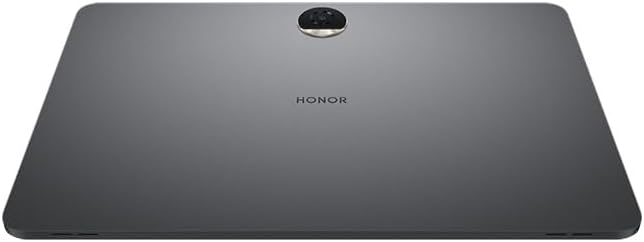
Figure 3.3: Rear view of the HONOR Pad 9 tablet, displaying the main camera module and HONOR branding.
The tablet features a 12-inch display, front and rear cameras, a USB port for charging and data transfer, and physical buttons for power and volume control. The included keyboard case connects magnetically and provides a full QWERTY keyboard for enhanced productivity.
4. Initial Setup
4.1 Charging the Device
Before first use, fully charge your HONOR Pad 9. Connect the provided charging cable to the tablet's USB port and plug the other end into a compatible power adapter (not always included) or a powered USB port. The charging indicator will show the charging status.
4.2 Powering On/Off
- To Power On: Press and hold the Power button located on the side of the tablet until the HONOR logo appears on the screen.
- To Power Off: Press and hold the Power button until a menu appears. Select 'Power off' from the options.
- To Restart: Press and hold the Power button until a menu appears. Select 'Restart' from the options.
4.3 Initial Configuration
Upon first power-on, the tablet will guide you through an initial setup wizard. Follow the on-screen prompts to select your language, connect to a Wi-Fi network, set up your Google account, and configure basic settings.
4.4 Attaching the Keyboard Case
Align the magnetic connector on the keyboard case with the corresponding pins on the side of your HONOR Pad 9. The case will snap into place. Once connected, the tablet will automatically detect the keyboard, and you can begin typing.
5. Basic Operation
5.1 Touch Gestures
The HONOR Pad 9 utilizes standard Android touch gestures:
- Tap: Select an item or open an application.
- Tap and Hold: Access contextual menus or move icons.
- Swipe: Navigate through screens or scroll content.
- Pinch: Zoom in or out on images and web pages.
5.2 Using the Keyboard
Once the keyboard case is attached, you can use it for text input in any application that supports it. The keyboard also features function keys for quick access to common actions like volume control, screen brightness, and media playback.
5.3 Camera Functions
Your tablet is equipped with both front and rear cameras. Open the Camera application to capture photos and videos. You can switch between the front and rear cameras within the app interface.
5.4 Wi-Fi Connectivity
To connect to a Wi-Fi network, go to Settings > Network & internet > Wi-Fi. Turn on Wi-Fi, then select your desired network from the list and enter the password if required.
6. Maintenance
6.1 Cleaning Your Tablet
Use a soft, lint-free cloth to clean the screen and body of your tablet. For stubborn smudges, slightly dampen the cloth with water or a screen-cleaning solution. Avoid using harsh chemicals, abrasive materials, or excessive moisture.
6.2 Battery Care
To prolong battery life:
- Avoid exposing the tablet to extreme temperatures.
- Do not let the battery completely drain frequently.
- Unplug the charger once the battery is fully charged.
6.3 Software Updates
Regularly check for and install software updates to ensure your tablet has the latest features, security patches, and performance improvements. Go to Settings > System > Software update.
7. Troubleshooting
This section addresses common issues you might encounter with your HONOR Pad 9.
7.1 Device Not Turning On
- Ensure the battery is charged. Connect the tablet to a charger for at least 30 minutes before attempting to power it on again.
- Press and hold the Power button for 10-15 seconds to force a restart.
7.2 Wi-Fi Connection Issues
- Restart your Wi-Fi router and the tablet.
- Ensure you are within range of the Wi-Fi network.
- Verify the Wi-Fi password is correct.
7.3 Screen Unresponsive
- Force restart the tablet by holding the Power button.
- If the issue persists, consider performing a factory reset (Warning: This will erase all data on your tablet. Back up important data first).
8. Specifications
| Feature | Specification |
|---|---|
| Brand Name | HONOR |
| Model Name | Pad 9 |
| Memory Storage Capacity | 256 GB |
| Screen Size | 12 inches (30.78 cm) |
| Max Display Resolution | 1920x1200 |
| Operating System | Android |
| Color | Gray |
| Installed RAM Memory | 8 GB |
| Generation | 9th Generation |
| Included Components | Charging Cable |
| Manufacturer | Honor Türkiye |
| Memory Slots Available | 1 |
| Processor Description | Qualcomm |
| CPU Manufacturer | Qualcomm |
| Camera Description | Front, Rear |
| Human Interface Input | Keyboard |
| Compatible Devices | Keyboard |
| Display Type | LED |
| Native Resolution | 1920 x 1200 pixels |
| Aspect Ratio | 16:9 |
| Hardware Interface | USB |
| Wireless Communication Technology | Wi-Fi |
| Total USB Ports | 1 |
| Connectivity Technology | USB |
| Wireless Communication Standard | 802.11g |
9. Safety Information
Please observe the following safety guidelines to prevent damage to your device or injury to yourself:
- Do not expose the tablet to water or excessive moisture.
- Avoid dropping or subjecting the tablet to severe impacts.
- Use only approved chargers and accessories.
- Do not attempt to disassemble or repair the tablet yourself. Refer to qualified service personnel.
- Keep the tablet away from extreme heat sources and direct sunlight.
10. Warranty and Support
For warranty information, technical support, or service inquiries, please visit the official HONOR website or contact your local HONOR customer service center. Keep your proof of purchase for warranty claims.
Ask a question about this manual
Ask about setup, troubleshooting, compatibility, parts, safety, or missing instructions. Manuals+ will review the question and use this page’s manual context to help answer it.