1. Product Overview
The Lemorele 7-in-1 15W USB 3.0 Powered Hub is designed to expand your computer's connectivity with multiple USB ports, offering both data transfer and charging capabilities. Its compact and portable design makes it suitable for various environments.
Key Features:
- Versatile USB Expansion: Delivers 7 USB ports, including 2 for data transfer and smart charging for phones and tablets.
- Fast Data Syncing: Achieves data transfer speeds of up to 5Gbps for efficient file transfers.
- Individual On/Off Switches: Each port features an individual on/off switch with LED indicators for easy power management without unplugging devices.
- Extended Cable Length: Includes a 100cm (3.28ft) USB and power cable for flexible device placement.
- Wide Compatibility: Plug-and-play functionality with USB 3.0/2.0/1.1 peripherals, supporting Windows, Mac OS, and Linux 9 and above without requiring drivers.
- Anti-Slip & Thermal Design: Features an anti-slip base and thermal design for stable operation and heat dissipation.
2. Package Contents
Please ensure all items are present in the package:
- Lemorele 7-in-1 USB 3.0 Powered Hub
- Power Adapter (with various regional plugs)
- USB Data Cable (100cm / 3.28ft)

Image: The Lemorele 7-in-1 USB 3.0 Powered Hub shown with its included power adapter and USB data cable, illustrating the complete package contents.
3. Setup Instructions
- Connect Power Adapter: Plug the included power adapter into the DC 5V port on the hub and then into a wall outlet. Ensure the correct regional plug is used.
- Connect to Computer: Connect the USB data cable from the hub's upstream port to an available USB port on your computer (desktop PC, laptop, MacBook Pro/Air).
- Install Drivers (if necessary): The hub is designed for plug-and-play operation and typically does not require additional drivers for Windows, Mac OS, or Linux 9 and above. If prompted, follow on-screen instructions for driver installation.
- Connect USB Devices: Plug your USB devices (e.g., external hard drives, mice, keyboards, card readers, printers, cameras, game controllers, headphones, power banks) into the available USB 3.0 ports on the hub.
- Power On Devices: Use the individual on/off switches for each port to activate connected devices. The blue LED indicator next to each port will illuminate when the port is active.
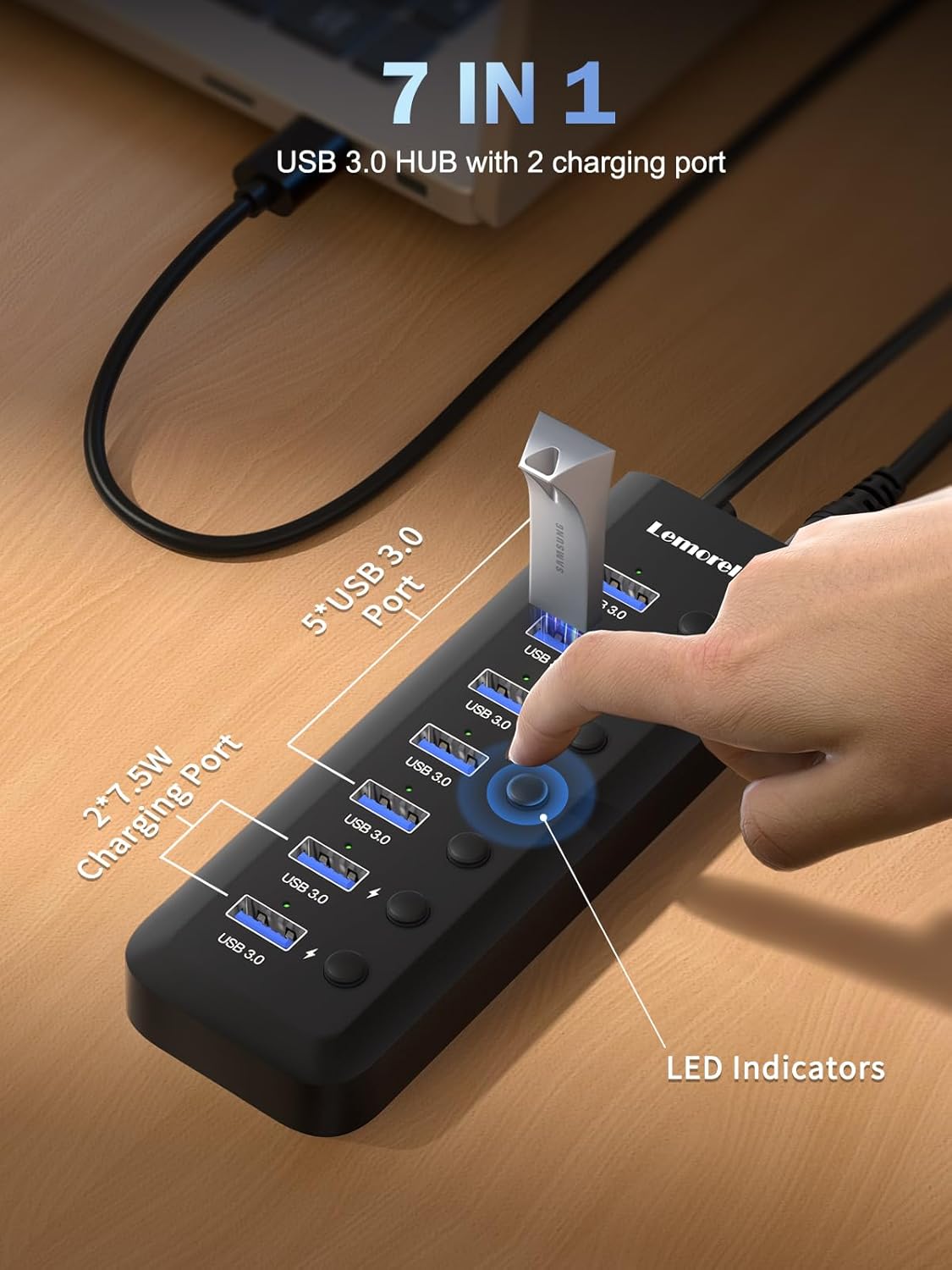
Image: A user demonstrates connecting a USB flash drive to one of the USB 3.0 ports on the hub, highlighting the individual LED indicators and on/off switches.
4. Operating Instructions
4.1 Data Transfer
The Lemorele 7-in-1 USB Hub features USB 3.0 ports capable of data transfer speeds up to 5Gbps. This allows for quick transfer of large files between your computer and connected USB 3.0 devices.
- Connect your USB 3.0 storage device (e.g., external hard drive, flash drive) to any of the blue USB 3.0 ports.
- Ensure the individual switch for that port is turned on (LED will be blue).
- Your computer should recognize the device, allowing you to drag and drop files as usual.
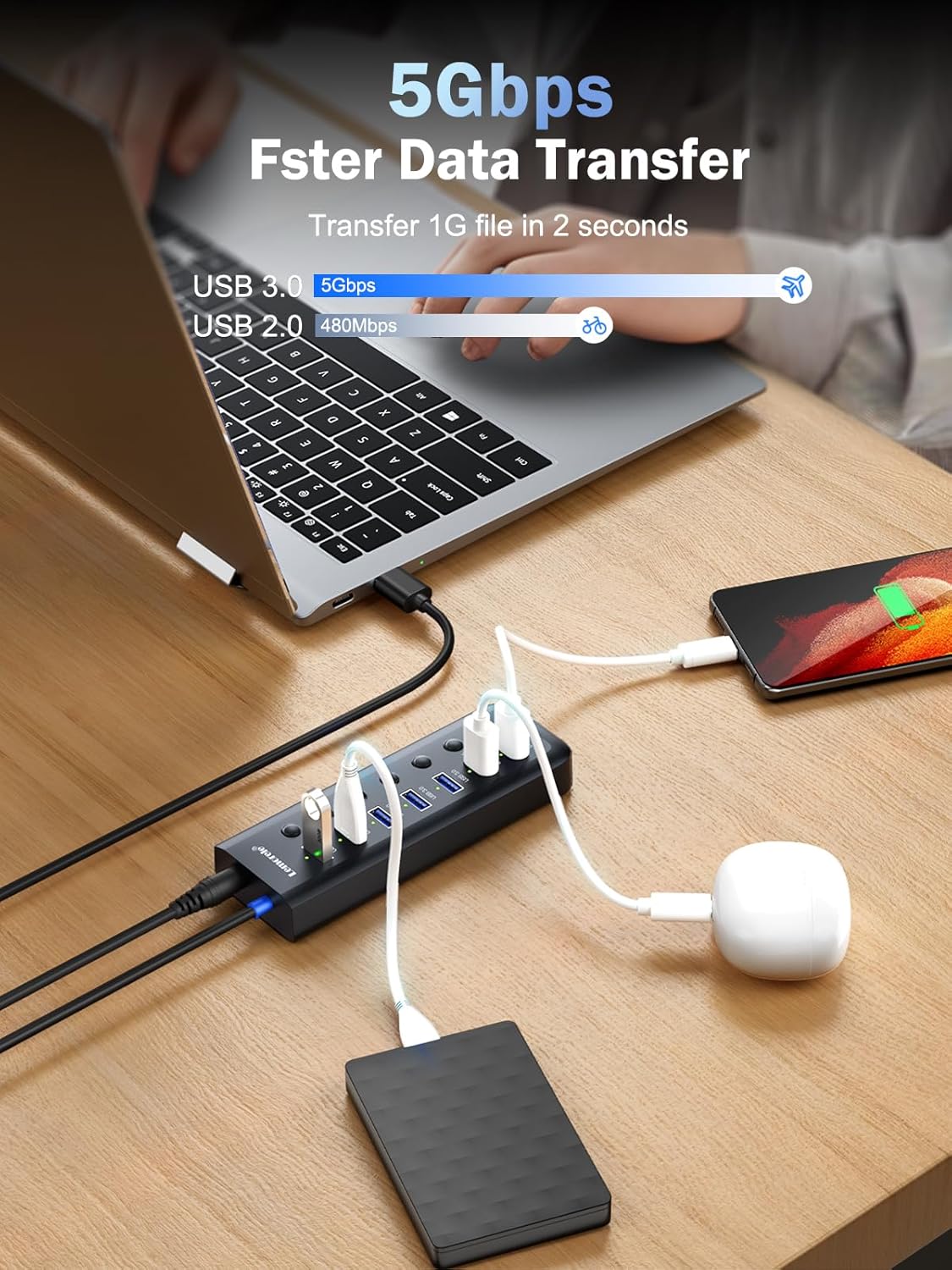
Image: The USB hub connected to a laptop, with a smartphone and an external hard drive simultaneously connected, illustrating high-speed data transfer and charging.
4.2 Charging Devices
Two dedicated charging ports (5V 1.5A, 7.5W Max) are available for smart charging of your phones and tablets. These ports are designed to provide stable power output.
- Connect your smartphone or tablet to one of the designated charging ports.
- Turn on the individual switch for the connected port.
- The device should begin charging.

Image: Two smartphones are shown connected to the dedicated charging ports of the USB hub, indicating active charging with a "7.5W Max" label.
4.3 Individual On/Off Switches
Each USB port on the hub is equipped with an individual on/off switch and a blue LED indicator. This feature allows you to:
- Conserve power by turning off unused devices.
- Protect devices from potential overcurrent or short circuits when not in use.
- Easily manage which devices are active without physically unplugging them.

Image: A detailed view of the USB hub's individual on/off switches and corresponding blue LED indicators, demonstrating the ease of controlling power to each port.
5. Compatibility
The Lemorele 7-in-1 USB Hub offers broad compatibility:
- Operating Systems: Windows, Mac OS, Linux 9 and above.
- USB Standards: Compatible with USB 3.0, USB 2.0, and USB 1.1 peripherals.
- Devices: Supports a wide range of USB devices including external hard drives, flash drives, mice, keyboards, card readers, printers, cameras, game controllers, headphones, and power banks.

Image: A visual representation of the hub's compatibility, showing connections to a MacBook Pro/Air, Desktop PC, and various USB-A (female) devices like hard disks, mice, keyboards, and cameras, alongside supported operating systems (Windows, Mac OS, Linux).
6. Maintenance
To ensure the longevity and optimal performance of your Lemorele USB Hub, follow these maintenance guidelines:
- Cleaning: Use a soft, dry cloth to clean the surface of the hub. Avoid liquid cleaners or abrasive materials.
- Storage: Store the hub in a cool, dry place away from direct sunlight and extreme temperatures.
- Handling: Avoid dropping the hub or subjecting it to strong impacts. Do not attempt to disassemble the device.
- Cable Care: Do not bend or twist the cables excessively. Ensure cables are not pinched or under tension.

Image: The USB hub is depicted with its anti-slip design, demonstrating its stability on various surfaces, which contributes to its durability and ease of use.
7. Troubleshooting
If you encounter issues with your Lemorele USB Hub, refer to the following common solutions:
- Device Not Recognized:
- Ensure the hub's power adapter is securely connected to a power source.
- Verify the USB data cable is firmly connected to both the hub and your computer.
- Check if the individual on/off switch for the specific port is activated (blue LED should be on).
- Try connecting the device directly to your computer's USB port to confirm the device itself is functional.
- Restart your computer.
- Slow Data Transfer:
- Ensure both the hub and your connected device support USB 3.0 for optimal speeds.
- Avoid connecting the hub through another USB extender or unpowered hub, as this can reduce power and data throughput.
- Disconnect other high-bandwidth devices from the hub temporarily to see if performance improves.
- Charging Issues:
- Confirm you are using one of the dedicated charging ports (5V 1.5A).
- Ensure the power adapter is connected and providing sufficient power to the hub.
- Check the charging cable for damage and try a different cable if available.
- Overheating:
- Ensure the hub is placed in a well-ventilated area.
- Avoid covering the hub, which could impede its thermal design.
- Disconnect any unused devices to reduce power draw.
Video: An official product video from Lemorele-US demonstrating the TC111 Powered USB Hub, showcasing its features and connectivity. This video helps visualize the product in use and can assist with troubleshooting common setup or usage questions.
8. Specifications
| Feature | Detail |
|---|---|
| Model | 7-in-1 15W USB 3.0 Powered Hub |
| Brand | Lemorele |
| Ports | 7 (5x USB 3.0 Data, 2x 5V 1.5A Charging) |
| Data Transfer Speed | Up to 5Gbps (USB 3.0) |
| Charging Output | 5V 1.5A (7.5W Max) per charging port |
| Cable Length | 100cm (3.28ft) USB and Power Cable |
| Compatibility | Windows, Mac OS, Linux 9+; USB 3.0/2.0/1.1 |
| Special Features | Individual On/Off Switches with LED, Anti-Slip Design, Thermal Design, Plug & Play |
| Color | Black |
| Item Weight | 10.8 ounces |
| Package Dimensions | 6.93 x 6.34 x 1.81 inches |
9. Warranty and Support
For warranty information and customer support, please refer to the documentation included with your product or visit the official Lemorele website. You can also contact Lemorele customer service directly for assistance with product inquiries, technical support, or warranty claims.
Lemorele Contact Information:
- Website: Visit the Lemorele Store on Amazon
- Refer to product packaging for specific contact details.