
1. Introduction
This manual provides comprehensive instructions for the installation, operation, and maintenance of your MekedeTech Android 13 Car Radio Stereo. This head unit is designed as a direct replacement and upgrade for Honda Acura MDX vehicles manufactured between 2007 and 2013. Please read this manual thoroughly before installation and use to ensure proper function and to maximize your experience with the device.
2. Package Contents
Verify that all items listed below are present in your package. If any items are missing or damaged, please contact customer support.
- 9-inch Android Car Touch Screen Head Unit
- Power Cable
- USB Cables (x2)
- AUX Cable
- GPS Antenna
- RCA Cable Set
- Reversing Camera Input Cable
- Microphone (MIC)
- 4G Antenna (if applicable to your model variant)

Figure 2.1: Included components in the MekedeTech Android 13 Car Radio Stereo package.
3. Compatibility and Important Notes
This head unit is specifically designed for a plug-and-play fit in Honda Acura MDX models from 2007 to 2013. However, specific conditions must be met for proper installation and functionality.
- Compatible Models: Honda Acura MDX 2007, 2008, 2009, 2010, 2011, 2012, 2013.
- Requirement: Your vehicle must have an existing AUX button and the original large screen.
- Incompatible Models: This unit will NOT fit if your vehicle has an HDD button or if it does not have the original large screen.

Figure 3.1: Visual guide for compatible and incompatible dashboard configurations.
4. Setup and Installation
The MekedeTech Android 13 Car Radio Stereo is designed for a plug-and-play installation. All necessary accessories, including the dash kit, power cable, RCA cable, reversing camera cable, and USB cables, are provided. While designed for ease of installation, professional installation is recommended to ensure correct wiring and optimal performance, especially if you are unfamiliar with car audio systems.
4.1 Pre-Installation Check
- Ensure your vehicle matches the compatibility requirements (Honda Acura MDX 2007-2013 with AUX button and original large screen).
- Disconnect the vehicle's battery before beginning installation to prevent electrical shorts.
- Carefully remove the original head unit and dashboard trim according to your vehicle's service manual.
4.2 Wiring Connections
Connect the provided cables to their corresponding ports on the new head unit and the vehicle's wiring harness. Refer to the wiring diagrams provided with your specific unit for detailed connections.
- Power Cable: Connect to the vehicle's main power harness.
- RCA Cables: For external amplifiers, subwoofers, or auxiliary video inputs/outputs.
- USB Cables: For connecting USB devices, external storage, or wired Android Auto.
- GPS Antenna: Mount in a location with a clear view of the sky for optimal signal reception.
- Reversing Camera Cable: Connect to your aftermarket backup camera (if installed).
- Microphone: Connect for hands-free calling and voice commands.
4.3 Post-Installation
- Securely mount the new head unit into the dashboard.
- Reconnect the vehicle's battery.
- Turn on the ignition and test all functions of the new head unit.

Figure 4.1: Before and After installation of the MekedeTech Android 13 Car Radio Stereo.
5. Operating Instructions
Your MekedeTech Android 13 Car Radio Stereo offers a wide range of features. This section details how to use the primary functions.
5.1 Wireless CarPlay and Wired Android Auto
Enjoy seamless integration with your smartphone for navigation, music, calls, and more.
- For Wireless CarPlay (iOS System):
- Connect your iPhone to the head unit via Bluetooth.
- On the head unit, open the "Car Link" application.
- Wait for the connection to establish.
- For Wireless Android Auto (Android System):
- Connect your Android phone to the head unit via Bluetooth.
- On the head unit, open the "Car Link" application.
- Wait for the connection to establish.
- For Wired Android Auto: Connect your Android phone directly to one of the USB ports using a compatible USB cable.

Figure 5.1: Wireless CarPlay and Android Auto interface and connection steps.
5.2 Bluetooth 5.0 Functionality
The built-in Bluetooth 5.0 module allows for hands-free calling and wireless audio streaming.
- Pairing: Go to the Bluetooth settings on the head unit and your smartphone. Search for and select the head unit's Bluetooth name to pair.
- Hands-Free Calls: Once paired, you can make and receive calls directly from the head unit's screen. Call history, contacts, and caller ID are supported.
- Bluetooth Music: Stream audio from your paired device to the car stereo system.
5.3 Wi-Fi Connectivity
The unit supports 5G Wi-Fi, allowing you to connect to a mobile hotspot or home Wi-Fi network for internet access, app downloads, and online services.
- Connecting: Navigate to the Wi-Fi settings on the head unit, select your desired network, and enter the password.
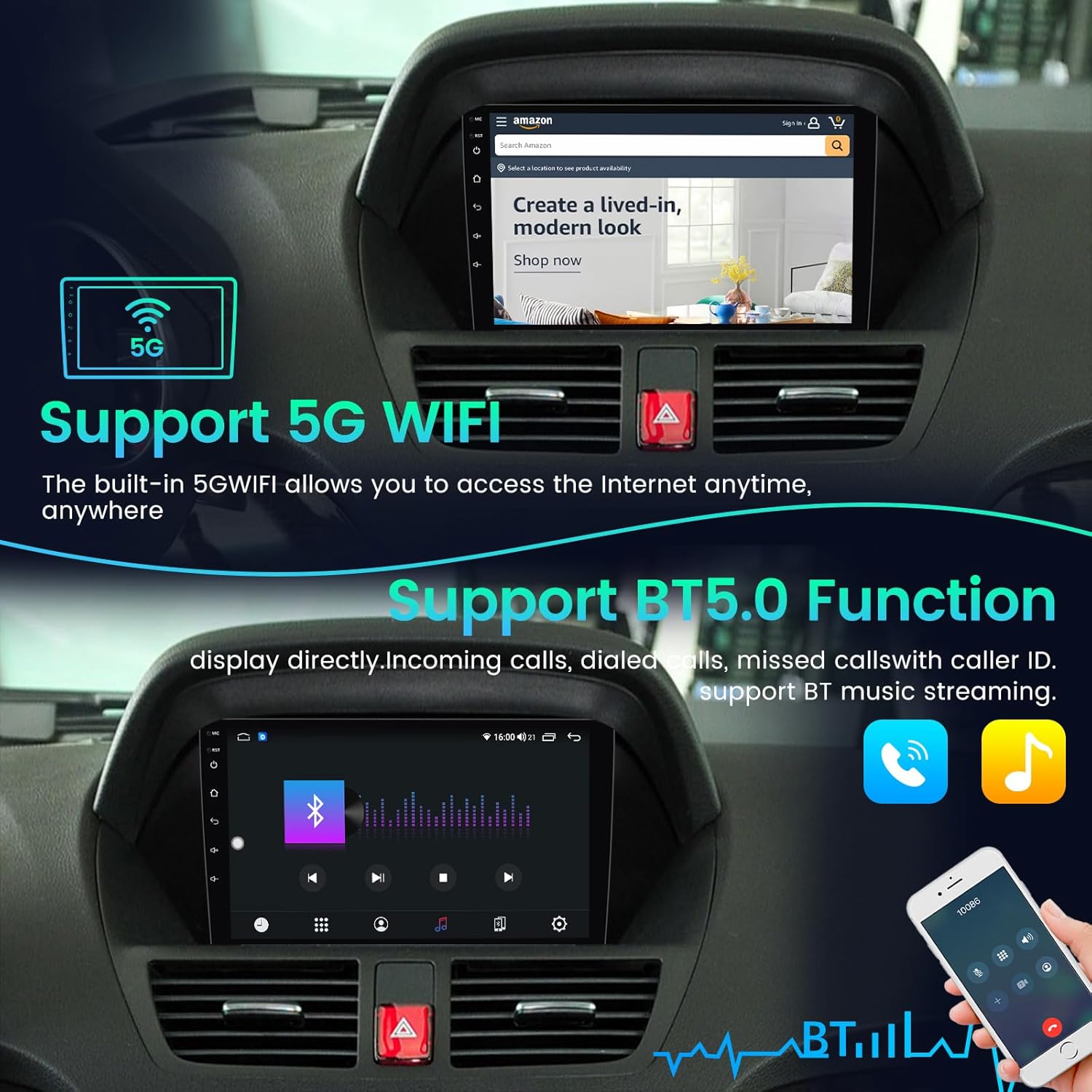
Figure 5.2: 5G Wi-Fi and Bluetooth 5.0 features.
5.4 Built-in GPS Navigation
The integrated GPS system provides accurate, omni-directional map display and real-time traffic conditions.
- Using Navigation: Open the pre-installed navigation application or download your preferred navigation app from the Google Play Store.
- Map Updates: Ensure your maps are up-to-date for the best navigation experience.
5.5 Split Screen Functionality
The split-screen feature allows you to run and view two applications simultaneously, enhancing multitasking capabilities.
- Activating Split Screen: Typically, long-press the recent apps button or drag an app to one side of the screen to activate split-screen mode.

Figure 5.3: Split screen and built-in GPS navigation in use.
5.6 Steering Wheel Control (SWC)
The unit retains your original steering wheel control functions, allowing you to safely manage audio and calls without taking your hands off the wheel.
- Configuration: In most cases, SWC will work automatically. If not, access the SWC settings in the unit's menu to map the buttons.
5.7 Rear View Camera Input
The head unit supports input from an aftermarket rear view camera, automatically displaying the camera feed when the vehicle is in reverse gear.
6. Maintenance
Proper maintenance ensures the longevity and optimal performance of your car stereo.
- Screen Cleaning: Use a soft, lint-free cloth to gently wipe the touch screen. For stubborn smudges, slightly dampen the cloth with water or a screen-safe cleaner. Avoid harsh chemicals.
- Software Updates: Periodically check for software updates through the unit's settings or the manufacturer's website to ensure you have the latest features and bug fixes.
- Environmental Conditions: Avoid exposing the unit to extreme temperatures, direct sunlight for prolonged periods, or excessive moisture.
7. Troubleshooting
If you encounter issues with your car stereo, refer to the following common troubleshooting steps.
| Problem | Possible Cause | Solution |
|---|---|---|
| Unit does not power on | Incorrect wiring; Blown fuse; Incompatible vehicle model. | Check all power connections and fuses. Ensure your vehicle meets the specific compatibility requirements (AUX button, original large screen). Consult a professional installer. |
| No sound output | Speaker wires disconnected; Volume too low; Mute activated; Incorrect audio source. | Check speaker wire connections. Increase volume. Deactivate mute. Select the correct audio source. |
| CarPlay/Android Auto not connecting | Bluetooth not paired; "Car Link" app not open; USB cable issue (for wired AA); Phone software issue. | Ensure Bluetooth is paired and "Car Link" app is open. Try a different USB cable. Restart phone and head unit. |
| GPS signal weak or inaccurate | GPS antenna improperly placed or disconnected. | Ensure the GPS antenna is mounted in a location with a clear view of the sky and is securely connected. |
| Touch screen unresponsive | Software glitch; Screen damage. | Restart the head unit. If the problem persists, contact customer support. |
If these steps do not resolve your issue, please contact MekedeTech customer support for further assistance.
8. Specifications
| Feature | Detail |
|---|---|
| Brand | MekedeTech |
| Model Number | 2ead9476-ab3e-409e-af1f-61efd23c4546 |
| Operating System | Android 13 |
| Screen Size | 9 inch |
| Screen Resolution | 1024*600 |
| Processor | Quad Core |
| RAM | 2GB |
| ROM (Internal Storage) | 32GB |
| Connectivity | Bluetooth 5.0, USB, Wi-Fi (5G supported) |
| Special Features | Built-in Wireless CarPlay, Wired Android Auto, Touchscreen, Built-in Bluetooth, GPS Navigation, Split Screen, FM Radio, 1080P Video Playback, RCA Input/Output, Rear View Camera Input, Steering Wheel Control |
| Compatible Devices | Smartphone, iPhone |
| Audio Output Mode | Stereo (4.0 Surround Sound Channel Configuration) |
| Control Method | App, Touch |
| Manufacturer | Shenzhen Mekede Technology Co.,Ltd |
9. Warranty Information
This MekedeTech Android 13 Car Radio Stereo comes with a 1-Year Warranty from the date of purchase. This warranty covers manufacturing defects and malfunctions under normal use. It does not cover damage caused by improper installation, misuse, accidents, unauthorized repairs, or normal wear and tear.
Please retain your proof of purchase for warranty claims.
10. Customer Support
For technical assistance, troubleshooting beyond this manual, or warranty inquiries, please contact MekedeTech customer support through the retailer where you purchased the product or visit the official MekedeTech website for contact information.
When contacting support, please have your product model number (2ead9476-ab3e-409e-af1f-61efd23c4546) and proof of purchase readily available.
