
1. Introduction
Thank you for choosing the RIGOL DS1102Z-E Digital Oscilloscope. This manual provides essential information for the safe and efficient use of your device. Please read it thoroughly before operation and keep it for future reference.
The DS1102Z-E is a high-performance digital oscilloscope designed for various applications including research and development, education, maintenance, and industrial testing. It features a 100 MHz bandwidth, 1 GSa/s sample rate, and a 24 Mpts memory depth, enabling precise analysis of complex waveforms.
2. Product Overview
The RIGOL DS1102Z-E is a versatile measurement instrument integrating a frequency counter and supporting protocol decoding for RS232/UART, I2C, and SPI. It also includes FFT analysis and automatic measurement functions to enhance testing efficiency.
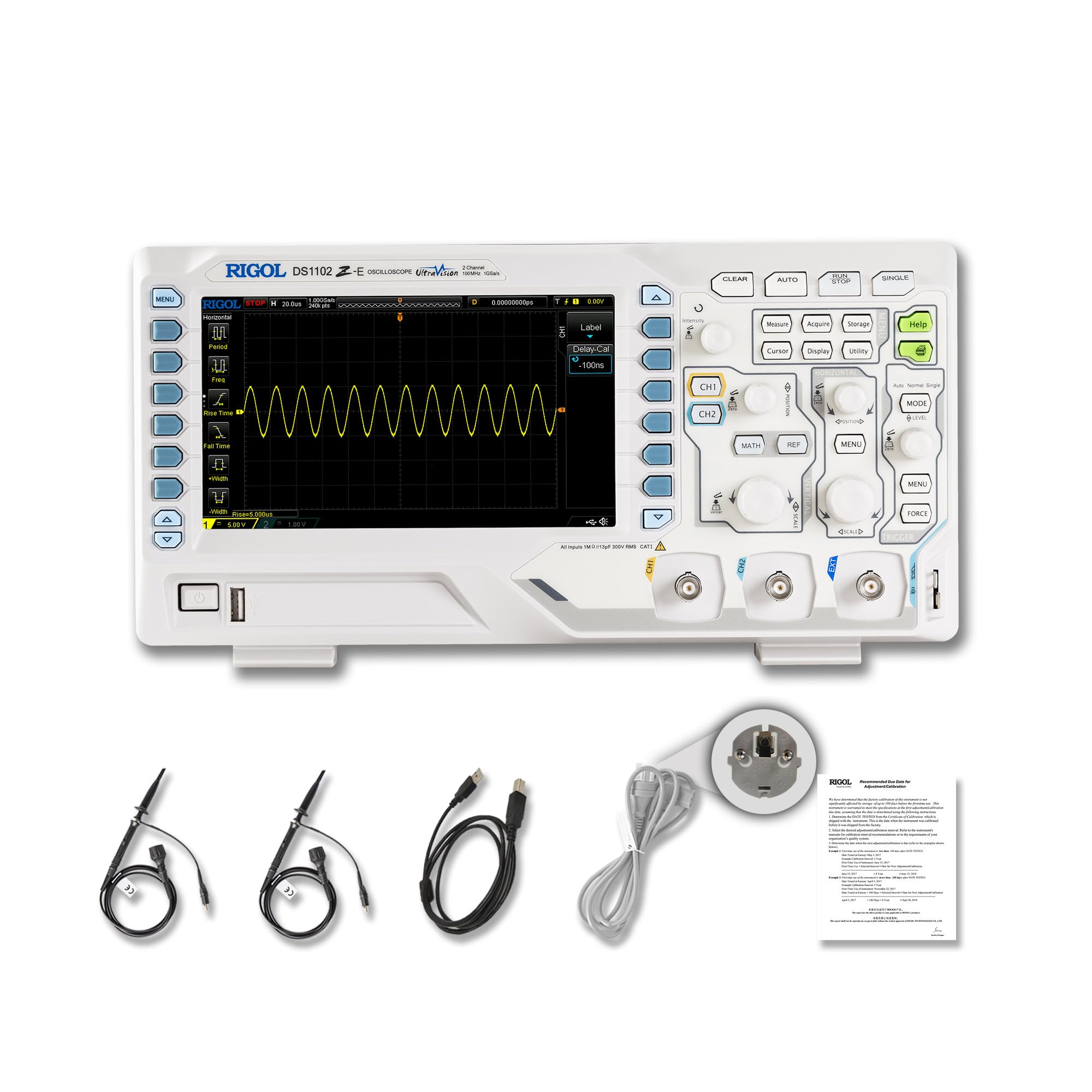
Figure 2.1: Front view of the RIGOL DS1102Z-E Digital Oscilloscope.
2.1 Key Features
- 100 MHz Bandwidth, 1 GSa/s Sample Rate: Captures signals with high precision.
- 24 Mpts Memory Depth: Allows for extended signal capture and detailed waveform analysis.
- Multi-function Measurement Device: Includes frequency counter, protocol decoding (RS232/UART, I2C, SPI), FFT analysis, and automatic measurement functions.
- Waveform Recording and Playback: Records signal variations and replays them for fault identification.
- High-Definition Display: 7-inch TFT screen with 256-level grayscale, offering a phosphor-like display effect for clear waveform details.
- Remote Control & Secondary Development Support: Equipped with USB and LAN ports for PC remote control, compatible with SCPI commands, LabVIEW, Visual Basic, and Visual C++.
2.2 What's in the Box

Figure 2.2: Contents included with the DS1102Z-E Oscilloscope.
- 1x Main Unit (DS1102Z-E Digital Oscilloscope)
- 2x Passive Probes (150MHz)
- 1x Power Cable (EU plug)
- 1x USB A-B Cable
- 1x Warranty Card
- 1x Calibration Certificate
- 1x Declaration of Conformity
3. Setup
Follow these steps to set up your RIGOL DS1102Z-E oscilloscope:
- Unpacking: Carefully remove all components from the packaging. Inspect the device for any signs of damage.
- Power Connection: Connect the provided power cable to the oscilloscope's power input and then to a suitable AC power outlet.
- Probe Connection: Connect the passive probes to the BNC input connectors (CH1, CH2) on the front panel. Ensure a secure connection.
- Grounding: Always ensure the oscilloscope is properly grounded through the power cable.
- USB/LAN Connection (Optional): If you plan to use remote control or secondary development, connect the USB cable to a PC or the LAN cable to your network.

Figure 3.1: Overview of the oscilloscope's physical dimensions and ports.
4. Operating Instructions
This section covers the basic operation of your oscilloscope.
4.1 Powering On/Off
- Power On: Press the power button located on the front panel. The device will perform a self-test and display the main interface.
- Power Off: Press and hold the power button until the device shuts down.
4.2 Basic Waveform Display
After powering on, connect a signal to one of the input channels (e.g., CH1). Adjust the vertical scale (Volts/Div) and horizontal scale (Time/Div) knobs to display the waveform clearly. Use the AUTO button for automatic setup of the waveform display.

Figure 4.1: Example of a waveform displayed on the oscilloscope screen.
4.3 Advanced Functions
- Measurement Functions: Press the MEASURE button to access automatic measurements like frequency, period, peak-to-peak voltage, etc.
- Trigger System: Use the trigger controls to stabilize repetitive waveforms. Adjust the trigger level and mode (Edge, Pulse, Video, Slope, etc.) as needed.
- Waveform Recording: The oscilloscope allows recording and replaying waveforms. Access this feature through the menu to capture transient events.
- Protocol Decoding: For serial bus analysis (RS232/UART, I2C, SPI), configure the decoding settings via the menu.
- FFT Analysis: Perform Fast Fourier Transform (FFT) to analyze the frequency components of your signal.

Figure 4.2: Complex waveform analysis with measurement data.

Figure 4.3: Multiple waveforms displayed simultaneously for comparison.
5. Maintenance
Proper maintenance ensures the longevity and accuracy of your oscilloscope.
- Cleaning: Use a soft, dry cloth to clean the exterior of the oscilloscope. For stubborn dirt, a slightly damp cloth with mild detergent can be used. Avoid abrasive cleaners or solvents.
- Screen Care: Clean the display screen with a soft, lint-free cloth. Do not use excessive force or harsh chemicals.
- Storage: When not in use, store the oscilloscope in a clean, dry environment, away from direct sunlight, extreme temperatures, and excessive dust.
- Probe Care: Handle probes carefully. Avoid bending or stressing the probe tips. Store them properly to prevent damage.
- Calibration: For optimal performance, periodic calibration by qualified personnel is recommended. Refer to the official RIGOL website for calibration services.
6. Troubleshooting
This section provides solutions to common issues you might encounter.
| Problem | Possible Cause | Solution |
|---|---|---|
| No power when turned on. | Power cable not connected, power outlet faulty, or power button issue. | Check power cable connection. Test the power outlet. Ensure the power button is fully pressed. |
| No waveform displayed. | No signal input, probe not connected correctly, vertical/horizontal scale incorrect, or trigger not set. | Verify signal source. Check probe connections. Adjust Volts/Div and Time/Div. Press AUTO or adjust trigger settings. |
| Waveform is unstable. | Incorrect trigger settings. | Adjust trigger level, mode, and source to stabilize the waveform. |
| Remote control not working. | USB/LAN cable issue, incorrect network settings, or software driver not installed. | Check cable connections. Verify network configuration. Install necessary drivers and software (e.g., UltraScope). |
If the problem persists, please contact RIGOL technical support.
7. Specifications
Detailed technical specifications for the RIGOL DS1102Z-E Digital Oscilloscope.

Figure 7.1: Visual representation of key technical specifications.
| Feature | Specification |
|---|---|
| Brand | Rigol |
| Model | DS1102Z-E |
| Bandwidth | 100 MHz |
| Channels | 2 Channels + EXT |
| Sample Rate | 1 GSa/s |
| Memory Depth | 24 Mpts |
| Waveform Capture Rate | 30,000 wfms/s |
| Vertical Resolution | 8 bit |
| Minimum Sensitivity | 1 mV/div |
| Minimum Time Base | 2 ns/div |
| Decoding Support | RS232/UART, I2C, SPI |
| FFT Analysis | Standard |
| Display | 7-inch TFT (800x480) |
| Connectivity | USB Host, USB Device, LAN |
| Power Source | AC Adapter |
| Color | Grey/White |
| Item Weight | 2.9 Kilograms |
| Dimensions (L x W x H) | 31.31 x 16.08 x 12.24 centimeters |
| Compliant Standards | CE, RoHS |
| Manufacturer Part Number | DS1102Z-E |
| Country of Origin | China |
8. Warranty and Support
RIGOL is committed to providing high-quality products and excellent customer service.
- Warranty: The RIGOL DS1102Z-E Digital Oscilloscope comes with a 3-year warranty from the date of purchase. This warranty covers defects in materials and workmanship under normal use.
- Technical Support: RIGOL offers 24/7 technical support to assist you with any questions or issues you may encounter. Please refer to the official RIGOL website for contact information and support resources.
- Online Resources: Visit the official RIGOL website for product documentation, software updates (e.g., UltraScope), and additional support materials.

Figure 8.1: RIGOL oscilloscopes support multiple languages for user convenience.


