
1. Introduction
This manual provides detailed instructions for the setup, operation, and maintenance of your AULA F2088 Pro Mechanical Keyboard. Please read this manual thoroughly before using the product to ensure proper functionality and longevity.
2. Package Contents
- AULA F2088 Pro Mechanical Keyboard
- Red Switches (pre-installed)
- Keycap Puller
- User Manual (this document)
3. Setup Guide
3.1 Connecting the Keyboard
The AULA F2088 Pro keyboard is a plug-and-play device. No drivers are required for basic functionality.
- Locate an available USB-A port on your computer (PC, Mac, or Linux system).
- Insert the USB cable from the keyboard into the USB-A port.
- The keyboard will be automatically recognized by your operating system and ready for use.
3.2 Adjusting Keyboard Angle
For improved ergonomics and comfort during extended use, the keyboard features two kickstands on the underside. These kickstands allow you to adjust the typing angle up to 7 degrees.

Image: The AULA F2088 Pro keyboard demonstrating its ergonomic design with adjustable kickstands for a comfortable typing angle.
4. Operating Instructions
4.1 Removable Upper Cover
The keyboard features a magnetic top cover that can be easily removed or installed. This allows you to switch between a recessed style (with cover, often referred to as 'Office Mode') and a floating keycap style (without cover, often referred to as 'Gaming Mode'). The cover also helps protect the keyboard from dust.

Image: Illustration of the AULA F2088 Pro keyboard's dual-mode design, showcasing the magnetic top cover for easy style switching between office and gaming setups.
4.2 RGB Backlighting and Media Control
The keyboard is equipped with RGB rainbow backlighting and a versatile rotary knob for media and lighting control.
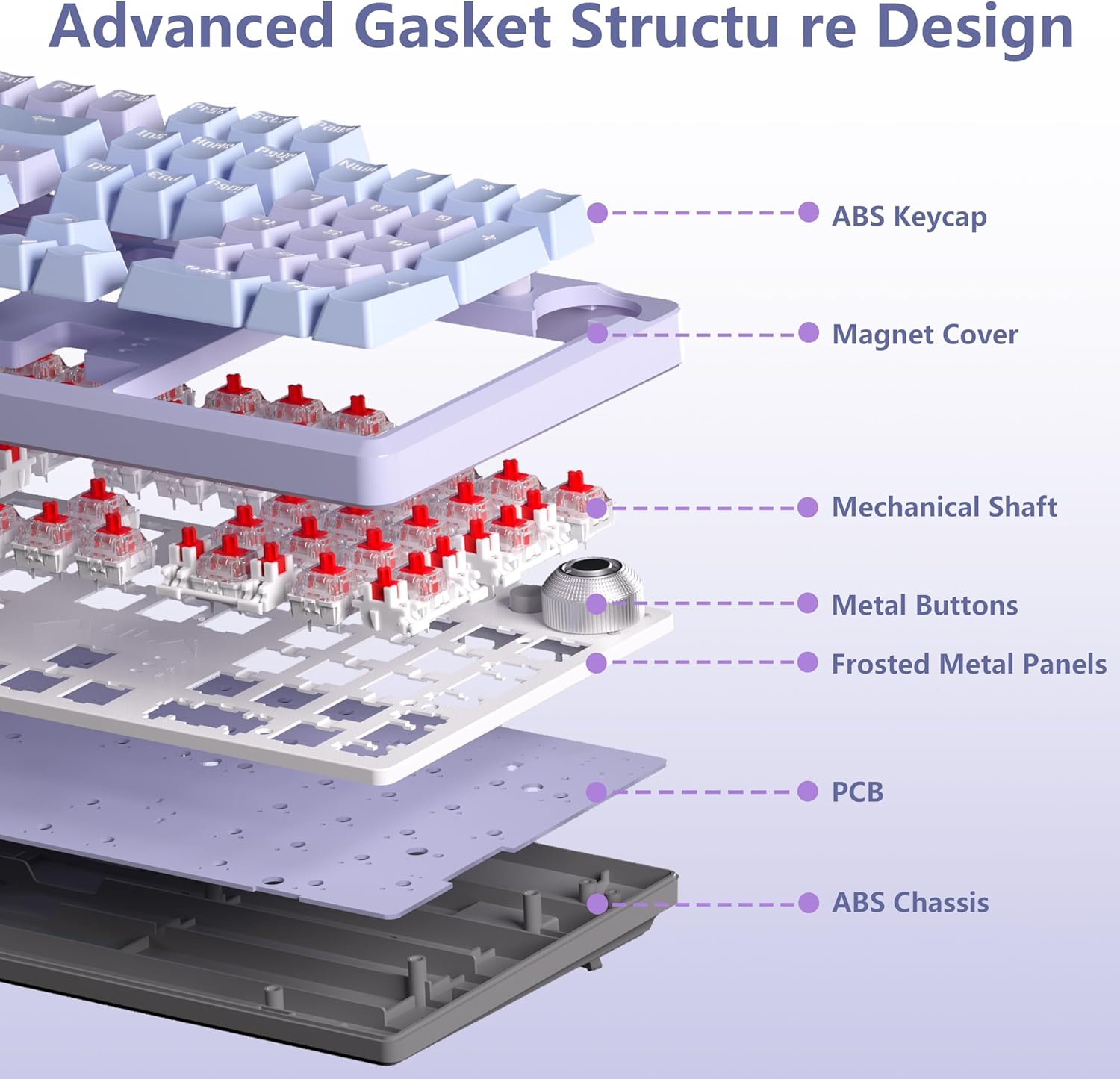
Image: Detailed view of the keyboard's media control knob and dedicated function keys (M1, M2, M3) for managing lighting effects and multimedia functions.
4.2.1 Lighting Effects
- Toggle Light Effect: Short press the rotary knob when it is in lighting mode to cycle through 21 different backlighting effects.
- Custom Light Effects: Long press the M1, M2, or M3 keys to set and activate custom light effects.
- Brightness Adjustment: Rotate the knob to adjust the brightness of the backlighting.
- Light On/Off: Press the knob to turn the backlighting on or off.

Image: The AULA F2088 Pro keyboard showcasing its extensive range of 21 rainbow backlight effects, offering various customization options.
4.2.2 Media Control
- Volume Adjustment: Rotate the knob to adjust the system volume.
- Mute/Unmute: Press the knob to mute or unmute audio.
- Multimedia Keys: Use the dedicated multimedia keys (FN + F-keys) for quick access to functions like play/pause, next track, previous track, and more.
4.3 Programmable Keys and Macros
The AULA F2088 Pro keyboard supports macro programming, allowing you to customize key functions to suit your specific needs for gaming or productivity. Refer to the official AULA software (downloadable from the AULA website) for detailed macro setup instructions.

Image: An illustration of the keyboard's software interface, highlighting its full key programmability, macro customization, and LED control features.
4.4 Anti-Ghosting (NKRO)
The keyboard features N-Key Rollover (NKRO), meaning all keys are anti-ghosting. This ensures that every keystroke is registered accurately, even when multiple keys are pressed simultaneously, which is crucial for fast-paced gaming and typing.

Image: Visual representation of the keyboard's all-keys anti-ghosting capability, ensuring accurate registration of every simultaneous keystroke.
4.5 Multimedia Key Functions
The AULA F2088 Pro keyboard includes 12 dedicated multimedia keys accessible via the Function (FN) key combination:
| Key Combination | Function |
|---|---|
| FN + ESC | Restore Factory Settings |
| FN + F1 | My Computer |
| FN + F2 | Search |
| FN + F3 | Calculators |
| FN + F4 | Player |
| FN + F5 | Previous One |
| FN + F6 | Next One |
| FN + F7 | Player/Pause |
| FN + F8 | Stop |
| FN + F9 | Mute |
| FN + F10 | Volume+ |
| FN + F11 | Volume- |
| FN + F12 | Keyboard Lockout |

Image: A visual guide to the 12 multimedia key combinations available on the AULA F2088 Pro keyboard, enhancing productivity and control.
5. Maintenance
5.1 Cleaning the Keyboard
Regular cleaning helps maintain the performance and appearance of your keyboard.
- Keycap Removal: The keycaps are removable for easier cleaning of internal dirt and debris. Use the included keycap puller to gently remove keycaps.
- Cleaning Keycaps: Wipe keycaps with a soft, damp cloth. For stubborn dirt, a mild soap solution can be used, ensuring keycaps are completely dry before reattaching.
- Cleaning Base: Use a soft brush or compressed air to remove dust and crumbs from between the switches. Wipe the keyboard surface with a dry or slightly damp cloth.

Image: The floating keycap design of the AULA F2088 Pro keyboard, illustrating how easily keycaps can be removed for thorough cleaning and maintenance.
5.2 Water Resistance
The keyboard features a metal panel design that contributes to its water-resistant properties, offering a degree of protection against accidental spills. While it can withstand minor splashes, it is not fully waterproof and should not be submerged in liquid.

Image: The AULA F2088 Pro keyboard demonstrating its water-resistant design with a metal panel, providing protection against minor liquid splashes.
6. Troubleshooting
6.1 Keyboard Not Responding
- Ensure the USB cable is securely connected to both the keyboard and the computer's USB port.
- Try connecting the keyboard to a different USB port on your computer.
- Test the keyboard on another computer to determine if the issue is with the keyboard or the computer.
- Restart your computer.
6.2 Backlighting Not Working or Incorrect
- Ensure the backlighting is not turned off (press the rotary knob).
- Adjust the brightness using the rotary knob.
- Cycle through different lighting effects by short pressing the rotary knob.
- If custom effects are misbehaving, try resetting to factory settings (FN + ESC).
6.3 Keys Not Registering or Double Typing
- Ensure the keyboard is clean and free of debris under the keycaps. Refer to the Maintenance section for cleaning instructions.
- If a specific key is consistently problematic, it might indicate a switch issue. Contact customer support for assistance.
7. Specifications
| Feature | Detail |
|---|---|
| Model Number | F2088 Pro |
| Product Dimensions | 17.5 x 6.93 x 2.04 inches |
| Item Weight | 2.33 pounds |
| Manufacturer | AULA |
| Connectivity Technology | USB-A (Wired) |
| Compatible Devices | Gaming Console, Laptop, PC, Smartphone, Tablet |
| Keyboard Description | Multimedia, Mechanical |
| Special Features | Backlit, Ergonomic, Hotkeys and Media Keys, Programmable Keys, Volume Roller, Removable Upper Cover, Anti-Ghosting (NKRO) |
| Keyboard Backlighting Color Support | RGB (Rainbow) |
| Key Switches | Red Switches |
| Keycap Material | Durable ABS |
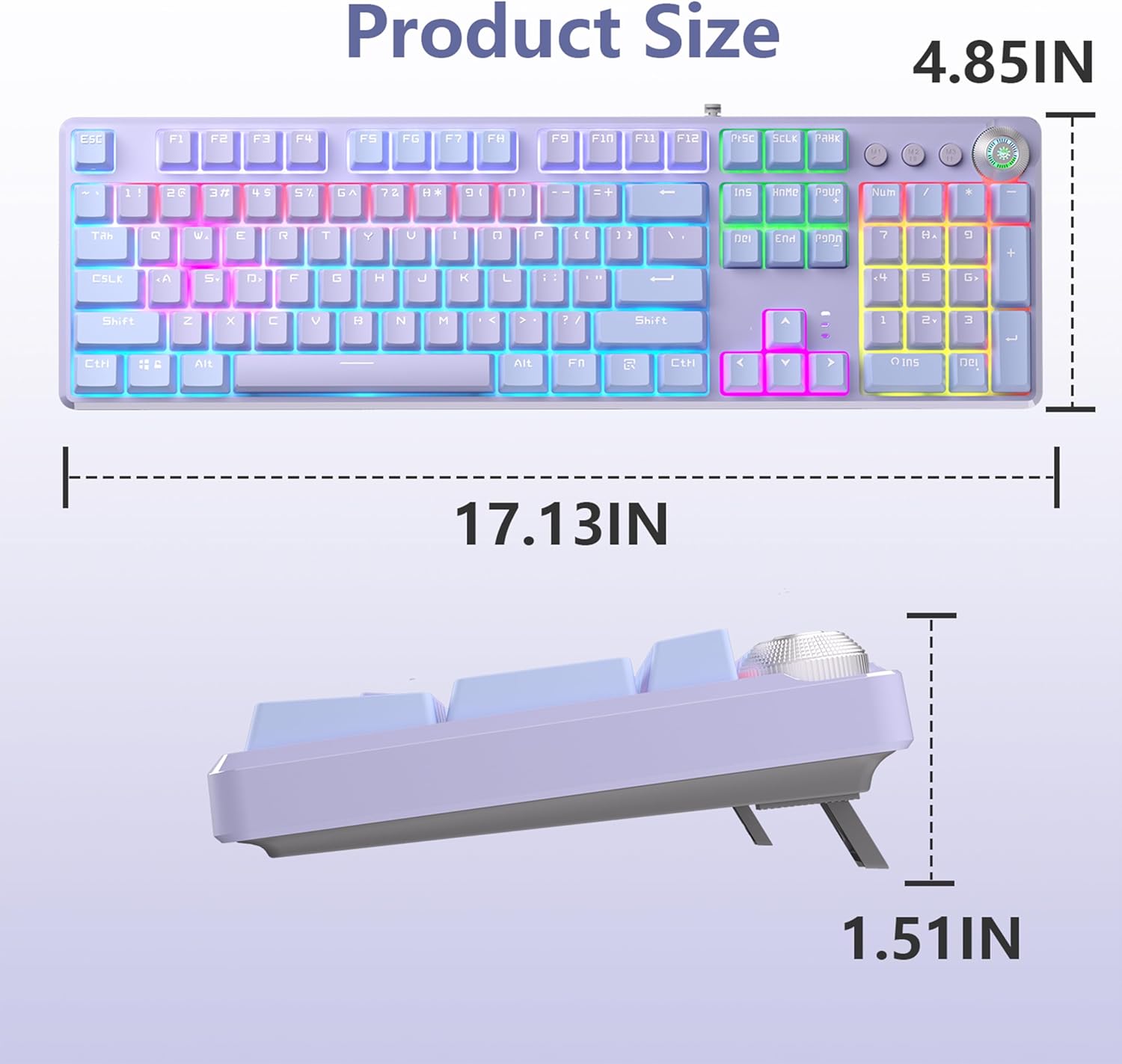
Image: Detailed product dimensions of the AULA F2088 Pro keyboard, including length, width, and height.

Image: An exploded view illustrating the advanced gasket structure design of the keyboard, detailing its various layers and components from keycaps to chassis.
8. Warranty and Support
AULA provides comprehensive after-sales service for the F2088 Pro keyboard. We offer a 48-month after-sales service period to ensure a worry-free experience.
8.1 Customer Support
For any product quality problems, questions regarding usage, or technical assistance, please contact our professional support team. You can typically find contact information on the official AULA website or through your purchase platform.
