Download PDFFree PDF. The Save button below keeps a bookmark and private notes in your account.
YQSAVIOR Kids Tablet User Manual
Model: YQQ1K
Introduction
This manual provides comprehensive instructions for the YQSAVIOR Kids Tablet, model YQQ1K. It covers setup, operation, maintenance, and troubleshooting to ensure a safe and optimal user experience. Please read this manual thoroughly before using the device.
Package Contents
Upon opening the package, verify that all items are present:
YQSAVIOR Kids Tablet (Pink, Model YQQ1K)
Protective Silicone Case (pre-installed)
USB Charging Cable
User Manual (this document)
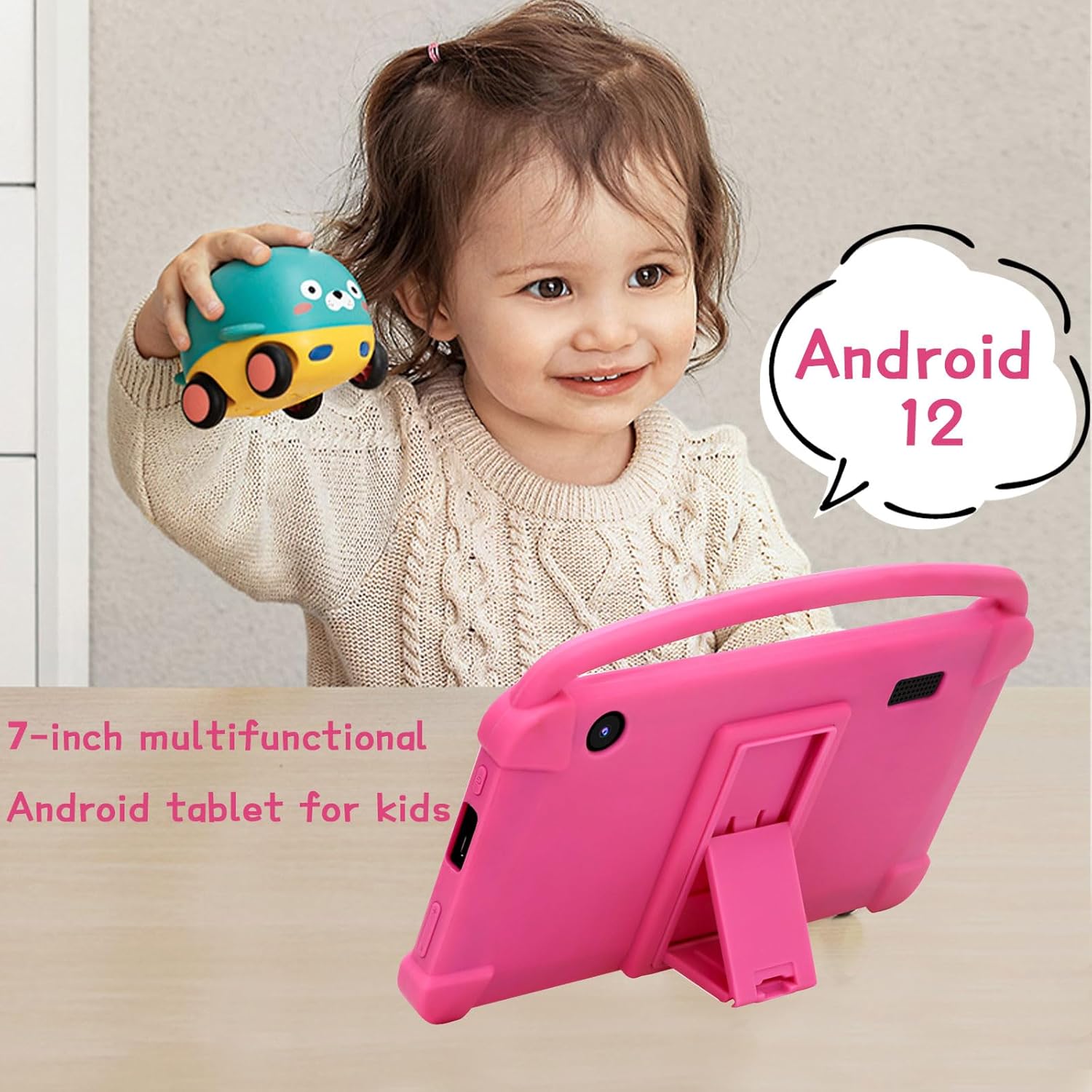
Image: The YQSAVIOR Kids Tablet, featuring its durable pink protective case and integrated kickstand. The screen displays vibrant educational content, highlighting its primary use for children.
Setup
1. Initial Charging
Before first use, fully charge the tablet. Connect the provided USB charging cable to the tablet's charging port and the other end to a compatible USB power adapter (not included) or a computer's USB port.
A full charge typically takes 3-4 hours.
The battery indicator on the screen will show charging status.
2. Powering On/Off
To Power On: Press and hold the Power button located on the side of the tablet until the YQSAVIOR logo appears.
To Power Off: Press and hold the Power button until the power options menu appears. Select "Power Off" and confirm.
3. Initial Setup Wizard
Upon first power-on, the tablet will guide you through an initial setup process:
Select your preferred language.
Connect to a Wi-Fi network. This is essential for downloading apps and updates.
Sign in with your Google account or create a new one. This is required for accessing the Google Play Store and other Google services.
Follow on-screen prompts to complete the setup.
Operating Instructions
1. Navigating the Interface
The YQSAVIOR Kids Tablet runs on Android 12. Navigation is primarily touch-based:
Tap: Select an item or open an app.
Swipe: Scroll through pages or lists.
Pinch-to-Zoom: Zoom in or out on images or web pages.
Home Button: Returns to the main home screen.
Back Button: Returns to the previous screen.
Recent Apps Button: Displays recently opened applications.
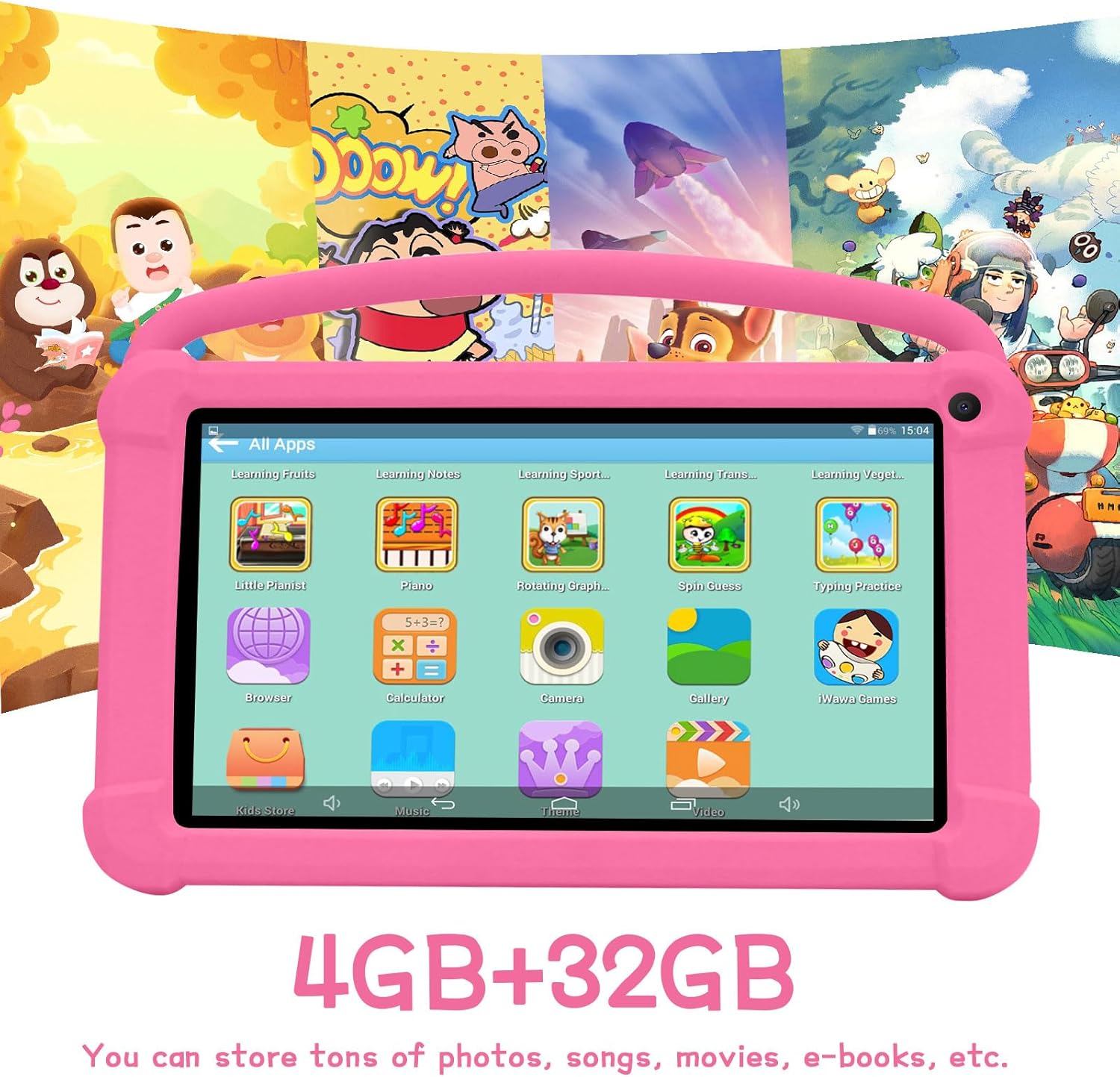
Image: The tablet's screen showing a grid of colorful application icons, including "Learning Fruits," "Photo," "Calculator," and "Camera," demonstrating its pre-installed educational and utility apps.
2. Parental Controls
The tablet includes robust parental control features to manage content and screen time:
Access the parental control settings through the dedicated "Kids Space" or "Family Link" app (if pre-installed) or via Android's system settings.
Set daily screen time limits.
Filter web content and block inappropriate applications.
Monitor app usage and activity.
Create multiple child profiles with customized settings for each.
Image: A family interacting with the YQSAVIOR Kids Tablet, emphasizing the ease of use for both children and parents, and the importance of parental controls for a safe digital environment.
3. Installing and Managing Apps
Apps can be downloaded from the Google Play Store. Ensure the tablet is connected to Wi-Fi.
Open the "Play Store" app.
Search for desired apps or browse categories.
Tap "Install" to download and install an app.
To uninstall an app, go to Settings > Apps & notifications, select the app, and tap "Uninstall."
Image: The YQSAVIOR Kids Tablet showing an interactive learning game, with a child's hand reaching towards the screen, demonstrating the tablet's touch responsiveness and suitability for educational play.
4. Camera Functionality
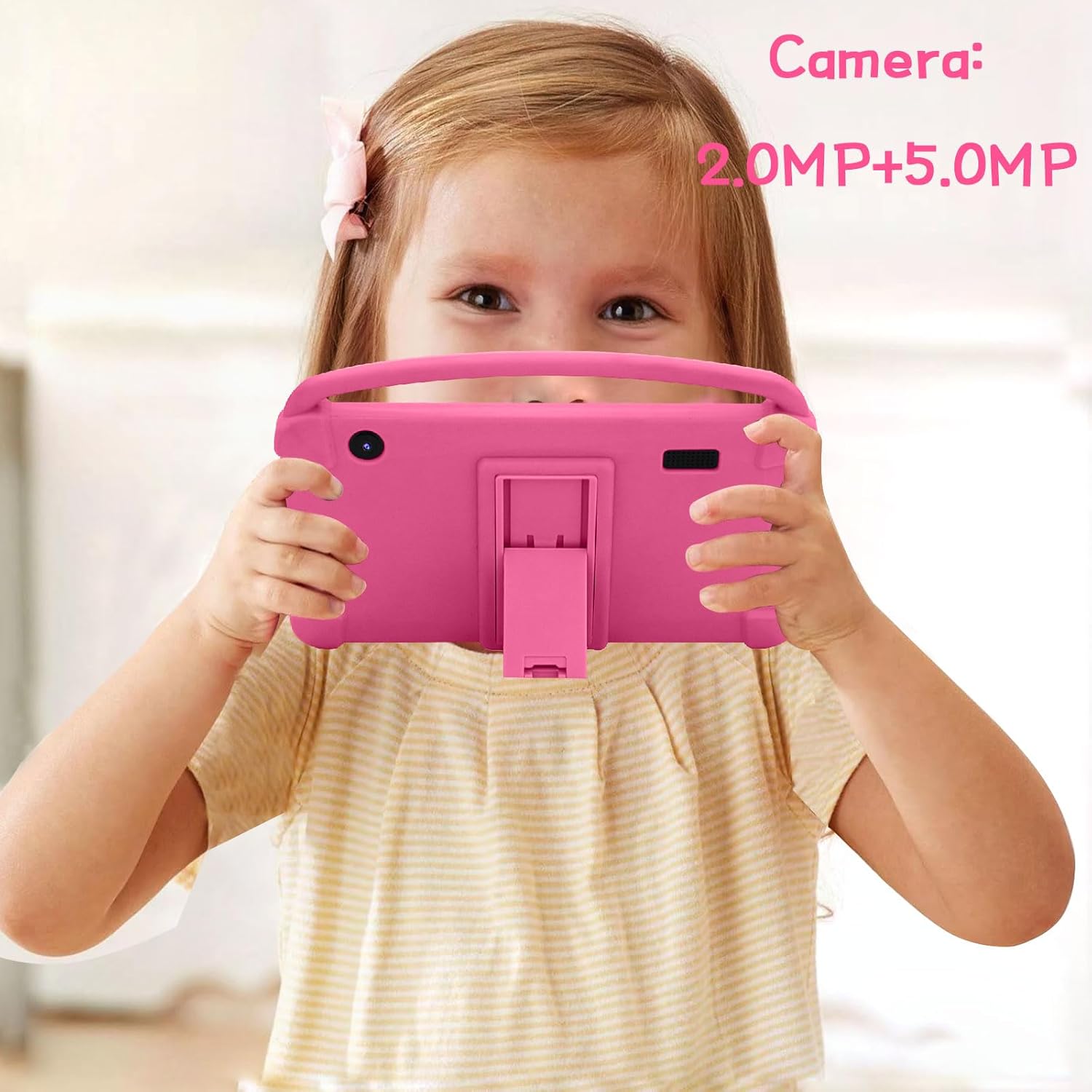
The tablet features a 2.0MP front camera and a 5.0MP rear camera.
Open the "Camera" app from the home screen or app drawer.
Tap the shutter button to take photos.
Switch between front and rear cameras using the camera toggle icon.
Photos and videos are saved to the "Gallery" app.
Image: A young girl holding the YQSAVIOR Kids Tablet, positioned as if taking a photo, highlighting the tablet's dual camera functionality and ease of use for children.
Maintenance
1. Cleaning the Tablet
Use a soft, lint-free cloth to clean the screen and body.
For stubborn smudges, slightly dampen the cloth with water or a screen cleaner.
Avoid using harsh chemicals, abrasive materials, or excessive moisture.
2. Battery Care
Avoid completely draining the battery frequently.
Do not expose the tablet to extreme temperatures.
Use only the provided charging cable or a certified compatible alternative.
3. Software Updates
Regularly check for and install system updates to ensure optimal performance and security. Go to Settings > System > System update.
4. Storage Management
The tablet has 32GB of internal storage, expandable up to 512GB via a Micro SD card (not included).
To insert a Micro SD card, locate the card slot on the side of the tablet and gently push the card in until it clicks.
Regularly clear cache and uninstall unused apps to free up space.
Image: The YQSAVIOR Kids Tablet displaying its app interface, with text overlays indicating "4GB+32GB," signifying its memory and storage capacity for various media and applications.
Troubleshooting
Problem
Possible Cause
Solution
Tablet does not power on.
Low battery; System crash.
Charge the tablet for at least 30 minutes. If still unresponsive, press and hold the power button for 10-15 seconds to force a restart.
Wi-Fi connection issues.
Incorrect password; Router issue; Out of range.
Verify Wi-Fi password. Restart your router. Ensure tablet is within Wi-Fi range.
Apps are slow or crashing.
Insufficient RAM; Too many apps open; Outdated app.
Close background apps. Clear app cache (Settings > Apps). Update apps from Play Store. Consider a factory reset if issues persist (backup data first).
Screen is unresponsive.
Temporary software glitch.
Force restart the tablet by holding the power button for 10-15 seconds.
Battery drains quickly.
High screen brightness; Background apps; Wi-Fi/Bluetooth always on.
Reduce screen brightness. Close unused apps. Turn off Wi-Fi/Bluetooth when not in use.
Specifications
Feature
Detail
Model
YQQ1K
Operating System
Android 12
Display Size
7-inch IPS
Display Resolution
1024x600 Pixels
RAM
4GB (2GB+2GB)
Internal Storage
32GB ROM
Expandable Storage
Micro SD up to 512GB
Front Camera
2.0MP
Rear Camera
5.0MP
Connectivity
Wi-Fi (802.11n), Bluetooth
Audio
Dual Speaker, 3.5mm Headphone Jack
Battery
Lithium Ion (included)
Dimensions (LxWxH)
7 x 0.3 x 3 inches
Item Weight
1.19 pounds
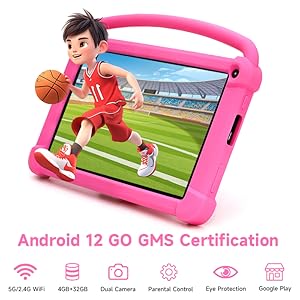
Image: A detailed graphic of the 7-inch YQSAVIOR Kids Tablet, accompanied by key specifications such as Android 12 OS, 7-inch IPS display, 4GB RAM, 32GB ROM, 3000mAh battery, and built-in Google Play, summarizing its core features.
Warranty and Support
YQSAVIOR products are designed for reliability and performance. For warranty information and technical support, please refer to the contact details provided on the product packaging or visit the official YQSAVIOR website.
For common issues, please refer to the Troubleshooting section of this manual.
Ask about setup, troubleshooting, compatibility, parts, safety, or missing instructions. Manuals+ will review the question and use this page’s manual context to help answer it.