
1. Introduction
Thank you for choosing the Gosund SP111 Smart WiFi Plug. This device allows you to control your electronic appliances remotely via a smartphone application or voice commands, and to set schedules for automated operation. Please read this manual carefully before use to ensure proper installation and operation.
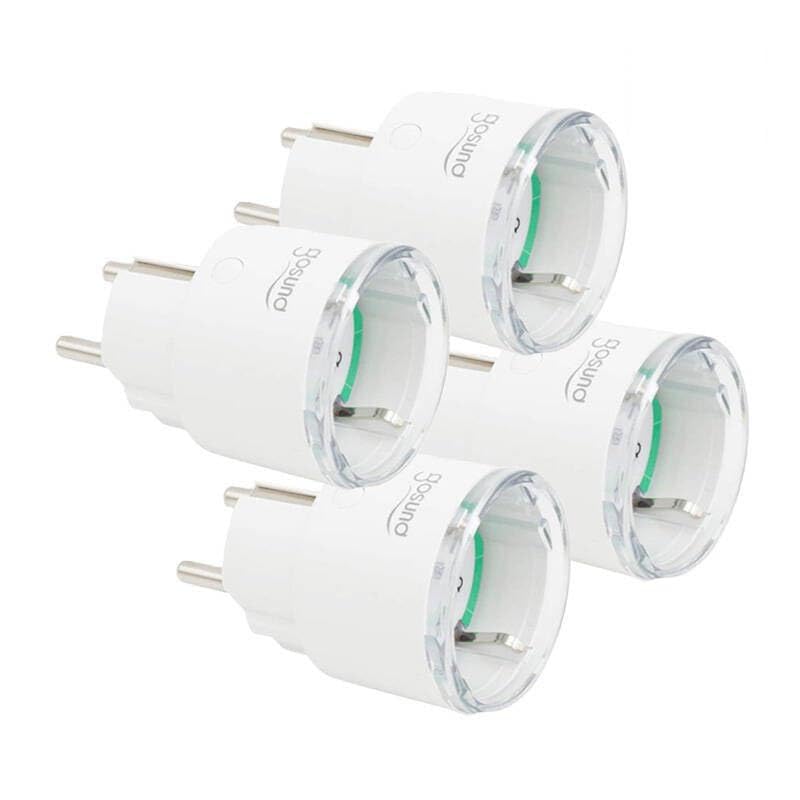
This image displays four white Gosund SP111 Smart WiFi Plugs. Each plug features a standard European Type F (Schuko) plug on one side and a corresponding socket on the other, with the Gosund logo printed on the side. A small indicator light and a button are visible on the top surface of each plug.
2. Safety Information
- Do not exceed the maximum load current of 16A or power of 3680W.
- Do not disassemble or modify the device.
- Keep the device away from water, moisture, and high temperatures.
- For indoor use only.
- Ensure the plug is fully inserted into the wall socket.
- Do not connect appliances that could cause a fire hazard if left unattended (e.g., irons, heaters).
3. Package Contents
The package includes the following items:
- 4 x Gosund SP111 Smart WiFi Plugs
- 1 x User Manual (this document)
4. Product Overview
Familiarize yourself with the components of your Gosund SP111 Smart WiFi Plug:
- Power Button: Press to manually turn the plug on/off. Press and hold for 5 seconds to enter pairing mode.
- Indicator Light: Indicates the status of the plug (e.g., solid blue for ON, flashing blue for pairing mode, off for OFF).
- Type F (Schuko) Socket: For connecting your appliance.
- Type F (Schuko) Plug: For inserting into a wall outlet.
5. Setup
5.1 Download the App
The Gosund SP111 Smart WiFi Plug works with the Tuya Smart or Smart Life app. Download the app from the App Store (iOS) or Google Play Store (Android).
- Search for "Tuya Smart" or "Smart Life".
- Install the app and register an account.
5.2 Add Device
- Plug the Gosund SP111 Smart WiFi Plug into a wall outlet.
- The indicator light should flash rapidly (approximately twice per second), indicating it's in pairing mode. If not, press and hold the power button for 5 seconds until it flashes rapidly.
- Open the Tuya Smart or Smart Life app.
- Tap the "+" icon in the top right corner to add a device.
- Select "Electrical Outlet" or "Socket (Wi-Fi)".
- Confirm that the indicator light is flashing rapidly.
- Enter your 2.4 GHz Wi-Fi network password (5 GHz Wi-Fi is not supported).
- Wait for the device to connect. Once connected, you can rename the plug.
6. Operating
6.1 Manual Control
Press the power button on the plug to manually turn the connected appliance on or off.
6.2 App Control
- Remote On/Off: Tap the plug icon in the app to turn it on or off from anywhere.
- Scheduling: Set timers or schedules for the plug to turn on or off automatically at specific times.
- Countdown: Set a countdown timer for the plug to turn off after a set duration.
- Energy Monitoring: (If supported by the specific SP111 variant) View real-time and historical power consumption.
6.3 Voice Control
The Gosund SP111 Smart WiFi Plug can be integrated with voice assistants like Amazon Alexa and Google Assistant via the Tuya Smart or Smart Life app. Follow the instructions within the app to link your smart home assistant account.
- Example commands:
- "Alexa, turn on [Plug Name]"
- "Hey Google, turn off [Plug Name]"
7. Maintenance
- Unplug the device before cleaning.
- Wipe the surface with a soft, dry cloth. Do not use liquid cleaners or abrasive materials.
- Store in a cool, dry place when not in use for extended periods.
8. Troubleshooting
| Problem | Solution |
|---|---|
| Plug cannot connect to Wi-Fi. |
|
| Indicator light is off. |
|
| Appliance connected to the plug does not turn on. |
|
9. Specifications
| Model: | SP111-4 |
| Input Voltage: | AC 230V, 50/60Hz |
| Max Load Current: | 16A |
| Max Power: | 3680W |
| Wireless Type: | Wi-Fi 2.4GHz (802.11 b/g/n) |
| App Support: | Tuya Smart / Smart Life |
| Operating Temperature: | 0°C to 40°C (32°F to 104°F) |
10. Warranty and Support
Gosund products are designed and manufactured to the highest quality standards. For warranty information and technical support, please refer to the official Gosund website or contact your retailer. Keep your purchase receipt as proof of purchase.
For further assistance, please visit: www.gosund.com/support


