
Introduction
This user manual provides essential information for the safe and efficient operation of your LG 55UM670H0 55-inch 4K UHD Smart LCD TV. Please read this manual thoroughly before using your TV and retain it for future reference. Your new LG TV features a 55-inch 4K UHD display, HDR10 support, and the intuitive webOS 4.5 smart platform for an enhanced viewing experience.
Setup
1. Unpacking and Inspection
Carefully remove the TV and all accessories from the packaging. Inspect for any signs of damage. Keep the packaging materials for future transport or if service is required.
2. Stand Installation or Wall Mounting
Stand Installation: If using the included stand, attach it securely to the TV following the instructions provided in the separate stand assembly guide. Ensure all screws are tightened to prevent the TV from tipping.
Wall Mounting: For wall mounting, use a VESA-compliant wall mount (600 x 400 mm) and consult a professional for installation to ensure safety and proper alignment. Refer to the wall mount's instructions for specific details.
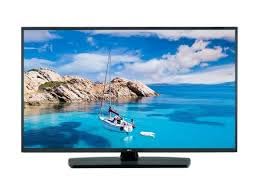
Image: Front view of the LG 55UM670H0 55-inch 4K UHD Smart LCD TV. This image illustrates the display and bezel design.
3. Connecting Peripherals
- Power: Connect the power cord to the TV's power input and then to a wall outlet.
- HDMI Devices: Use an HDMI cable to connect external devices such as a Blu-ray player, game console, or set-top box to the HDMI port on the TV. This model features one HDMI port.
- Antenna/Cable: Connect an antenna or cable TV feed to the appropriate input if you intend to watch broadcast television.
4. Initial Power On and Setup Wizard
After connecting power, press the power button on the remote control or the TV. The initial setup wizard will guide you through language selection, network connection (Wi-Fi or Ethernet), channel scanning, and basic picture/sound settings.
Operating the TV
1. Remote Control Overview
Familiarize yourself with the remote control. Key buttons include Power, Volume Up/Down, Channel Up/Down, Input Source, Home (for webOS), Navigation (directional pad), and Back.
2. Basic Functions
- Power On/Off: Press the Power button.
- Volume Adjustment: Use the Volume +/- buttons.
- Channel Selection: Use the Channel +/- buttons or the number pad.
- Input Source: Press the Input button to switch between connected devices (HDMI, TV, etc.).
3. Smart TV Features (webOS 4.5)
Press the Home button on your remote to access the webOS launcher bar. From here, you can launch pre-installed applications like Netflix, Hulu, and Amazon Prime Video, or download new apps from the LG Content Store. Ensure your TV is connected to the internet for full smart TV functionality.
4. Picture and Sound Settings
Access the settings menu to customize your viewing experience. Navigate to Picture settings to adjust brightness, contrast, color, and sharpness. This TV supports HDR10, which automatically enhances compatible content. In Sound settings, you can select sound modes, adjust equalizer settings, and configure audio output options.
Maintenance
1. Cleaning the TV
- Screen: Gently wipe the screen with a soft, dry microfiber cloth. For stubborn marks, slightly dampen the cloth with water or a specialized screen cleaner (do not spray directly onto the screen).
- Body: Wipe the TV frame and stand with a soft, dry cloth. Avoid using abrasive cleaners or solvents.
- Always unplug the TV before cleaning.
2. Software Updates
Ensure your TV is connected to the internet to receive automatic software updates. You can also manually check for updates in the TV's settings menu. Keeping your software updated ensures optimal performance and access to the latest features.
3. Storage and Handling
When moving or storing the TV, use the original packaging if possible. Avoid exposing the TV to extreme temperatures, humidity, or direct sunlight. Handle with care to prevent damage to the screen or internal components.
Troubleshooting
Before contacting service, review the following common issues and solutions:
- No Power:
- Check if the power cord is securely plugged into both the TV and the wall outlet.
- Test the outlet with another device.
- Try a different power cord if available.
- No Picture/Sound:
- Ensure the correct input source is selected.
- Check all cable connections (HDMI, antenna).
- Verify that external devices are powered on.
- No Internet Connection:
- Restart your router and modem.
- Check Wi-Fi settings on the TV and ensure the correct password is entered.
- If using Ethernet, ensure the cable is securely connected.
- Remote Control Not Working:
- Replace the batteries.
- Ensure there are no obstructions between the remote and the TV's IR sensor.
- Factory Reset: If issues persist, you may perform a factory reset through the TV's settings menu. Be aware that this will erase all personalized settings and installed apps.
Specifications
| Feature | Specification |
|---|---|
| Brand | LG |
| Model Name | 55UM670H0 |
| Screen Size | 55 Inches |
| Display Technology | LCD |
| Resolution | 4K (3840 x 2160) |
| Special Feature | High Dynamic Range (HDR10) |
| Connectivity Technology | HDMI |
| Total Number of HDMI Ports | 1 |
| Supported Internet Services | Netflix, Hulu, Amazon Prime Video, etc. |
| Operating System | webOS 4.5 (Pro:centric Smart) |
| Aspect Ratio | 16:9 |
| Viewing Angle | 178 Degrees |
| Mounting Type | Wall Mount |
| VESA Mount Standard | 600 x 400 mm |
| Audio Channels | 2.0 Stereo speakers |
| Control Method | Remote |
| Model Year | 2018 |
| UPC | 195174063422 |
Warranty and Support
1. Limited Warranty
Your LG 55UM670H0 TV is covered by a limited warranty. Please refer to the warranty card included with your product for specific terms, conditions, and duration. This warranty typically covers manufacturing defects under normal use.
2. Customer Support
For technical assistance, troubleshooting beyond this manual, or warranty claims, please contact LG Customer Support. Visit the official LG website for your region to find contact information, including phone numbers, chat support, and service center locations.
Note: No official product videos were provided in the input data for embedding in this manual.