
1. Product Overview
The CZEview 3K 5MP Indoor Security Camera is a versatile device designed for home surveillance, pet monitoring, and baby monitoring. It offers crystal-clear 3K 5MP resolution, dual-band 2.4/5GHz Wi-Fi connectivity, and advanced features such as remote pan, tilt, and zoom capabilities. The camera includes night vision for low-light conditions, motion detection with auto-tracking, and two-way audio communication. It is also compatible with Alexa for convenient voice control.


2. What's in the Box
Please check the package contents to ensure all items are present:
- 2x CZEview Pan/Tilt Camera
- Power Adapter
- Quick Start Guide
- Mounting Screw
- Mounting Plate
3. Setup Guide
3.1 Initial Setup
- Power Connection: Connect the camera to the power adapter using the provided micro-USB cable and plug it into a power outlet. The camera will power on and initiate its startup sequence.
- App Download: Download the designated mobile application (e.g., 'Elemage Cam' or as specified in the Quick Start Guide) from your device's app store (compatible with Android and iOS).
- Account Registration: Open the app and follow the on-screen instructions to register a new account or log in if you already have one.
- Add Device: Within the app, select the option to add a new device. Follow the prompts to scan the QR code on the camera or manually select your camera model.
3.2 Wi-Fi Connection
The CZEview camera supports both 2.4GHz and 5GHz Wi-Fi networks, offering flexibility and improved performance.

- Network Selection: Ensure your smartphone is connected to the Wi-Fi network you intend to connect the camera to.
- Password Entry: Enter your Wi-Fi password accurately into the app when prompted. Double-check for typos.
- Connection Process: The app will guide you through the connection process, which may involve displaying a QR code on your phone screen for the camera to scan, or emitting an audible tone.
- Confirmation: Once connected, the camera will typically indicate a successful connection (e.g., a voice prompt or LED indicator change), and the app will confirm the device is online.
3.3 Mounting the Camera
The camera is designed for indoor use and can be ceiling-mounted for optimal coverage.
- Location: Choose a location that provides the desired viewing angle and is within range of your Wi-Fi network.
- Installation: Use the provided mounting plate and screws to secure the camera to a ceiling or wall. If mounting into wood, pre-drilling pilot holes is recommended.
4. Operating Instructions
4.1 Pan, Tilt, and Zoom (PTZ)
The camera offers a 355° horizontal rotation and 100° vertical rotation, allowing for comprehensive coverage of your indoor space. It also features 4x digital zoom.
- Control: Use the directional controls within the mobile app to remotely adjust the camera's viewing angle.
- Zoom: Pinch-to-zoom on the live feed within the app to digitally zoom in on specific areas.

4.2 Night Vision
Equipped with infrared LEDs, the camera provides clear video footage even in low-light or complete darkness.
- Automatic Activation: Night vision activates automatically when ambient light levels are low.
- Clarity: The 3K 5MP resolution ensures details are visible in night vision mode.
4.3 Motion Detection & Auto Tracking
The camera can detect motion and sound, sending instant notifications to your phone. It also features auto-tracking to follow detected movement.
- Notifications: Enable motion and sound alerts in the app settings to receive real-time notifications.
- Auto Tracking: When enabled, the camera will automatically pan and tilt to keep a moving subject within its field of view.

4.4 Two-Way Talk
Communicate with family members or pets through the camera using the two-way talk feature.
- Activation: Tap the microphone icon in the live view interface of the app to speak through the camera's speaker.
- Listening: The camera's built-in microphone allows you to hear audio from the camera's location.

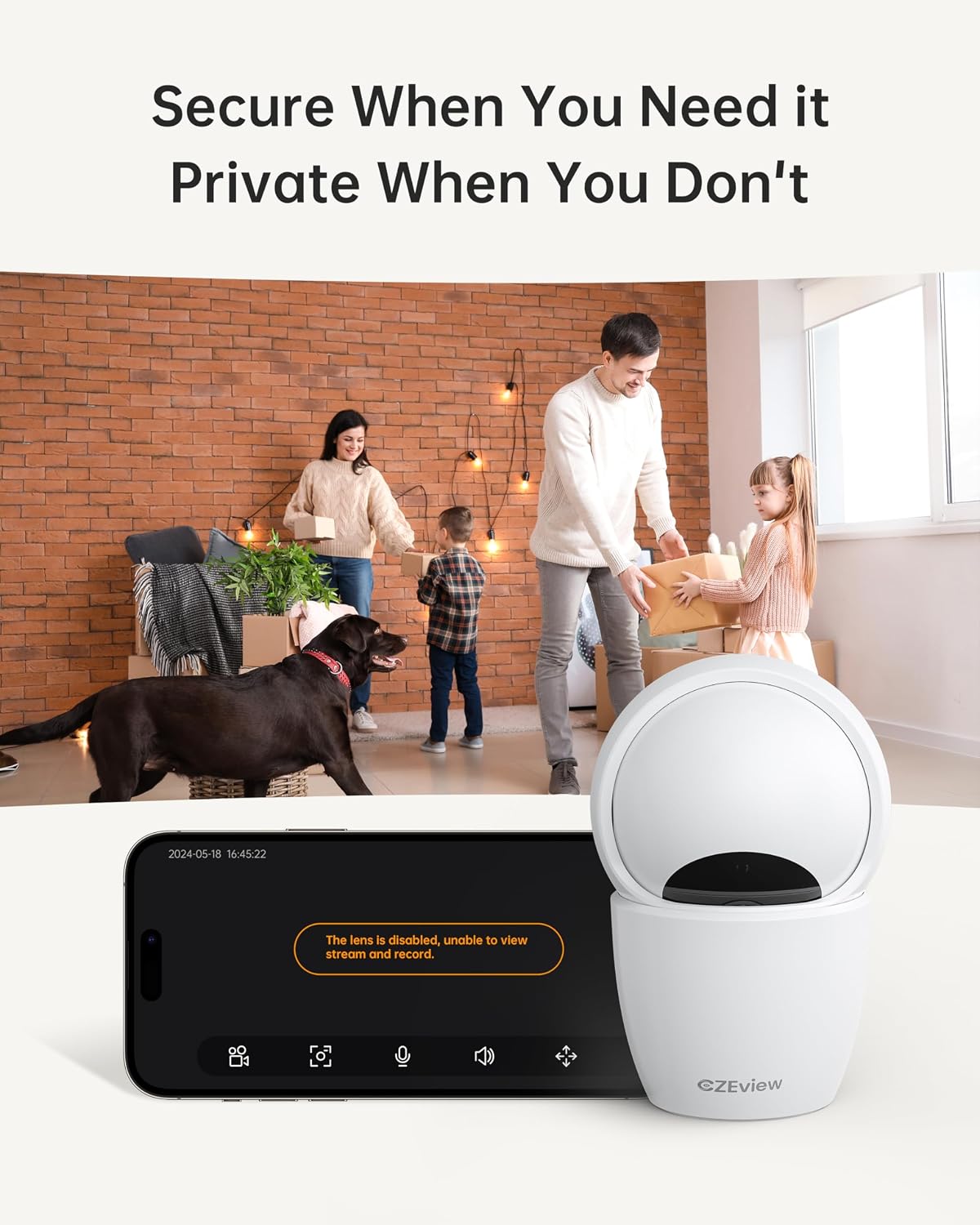
4.5 Privacy Mode
To ensure privacy, the camera can be deactivated with a single click in the app, physically turning the lens away.
- Activation: Locate the privacy mode option in the app settings or live view screen. Activating it will disable video streaming and recording.
- Scheduling: Some app versions may allow scheduling privacy mode for specific times.

4.6 Recording & Storage
The camera supports local storage via a Micro SD card (up to 128GB, not included) and offers optional cloud storage plans for continuous 24/7 recording.
- Micro SD Card: Insert the Micro SD card into the slot. To locate the slot and reset button, gently tilt the camera's 'eyeball' (lens housing) upward.
- Cloud Storage: Refer to the app for details on available cloud storage plans and subscription options.
4.7 Alexa Integration
The camera works with Alexa, allowing for voice-activated control and viewing.
- Linking Account: Follow the instructions in the Alexa app to enable the CZEview skill and link your camera account.
- Voice Commands: Use commands such as "Alexa, show me the [camera name]" to view the live feed on compatible Alexa devices with screens.
5. Maintenance
- Cleaning: Use a soft, dry cloth to clean the camera lens and body. Avoid abrasive cleaners or solvents.
- Software Updates: Regularly check the mobile app for firmware updates to ensure optimal performance and security. Follow the in-app instructions for updating.
- Placement: Ensure the camera is placed in a stable, dry indoor environment, away from direct sunlight, extreme temperatures, and sources of vibration.
6. Troubleshooting
| Problem | Possible Cause | Solution |
|---|---|---|
| Camera won't connect to Wi-Fi | Incorrect Wi-Fi password; Camera too far from router; Router band incompatibility; Network congestion. | Double-check Wi-Fi password. Move camera closer to router. Ensure router supports 2.4GHz or 5GHz (whichever you are connecting to). Try restarting your router and camera. |
| Poor image quality | Dirty lens; Insufficient lighting; Network bandwidth issues. | Clean the camera lens with a soft cloth. Ensure adequate lighting or verify night vision is active in low light. Check your internet speed. |
| No motion detection alerts | Motion detection disabled in app; Sensitivity too low; App notifications blocked. | Enable motion detection in the app settings. Adjust sensitivity level. Check your phone's notification settings for the app. |
| Two-way talk audio issues | Microphone/speaker muted in app; Network delay; Obstruction. | Ensure microphone and speaker are enabled in the app. Check network connection stability. Ensure no physical obstructions are blocking the microphone or speaker. |
| Camera is unresponsive / needs reset | Software glitch; Configuration error. | Unplug the camera, wait 10 seconds, then plug it back in. If issues persist, locate the reset button (by tilting the lens upward) and press it for 5-10 seconds until the camera resets. You may need to re-add the camera to the app after a factory reset. |
7. Specifications
| Feature | Detail |
|---|---|
| Model Name | ZY-D4 |
| Indoor/Outdoor Usage | Indoor |
| Effective Still Resolution | 5 MP (3K) |
| Video Capture Resolution | 1920p |
| Connectivity Protocol | Wi-Fi (2.4/5Ghz Dual Band) |
| Power Source | Corded Electric |
| Controller Type | Elemage Cam App |
| Mounting Type | Ceiling Mount |
| Pan/Tilt Range | 355° Horizontal, 100° Vertical |
| Digital Zoom | 4x |
| Storage Options | Micro SD Card (up to 128GB, not included), Cloud Storage (optional) |
| Special Features | Night Vision, Motion Sensor, Dual Band Wi-Fi, Auto Tracking, Two-Way Talk, Privacy Mode, Alexa Compatible |
| Product Dimensions | 3 x 3 x 5 inches |
| Item Weight | 1.37 pounds |
8. Warranty and Support
For warranty information and technical support, please refer to the Quick Start Guide included in your product packaging or visit the official CZEview website. Contact details for customer service are typically provided on the manufacturer's website.