1. Overview
The Godrej Smart Lock Catus Connect is an advanced digital door lock system designed to provide enhanced security and convenience for your home or office. It offers multiple access methods, including fingerprint, PIN code, RFID card, mechanical key, and Wi-Fi enabled mobile app control. This manual provides essential information for the proper installation, operation, and maintenance of your smart lock.

Figure 1: Godrej Smart Lock Catus Connect, showcasing its sleek design and digital keypad.
2. Key Features
- 5-in-1 Access: Unlock your door using Fingerprint, PIN Code, RFID Card, Mechanical Key, or through the Mobile App via Wi-Fi.
- 360° Fingerprint Recognition: The sensor recognizes up to 99 registered fingerprints from any angle.
- PIN Code Access: Register up to 99 unique PINs (4 to 9 digits). Features an Anti-Peeping Password function.
- RFID Card Access: Register up to 99 RFID cards for convenient entry.
- Remote Access: Control the lock remotely via the mobile app, including unlocking and generating One-Time Passwords (OTPs).
- One-Touch Privacy: Activate privacy mode to prevent external access via fingerprint, RFID, or PIN.
- 3 Strong Locking Dead Bolts: Provides enhanced physical security.
- Data Privacy: Encrypted data stored on servers located in India.

Figure 2: The five convenient access methods offered by the Catus Connect Smart Lock.
3. Product Components
Familiarize yourself with the main components of your Godrej Smart Lock Catus Connect:
- Front Panel: Contains the fingerprint sensor, digital keypad, and RFID reader.
- Back Panel: Houses the battery compartment, privacy button, and internal handle.
- Mechanical Key: For emergency manual override.
- RFID Cards: Programmable access cards.
- Mortise Lock Body: The internal locking mechanism with 3 deadbolts.

Figure 3: Identification of key components including front and back views, and access methods.
4. Compatibility & Installation Requirements
Ensure your door meets the following specifications for proper installation:
- Door Type: Suitable ONLY for wooden doors and wooden door frames.
- Door Thickness: 35 mm to 65 mm (3.5 cm to 6.5 cm).
- Backset: 60 mm (6 cm).
- Door Opening: Suitable for right or left, inside/outside opening doors.
- Not Suitable For: Metal doors, double doors, sliding doors, or grill gates.

Figure 4: Door compatibility guide for the smart lock installation.
Godrej offers free professional installation services within 72 hours in over 350+ cities. It is highly recommended to utilize this service for optimal performance and warranty validity.
5. Setup
Initial setup typically involves installing the lock hardware, inserting batteries, and configuring the lock via the mobile application. For detailed installation steps, please refer to the professional installation service provided by Godrej. Once installed, follow these general steps for initial configuration:
- Battery Insertion: Open the battery compartment on the back panel and insert 4 AA alkaline batteries (not included). Ensure correct polarity.
- App Download: Download the official Godrej Digital Lock mobile application from your device's app store.
- Device Pairing: Follow the in-app instructions to pair your smart lock with your mobile device via Wi-Fi. This usually involves creating a master administrator account and setting up initial access credentials.
- Register Master Fingerprint/PIN/RFID: As part of the initial setup, you will be prompted to register at least one master fingerprint, PIN code, and/or RFID card.

Figure 5: The smart lock installed, highlighting the internal mechanism and exterior design.
6. Operating Instructions
The Godrej Smart Lock Catus Connect offers multiple ways to unlock your door:
6.1. Fingerprint Access
- Place your registered finger on the fingerprint sensor.
- The lock will verify your fingerprint and unlock if authorized.
6.2. PIN Code Access
- Enter your 4-9 digit PIN code on the keypad.
- Press the '#' key to confirm. The lock will unlock if the PIN is correct.
- Anti-Peeping Password: You can enter random digits before and after your actual PIN to prevent others from guessing your code. For example, XXXX + [Your PIN] + XXXX.
6.3. RFID Card Access
- Hold your registered RFID card near the card reader area on the front panel.
- The lock will beep and unlock upon successful verification.
6.4. Mechanical Key Access
- Insert the mechanical key into the hidden keyhole (usually located at the bottom of the front panel).
- Turn the key to unlock the door. This method is primarily for emergency situations.
6.5. Mobile App Access (Wi-Fi)
- Open the Godrej Digital Lock app on your smartphone.
- Ensure your phone and the lock are connected to the internet.
- Select the desired lock and use the remote unlock function within the app.
- The app also allows for generating One-Time Passwords (OTPs) and setting Scheduled Access for specific users or timeframes.
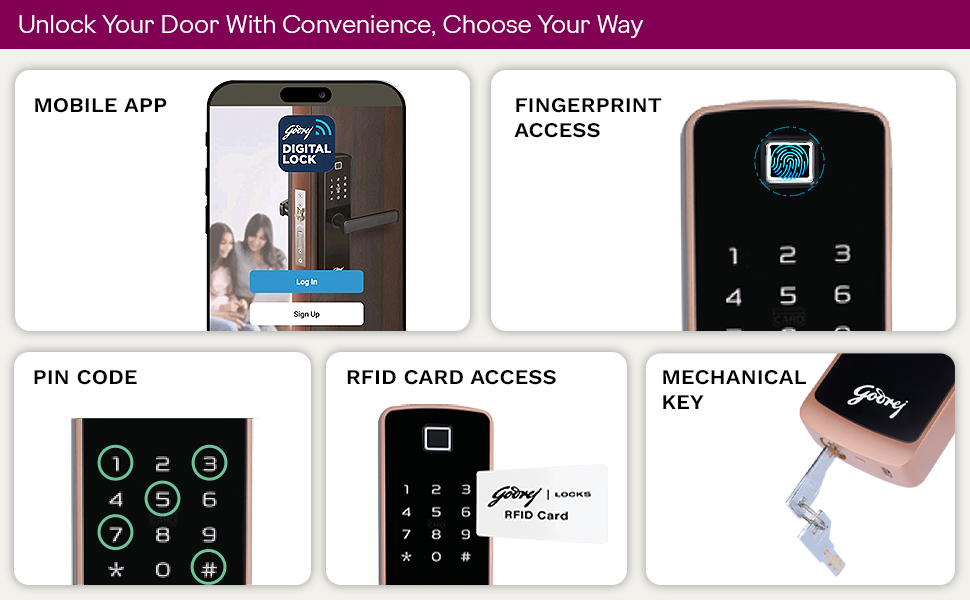
Figure 6: Mobile app interface for remote access and password management.
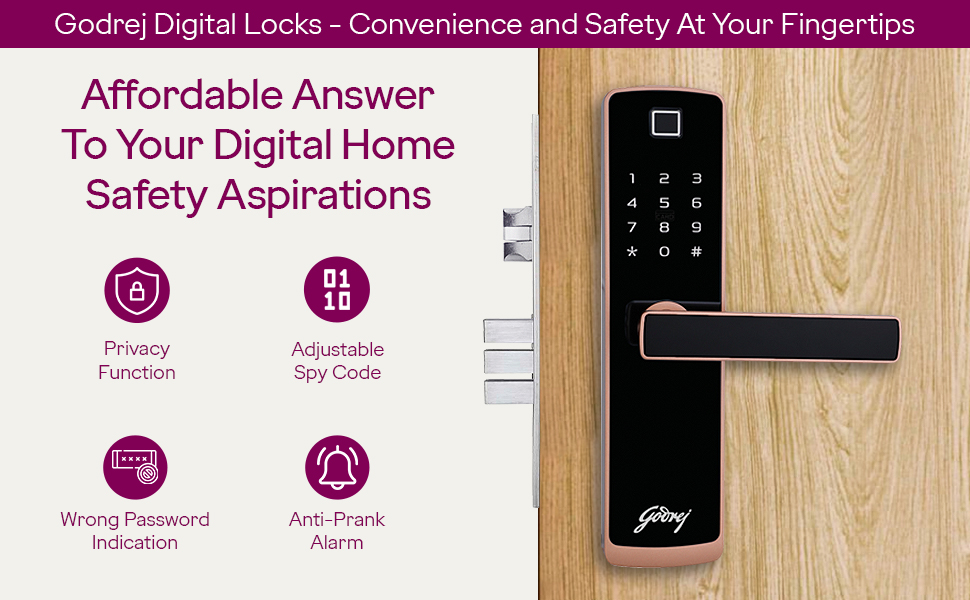
Figure 7: A summary of all available unlocking methods for convenience.
7. Security Features
The Catus Connect Smart Lock incorporates several features to enhance your security:
- One-Touch Privacy: Pressing the privacy button on the back panel disables all external electronic access methods (fingerprint, RFID, PIN). Only the mechanical key or master password can then open the lock from the outside.
- Anti-Peeping Password: Allows you to enter random digits before and after your actual PIN to obscure it from onlookers.
- Wrong Password Indication: The lock provides feedback for incorrect entries.
- Anti-Prank Alarm: Triggers an alarm after multiple incorrect access attempts.
- Data Privacy: All user data is encrypted and stored on secure servers within India.

Figure 8: Visual representation of key security features.
8. Maintenance
To ensure the longevity and optimal performance of your smart lock, follow these maintenance guidelines:
- Battery Replacement: Replace all 4 AA alkaline batteries when the low battery indicator appears or when the lock's response time slows down. Do not mix old and new batteries.
- Cleaning: Wipe the lock's surface with a soft, dry cloth. Avoid using abrasive cleaners, solvents, or harsh chemicals, as these can damage the finish and electronic components.
- Avoid Water Exposure: The lock is not waterproof. Protect it from direct water exposure and high humidity.
- Fingerprint Sensor Care: Keep the fingerprint sensor clean and dry for accurate readings.
9. Troubleshooting
If you encounter issues with your Godrej Smart Lock, try the following basic troubleshooting steps:
- Lock Not Responding: Check if the batteries are correctly inserted and have sufficient charge. Replace batteries if necessary.
- Fingerprint Not Recognized: Ensure your finger is clean and dry. Try re-registering your fingerprint if the issue persists.
- PIN Code Not Working: Double-check the PIN entry. Ensure you are not in privacy mode.
- RFID Card Not Working: Ensure the card is registered and held correctly against the reader.
- Mobile App Connectivity Issues: Verify your Wi-Fi connection and ensure the lock is within range of your router. Restart the app and/or your phone.
- Lock Beeps Continuously: This may indicate low battery. Replace batteries immediately.
For persistent issues or complex problems, please contact Godrej customer support.
10. Specifications
| Feature | Specification |
|---|---|
| Brand | Godrej Locking Solutions and Systems |
| Model Number | 4217 |
| Access Methods | Fingerprint, PIN Code, RFID Card, Mechanical Key, Wi-Fi (Mobile App) |
| Door Thickness | 35 mm to 65 mm |
| Material | Wood (for door compatibility) |
| Dimensions (L x W x H) | 25 x 6 x 7 cm |
| Item Weight | 1.8 kg |
| Power Source | 4 x AA Batteries (not included) |
| Connectivity | Wi-Fi |
| Special Feature | Anti-Peeping Password |
11. Warranty & Support
The Godrej Smart Lock Catus Connect comes with a 3-year warranty. For any installation, repair, emergency opening, key duplication, or free home safety checkup services, please contact Godrej customer support.

Figure 9: Godrej customer support and installation service details.
Contact Information:
- Toll-Free: 1800 209 4543, +91 80 6743 6743
- Email: glafsescalation@godrej.com
- Website: www.godrejenterprises.com/support/locks-and-security
- WhatsApp: +91 9321 6655 11


