
1. Introduction
Thank you for choosing the Bextgoo Clip Camera Model Clip cam-02-DE. This compact and versatile device is designed for discreet video and audio recording, featuring Full HD 1080P resolution, PIR motion detection, and a 90-degree wide-angle lens. This manual provides detailed instructions to help you set up, operate, and maintain your camera effectively.

Image 1: The Bextgoo Clip Camera demonstrating its small, lightweight design with a back clip, suitable for various applications such as outdoor activities, pet monitoring, and personal security.
2. Product Overview
2.1 Package Contents
- Bextgoo Mini Body Camera
- 32GB Micro SD Card
- USB Card Reader
- USB Charging Cable
- Cleaning Cloth
- Reset Pin
- User Manual
2.2 Camera Components
The Bextgoo Clip Camera is designed for ease of use with its compact form factor and intuitive controls.

Image 2: The Bextgoo Clip Camera, showing its compact design and the included 32GB Micro SD card.
The camera features a main lens, control buttons on the side, a micro USB port, and a Micro SD card slot. It also includes a sturdy back clip for easy attachment to clothing or other surfaces.
3. Setup
3.1 Charging the Camera
Before first use, fully charge the camera's built-in lithium-ion battery. Connect the camera to a USB power source (e.g., computer, wall adapter) using the provided USB charging cable. A full charge typically takes approximately 1 hour. The camera can operate for up to 7 hours on a full charge and can record continuously while charging.
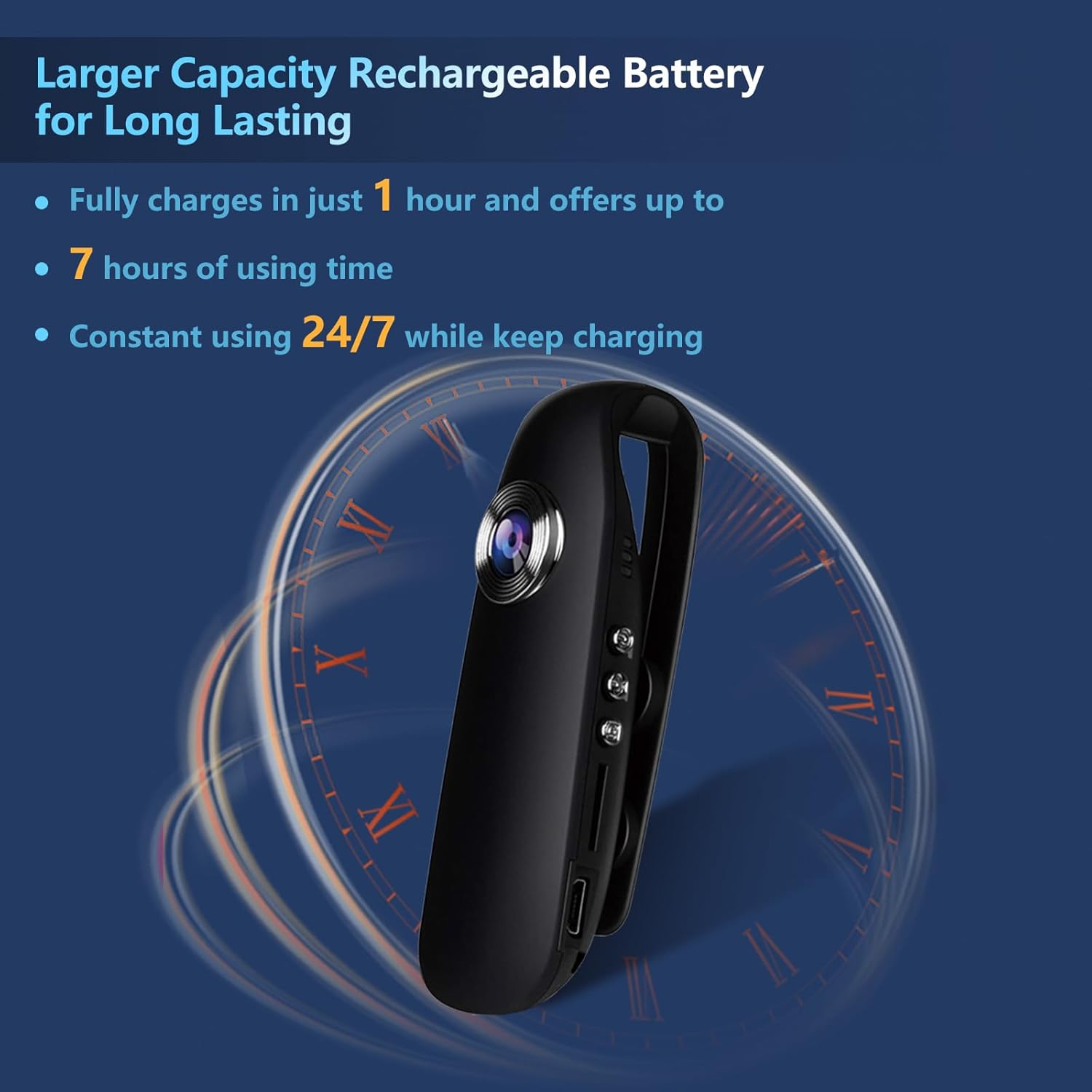
Image 3: Illustration of the camera's battery capacity, showing a 1-hour charge time for up to 7 hours of use, and 24/7 constant use while charging.
3.2 Inserting the Micro SD Card
The camera comes with a 32GB Micro SD card. Locate the Micro SD card slot on the side of the camera. Gently insert the card with the gold contacts facing down until it clicks into place. Ensure the card is properly seated before operating the camera.
3.3 Initial Power On and Reset
To power on the camera, press and hold the Power button for a few seconds. If the camera does not respond or functions unexpectedly, use the provided reset pin to press the reset button. This will restart the device without deleting recorded data.
4. Operating Instructions
4.1 Power On/Off
- To Power On: Press and hold the Power button until the indicator light illuminates.
- To Power Off: Press and hold the Power button until the indicator light turns off.
4.2 Video Recording (1080P FHD)
The camera records video in Full HD 1080P resolution at 30 frames per second, capturing clear details with its 90-degree wide-angle lens.
- Start Recording: With the camera powered on, press the Video button once. The indicator light will flash to indicate recording is in progress.
- Stop Recording: Press the Video button again. The indicator light will stop flashing and return to a steady state.
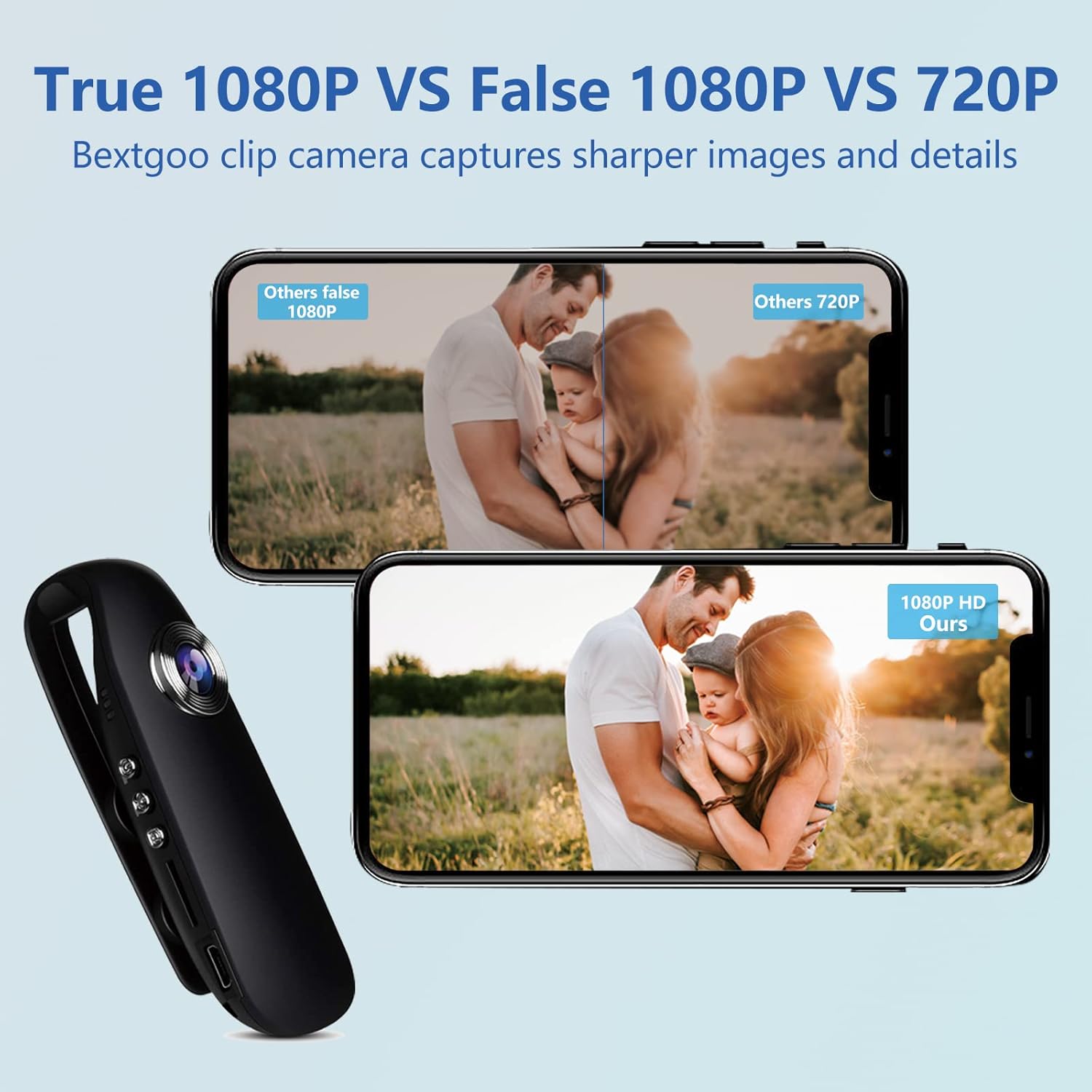
Image 4: A visual comparison demonstrating the superior clarity and detail of the Bextgoo camera's true 1080P video recording compared to lower resolutions or false 1080P.
4.3 Photo Capture (12MP)
The camera can capture 12-megapixel still images.
- Take a Photo: With the camera powered on, press the Photo button once. The indicator light will flash briefly to confirm the photo has been taken.
4.4 PIR Motion Detection Recording
The camera features Passive Infrared (PIR) motion detection, which automatically starts recording when movement is detected.
- Activate PIR Mode: While the camera is in standby mode, press and hold the Motion Detection button (or designated button for PIR) until the indicator light changes, signifying PIR mode is active.
- Deactivate PIR Mode: Press the Motion Detection button again.

Image 5: An illustration showing the camera's smart PIR motion detection feature, which automatically activates recording upon detecting movement.
4.5 Accessing Recorded Files
There are two primary methods to access your recorded videos and photos:
- Direct USB Connection: Connect the camera to your computer using the provided USB cable. The camera will appear as a removable disk, allowing you to browse and transfer files.
- Using the SD Card Reader: Remove the Micro SD card from the camera and insert it into the provided USB card reader. Connect the card reader to your computer to access the files.
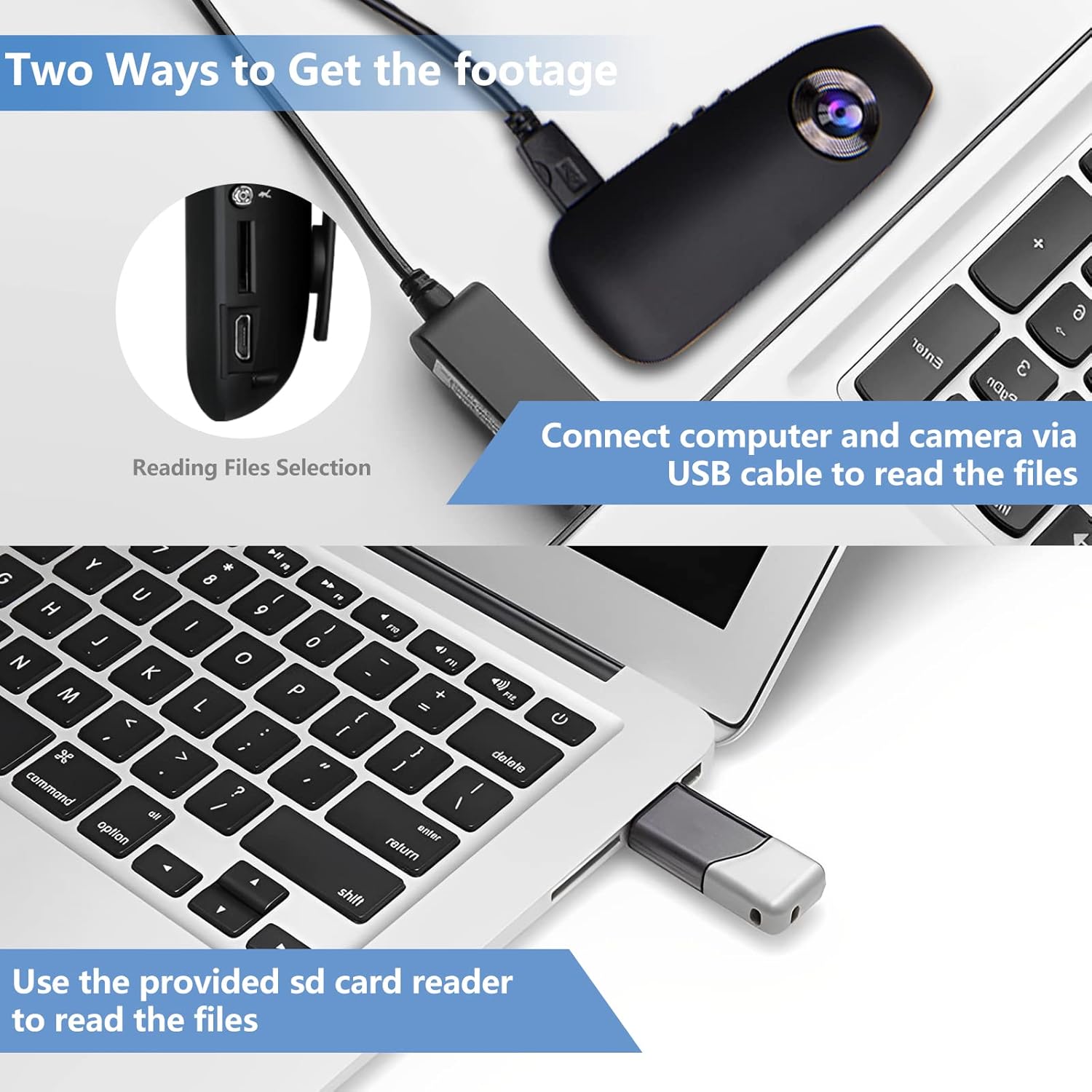
Image 6: Demonstrates two ways to retrieve footage: connecting the camera directly to a computer via USB cable, or using the provided SD card reader.
5. Maintenance
5.1 Cleaning
Use the provided cleaning cloth to gently wipe the camera lens and body. Avoid using harsh chemicals or abrasive materials, which can damage the device.
5.2 Battery Care
To prolong battery life, avoid fully discharging the camera frequently. Store the camera in a cool, dry place when not in use. If storing for extended periods, charge the battery to approximately 50% every few months.
5.3 Storage
Store the camera in a protective case or pouch to prevent scratches and damage. Keep it away from extreme temperatures, humidity, and strong magnetic fields.
6. Troubleshooting
- Camera Not Turning On: Ensure the battery is charged. If fully charged and still unresponsive, try performing a reset using the reset pin.
- Recording Issues (No Video/Photo): Check if the Micro SD card is properly inserted and has sufficient free space. Ensure the camera is not in a low-battery state.
- Poor Indoor Video Quality: The camera performs best in well-lit environments. Indoor recordings may appear darker if lighting conditions are insufficient. Consider adding external lighting if possible.
- Unstable Image When Moving: This camera does not feature image stabilization. When worn on the body or during movement, footage may exhibit natural motion blur or shakiness. For stable footage, minimize movement or use a stationary mounting point.
- Difficulty Understanding Indicator Lights: Refer to the specific section in this manual for detailed explanations of indicator light behaviors for different modes (e.g., charging, recording, standby, PIR).
- Files Not Transferring to Computer: Ensure the USB cable is securely connected to both the camera and the computer. Try a different USB port or cable. If using the card reader, ensure the SD card is correctly inserted into the reader.
7. Specifications
| Model Name | Clip cam-02-DE |
| Brand | Bextgoo |
| Video Resolution | 1080P Full HD (30fps) |
| Photo Resolution | 12 Megapixels |
| Lens Angle | 90° Wide-Angle |
| Dimensions (L x W x H) | 9 x 3.1 x 2.6 cm |
| Weight | Approx. 35g (information from image) |
| Battery Type | Rechargeable Lithium-ion (1.33 Watt-hours) |
| Battery Life | Up to 7 hours (recording) |
| Charging Time | Approx. 1 hour |
| Storage | 32GB Micro SD Card (included) |
| Special Features | PIR Motion Detection, HD Resolution |
| Included Components | Mini Body Camera, 32GB Memory Card, Card Reader, Charging Cable, Cleaning Cloth, Reset Pin, User Manual |
8. Warranty and Support
For warranty information and customer support, please refer to the documentation included with your purchase or visit the official Bextgoo website. Keep your purchase receipt as proof of purchase for any warranty claims.
