
Introduction
This manual provides detailed instructions for the GILAYGROW WDC901 4K Waterproof Camera. Designed for capturing high-quality photos and videos in various environments, including underwater, this camera features 4K video recording, 48MP photo resolution, dual screens for easy selfies, and is waterproof up to 11 feet (3.3 meters) without an additional case. Please read this manual thoroughly to ensure proper operation and maintenance of your device.
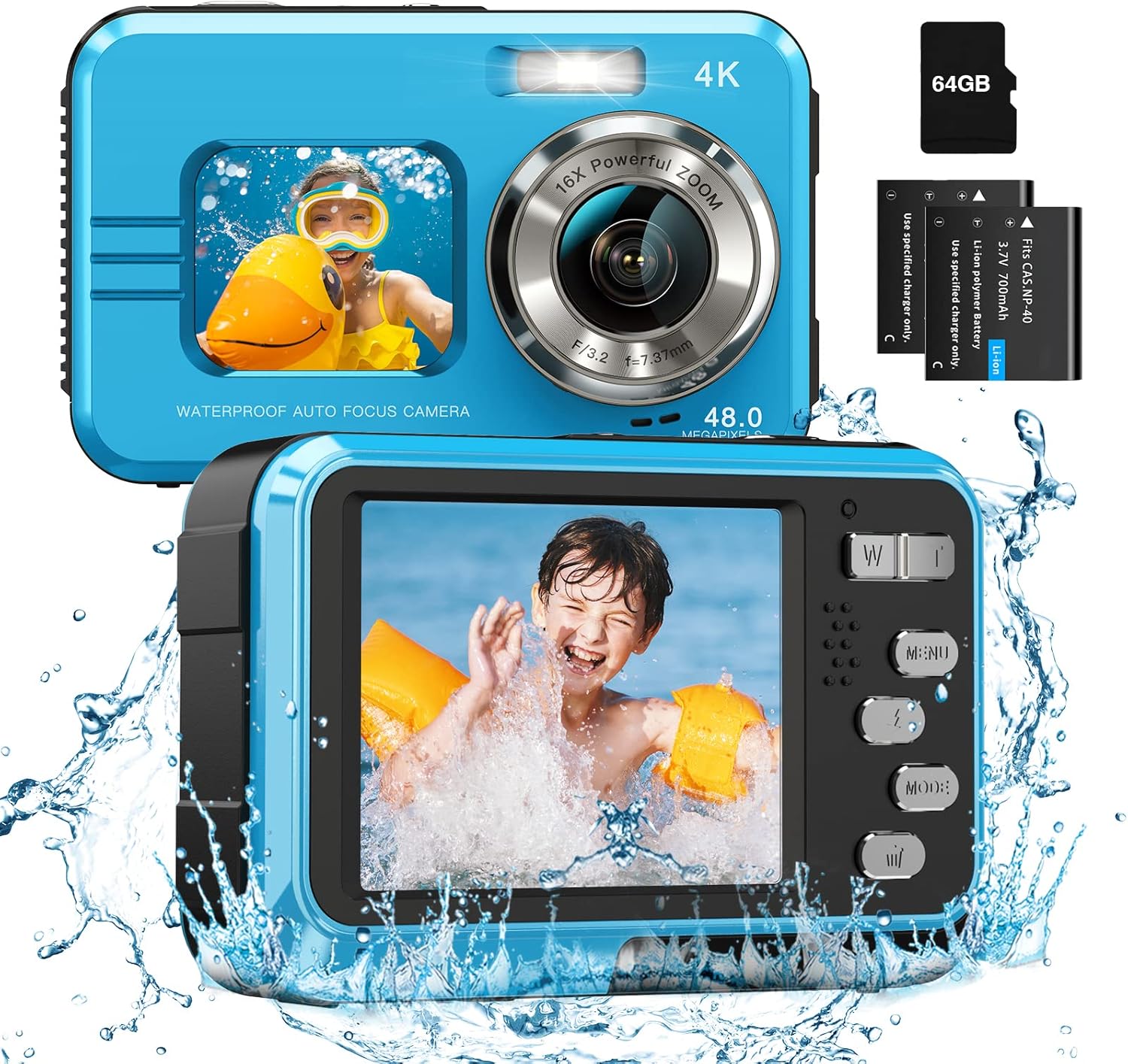
Figure 1: GILAYGROW WDC901 4K Waterproof Camera and accessories.
Package Contents
- GILAYGROW WDC901 4K Waterproof Camera
- 64GB Micro SD Card
- 2 x Lithium-ion Rechargeable Batteries
- USB Charging Cable
- Wrist Strap
- User Manual (this document)
Setup
1. Battery Installation and Charging
The camera uses rechargeable lithium-ion batteries. Ensure batteries are fully charged before first use.
- Open the Battery Compartment: Locate the tiny latch on the side of the camera. Push this latch and hold it. While holding the latch, slide the battery compartment door open.
- Insert Battery: Insert a charged battery into the compartment, ensuring correct polarity.
- Close Compartment: Close the battery compartment door firmly until it clicks into place. Ensure it is securely sealed, especially before underwater use.
- Charging: Connect the camera to a power source using the provided USB cable. The charging indicator light will illuminate.

Figure 2: Steps for opening the battery compartment for installation or removal.
2. Micro SD Card Installation
A 64GB Micro SD card is included. The camera supports up to 64GB cards. Ensure the card is inserted correctly and formatted before use.
- Locate SD Card Slot: The Micro SD card slot is typically located within the battery compartment or on the side, protected by a waterproof seal.
- Insert SD Card: Gently push the Micro SD card into the slot until it clicks.
- Formatting (Important): After inserting a new card or if experiencing issues, format the card via the camera's menu settings. This prepares the card for optimal performance with your camera.
Operating Instructions
1. Power On/Off
Press and hold the Power button (usually marked with a power symbol) to turn the camera on or off.
2. Basic Photo and Video Capture
- Switch Modes: Use the "Mode" button to switch between Photo mode and Video mode.
- Take Photo: In Photo mode, press the Shutter button (usually on top) to capture an image.
- Record Video: In Video mode, press the Shutter button to start recording. Press it again to stop recording.

Figure 3: The camera supports 48MP still images and 4K video recording.
3. Dual Screens and Selfie Mode
The camera features a 2.8-inch rear screen and a 1.7-inch front screen, ideal for selfies.
- Switch Screens: Press the dedicated screen switch button (often labeled with a camera icon or "M" for Mode/Menu, or a specific button on top) to toggle between the front and rear displays.
- Selfie Timer: Utilize the self-timer function (2s/5s/10s) in the menu settings for timed selfies.

Figure 4: Dual screens facilitate easy framing for both regular shots and selfies.
4. Zoom Function
The camera supports up to 16X digital zoom.
- Activate Zoom: Use the W (Wide) and T (Telephoto) buttons, typically located near the shutter button, to zoom in or out.

Figure 5: Demonstrating the 16X digital zoom feature.
5. Waterproof Use
This camera is waterproof up to 11 feet (3.3 meters) without a separate waterproof case.
- Pre-use Check: Before submerging, ensure the battery compartment and any other covers are securely closed and sealed.
- Depth Limit: Do not exceed the 11-foot depth limit to prevent water damage.
- Post-use Care: After use in saltwater, rinse the camera with fresh water and dry thoroughly.

Figure 6: The camera is suitable for snorkeling and other water activities up to 11 feet deep.
6. Additional Features
- Fill Light: Activate the built-in fill light for improved visibility in low-light conditions, especially underwater.
- Anti-Shake: The digital image stabilization helps reduce blur from camera movement.
- Time-Lapse Shooting: Set intervals to capture a series of photos over time.
- Filters: Apply various filters to your photos directly from the camera.
- Smile Capture: The camera can automatically detect and capture a photo when a smile is detected.
- Slow Motion Recording: Record videos in slow motion for dramatic effects.

Figure 7: The camera's smile capture feature.
Maintenance
- Cleaning: Wipe the camera body with a soft, damp cloth. For the lens, use a specialized lens cleaning cloth. Avoid abrasive materials.
- Water Exposure: After using in saltwater, rinse the camera thoroughly with fresh water and allow it to air dry completely before opening any compartments.
- Storage: Store the camera in a cool, dry place away from direct sunlight and extreme temperatures. Remove batteries if storing for extended periods.
- SD Card Care: Handle the Micro SD card carefully. Avoid touching the metal contacts.
Troubleshooting
| Problem | Possible Cause | Solution |
|---|---|---|
| Camera does not power on. | Battery is depleted or incorrectly inserted. | Charge the battery. Ensure the battery is inserted with correct polarity. |
| Photos/Videos are not saving. | SD card is full, corrupted, or not formatted. | Check SD card capacity. Format the SD card via camera settings. Try a different SD card. |
| Menu freezes or camera becomes unresponsive. | Temporary software glitch. | Remove and reinsert the battery to reset the camera. |
| Water inside the camera. | Battery/SD card compartment not properly sealed; exceeded depth limit. | Immediately power off the camera, remove battery and SD card, and allow to dry completely. Contact customer support if damage persists. Always ensure seals are secure before water use. |
| Images are blurry. | Lens is dirty; insufficient light; camera shake. | Clean the lens. Use the fill light in low-light conditions. Hold the camera steady or use anti-shake feature. |
Specifications
| Feature | Detail |
|---|---|
| Brand | GILAYGROW |
| Model Name | Underwater Camera (WDC901) |
| Effective Still Resolution | 48 MP |
| Video Resolution | 4K (2160p) |
| Water Resistance Level | Waterproof (up to 11 feet / 3.3 meters) |
| Digital Zoom | 16x |
| Front Screen Size | 1.7 Inches |
| Rear Screen Size | 2.8 Inches |
| Memory Storage Capacity | 64 GB (Micro SD card included) |
| Battery Type | Lithium-ion rechargeable battery (2 included) |
| Connectivity Technology | Micro USB |
| Image Stabilization | Digital |
| Auto Focus Technology | Contrast Detection |
| Special Features | Dual Screen, Face Detection, Anti-Shake, Selfie, Time-lapse, Slow Motion Recording, Fill Light |
Warranty and Customer Support
GILAYGROW provides an 18-month replacement policy and a lifetime warranty for this product. For any issues, questions, or support needs, please contact the GILAYGROW customer support team.
Email: support@gilaygrow.com
The customer support team is dedicated to providing high-quality assistance and is available to help with damaged or defective items, missing accessories, or any other concerns.