Product Overview
The JIAN BOLAND U1C is a wired 1D CCD barcode scanner designed for efficient and accurate scanning of various 1D barcodes from both paper and digital screens. Its plug-and-play design ensures easy setup and compatibility with multiple operating systems, making it suitable for diverse environments such as retail stores, supermarkets, warehouses, and libraries.

Figure 1: JIAN BOLAND U1C 1D Wired Barcode Scanner with USB cable.
Key Features
- Plug and Play: Easy installation via wired USB port, no drivers or software needed.
- Screen Scanning Capability: Advanced CCD sensor allows scanning of 1D codes from screens and paper, including distorted, wrinkled, dirty, or reflective barcodes.
- High Compatibility: Supports Windows, Mac, and Linux operating systems, compatible with common software like Word, Excel, and Novell.
- Extensive Barcode Support: Reads EAN, UPC, Code 39, Code 93, Code 128, UCC/EAN 128, Codabar, Interleaved 2 of 5, ITF-6, ITF-14, ISBN, ISSN, MSI-Plessey, GS1 Databar, GS1 Composite Code, Code 11, Industrial 25, Standard 25, Plessey, Matrix 2 of 5.
- Ergonomic and Durable Design: Constructed from high-quality ABS + PC material for comfortable handling and resistance to 1.5M (4.9 ft) drops onto cement.
- Fast Scan Rate: 300 scans per second with a recognition distance of up to 20cm.
Package Contents
Verify that all items are present in your package:
- JIAN BOLAND U1C Barcode Scanner
- USB Cable (2m/6.5ft)
- User Manual
- Certificate
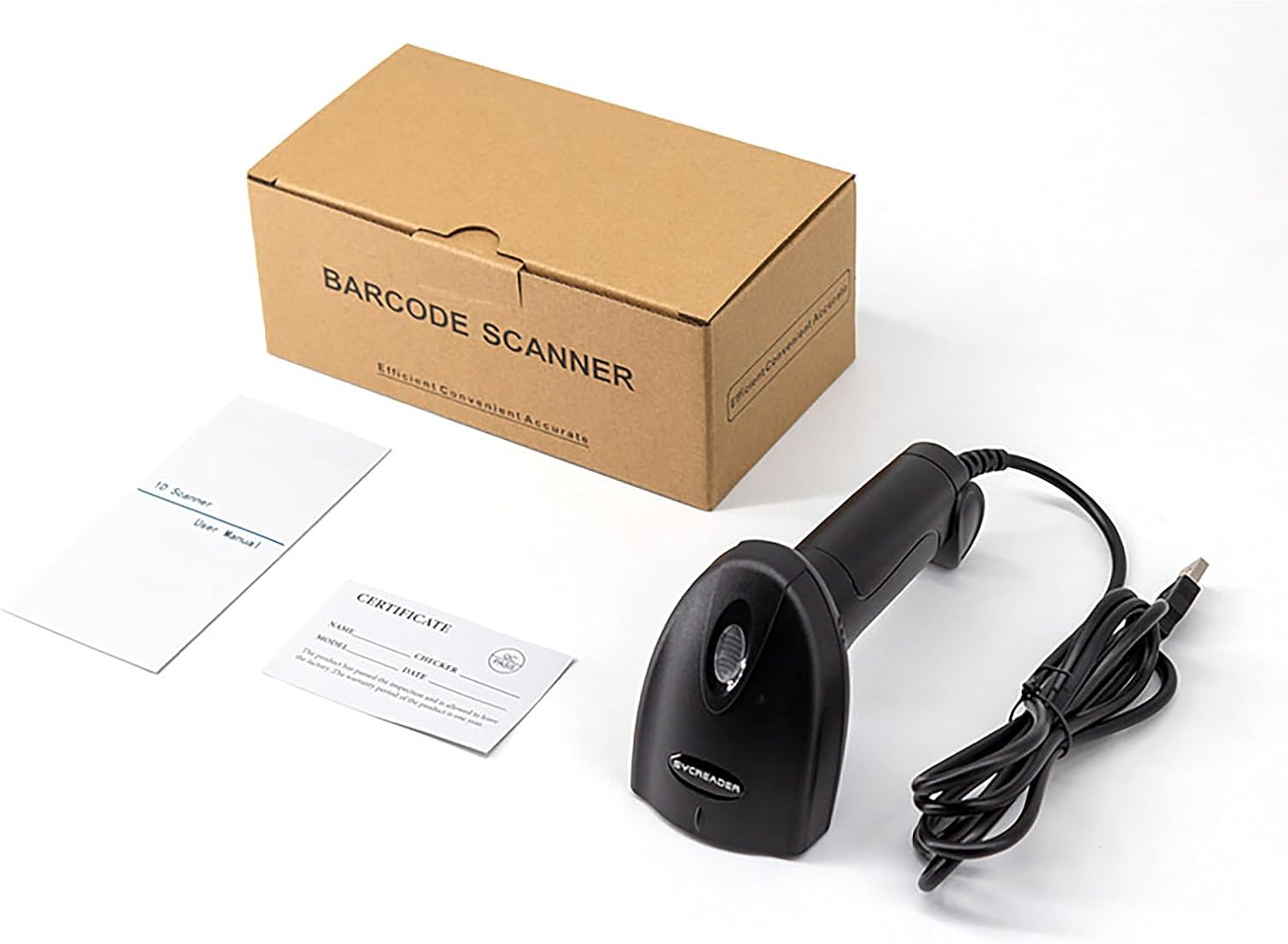
Figure 2: Contents of the JIAN BOLAND U1C package, including the scanner, USB cable, user manual, and certificate.
Setup Guide
- Connect the Scanner: Insert the USB cable into the scanner's port and then plug the other end into an available USB port on your computer (PC, Mac, or Linux).

Figure 3: The scanner connects directly to a PC/POS system via USB cable, requiring no additional drivers or software.
- System Recognition: Your operating system will automatically detect and install the necessary drivers. This is a plug-and-play device, so no manual driver installation is typically required.
- Prepare for Scanning: Open any text editor, spreadsheet program (e.g., Word, Excel), or POS software where you intend to input scanned barcode data. Ensure the cursor is active in the desired input field.
Operating Instructions
- Hold the Scanner: Grip the scanner comfortably in your hand. The ergonomic design is intended for extended use.
- Aim at the Barcode: Point the scanner's red light sensor directly at the 1D barcode you wish to scan. Ensure the entire barcode is within the scanning beam.
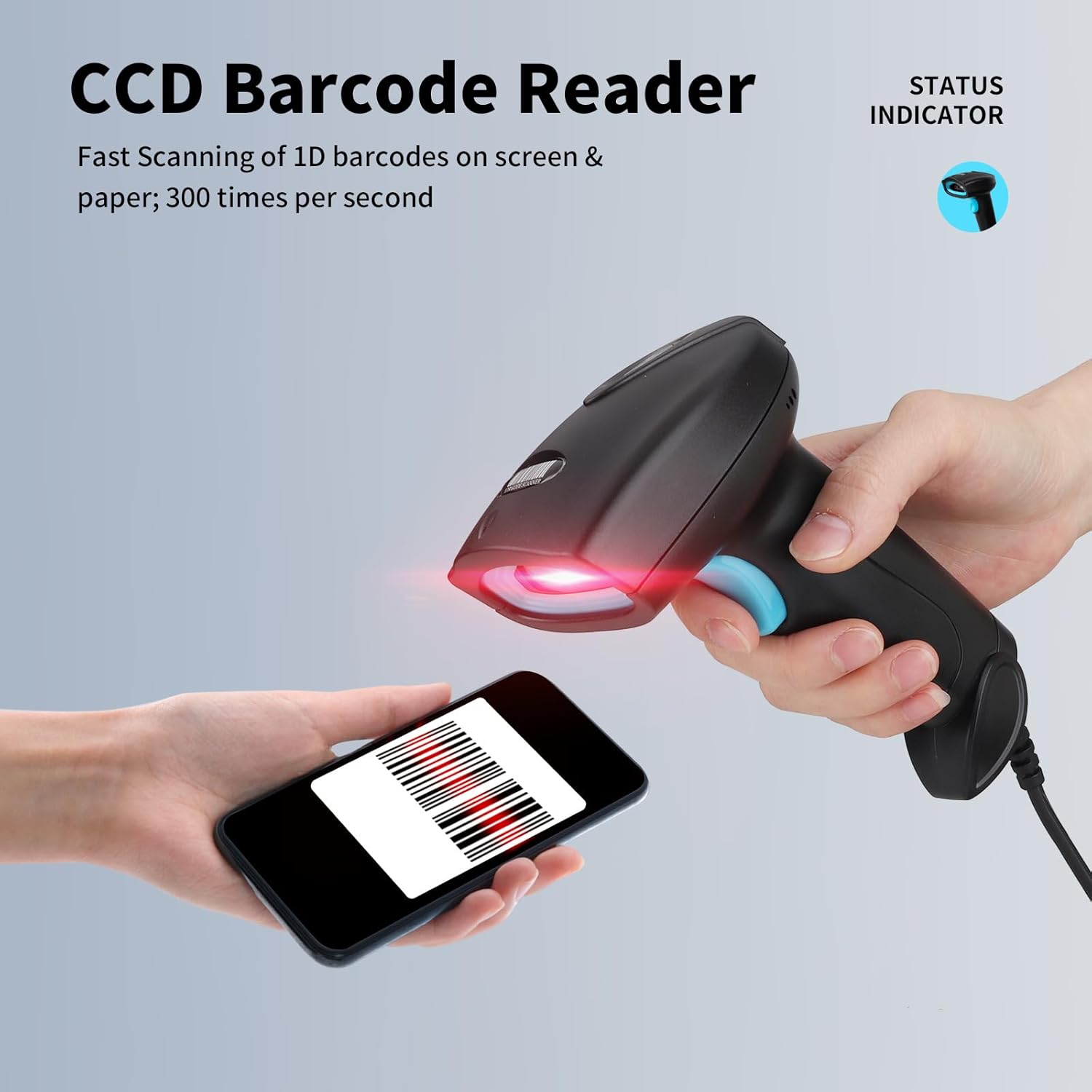
Figure 4: The CCD sensor enables fast scanning of 1D barcodes from both physical paper and digital screens.
- Press the Trigger: Press the blue trigger button located on the handle. A successful scan will typically be indicated by a beep and the barcode data appearing in your active application.
- Scanning Different Barcode Conditions: The scanner is capable of reading barcodes that are incomplete, reflective, distorted, smudged, blurred, or have color variations. It does not support QR code scanning.

Figure 5: The scanner's decoding ability handles various barcode imperfections, but does not scan QR codes.
- Applications: This scanner is ideal for various applications including scan-to-pay, parcel dispatch, logistics, and warehouse inventory management.

Figure 6: Common uses include retail, shipping, and inventory tracking.
Video Demonstration: JIAN BOLAND U1 1D Wired Bar Code Reader
Video 1: This video demonstrates the JIAN BOLAND U1 1D Wired Bar Code Reader in action, showcasing its ability to scan various types of 1D barcodes, including those that are bent, colored, or reflective, and from screens. It highlights the scanner's quick and accurate data entry into a computer.
Maintenance
- Cleaning: Use a soft, dry cloth to clean the scanner's exterior. For the scanning window, use a lens cleaning cloth to avoid scratches. Do not use abrasive cleaners or solvents.
- Storage: Store the scanner in a cool, dry place away from direct sunlight and extreme temperatures.
- Cable Care: Avoid bending or twisting the USB cable excessively to prevent internal damage.
Troubleshooting
| Problem | Possible Cause | Solution |
|---|---|---|
| Scanner not recognized by computer. | Loose USB connection; faulty USB port; operating system issue. | Ensure USB cable is securely plugged into both the scanner and the computer. Try a different USB port. Restart your computer. |
| Cannot scan barcodes. | Barcode damaged or unreadable; incorrect scanning angle; scanner malfunction. | Ensure the barcode is clear and undamaged. Adjust the scanning angle and distance. Verify the scanner's red light is active when the trigger is pressed. Test with a known good barcode. |
| Scanned data is incorrect or incomplete. | Partial scan; software settings. | Ensure the entire barcode is covered by the scanning beam. Check your application's input settings. |
| No sound after scanning. | Buzzer disabled or faulty. | Refer to the included instruction sheet for barcode settings to enable or adjust the buzzer volume. |
Specifications
| Feature | Detail |
|---|---|
| Model Number | U1C |
| Dimensions | 2.5 x 3.5 x 6 inches (66mm x 95mm x 165mm) Figure 7: Detailed dimensions of the scanner. |
| Item Weight | 6.3 ounces |
| Scan Rate | 300 scans/second |
| Recognition Distance | Up to 20cm |
| Connectivity | Wired USB Cable (2m/6.5ft) |
| Sensor Type | CCD (Charge-Coupled Device) Figure 8: The high-precision CCD scan head ensures accurate reading. |
| Supported OS | Windows, Mac, Linux |
| Material | ABS + PC (High strength shell, IP54) Figure 9: The scanner's robust ABS+PC material allows it to withstand drops from 1.5 meters (4.9 feet). |
| Supported 1D Barcodes | EAN, UPC, Code 39, Code 93, Code 128, UCC/EAN 128, Codabar, Interleaved 2 of 5, ITF-6, ITF-14, ISBN, ISSN, MSI-Plessey, GS1 Databar, GS1 Composite Code, Code 11, Industrial 25, Standard 25, Plessey, Matrix 2 of 5 |
Warranty and Support
For warranty information and technical support, please contact JIAN BOLAND customer service through the retailer where the product was purchased or visit the official JIAN BOLAND store on Amazon: JIAN BOLAND Store.
Please retain your purchase receipt as proof of purchase for warranty claims.


