Introduction
The MAIWO K35282C is a premium aluminum USB-C 3.1 external enclosure designed for two 3.5" SATA HDDs, featuring RAID support. It provides a high-speed data transfer rate of 10 Gbps and supports a total storage capacity of up to 36 TB. Constructed from lightweight aluminum, this enclosure is durable and easy to handle. Its elegant silver design is compatible with all devices featuring a USB-C connection.
Package Contents
- MAIWO K35282C External Enclosure
- USB-C to USB-C Cable
- Power Adapter
- Screws and Screwdriver (for HDD installation)
- User Manual
Setup and Installation
1. Installing 3.5" SATA HDDs
This enclosure supports two 3.5" SATA Hard Disk Drives (HDDs). Ensure your HDDs are compatible before installation.
- Carefully open the enclosure to access the drive bays.
- Slide each 3.5" SATA HDD into an available bay, ensuring the SATA connectors align correctly.
- Secure the HDDs using the provided screws.
- Close the enclosure securely.
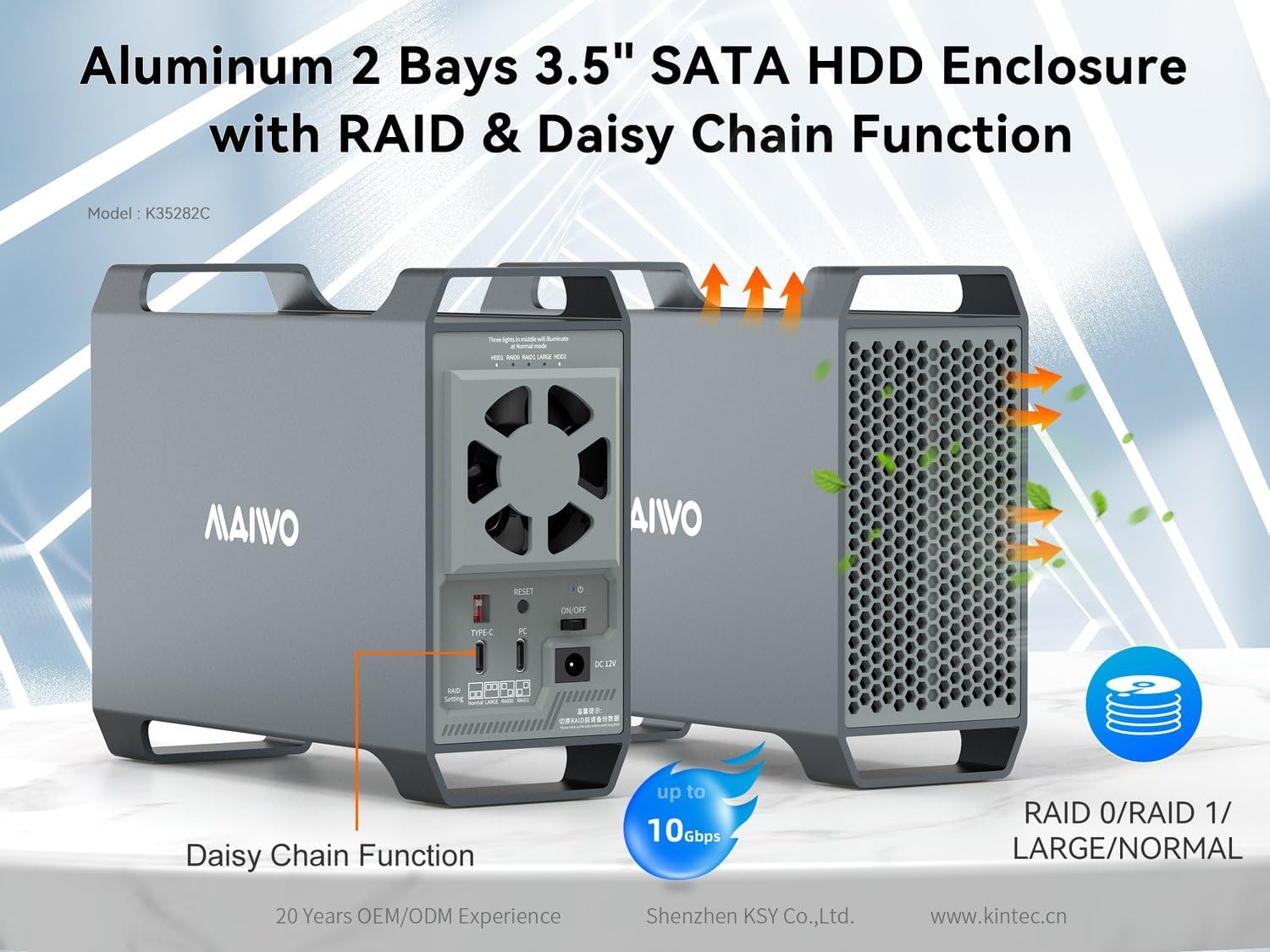
Figure 1: Overview of the MAIWO K35282C enclosure, illustrating the drive bays and external features.
2. Connecting to Your Computer
- Connect the provided power adapter to the DC 12V power interface on the back of the enclosure and then to a power outlet.
- Connect one end of the USB-C cable to the Type-C port on the enclosure.
- Connect the other end of the USB-C cable to an available USB-C port on your computer.
- Turn on the main power switch located on the back of the enclosure.

Figure 2: Rear panel connections and controls.

Figure 3: Power supply connection and safety features.
Operating Instructions
1. RAID Mode Configuration
The MAIWO K35282C supports multiple RAID modes to optimize storage for performance or data redundancy. Use the RAID mode switch buttons on the back panel to select your desired mode. After changing the RAID mode, you must press the RESET button to apply the changes. Refer to Figure 2 for button locations.
- NORMAL: Each HDD operates independently.
- LARGE: Combines the capacity of both HDDs into a single large volume. No data redundancy.
- RAID 0: (Striping) Combines both HDDs for maximum speed and capacity. No data redundancy; failure of one drive results in data loss.
- RAID 1: (Mirroring) Duplicates data across both HDDs for data redundancy. Capacity is limited to the size of one drive.
The RAID indicators on the back panel (refer to Figure 2) will show the current RAID status.
2. Data Transfer
The enclosure utilizes a USB-C 3.1 interface, providing a high data transfer speed of up to 10 Gbps. This allows for rapid transfer of large files, such as movies and photos.

Figure 4: High-speed data transmission capabilities.
3. Power Management
The enclosure supports automatic power on/off synchronization with your computer. When the data cable is linked to the computer and the main power switch on the device is turned on, the enclosure will power on with your computer and shut down when your computer is powered off.

Figure 5: Automatic power synchronization with computer.
Maintenance
1. Cooling System
The MAIWO K35282C features an intelligent temperature-sensitive design. The cooling system activates automatically when the internal temperature reaches 48°C to ensure optimal operating conditions and prolong the lifespan of your HDDs. Below 48°C, the system operates quietly without active cooling.

Figure 6: Intelligent temperature control for efficient cooling.
2. General Care
- Keep the enclosure in a well-ventilated area to assist with heat dissipation.
- Avoid exposing the device to extreme temperatures, humidity, or direct sunlight.
- Clean the exterior with a soft, dry cloth. Do not use liquid cleaners.
Troubleshooting
- Device not recognized: Ensure all cables are securely connected. Try a different USB-C port on your computer. Verify the enclosure's power switch is ON.
- HDDs not appearing: Check if the HDDs are properly installed and secured within the bays. For new HDDs, they may need to be initialized and formatted through your operating system's Disk Management utility.
- Slow transfer speeds: Ensure you are using a USB-C 3.1 compatible port and cable. Older USB standards will result in lower speeds.
- RAID configuration issues: After changing RAID mode, always press the RESET button on the back panel. If issues persist, consult the detailed RAID setup guide (if provided separately by MAIWO) or reset to a single disk mode to verify individual drive functionality.
- Automatic power on/off not working: Ensure the data cable is connected to the computer and the main power switch on the enclosure is ON.
Specifications
| Model | K35282C |
| Brand | MAIWO |
| Material | Aluminum |
| Supported Drives | 2x 3.5" SATA HDD |
| Max Capacity | Up to 36 TB (total) |
| Interface | USB-C 3.1 (10 Gbps) |
| Data Transfer Speed | 10 Gigabit per second |
| RAID Support | RAID 0, RAID 1, LARGE, NORMAL |
| Compatible Devices | Laptop, Personal Computer, Desktop Computer (Universal platform) |
| Item Weight | 900 Grams |
Warranty and Support
For warranty information and technical support, please refer to the documentation included with your product or visit the official MAIWO website. Keep your purchase receipt for warranty claims.


