
1. Introduction
Thank you for choosing the Koiiko D7-Green Light Phone Game Controller. This manual provides detailed instructions for setting up, operating, and maintaining your new game controller. Designed for a wide range of devices including iPhone, Android phones and tablets, PC, and Nintendo Switch, this controller enhances your mobile gaming experience with advanced features like a transparent shell, green light effects, turbo function, 6-axis gyro, and dual motor vibration.
Please read this manual thoroughly before use to ensure proper functionality and to maximize your gaming enjoyment.

Image 1.1: Koiiko D7-Green Light Phone Game Controller with a smartphone.
2. Product Features
- Matte Transparent Shell & Green Light Effect: Unique design with a transparent shell and green LED lighting on the joystick, D-pad, and ABXY buttons.
- Wide Compatibility: Connects wirelessly to iOS (iPhone, iPad), Android (phones, tablets), PC, Nintendo Switch, PS3, and PS4. Supports streaming on PS5/Xbox/PC consoles.
- Cloud Gaming Support: Compatible with major cloud gaming platforms such as Nvidia GeForce Now, Xbox Cloud Gaming, Amazon Luna, Google Stadia, Rainway, and Moonlight.
- Console Streaming: Transform your phone into a gaming console by streaming games from your PS5/PS4, Xbox Series/Xbox One, and PC via PS Remote Play, Xbox App, or Steam Link.
- Adjustable Turbo Function: Features manual and auto turbo with three speed levels for competitive advantage in FPS and action games.
- Dual Motor Vibration: Provides precise haptic feedback for an immersive gaming experience (supported on PC, PS3, PS4, NS-Switch).
- 6-Axis Gyro: High-precision motion sensing for fine-tuning in FPS games and built-in steering control in racing games.
- Ergonomic Design: Analog triggers, Hall Effect joysticks, and responsive buttons for comfortable and precise control.
- Long Battery Life: Up to 10-15 hours of playing time on a single charge (600 mAh battery).
- Smartphone Fit: Adjustable phone clamp panel supports phones with thin protective cases, accommodating devices from 127mm to 180mm in width, with a sunken design for phone cameras.

Image 2.1: Multi-functional compatibility of the Koiiko D7-Green Light controller.

Image 2.2: Detailed view of controller components and features.
3. Components and Layout
The Koiiko D7-Green Light controller includes the following:
- Koiiko D7-Green Light Phone Game Controller
- USB Type-C Charging Cable
- AAA Batteries (1 included)
Controller Layout

Image 3.1: Koiiko D7-Green Light Controller Key Description.
- L3/R3: Left/Right Joystick Press
- Direction Keys: Up, Down, Left, Right
- Switch Mode Button: For Nintendo Switch connection
- V3 Mode Button: For specific Android modes and firmware upgrades
- Bluetooth Key: For wireless connection
- ABXY Keys: Action buttons
- SELECT/START Buttons: Standard game control buttons
- TURBO Button: Activates turbo function
- LB/RB: Left/Right Bumper buttons
- LT/RT: Left/Right Trigger buttons (Analog)
- Type-C Charging Port: For charging the controller
- Reset Button: Located near the charging port, used to resolve connection issues.
4. Setup
4.1 Initial Charging
Before first use, fully charge the controller. Connect the provided USB Type-C cable to the controller's charging port and a power source (e.g., USB wall adapter, computer USB port). The charging indicator light will show the charging status.
4.2 Installing Your Smartphone
The controller features an adjustable phone clamp. Gently extend the controller to fit your smartphone. The design includes a sunken area on the left side to accommodate your phone's camera, ensuring a secure fit for devices between 127mm and 180mm in width.
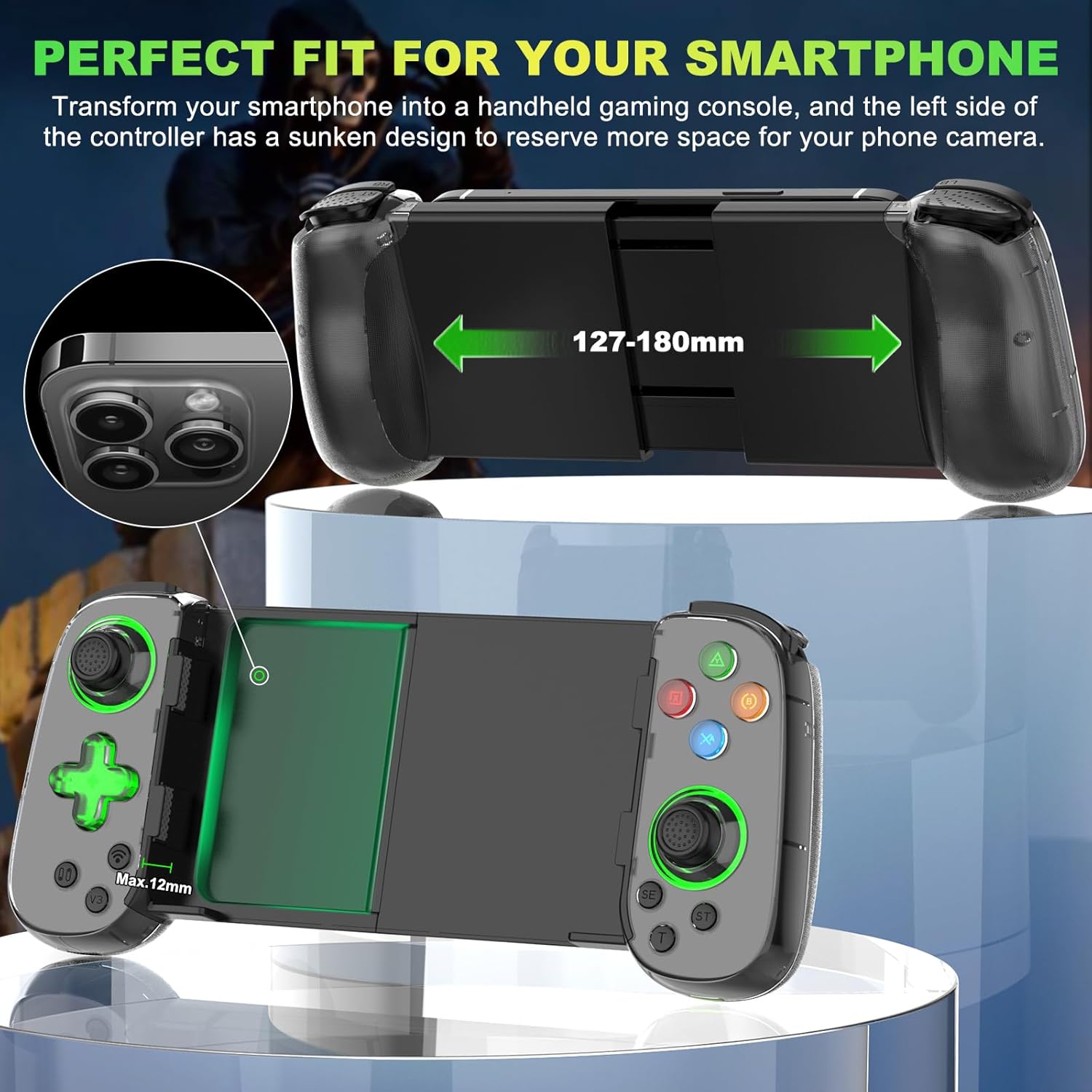
Image 4.1: Smartphone installation and fit.
5. Operating Instructions
5.1 Connecting the Controller
Ensure the controller is switched off before initiating any connection process.

Image 5.1: General connection methods for various platforms.
- iOS/Android/PC (Bluetooth Mode - X-input Key):
- Press the 'Bluetooth' key on the controller.
- On your iOS/Android/PC device, search for and connect to 'Xbox Wireless Controller' in your Bluetooth settings.
- The indicator light will remain on once connected.
- Android (Pro Controller Mode):
- If your Android device has another boot mode for different games, press the 'V3' key to boot the controller.
- Then, connect to 'Pro Controller' in your Android device's Bluetooth settings.
- Nintendo Switch:
- Press the 'N+S' key to boot the controller.
- On your Switch console, navigate to 'Controllers' > 'Change Grip/Order'.
- The controller will automatically connect. The indicator light will remain on. (Note: 'N+S' key is also the 'HOME' key).
- PS4/PS5 (Wired Connection):
- Open the PS4 console > 'Settings' > 'Devices' > 'Controllers' > 'Communication Method' > 'Use USB Cable'. Turn off your original controller.
- Connect the Type-C cable to the D7 controller and the USB interface of the PS4/PS5 console.
- Press the 'Bluetooth' key on the D7 controller. The controller will automatically connect to the PS4/PS5 console. The indicator light will remain on.
5.2 Console Streaming (PS Remote Play, Xbox Remote Play, Steam Link)

Image 5.2: Streaming connection methods.
- PS Remote Play:
- Connect the D7 controller by pressing and holding the 'L3' key, then the 'Bluetooth' key to boot. Connect to 'DUALSHOCK 4 Wireless Controller' (iOS) or 'Wireless Controller' (Android) via Bluetooth.
- Open the PS Remote Play mobile app.
- Log in to your PS account and tap the console you want to play on. Ensure your console is on or in rest mode.
- Start a new game or jump back in.
- Xbox Remote Play:
- Connect the D7 controller by pressing the 'Bluetooth' key to boot. Connect to 'Xbox Wireless Controller' via Bluetooth.
- Open the Xbox mobile app.
- Select the console you want to play on and tap 'Remote play on this device'. Your console must be connected to the internet.
- Start playing.
- Steam Link:
- Connect the D7 controller by pressing the 'Bluetooth' key to boot. Connect to 'Xbox Wireless Controller' via Bluetooth.
- Open the Steam Link mobile app.
- Tap 'Start Playing' and you'll be launched into your Steam library. Ensure your PC is powered on and Steam is running.
- Start playing.
5.3 Turbo Function
The Turbo function allows for rapid, repeated input of a button press, useful in games requiring quick actions.

Image 5.3: Turbo function setup.
- To activate Turbo: Press the 'T' button + a function button (e.g., 'A' button). The setting is now active.
- To use Auto Turbo: Press and hold the 'A' button to automatically release the 'A' button function.
- To cancel Auto Turbo: Press the 'A+T' button again to cancel the automatic release function.
5.4 6-Axis Gyro and Dual Motor Vibration
The controller features a 6-axis gyro for precise motion control and dual motors for haptic feedback.

Image 5.4: 6-Axis Gyro and Dual Motor Vibration features.
- 6-Axis Gyro: Provides fine-tuning and precise aiming in FPS games, and intuitive steering control in racing games by tilting the controller.
- Dual Motor Vibration: Delivers tactile feedback during gameplay, enhancing immersion. This feature is supported on PC, PS3, PS4, and Nintendo Switch.
6. Compatibility
The Koiiko D7-Green Light controller offers broad compatibility across various platforms and devices.

Image 6.1: Supported gaming platforms and services.
- Direct Wireless Connection: iOS (iPhone 11-15 series, iPhone SE, etc.), Android (Samsung Galaxy S21-S23 series, Google Pixel, TCL, Huawei, OPPO, VIVO, LG, Xiaomi, OnePlus, Motorola), PC, Nintendo Switch, PS3, PS4.
- Cloud Gaming: Nvidia GeForce Now, Xbox Cloud Gaming, Amazon Luna, Google Stadia, Rainway, Moonlight.
- Console Streaming: PS Remote Play (for PS4/PS5), Xbox App (for Xbox Series/Xbox One), Steam Link (for PC).
Important Notes:
- PS5 only supports streaming via PS Remote Play, not direct connection.
- Xbox games via Xbox Remote Play do not support direct wireless/wired connection to the Xbox console.
- The stretch design works with Nintendo Switch and Switch OLED.
- The stretch design does not accommodate iPad and does not support Apple TV & iPod and Fire TV.

Image 6.2: Compatible smartphone models.
7. Maintenance
To ensure the longevity and optimal performance of your Koiiko D7-Green Light controller, follow these maintenance guidelines:
- Cleaning: Use a soft, dry cloth to wipe the controller. Avoid using harsh chemicals, solvents, or abrasive cleaners.
- Storage: Store the controller in a cool, dry place away from direct sunlight, extreme temperatures, and high humidity.
- Battery Care: If not used for extended periods, charge the controller at least once every three months to maintain battery health.
- Handling: Avoid dropping the controller or subjecting it to strong impacts, which can damage internal components.
8. Troubleshooting
If you encounter issues with your Koiiko D7-Green Light controller, refer to the following troubleshooting steps:
8.1 Connection Issues
- Controller not connecting: Ensure the controller is fully charged. Turn off and restart the controller. Delete any previously paired controllers from your device's Bluetooth list and attempt to reconnect.
- Difficulty syncing: Some users reported initial syncing issues. Try the connection process a second time if the first attempt fails.
- Reset Button: If the controller is unresponsive or cannot connect, locate the small reset button near the Type-C charging port. Use a thin tool (like a paperclip) to press and hold the reset button for a few seconds. This will restart the controller.
8.2 PS Remote Play Issues
If the controller does not work correctly in PS Remote Play:
- Ensure your PS Console and PS Remote Play app are properly set up.
- Download the 'ShootingPlus V3' app on your Android device to upgrade the controller firmware.
8.3 Firmware Upgrade
To upgrade the D7 controller firmware:

Image 8.1: Firmware upgrade process.
- Go to the Google Play Store on your Android device and install 'Shooting Plus V3'.
- Press the 'V3' key on the controller for 5 seconds to boot it until the blue indicator light flashes quickly.
- Turn on Bluetooth on your Android device and connect to 'D6'. Once connected, the blue light will remain on. (If 'D6' is not indicated, remove any paired controllers from Bluetooth and reconnect).
- Open the V3 app. You should see 'D6 connected'.
- Click 'Setting' > 'Upgrade Beta' > 'Firmware upgrade' > Enter 'Upgrade Password' 123 and wait for the controller to be upgraded successfully.
- Specific upgrade tutorials may be available from the product's online documentation.
9. Specifications
| Feature | Specification |
|---|---|
| Model Number | Q11B |
| Package Dimensions | 8.66 x 3.82 x 1.93 inches |
| Item Weight | 8.47 ounces |
| Battery | 1 AAA battery (included) |
| Battery Capacity | 600 mAh |
| Playing Time | 10-15 hours |
| Charging Time | 2-3 hours |
| Manufacturer | ShenZhen ShanWan Technology Co., Ltd. |
| Date First Available | May 25, 2024 |
10. Warranty and Support
For warranty information or technical support, please refer to the product packaging or contact Koiiko customer service directly. Keep your purchase receipt for warranty claims.
For further assistance, visit the official Koiiko store or contact the seller through your purchase platform.
