
1. Introduction
The Novzix S1 Smart Tracker Tag is designed to help you locate your belongings using the Google Find My Device network. This 2026 model offers stable performance and integrates seamlessly with Android devices running Android 9 and above. Its compact and durable design, featuring water and dust resistance, makes it suitable for various daily scenarios.

Figure 1: Versatile Use Cases for the Novzix S1 Smart Tracker Tag
2. Package Contents
Please check the package for the following items:
- Novzix S1 Tracker Tag (battery included)
- Keychain
- Instruction Manual (this document)
- Extra replacement battery

Figure 2: Novzix S1 Smart Tracker Tag Package Contents
3. Setup Instructions
To begin using your Novzix S1 Smart Tracker Tag, follow these steps to connect it with your Android device via the Google Find My Device app.
- Compatibility Check: Ensure your Android device is running Android 9 or above. Some devices may require system updates for optimal compatibility.
- Download the App: Download and install the "Google Find My Device" app from the Google Play Store on your Android smartphone or tablet.
- Enable Bluetooth: Make sure Bluetooth is enabled on your Android device.
- Activate the Tracker: The Novzix S1 Tracker Tag comes with a pre-installed battery. If it's not already active, press the button on the tracker to wake it up.
- Open Find My Device App: Launch the Google Find My Device app. You may need to sign in with your Google account.
- Add New Device: Follow the in-app instructions to add a new device. The app should detect your Novzix S1 Tracker Tag nearby.
- Pairing: Select your Novzix S1 Tracker Tag from the list of available devices and follow the prompts to complete the pairing process.
- Name Your Tracker: Once paired, you can name your tracker (e.g., "Keys," "Wallet," "Backpack") within the app for easy identification.
Note: The setup process requires a few steps and a short configuration time. Clear instructions are provided within the Google Find My Device app.

Figure 3: Integrating with Google Find My Device App
4. Operating Instructions
The Novzix S1 Smart Tracker Tag utilizes the Google Find My Device network to help you locate your items.
4.1. Global Tracking
Leveraging over a billion Android devices worldwide, the Google Find My Device network allows for crowdsourced tracking. This means you can locate your items globally, even if they are far from your own device. The app provides location updates every 3-30 minutes.

Figure 4: Global Tracking via Google Find My Device
4.2. Find Nearby
When your item is within Bluetooth range, you can use the "Play Sound" feature in the Google Find My Device app to make your tracker emit an audible alert, helping you pinpoint its exact location. The app may also provide visual cues indicating proximity.

Figure 5: Using the "Play Sound" Feature to Locate Nearby Items
4.3. Loss Prevention Alerts
The Novzix S1 can alert you if you leave an item behind or if it moves away from your designated safe zone. This feature helps prevent loss by notifying you promptly.
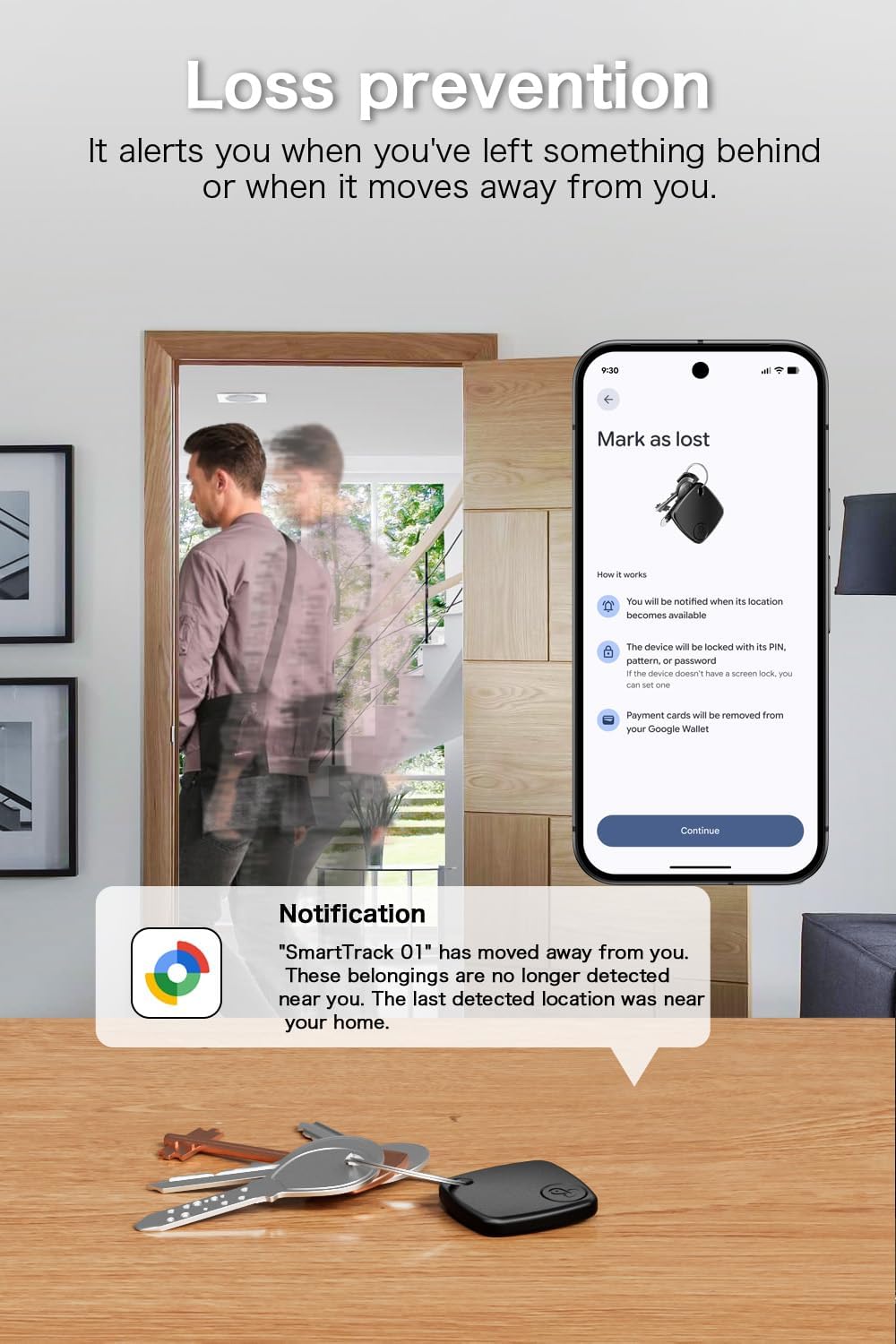
Figure 6: Loss Prevention Notification Example
5. Maintenance and Battery Replacement
The Novzix S1 Smart Tracker Tag is designed for low power consumption, providing approximately one year of battery life. It uses a replaceable battery.
5.1. Battery Type and Replacement
The tracker uses CR2 batteries. An extra replacement battery is included in your package. To replace the battery:
- Carefully open the tracker casing. Refer to the diagram below for component identification.
- Remove the old CR2 battery.
- Insert the new CR2 battery, ensuring correct polarity.
- Close the tracker casing securely.

Figure 7: Internal Components and Battery Location
5.2. Durability
The Novzix S1 is constructed with high-quality materials, offering water and dust resistance. This design allows it to withstand various environmental conditions, including rain and outdoor use.
6. Troubleshooting
If you encounter issues with your Novzix S1 Smart Tracker Tag, please refer to the following common problems and solutions:
| Problem | Possible Cause | Solution |
|---|---|---|
| Tracker not connecting to phone. | Bluetooth is off; app not installed; tracker battery low; device not compatible. | Ensure Bluetooth is on. Install "Google Find My Device" app. Check battery level and replace if necessary. Verify Android 9+ compatibility. |
| Cannot hear the tracker's sound. | Tracker is out of Bluetooth range; sound volume too low; obstruction. | Move closer to the tracker. Ensure the sound feature is activated in the app. Check for physical obstructions. |
| Location updates are inaccurate or slow. | Limited network coverage; tracker is in an area with few Android devices. | Location updates depend on the density of the Google Find My Device network. Updates occur every 3-30 minutes. |
| Battery drains quickly. | Frequent use of sound feature; old battery. | Reduce frequent "Play Sound" activations. Replace battery with a new CR2 battery. |
7. Specifications
| Model Number | S1 |
| Brand | Novzix |
| Compatible Devices | Android phones (Android 9 and above), Google Pixel, Samsung Phone |
| Connectivity Technology | NFC, Wireless (Bluetooth) |
| Battery Type | CR2 (3 batteries required, 1 pre-installed, 1 spare included) |
| Estimated Battery Life | Up to 1 year |
| Material | Plastic |
| Item Weight | 2.39 ounces |
| Dimensions | 3.46 x 2.8 x 1.42 inches (Package Dimensions) |
| Water/Dust Resistance | Yes (designed to withstand rain and outdoor conditions) |
8. Safety Information
- Keep the device and its accessories out of reach of small children and pets.
- Do not attempt to disassemble, modify, or repair the device yourself.
- Avoid exposing the device to extreme temperatures, direct sunlight, or open flames.
- Dispose of batteries according to local regulations. Do not incinerate batteries.
- If the device is damaged or malfunctions, discontinue use and contact support.
9. Warranty and Support
For warranty information or technical support, please refer to the contact details provided with your purchase or visit the official Novzix website.
